
Automatic YouTube Shorts: Turn a Channel Into Daily Clips in Revid
Set up a Revid Auto Mode worker once and it turns new uploads from your YouTube channel into vertical Shorts every day. This guide covers every setting in the current builder, what the worker does each day and how to post automatically.
On this page
To make automatic YouTube Shorts in Revid, open Auto Mode in the sidebar, click New worker, choose Repurpose Fresh Content, paste your YouTube channel URL as the source and pick the YouTube Long to Shorts format. The worker runs once a day between 1 AM and 5 AM and turns one new upload into vertical Shorts.
Two settings decide whether this works. If you paste a single video link, the builder refuses it ("Use an account, channel, subreddit, or RSS feed instead of a single content URL."). The default delivery is Review First, so nothing reaches YouTube until you switch to Auto Queue and connect an account. The steps below cover both, and the automated video creation features page shows what else workers can watch.
- Daily YouTube Shorts views
- 200B+
- YouTube Official Blog, August 2026
- Monthly price of the Growth plan, with 2,000 credits and 3 Auto-Mode workers
- $39
- Revid pricing
- Maximum Shorts the worker makes from one upload per daily run
- 3
- Revid Auto Mode
- Longest video YouTube counts as a Short (square or vertical)
- 3 min
- YouTube Official Blog, October 2024
What you need before you start
- A paid plan. Auto Mode needs an active subscription ("You need to subscribe to a plan to create automations"), and your plan caps how many workers can run at once.
- A YouTube channel or playlist URL that you own or have permission to reuse.
- A connected account, only if you want the worker to post for you (step 5).
| Plan | Price | Monthly credits | Auto-Mode workers |
|---|---|---|---|
| Growth | $39/month ($32 billed yearly) | 2,000 | 3 |
| Elite | $89/month ($74 billed yearly) | 5,000 | 5 |
| Ultra | $199/month ($166 billed yearly) | 12,000 | 10 |
The live Revid pricing page is the reference if these numbers change.
Step 1: Open Auto Mode and click New worker
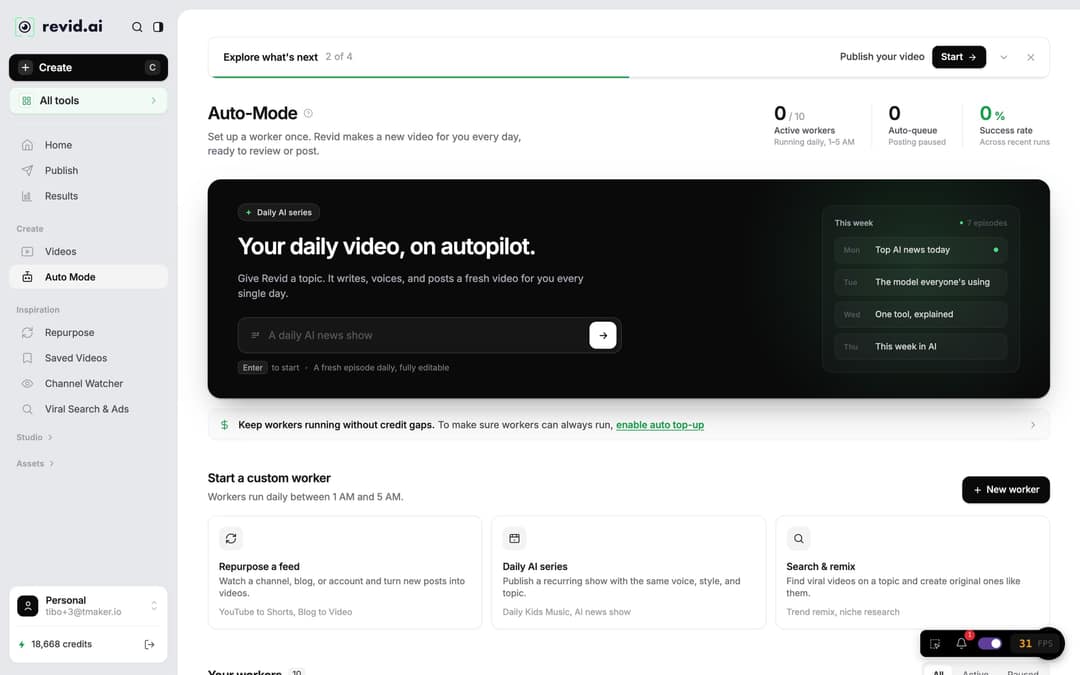
In the left sidebar, under Create, click Auto Mode. It opens /automations, a page headed "Auto-Mode". Older guides point to an automations tab inside Videos: that path no longer exists.
Under "Start a custom worker", click New worker. The "Repurpose a feed" card ("Watch a channel, blog, or account and turn new posts into videos") leads to the same kind of worker. On an account with no workers yet, you also see templates, including "YouTube to Shorts". That template uses the Voiceover Video format, which writes and voices a new script instead of cutting clips from your footage, so change the format in step 4 if you want real clips.
Step 2: Name the worker and pick Repurpose Fresh Content
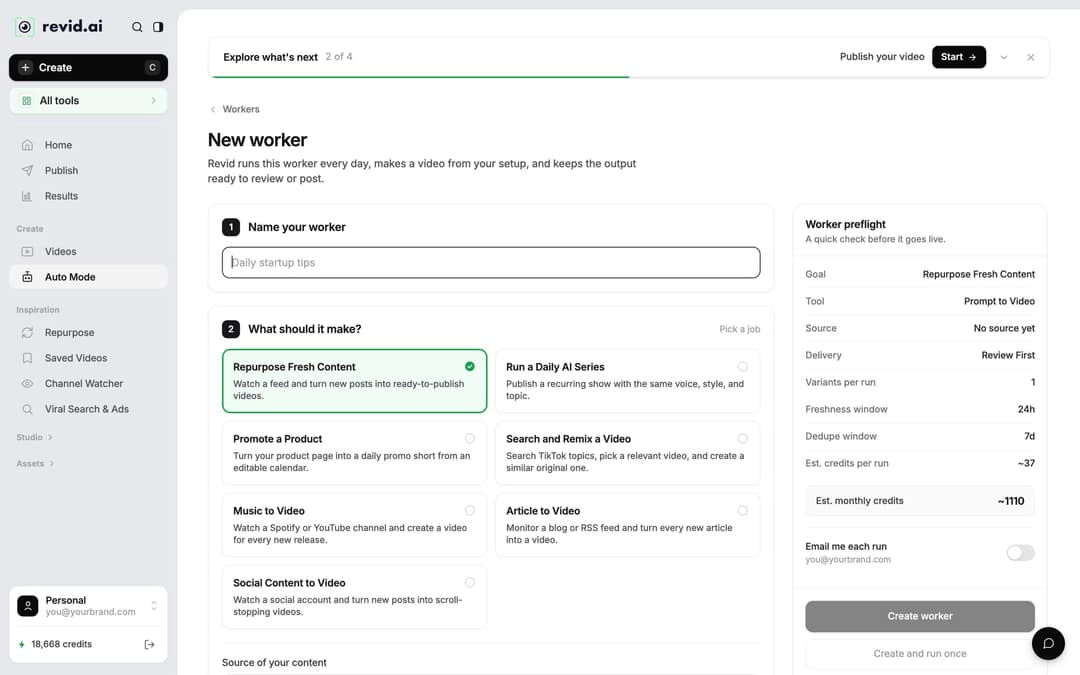
The New worker page has three numbered steps on the left and a "Worker preflight" panel on the right.
- Under 1 Name your worker, type a name you will recognize in your list, such as "Channel to Shorts".
- Under 2 What should it make?, select Repurpose Fresh Content ("Watch a feed and turn new posts into ready-to-publish videos").
Step 3: Paste your YouTube channel as the source
In Source of your content, paste the channel URL, in the same form as Revid's own YouTube channel link (youtube.com/@handle).
- Channel or playlist: both work. A playlist is the cleanest way to send only some videos (for example, your tutorials) to the worker.
- Several sources: separate them with commas.
- Single video links: refused. To clip one video, use the method further down.
The optional "Tell the AI what to do" box steers what the worker picks and how it edits. Useful instructions: "Open every Short on the most surprising line", "Skip intros and sponsor reads", "Keep only the practical steps".
Step 4: Choose the format: real clips or a new voiceover
Under 3 Pick the format, the tool picker lists the formats that fit this job. For YouTube, two make sense:
| Format | What each Short contains | Choose it when |
|---|---|---|
| YouTube Long to Shorts (YouTube Clip Maker) | Real segments cut from your upload, reframed to vertical | You are on camera, or your footage is the point |
| Voiceover Video | A new AI-written script read by an AI voice, with captions and new visuals | Your uploads are long talks you want summarized |
YouTube Long to Shorts adds two settings:
- How many extracts do you want? 1, 2 or 3 Shorts from each source video.
- Auto-reframe video: on by default. It crops landscape footage to the mobile ratio and costs 10 extra credits.
Below them are the normal creation options: media type, voice, music and "Advanced options". Under Advanced options, "Choose your screen ratio" should stay on portrait (9:16) for Shorts. If you add text overlays, check them against the YouTube Shorts safe zone so the like and comment buttons do not cover them.
Step 5: Decide how the Shorts get delivered
"How should this worker deliver videos?" has two options:
- Review First (default): each video lands in Videos and in "Automated outputs" on the Auto-Mode page. You watch it, fix it in the editor if needed, then publish.
- Auto Queue: "Send each successful run to your posting queue." Pick the destination under "Select social accounts". If you save Auto Queue with no account selected, the builder stops you ("Auto Queue has nowhere to post...").
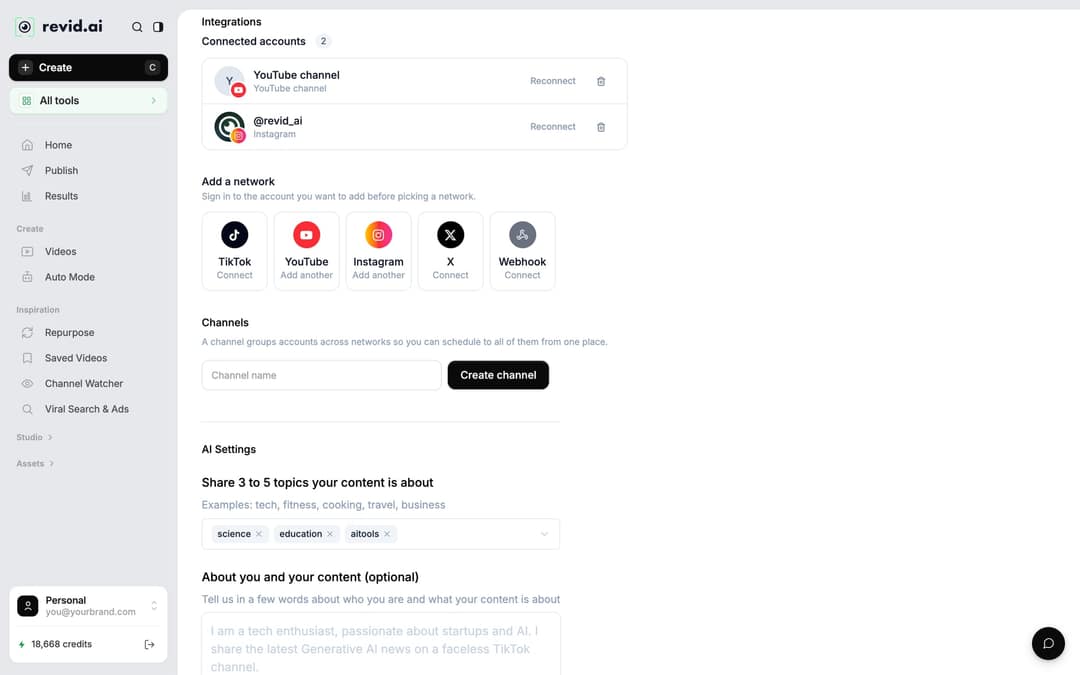
To connect YouTube, open Settings, go to Integrations, and under "Add a network" choose YouTube ("Upload Shorts and videos to a channel"). TikTok, Instagram, X and Webhook are listed there too, so the same worker can feed several platforms through Revid's social media publishing queue.
A sensible rule: run on Review First for the first week. Switch to Auto Queue once the clips stop needing fixes.
Videos include an AI voiceover; clip quotes are AI highlights without one. Clip and motion graphics quotes are minimums: the final charge depends on the source video or the footage generated. AI video clips are on the Pro model; the Base model costs 110 credits for 30 s.
Source: Revid public endpoint POST /api/public/v3/calculate-credits, queried October 29, 2026: workflow video-to-clips with 1 and 3 outputs, and prompt-to-video at 30 and 60 seconds with each media type. Cents = credits x $39 / 2,000, rounded.
Show the data
| Credits | US cents on Growth | |
|---|---|---|
| 1 clip from a YouTube link | 1 | 2 |
| 3 clips from a YouTube link | 3 | 6 |
| 30 s video, stock footage | 11 | 21 |
| 30 s video, animated AI images | 37 | 72 |
| 60 s video, animated AI images | 75 | 146 |
| 30 s video, motion graphics (estimate) | 190 | 371 |
| 30 s video, AI video clips (Pro model) | 341 | 665 |
Step 6: Check the preflight and create the worker
The Worker preflight panel sums up your setup: Goal, Tool, Source, Delivery and Est. credits per run. Est. monthly credits is that estimate times 30, one run per day. Turn on "Email me each run" if you want a message after every run.
Click Create worker to start tomorrow's cycle, or Create and run once to get a first video now (that run uses credits).
What the worker does each day
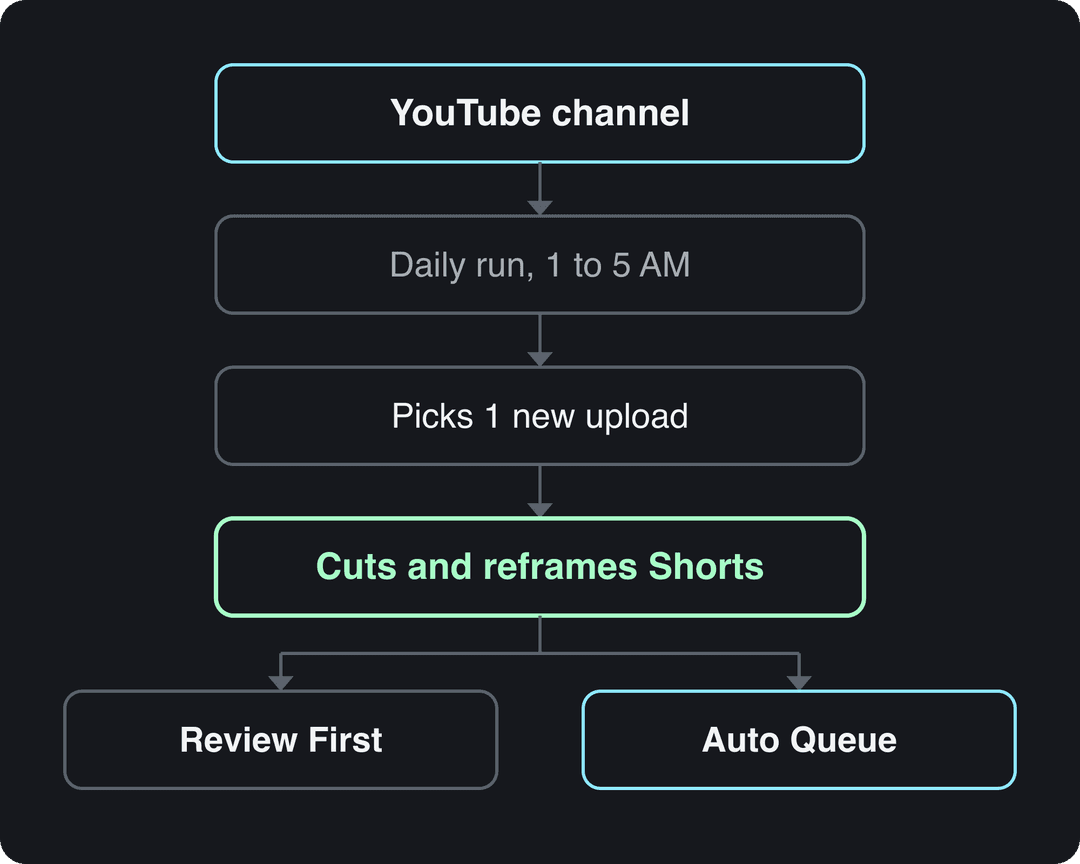
The worker follows fixed rules, so it helps to know them before you rely on it:
- It runs once a day at a fixed hour between 1 AM and 5 AM, in your account's timezone. The worker drawer shows the time as "Daily around X AM".
- It reads the channel's 5 latest videos.
- It prefers videos posted in the last 3 days and skips any video used in its last 3 runs.
- It picks one video per run, then makes 1 to 3 Shorts from it, depending on your extracts setting.
- If nothing is left to use, the run is marked "Skipped".
If you upload less often than every 3 days, the worker can fall back to older videos among your latest 5. A video it used a while ago can then come back. If you upload weekly and do not want repeats, keep Review First on, or pause the worker between uploads.
Manage a running worker
Your workers appear under "Your workers", with All, Active and Paused filters. Each row has an on/off toggle, a run history and a menu with Edit worker, Run once, Clone worker and Delete worker. Run once asks for confirmation because it consumes credits.
Credits work the same as making the video by hand: the run is estimated, your balance is checked, then the build is charged. A run starts with as little as 1 credit, but if the balance is too low for the video, the run fails. Revid then tries auto top-up and emails you. The "enable auto top-up" strip on the Auto-Mode page sets this up. If your subscription ends, the scheduler turns your workers off.
Videos built
Clipping and captioning your own footage together are under 3% of builds: Revid is mostly used to make videos that did not exist, which is the gap a clipper leaves.
Source: Revid analytics (Amplitude), event project_built grouped by tool, September 29 to October 28, 2026 (UTC), day interval; 76,561 builds across the 45 most-used tools, the 9 largest shown.
Show the data
| Videos built | |
|---|---|
| A prompt | 33,514 |
| A topic or script | 14,706 |
| A song | 12,381 |
| An audio file | 4,330 |
| An article or link | 1,294 |
| Footage to swap a character in | 1,203 |
| Captions on your own video | 999 |
| Clips from a YouTube video | 973 |
| A talking avatar script | 745 |
Make Shorts from one YouTube video without a worker
Workers only watch channels, playlists and feeds. To clip a single video right now:
- Click Create at the top of the sidebar (shortcut C).
- Open More tools (or All tools) and choose YouTube Long to Shorts.
- Paste the video link and set the number of extracts and auto-reframe.
- Check the Estimated cost, then click Generate video.
- Open the result in the editor to trim, change captions or regenerate the voice before you publish.
The YouTube Clip Maker page explains the same tool on its own.
Keep automated Shorts within YouTube's rules
Automating production does not change what YouTube accepts:
- Square or vertical videos up to 3 minutes long count as Shorts.
- Any Short longer than one minute with an active Content ID claim is blocked worldwide and cannot be monetized. Music playing in the background of your long video can trigger a claim, so keep claimed clips under a minute or cut that section.
- YouTube's "inauthentic content" policy (renamed from "repetitious content" on July 15, 2025) blocks monetization for repetitive or mass-produced content. Its reused content policy also covers videos that only read out material you did not write.
For the wider strategy (posting cadence, what to automate and what to keep manual), see the guide to YouTube Shorts automation. The same worker setup also runs on other sources: videos from a blog and videos from an X account.
FAQ
Can I automate YouTube Shorts from someone else's channel?
You can technically, but you should not without written permission. Reposted footage risks Content ID claims (which block Shorts over one minute worldwide) and YouTube's reused content policy, which can stop monetization across your channel.
How much does an automatic YouTube Shorts worker cost?
Each run costs the same credits as making that video by hand, and the Worker preflight shows the estimate per run and per month before you save. Workers need a paid plan, starting with Growth at $39/month for 2,000 credits and 3 workers.
Why didn't my worker make a video today?
The usual causes are no usable video (the run shows "Skipped"), a credit balance too low for the build (the run fails and Revid emails you), or an ended subscription (workers are turned off). The run history on the worker tells you which.
How do you make long videos with AI?
You assemble them from many short generated scenes, because AI video models produce short clips (Google's Veo 3.1, for example, makes 4, 6 or 8-second clips). Revid builds multi-scene videos with a timeline editor but is designed for short-form. For long-form or cinematic work, an editor such as Premiere Pro or DaVinci Resolve fits better.
Can you fully automate a YouTube channel?
You can automate making and posting Shorts, but YouTube will not monetize AI content made from generic templates that looks mass-produced without your own input. The YouTube automation guide covers which parts to automate and which to keep hands-on.
Sources
- Revid public endpoint POST /api/public/v3/calculate-credits, queried October 29, 2026: workflow video-to-clips with 1 and 3 outputs, and prompt-to-video at 30 and 60 seconds with each media type. Cents = credits x $39 / 2,000, rounded.
- Revid analytics (Amplitude), event project_built grouped by tool, September 29 to October 28, 2026 (UTC), day interval; 76,561 builds across the 45 most-used tools, the 9 largest shown.
- YouTube Official Blog, New opportunities to earn and changes to the YouTube Partner Program (August 2026)
- YouTube Official Blog, Tall updates coming to Shorts (October 2024)
Charts and figures checked on November 6, 2026.