Website Walkthrough Video With an AI Avatar: 8 Steps (2026)
Turn a script and a URL into a website walkthrough video presented by an AI talking avatar in Revid, with the current interface, a script template and data on how much to talk.

On this page
To make a website walkthrough video with an AI avatar, open Revid's website review video tool, paste your script and the page URL, choose a voice and an avatar, and click "Generate video". The avatar reads your script over the site, and you can then edit the video, export it or publish it to TikTok, Instagram or YouTube.
Screen-based videos start with an edge. In Revid's analysis of 176,367 TikToks with 1,000+ likes posted between October 2025 and October 2026, screen recordings had a median of 91K views, ahead of handheld (80K), tripod (77K) and selfie footage (48K); only POV shots did better (107K). The sample only holds videos that already cleared 1,000 likes, so it shows what strong videos share rather than proving cause. The full study on what makes a TikTok go viral explains the method.
POV shots and screen recordings earned the most views. Selfie-style videos, the default for many creators, earned the least.
Source: Revid analysis of 176,367 TikToks with 1,000+ likes posted between Oct 1, 2025 and Oct 16, 2026 (61,203 creators)
Show the data
| Median views | Share that passed 1M views | |
|---|---|---|
| POV | 107.3K | 19% |
| Screen recording | 90.7K | 12.7% |
| Handheld | 79.8K | 14.5% |
| Steady cam | 78.2K | 14.9% |
| Drone | 83.4K | 14.9% |
| Tripod | 77.4K | 15.5% |
| Selfie | 48.4K | 9.2% |
- Median TikTok views for screen recordings, vs. 48K for selfie footage
- 91K
- Revid analysis of 176,367 TikToks
- Median views for TikToks with under 40 characters of speech, vs. 68K for 300+
- 123K
- Revid analysis of 176,367 TikToks
- AI voices available for the avatar, in 70+ languages
- 1,000+
- Revid
- Avatar narration cost per 500 characters of script on the Low tier
- 80 credits
- Revid pricing
What you need before you start
- A script: what the avatar will say. Short beats long (the data is further down).
- The exact page URL: the page viewers will see on screen, not just your homepage.
- A presenter: a photo or video of yourself, or of someone who has agreed to be the avatar.
- Credits: sign-up is free and new accounts get free credits to try video creation. Regular creation uses the monthly credits of a paid plan, from $39/month.
Typical uses: a SaaS founder demoing a pricing or feature page, an agency reviewing a client's site, a creator reviewing a tool, or a store owner showing a new collection.
How to make an AI walkthrough video in Revid, step by step
Step 1: Open the website review tool
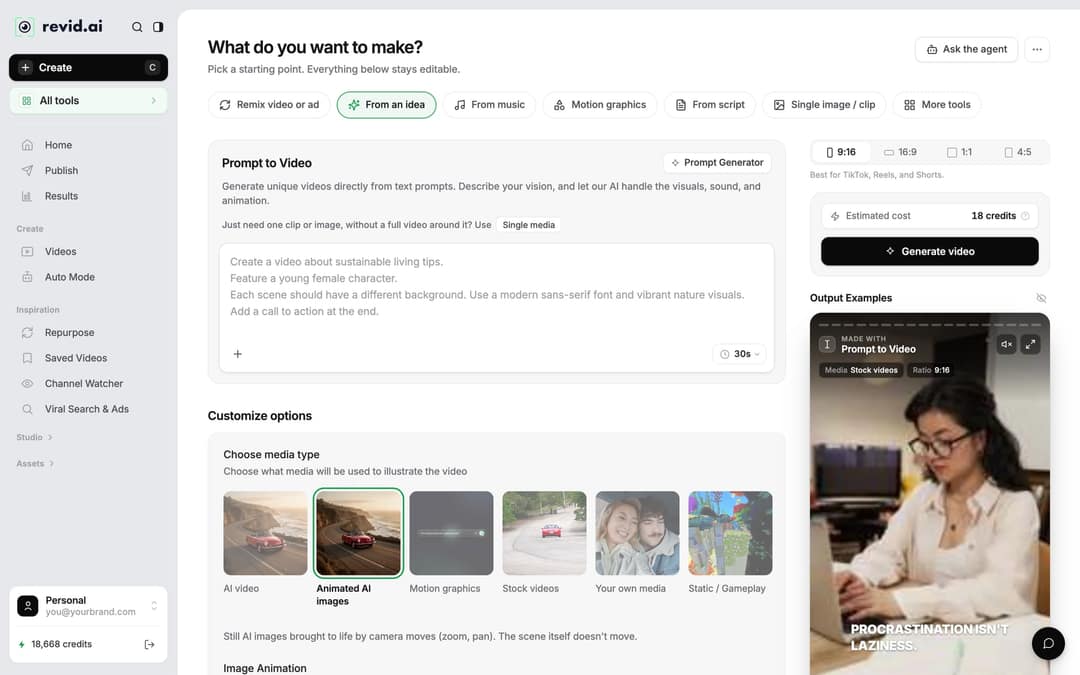
Click "Create" at the top of the sidebar (or press C). This opens the Create page, "What do you want to make?", with starting points such as "From an idea" and "From script". The website review tool is not one of those chips: find it through the "All tools" card just below "Create" in the sidebar, or open the website review video generator directly.
If you followed an older guide: the "+ Create New Video" button is gone. "Create" replaced it.
Step 2: Write the script the avatar reads
Paste your script into the script box. The script sets the length and pace of the whole video, so it deserves more care than any other step. If you are starting from nothing, draft one with the free AI script generator, then cut it down.
Three formatting tools work in Revid scripts:
| What you type | What it does |
|---|---|
| A new line | Tells Revid to generate new content for that part of the script |
[square brackets] | A note for the visuals, not read aloud |
<break time="1.0s" /> | A pause, up to 10 seconds |
Two voice caveats: Gemini and Kling voices drop the break tag and do not pause, and newer ElevenLabs voices (v3 and v4) read bracketed words as acting directions, such as [whispers]. If a pause or a bracket note matters, test it with your chosen voice.
Step 3: Paste the exact page URL
Enter the URL of the page you want on screen. If the video is about one product or feature, paste that page's URL rather than the homepage, so every line of the script matches what viewers see. Double-check it: this page is the backdrop for the entire video.
Step 4: Choose the voice and the avatar
Revid has 1,000+ AI voices in 70+ languages, and the voice picker filters by language. A simple rule: a calm, lower voice for product demos and B2B pages, a brighter voice for reviews and consumer products. If you want the avatar to sound like you, voice cloning is available on the Elite plan and above.
For the avatar, upload a photo or video of yourself (or of someone who has agreed) and Revid animates it into a talking avatar. If you want a famous face to present instead, the celebrity video generator covers that format. Avatar narration is billed per 500 characters of script: 80 credits on Low, 100 on Pro and 200 on Ultra, which is one more reason to keep the script tight.
Step 5: Set the ratio and language, then generate
Pick the ratio in the ratio picker before you generate: 9:16 for TikTok, Reels and Shorts, 16:9 for your website or a regular YouTube video, or 1:1 and 4:5 for feed posts. To help the AI with pronunciation and captions, open "Advanced options" > "Language & Localization" > "Language" (the default is "Automatic").
The "Estimated cost" sits next to "Generate video", so check it, then click "Generate video". If a build fails, Revid refunds the credits automatically. The "More options" panel with caption presets that older guides describe has moved: caption styling (30 styles) now lives in the editor's "Captions" panel.
Step 6: Fix lines in the Script panel
Open the finished video from "Videos" in the sidebar: click its card, or use "Open in editor" in the card menu. The left rail reads "Script", "Text", "Media", "Transitions", "Audio", "Captions" and "Settings". The old "Frames" panel is now the "Script" panel.
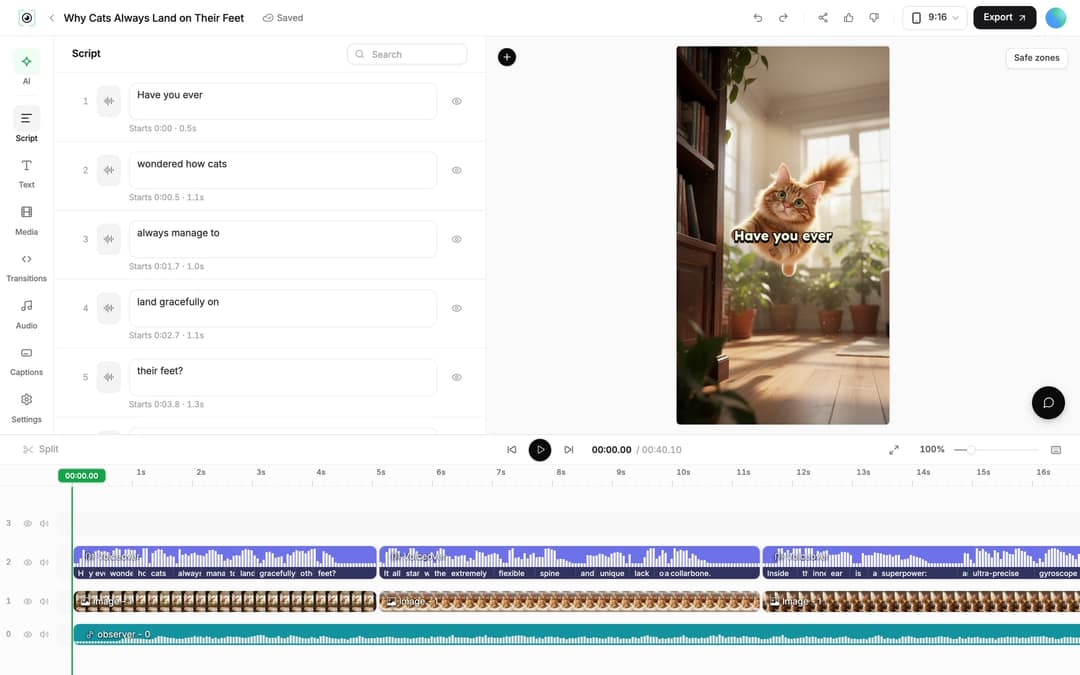
The Script panel lists every caption segment with its text box, its start time and an eye toggle to hide it. Fix typos or rewrite a line in place. When you change the words, Revid reminds you to re-generate the voice and avatar if the timing changed.
Step 7: Re-generate the voice and polish
Open "Audio" in the left rail. Under "Project Voiceovers", each voiceover has "Edit" and "Re-generate". You can also select the voiceover clip on the timeline and click "Re-generate Voiceover" ("... and Avatar" on avatar videos). In the dialog, check the text under "Edit Input Text", keep "Keep timeline in sync" on so clips, text and music follow the new timing, then click "Generate Voice".
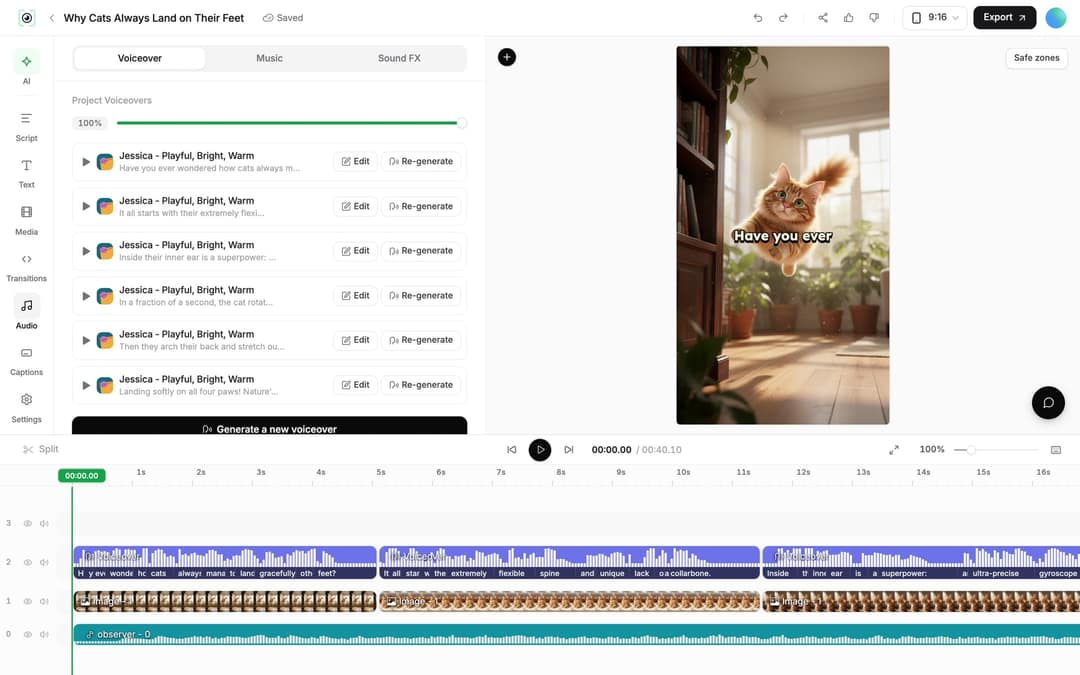
Re-generating costs 10 credits per started 500 characters, and an avatar adds twice that on top; it is available on paid plans only. Then finish the edit:
- Music and sound effects: the "Music" and "Sound FX" tabs of the Audio panel (199 built-in tracks).
- Stickers, stock and your own files: the "Media" panel ("Library", "Stock", "Stickers", "Effects"); drag files in to upload.
- Transitions: the "Transitions" panel.
- Trims: drag a clip's edge on the timeline, or press S to split at the playhead.
Step 8: Export or publish
Click "Export" in the editor header (it reads "Export / Publish" on free accounts). Revid exports in 720p, 1080p or 4K at 30 or 60 fps; a 4K export costs 10 credits.
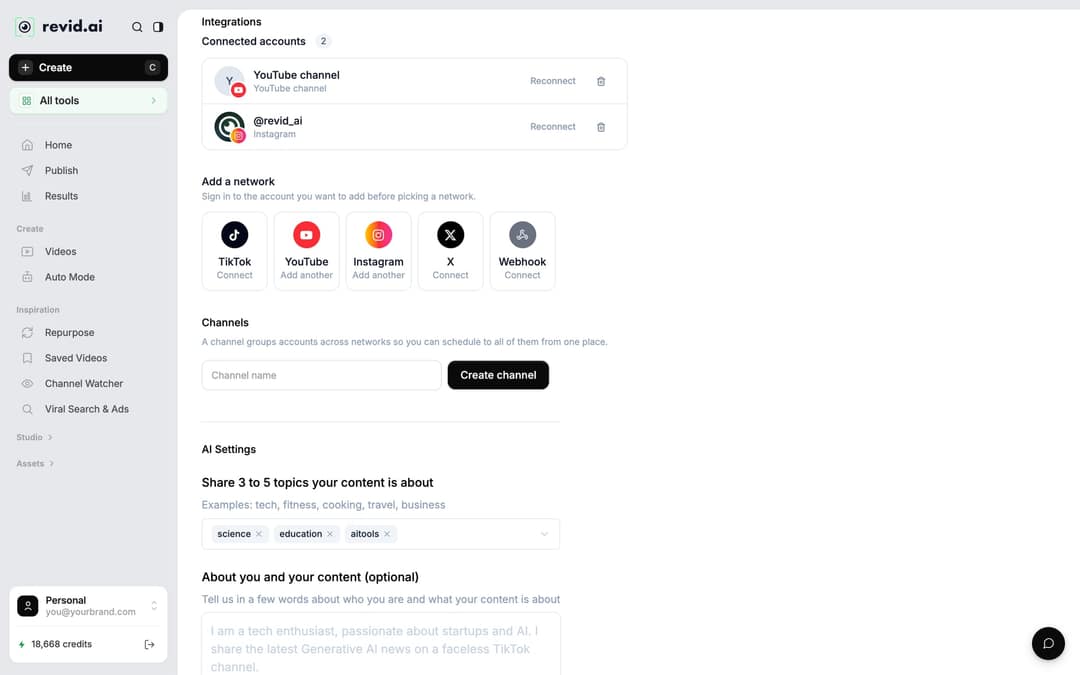
To post directly, connect your accounts first in Settings > "Integrations" > "Add a network": TikTok, YouTube, Instagram (a Business or creator account is required), X and Webhook. Then use "Publish" on the project card or in the editor, choose where under "Publish to", and click "Publish" to post now or "Add to queue" to schedule it with your other posts.
How to write a walkthrough script that holds attention
Less talking tends to help. In the same Revid TikTok analysis, videos with under 40 characters of speech had a 123K median, while videos talking throughout (300+ characters of speech) had 68K, and silent videos sat at 73K. A walkthrough needs narration, so silence isn't an option, but every sentence should point at something the viewer can see.
Videos with just a few spoken words (a line or two) beat both silent videos and videos that talk the whole way through, which were the most common and the weakest.
Source: Revid analysis of 176,367 TikToks analyzed by AI, with 1,000+ likes posted between Oct 1, 2025 and Oct 16, 2026 (61,203 creators)
Show the data
| Median views | Share that passed 1M views | |
|---|---|---|
| No speech | 73.3K | 14.3% |
| Under 40 | 122.7K | 20.2% |
| 40 to 120 | 97.2K | 17.6% |
| 120 to 300 | 91.6K | 16.8% |
| 300+ | 67.7K | 11.9% |
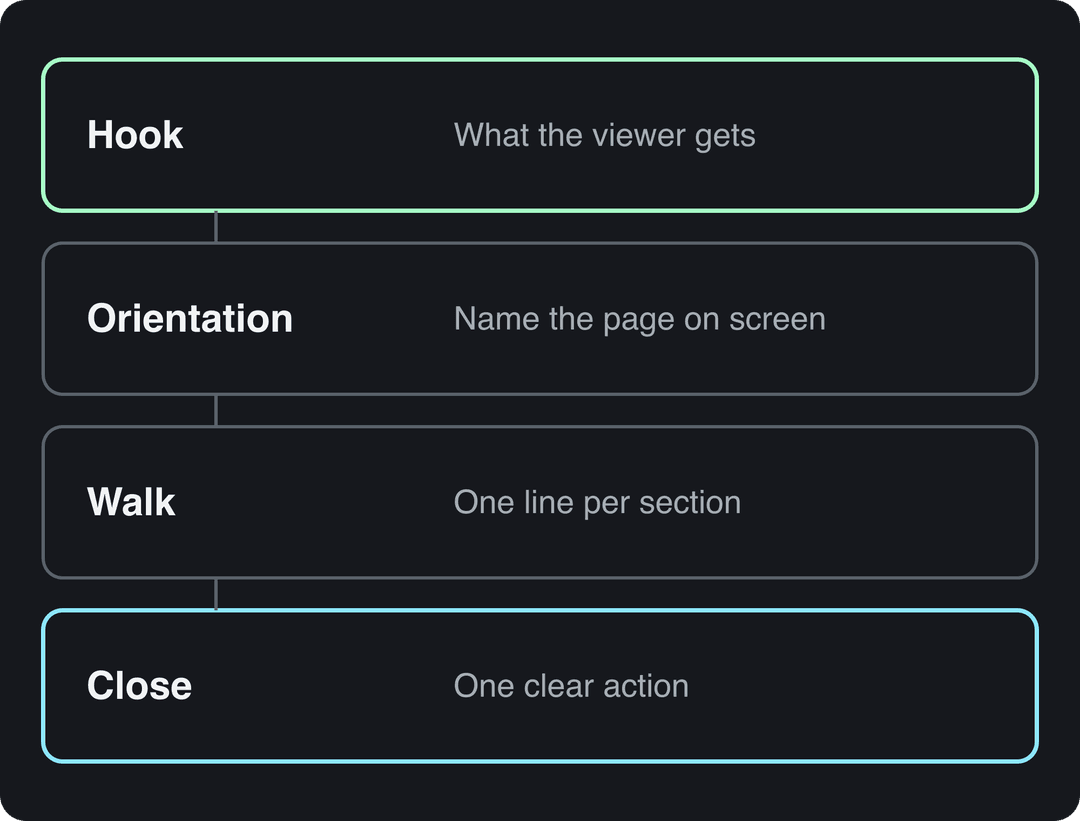
Use this four-part structure:
- Hook: one line on what the viewer gets ("Here's how to find X without digging").
- Orientation: name the page that's on screen.
- Walk: one sentence per section, in the order the page scrolls.
- Close: one action (sign up, bookmark, try the free plan).
A typical first draft opens with "Welcome to The Verge, your go-to source..." and leans on filler like "be sure to" and "simply". Here is the same walkthrough, tightened:
Here's how to find The Verge's best reviews without digging. Start on the homepage: the top stories are the day's biggest tech news. Scroll down for trending topics and the featured videos. Need a buying decision? Open Reviews in the top menu for phones, laptops and consoles. Bookmark it and check back daily.
It names what is on screen in scroll order and ends with one action. Paste a script like this into the script box, and add a <break time="1.0s" /> before the close if you want a beat while the page settles.
Prompt to try
Script for a 30-second 9:16 walkthrough of a SaaS pricing page, read by a calm presenter: "Here's how to pick the right plan in under a minute. This is the pricing page. The free plan covers one project. The Pro plan adds team seats and exports. Scroll down for the comparison table. <break time="1.0s" /> Start free and upgrade when you need to." Use the pricing page URL as the backdrop.
Tips for a polished walkthrough
- Tie every line to the screen. If a sentence doesn't describe what's visible or what to do next, cut it. Shorter scripts also cost fewer avatar credits.
- Pick the avatar for the job. Your own face builds trust in product demos; a playful presenter suits lighthearted reviews.
- Set the ratio before you generate. 9:16 for TikTok, Reels and Shorts; 16:9 for a landing page or YouTube.
- Check captions with the sound off. Most viewers start muted, so the captions have to carry the walkthrough on their own.
What to make next
If you only need a presenter without a website on screen, the AI talking avatar tool turns any text or URL into an avatar video. To turn an article into a narrated short instead, use the blog to video converter.
FAQ
What is a website walkthrough video?
It's a short video that shows a website on screen while a narrator explains what to look at and what to do. With an AI avatar, a talking presenter reads the script, so you don't have to film yourself.
Do I need to record my screen myself?
No. You enter the website URL in Revid's website review tool and the avatar presents the site while reading your script.
How long should a website walkthrough video be?
As long as the script needs to cover the page, and no longer. In Revid's TikTok analysis, every length bucket from under 15 s to 10 min had a median between 58K and 76K views, so cutting filler matters more than hitting a target length.
Is Revid free to use?
Sign-up is free, with no credit card needed, and new accounts get free credits to try video creation. Regular creation then uses the monthly credits of a paid plan, starting at $39/month; the Revid pricing page has the live price list.
Can I translate a walkthrough video into another language?
Yes. Choose "Translate" in the project card menu to open the AI video translator, pick one of 74 target languages and generate; the edit, media, timing and captions are kept. It costs 10 credits per 500 characters per voice segment, plus the avatar lip-sync again.
Sources
- Revid analysis of 176,367 TikToks with 1,000+ likes posted between Oct 1, 2025 and Oct 16, 2026 (61,203 creators)
- Revid analysis of 176,367 TikToks analyzed by AI, with 1,000+ likes posted between Oct 1, 2025 and Oct 16, 2026 (61,203 creators)
Charts and figures checked on November 6, 2026.