How to Make a Highlight Video: 7 Steps, Lengths and Clip Counts
A step-by-step method to make a highlight video: log your footage, pick clips, open with your best moment, cut to music and export for each platform, with lengths, clip counts and AI options.
On this page
To make a highlight video, watch your footage once and mark the strongest moments, trim each to a few seconds, and open with your best clip. Then cut to the beat of a licensed track, add captions and a title, and export an MP4 in the platform's shape: 9:16 for TikTok, Reels and Shorts.
The most common mistake is telling the event in order. The first clip shows the parking lot or the warm-up, and the viewer is gone before the goal, the speech or the first dance. A highlight video is not a summary: it is the moments people would rewind, arranged so the first one is strong enough to stop a scroll.
- Typical length of a single highlight clip
- 2-6 s
- Revid guide
- Clips in a 60-second cut built from 4-second clips
- 15
- Revid guide
- Shares per 100 views for TikToks under 15 seconds, the most of any length
- 1.41
- Revid analysis of TikToks
- Longest vertical or square video that counts as a YouTube Short
- 3 min
- YouTube Official Blog, October 2024
How to make a highlight video in 7 steps
1. Pick the platform and the target length first
The destination decides the shape and the length, so choose it before you open an editor. A vertical 9:16 cut goes to TikTok, Instagram Reels and YouTube Shorts; a 16:9 cut goes to a regular YouTube video, a website or a screen at the event.
If you need both, edit one master and reframe the other version with a tool like Revid's video resizer, or frame your shots wide enough to crop later. Write the target length down (see the length table below): a fixed length forces the hard cuts you would otherwise avoid.
2. Log your footage in one pass
Watch everything once, start to finish, and drop a marker every time something happens. The M key adds a marker in Premiere Pro, Final Cut Pro and DaVinci Resolve. Grade each marker as you go:
- A: you would rewind it. It goes in.
- B: good, but only if the story or the beat needs it.
- C: anything that needs explaining. It stays out.
Logging first is the biggest time saver in highlight editing: you build from a short list instead of scrubbing hours of footage while making creative decisions.
3. Choose clips that earn their place
Pull your A clips onto the timeline and check each one against five tests:
- Peak action: the goal, the trick, the punchline, the toast. Start the clip just before it happens, not long before.
- Reaction: a face, a crowd, a bench jumping up. Reactions tell viewers the moment mattered.
- Clean image: in focus and steady enough to read. A sharp B clip beats a shaky A clip.
- Variety: alternate wide shots, close-ups and reactions so two similar angles never sit side by side.
- Sound: a cheer, a laugh or a clear line of dialogue. Natural sound often lands harder than music.
Rule of thumb: if two clips show the same kind of moment, keep the better one and cut the other.
4. Build the sequence: hook, build-up, peak, ending
Open with one of your two strongest clips, because the first seconds decide whether anyone stays. Use the middle to build: shorter clips, rising energy and the context viewers need. Save your other top moment for the peak, then end on a clean shot with the name, the date or a next step (follow, register for next year, get in touch).
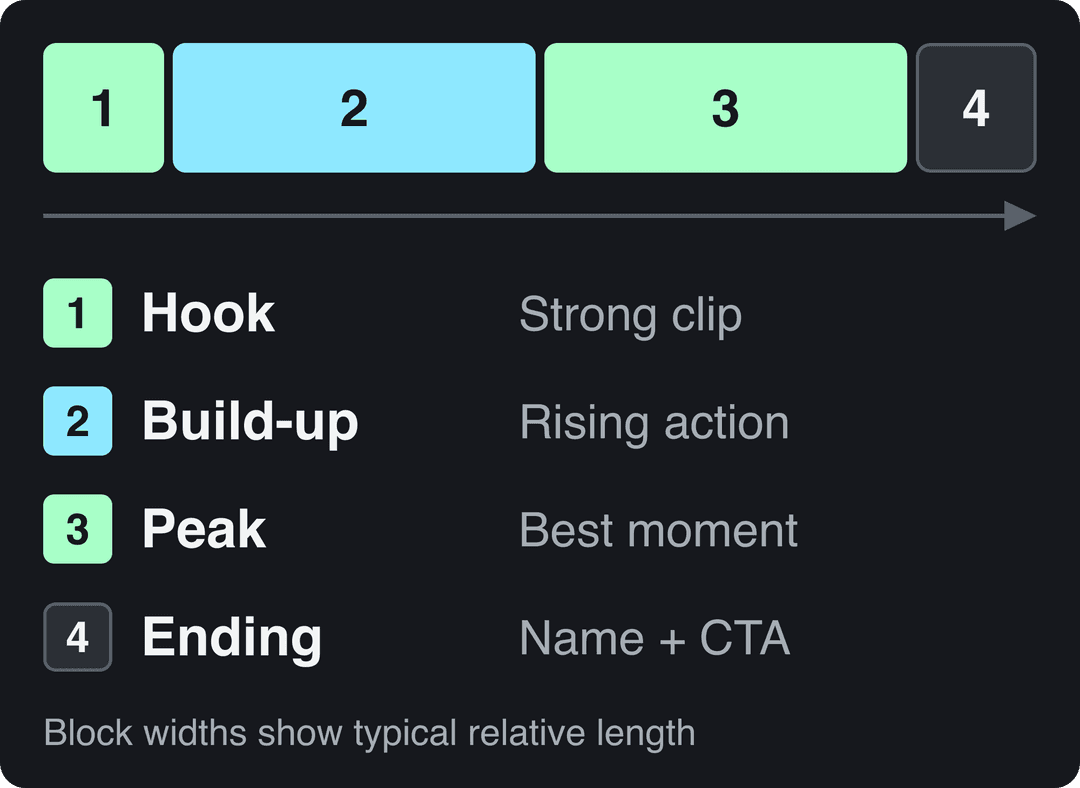
Chronological order is fine inside the build-up when the story depends on it, such as a match that turned around or a wedding day. Just never let chronology choose your first clip.
5. Cut to the music
Choose the track before you fine-cut, then put your cuts on the beat and land the peak on the drop or the chorus. Keep natural sound up at key moments (the crowd roar, the line from the speech) and lower the music under them. Fade the music out at the end instead of stopping mid-bar.
Use music you have the rights to: the YouTube Audio Library, licensed libraries such as Epidemic Sound or Artlist, or the platform's own sound library when you post in the app.
6. Add a title, captions and branding
Put a short on-screen line in the opening seconds that says who, what and when. Add automatic captions to every spoken moment so the video works with the sound off, and keep lower-thirds to a few words.
Place your logo small in a corner, and keep all text inside the TikTok safe zone so the app's buttons and caption don't cover it. Use one font and one style for every text element.
7. Export and post
Export an MP4 file at the frame rate you filmed: fast sports look smoother at 60 fps if you shot at 60. Use these sizes:
| Destination | Aspect ratio | Resolution | Limits to know |
|---|---|---|---|
| TikTok | 9:16 | 1080x1920 (TikTok's recommendation) | Uploads up to 60 minutes |
| Instagram Reels | 9:16 | 1080x1920 | Minimum 30 FPS and 720 px; reels over 3 minutes are not recommended to non-followers |
| YouTube Shorts | 9:16 or square | 1080x1920 | Vertical or square videos up to 3 minutes count as Shorts |
| YouTube video, website, event screen | 16:9 | 1920x1080 or 4K | YouTube uploads are capped at 15 minutes until the account is verified |
Post the vertical cut natively on each platform instead of sharing a link, and write a caption that names the event, team or person so search can find it. If you publish the same highlight to several platforms, schedule the posts from one queue.
The index leans toward videos that surface in hashtag and keyword searches, so its view counts run high: compare the groups, not the absolute numbers.
Source: Revid TikTok index: 2,377,477 TikToks with AI labels per video, snapshot of Sep 15, 2026. Median views estimated from view buckets.
Show the data
| Median views | Share past 1M views | |
|---|---|---|
| #pets | 209.3K | 35.5% |
| #nature | 190.9K | 32.2% |
| #cars | 134.3K | 27.4% |
| #food | 110K | 22.5% |
| #sports | 81.8K | 17.8% |
| #travel | 72.4K | 18.5% |
| #fashion | 63.7K | 15.4% |
How long should a highlight video be?
Let your A clips set the length, then check it against the type of highlight and the platform's limits:
| Highlight type | Target length | Why |
|---|---|---|
| TikTok, Reels or Shorts cut | As long as your A clips fill, usually under a minute | Shorts over one minute with a Content ID claim are blocked; Reels over 3 minutes are not shown to new audiences |
| Event recap (website, client, sponsor) | 1 to 3 minutes | Long enough to show the program, short enough to watch to the end |
| Sports recruiting tape | As short as your best plays allow | Assume the viewer may stop after the opening clips |
| Personal recap (trip, wedding, season) | The length of one song | One track gives you a natural start, build and ending |
On social platforms, length matters less than most editors think. In Revid's analysis of 176,367 TikToks with 1,000+ likes posted between October 2025 and October 2026, every length bucket from under 15 seconds to 10 minutes had a median between 58K and 76K views, and videos of 61 to 90 seconds had a 70K median. Videos under 15 seconds had the lowest median (58K) but the most shares per view (1.41 per 100). This is TikTok data on videos that already passed 1,000 likes, so it shows what successful videos have in common, not what causes success; the method is in Revid's TikTok virality study.
Length alone barely moves views: every bucket lands between 58K and 76K median views (the 790 videos over 10 minutes are a small, unusual group). Clips under 15 seconds get shared the most per view.
Source: Revid analysis of 176,367 TikToks with 1,000+ likes posted between Oct 1, 2025 and Oct 16, 2026 (61,203 creators)
Show the data
| Median views | Share that passed 1M views | Shares per 100 views | |
|---|---|---|---|
| Under 15 s | 57.6K | 11.6% | 1 |
| 16 to 30 s | 64.9K | 12.3% | 1 |
| 31 to 60 s | 61.8K | 11.8% | 1 |
| 61 to 90 s | 70.5K | 12.2% | 1 |
| 91 s to 3 min | 63.4K | 11.1% | 1 |
| 3 to 10 min | 76.4K | 12.4% | 1 |
| 10 min+ | 129.6K | 13.8% | 0 |
The practical rule: a 15-second cut of one great play is built to be shared, and a 90-second recap is not penalized for its length. Cut to the moments you have, not to a number.
How many clips should be in a highlight video?
Divide your target length by your average clip length. Most highlight clips run 2 to 6 seconds; full sports plays run longer because the viewer needs the setup and the result. A 60-second social cut built from 4-second clips holds about 15 clips.
Match clip length to the music: a faster tempo calls for shorter clips. If you have more A clips than slots, drop whole clips rather than shaving seconds off each one. Fewer complete moments beat many fragments that never pay off.
How to create a highlight video from a long video with AI
AI highlight tools scan a long recording, pick moments and cut them into short clips. An automatic highlight video tool removes most of the logging work; you still decide which moments matter.
Pick the tool by the footage you have:
- Talking recordings (podcasts, streams, webinars): clipping tools such as OpusClip, Klap and Vizard find highlight moments, reframe them to 9:16 and add captions; OpusClip and Klap also give each clip a virality score.
- Game footage, a YouTube link or a long video you want turned into vertical clips: Revid covers these, along with editing and publishing.
How to make highlights with Revid
- For sports footage, upload the raw video to the AI sports highlights generator to get a short highlight video.
- For highlights from a YouTube video, paste the link into the YouTube clip maker, which turns it into short vertical clips.
- For any other long recording, use the long video to short video converter.
- Open the result in the timeline editor to swap or trim clips, pick one of 30 caption styles, and export in 720p, 1080p or 4K at 30 or 60 fps.
- Publish or schedule the clips directly to TikTok, Instagram and YouTube.
If cutting many clips from your own long recordings is your main job, a dedicated clipper may fit better; Revid vs OpusClip lays out the trade-offs. Whatever tool you use, review every AI pick before posting: the AI predicts what will perform, but it cannot know that the quiet assist was the play your coach wanted to see.
How to make an event highlight video
An event highlight video is mostly made at the shoot. Film with the edit in mind:
- Shoot short takes of a few seconds each instead of long rolling clips you will have to scrub later.
- Get the five shots every event recap needs: a wide shot of the full venue, the key moment on stage, crowd reactions, close-up details (signage, food, products) and candid moments between people.
- Record clean audio of one or two lines worth quoting, such as a keynote line or a toast, with a mic close to the speaker.
- Shoot some vertical footage, or frame wide enough to crop a 9:16 cut later.
In the edit, open on the highest-energy shot (the loudest crowd moment, the reveal), not the outside of the venue. Use one quoted line as the spine of the video, and end on the event name and the date of the next edition.
How to make a highlight tape for sports recruiting
A recruiting highlight tape has one job: let a coach judge you quickly. Build it like this:
- Title card first: name, position, team, graduation year and contact details.
- Best plays first: your strongest clips go at the top, not at the end.
- Mark yourself: freeze the frame before each play and add a circle or arrow so the coach knows who to watch.
- Whole plays, filmed wide: show the play from setup to result so your positioning is visible.
- Minimal effects: if you use slow motion, replay a play after showing it at full speed, and keep music low or off.
Highlight video or highlight reel: what's the difference?
A highlight video usually recaps one event: a game, a conference, a wedding. A highlight reel collects one person's or brand's best moments across many events, like an athlete's season or an editor's portfolio. The steps above apply to both; for portfolio-style reels, see how to create a highlight reel.
Best software for highlight video editing
| Tool | Best for | Cost |
|---|---|---|
| DaVinci Resolve | Full editing and color correction | Free version available |
| Adobe Premiere Pro | Professional editing with advanced features | Paid subscription |
| Final Cut Pro | Mac editors who want a professional tool | Paid, Mac only |
| iMovie | Beginners on Mac and iPhone | Free on Apple devices |
| CapCut | Fast editing on phone or desktop, trend templates, auto-captions | Generous free tier with 1080p export |
| Shotcut | Basic to intermediate editing | Free and open source |
| OpusClip, Klap, Vizard | Auto-clipping podcasts, streams and webinars | Paid plans, limited free options |
| Revid | AI highlights from game footage, YouTube links and long videos, with direct publishing | Free sign-up with free trial credits; paid plans from $39/month |
Decision rule: if you filmed the footage and want control over every cut, use DaVinci Resolve or CapCut. If you want highlights pulled out of long recordings automatically, start with an AI tool, then fix the picks in its editor.
FAQ
What is a highlight video?
A highlight video is a short edit of the best moments from longer footage, such as a game, an event or a stream. It keeps only the moments worth rewatching and arranges them so the strongest one comes first.
Should a highlight video be in chronological order?
Not at the start. Open with one of your strongest moments, then use chronological order in the middle only when the story depends on it, such as a comeback.
Can I make a highlight video on my phone?
Yes. CapCut and iMovie both handle trimming, music and captions on a phone, and a vertical 9:16 export is ready for TikTok, Reels and Shorts without reframing.
Is Revid free for making highlight videos?
Sign-up is free, and new accounts get free credits to try video creation with no credit card needed. Regular creation then uses the monthly credits of a paid plan, which start at $39/month. The live price list is on the Revid pricing page.
Sources
- Revid analysis of 176,367 TikToks with 1,000+ likes posted between Oct 1, 2025 and Oct 16, 2026 (61,203 creators)
- Revid TikTok index: 2,377,477 TikToks with AI labels per video, snapshot of Sep 15, 2026. Median views estimated from view buckets.
- YouTube Official Blog, Tall updates coming to Shorts (October 2024)
Charts and figures checked on November 6, 2026.