10 Best Captions Apps for Videos in 2026 (Free and Paid)
The 10 best apps to add captions and subtitles to videos in 2026, which one fits your phone, platform and budget, and how to caption a video without embarrassing typos.
On this page
The best captions app depends on where you edit: CapCut is the strongest free choice on Android and iPhone, Descript and Premiere Pro lead on desktop, and Revid is the fastest web option when you want captions plus the whole video. All of them generate captions automatically; proofread names and numbers before you post.
Captions are how a half-distracted viewer follows you. In Clutch's October 2025 survey of 483 U.S. consumers, only 9% said they give short-form videos their full attention, and 88% said a video has 30 seconds or less to grab them (more short-form video statistics). The common mistake is not skipping captions, it is posting auto captions unchecked: one misheard brand name in the first line costs you more trust than no captions at all.
- Share of U.S. consumers who give short-form videos their full attention
- 9%
- Clutch, November 2025
- Say a video has 30 seconds or less to grab their attention
- 88%
- Clutch, November 2025
- Export quality on CapCut's free tier, with auto captions included
- 1080p
- CapCut free plan
- Media minutes per month on Descript's free plan (720p export)
- 60 min
- Descript free plan
Best captions apps compared
| App | Platforms | Auto captions | Free option | Best for |
|---|---|---|---|---|
| Revid | Web | Yes, 100+ languages | Free sign-up with free credits to try it; regular use on paid plans from $39/month | Captions plus a full AI video, direct publishing |
| CapCut | iOS, Android, desktop, web | Yes | Yes, with 1080p export | Fast social edits on a phone |
| InShot | iOS, Android | Manual text focus | Yes, with limits | Beginners adding simple text |
| Clideo | Web | Subtitle tool | Yes, with watermark | Quick edits without installing anything |
| Adobe Premiere Pro | Mac, Windows | Yes (Speech to Text) | Free trial | Professional editing, custom fonts |
| VEED | Web | Yes, plus translation | Yes, 720p with watermark | Browser captioning and translation |
| Subly | Web | Yes, plus translation | Free trial | Accessibility and compliance work |
| Descript | Desktop | Yes | Yes, 60 media minutes a month | Talking videos and podcasts |
| AutoCap | iOS, Android | Yes | Free to start | One-job mobile captioning |
| Kapwing | Web | Yes | Yes, with watermark | Teams editing together |
The list is in no particular ranking: pick by the column that matters most to you (usually platform and free option).
US dollars per month
The plans do not buy the same thing: OpusClip, Vizard and Quso sell minutes of uploaded video, Klap sells clips, Submagic sells videos, Descript and Kapwing sell seats, and Revid sells credits that also make new videos from scratch. Billed yearly, most of these drop by 30 to 50%.
Source: Vendor pricing pages read October 29, 2026. Vizard's page did not render prices that day, so its figure is from vizard.ai/pricing on September 30, 2026; Klap's page showed yearly prices only, so its monthly price is from klap.app/pricing on August 13, 2026.
Show the data
| US dollars per month | |
|---|---|
| OpusClip Starter | 15 |
| Kapwing Pro | 16 |
| Submagic Starter | 19 |
| Descript Hobbyist | 24 |
| Vizard Creator | 29 |
| Klap Basic | 29 |
| Quso Lite | 29 |
| Revid Growth | 39 |
The 10 best apps to add captions to videos
1. Revid: AI captions plus the whole video, in the browser
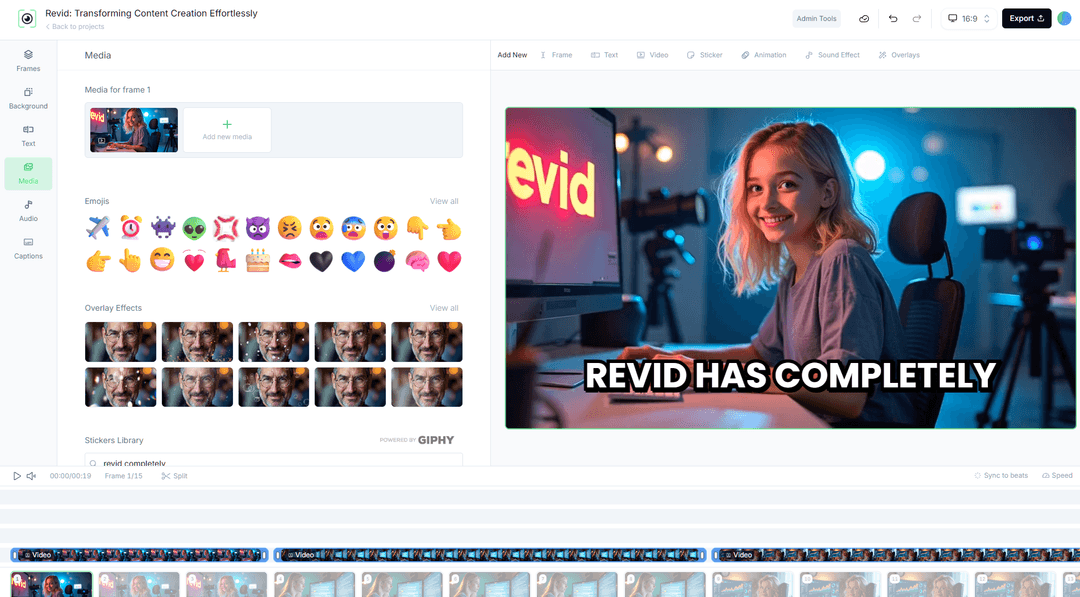
Revid is a web-based AI video platform. Upload a video and the AI caption generator adds synced captions in 100+ languages, with 30 caption styles to choose from; fix any word or timing in the timeline editor. If you have no footage yet, start from a script, an idea or a link (an article, a YouTube or TikTok video): Revid writes the script, builds the visuals, adds a voice-over in 70+ languages and captions it.
- Best for: creators, founders and small brands who want a finished, captioned short without opening a separate editor.
- Strengths: auto captions, voice and visuals in one place; export in 720p, 1080p or 4K; direct publishing and scheduling to TikTok, Instagram and YouTube.
- Watch out: it runs in the browser, not as a native phone app, and while new accounts get free credits to try it, regular video creation uses the monthly credits of a paid plan starting at $39/month.
2. CapCut: the best free captions app on Android and iPhone
CapCut is the default choice for editing footage you filmed yourself. Its free tier includes the full editor, auto captions and 1080p export, which is more than most free caption apps give you. Premium templates, effects and most AI features are paid (the Standard plan is about $9.99/month).
- Best for: TikTok and Reels creators editing on a phone; it has the tightest TikTok integration of any editor.
- Watch out: it edits what you shot; it does not generate a video from text. See Revid vs CapCut if you are deciding between filming and generating.
3. InShot: simple text overlays for beginners
InShot is a beginner-friendly mobile editor for iOS and Android. Its strength is manual text: you type or paste your lines, place them and set when they appear, along with filters and stickers.
- Best for: short clips where you only need a few lines of on-screen text.
- Watch out: if you want a full transcript captioned automatically, CapCut or AutoCap are faster.
4. Clideo: browser subtitles without installing anything
Clideo is a set of web tools (add subtitles, compress, resize, cut, merge) that work on any device with a browser.
- Best for: a one-off captioning job on a borrowed or locked-down computer.
- Watch out: the free version adds a watermark and some features need a subscription.
5. Adobe Premiere Pro: professional caption editing software
Adobe Premiere Pro transcribes your footage with Speech to Text, turns the transcript into captions, and lets you style them with any font installed on your computer.
- Best for: professional editors, YouTubers and marketers who need full control over caption style and brand fonts.
- Watch out: it is a desktop subscription (with a free trial) and has a steep learning curve for simple social clips.
6. VEED: auto subtitles and translation in the browser
VEED has some of the best-known auto subtitles and translation in the category, inside a multi-track browser editor. The free plan exports at 720p with a "Made with VEED" watermark; paid entry plans run roughly $10 to $24 a month.
- Best for: captioning and translating videos for several languages without installing software.
- Watch out: the watermark and resolution limits push most regular users to a paid plan. If you caption webinars or tutorials, VEED's browser editor can also record your screen.
7. Subly: subtitles built for accessibility
Subly focuses on accessibility and compliance: AI subtitles, captions, translation and audio descriptions for videos, webinars and meetings, with a free trial.
- Best for: organizations that must meet accessibility standards across many videos.
- Watch out: it is built for teams and compliance, which is more than a solo creator needs.
8. Descript: edit the transcript, get the captions
Descript transcribes your recording and lets you edit the video by editing the text; captions come from the same transcript. Studio Sound and filler-word removal clean up spoken content. The free plan includes 60 media minutes a month and 720p export; watermark-free export starts on paid plans, from $24/month ($16 billed annually).
- Best for: talking videos, interviews and podcasts.
- Watch out: you need a recording to start from. Compare it in Revid vs Descript.
9. AutoCap: one-job mobile auto captions
AutoCap is a mobile app for iOS and Android that does one thing: it listens to your video and adds captions automatically, with support for several languages.
- Best for: fast captions on a phone when you do not need a full editor.
- Watch out: editing options are limited compared with CapCut.
10. Kapwing: captions for teams
Kapwing is a web editor with auto subtitles, templates and shared team workspaces, so several people can review and fix captions on the same project.
- Best for: small teams and agencies working on the same videos.
- Watch out: the free version has file limits and adds a watermark.
How to add captions to a video in any app
The menu names differ (Auto captions, Speech to Text, Subtitles), but the method is the same everywhere:
- Start with clean audio. Auto captions are only as accurate as the sound: cut background music under speech or reduce it before transcribing.
- Set the spoken language first. Most apps transcribe in the language you select, not the one they guess.
- Run auto captions, then read every line. Fix names, brand names, numbers and jargon, which are the words AI most often mishears.
- Keep lines short. A few words per caption, timed to the speech, is easier to read on a phone than full sentences.
- Style for contrast, not decoration: bold sans-serif text with an outline or background box stays readable over any footage.
- Place captions inside the safe zone (see the diagram below) so the app's buttons do not cover them.
- Export the right type. For TikTok, Reels and Shorts, burn the captions into the video. For long YouTube videos, also upload a subtitle file (SRT) so viewers can turn closed captions on and off.
Add captions with Revid
- Open the Revid caption generator and upload your video.
- Choose the spoken language (100+ are supported) and one of the 30 caption styles.
- Correct any word or timing in the timeline editor.
- Export in 720p, 1080p or 4K, or publish straight to TikTok, Instagram or YouTube.
For a screen-by-screen version, follow the full walkthrough of captioning with Revid.
Where to put captions on a vertical video
On a 9:16 video, the top bar, the side buttons and the username and caption text at the bottom all sit on top of your footage. Captions placed too low or too far right get covered. Keep them in the middle-lower area, left of the buttons.
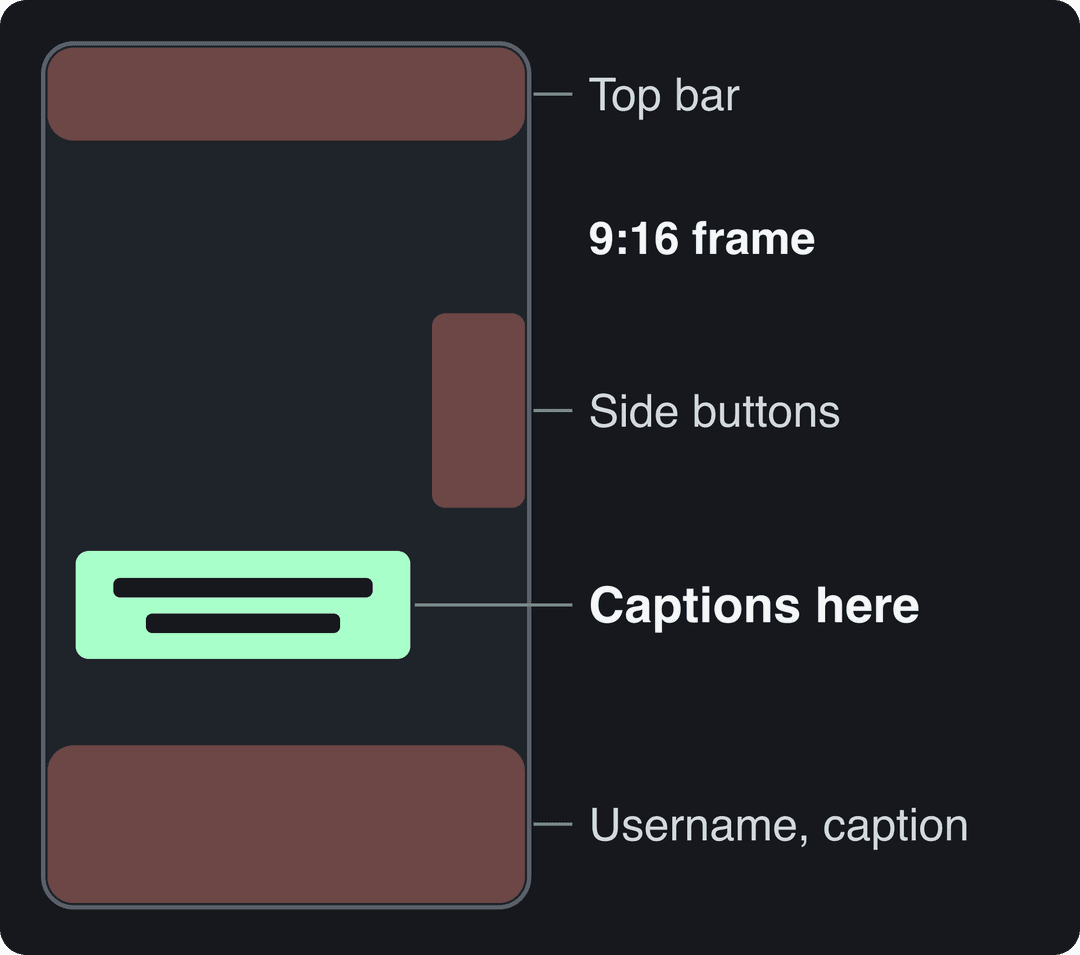
To check a specific frame, drop it into the free TikTok safe zone checker, which shows exactly what the app's interface hides.
Best caption app for Android (and closed captions)
For adding captions to your own videos on Android, CapCut is the most complete free option, AutoCap is the simplest, and InShot suits manual text. Instagram's Edits app (on Android and iPhone) also generates captions and exports without a watermark.
If you searched for a closed caption app for Android because you want to read captions while watching, you may not need an app: most recent Android phones include Live Caption in the accessibility settings, which captions media playing on the phone. It only displays captions on your screen; it does not add them to a video you post.
Best captions app for TikTok
TikTok's own editor can generate captions for your voice, which is enough for a quick talking clip. Use CapCut when you want more styles, effects and timing control, since it is built to work closely with TikTok. Use Revid when you want to create the video itself (script, visuals, voice and captions) and publish it to TikTok directly from the same place.
Best captions app for Instagram Reels
For Reels, Edits is the natural starting point: it is Instagram's own editor, it generates captions and it exports without a watermark. CapCut and Revid work just as well and let you reuse the same captioned video on TikTok and YouTube Shorts.
Two related searches mean something else:
- Instagram captions app often means the text under the post, not on the video. For that, use the free Instagram caption generator.
- App to put captions on photos: any editor with a text tool works (InShot and CapCut both handle images). For Stories, Instagram's own captions sticker is covered in our guide to captions on Instagram Stories.
Best free caption tools for YouTube creators (mobile and desktop)
YouTube itself is the first free tool: YouTube Studio can generate automatic captions for your uploads, and you can edit them or upload your own subtitle file there. Those are closed captions, which viewers switch on and off.
For burned-in captions on Shorts, the free options are:
- Mobile: CapCut (free auto captions, 1080p export) and Edits.
- Desktop: CapCut desktop, Descript's free plan (60 media minutes a month, 720p) and Kapwing's free plan (with a watermark).
- Web: the Revid subtitle generator for captions in 100+ languages, with free credits to try it and a paid plan for regular use.
If you want auto-generated captions in your own custom font on Shorts, use a desktop editor: Premiere Pro applies any installed font to its auto captions. Mobile apps mostly offer preset styles instead.
Input
Your video as it is
Output
Videos with just a few spoken words (a line or two) beat both silent videos and videos that talk the whole way through, which were the most common and the weakest.
Source: Revid analysis of 176,367 TikToks analyzed by AI, with 1,000+ likes posted between Oct 1, 2025 and Oct 16, 2026 (61,203 creators)
Show the data
| Median views | Share that passed 1M views | |
|---|---|---|
| No speech | 73.3K | 14.3% |
| Under 40 | 122.7K | 20.2% |
| 40 to 120 | 97.2K | 17.6% |
| 120 to 300 | 91.6K | 16.8% |
| 300+ | 67.7K | 11.9% |
Best app for captions on talking videos
Talking-to-camera videos need accurate transcripts and punchy, animated captions. Descript is the strongest for editing the speech itself (cut a sentence in the text, it disappears from the video). The app called Captions is built specifically around this format. Submagic is known for animated captions in 48 languages plus automatic zooms, b-roll and silence removal, from $19/month ($12 billed yearly), with a free plan of 3 watermarked videos a month up to 90 seconds each. See Revid vs Submagic for how it compares with generating videos from scratch.
Prompt to try
Make a 30-second vertical video titled '3 caption mistakes that make people scroll past'. Open with the hook 'Your captions are losing you viewers.' Cover unchecked auto captions, text covered by app buttons, and long lines, using clean motion graphics, an upbeat voiceover and bold captions.
Captions app alternatives
If you searched for the app named Captions and want something else, the right alternative depends on why:
- You want it free: CapCut gives you auto captions and 1080p export on the free tier.
- You edit long talking recordings: Descript, because you edit the transcript directly.
- You want animated captions and polish: Submagic.
- You don't want to film at all: Revid generates the script, visuals, voice and captions from an idea or a link.
FAQ
Is the Captions app free?
The Captions app is free to download, but most of its AI features need a paid subscription. Check the current plans and free limits in your app store listing before you rely on it, since they change.
Is the Captions app worth it?
It is worth paying for if you post talking-to-camera videos often and want its AI editing on top of captions. If you only need captions, CapCut's free tier does the core job without a subscription.
How do you use the Captions app?
Record or import a talking video, let the app transcribe it, pick a caption style, correct any misheard words, then export or share. Menus change between versions, so follow the app's own prompts for each step.
What is the best free app to add subtitles to a video?
CapCut is the best free app for most people: it adds subtitles automatically and exports at 1080p without paying. On Instagram, Edits is a free alternative that exports without a watermark.
What is the difference between closed captions and burned-in captions?
Closed captions are a separate track viewers can turn on and off, like YouTube's subtitles. Burned-in (open) captions are part of the video image, which is what you want on TikTok, Reels and Shorts, where many people watch without sound.
Sources
- Vendor pricing pages read October 29, 2026. Vizard's page did not render prices that day, so its figure is from vizard.ai/pricing on September 30, 2026; Klap's page showed yearly prices only, so its monthly price is from klap.app/pricing on August 13, 2026.
- Revid analysis of 176,367 TikToks analyzed by AI, with 1,000+ likes posted between Oct 1, 2025 and Oct 16, 2026 (61,203 creators)
- Clutch, Creating in the Attention Economy: You Have 30 Seconds or Go Bust (November 2025)
Charts and figures checked on November 6, 2026.