How to Create Multilingual Videos with Revid AI (French Example)
Two ways to make a Revid video in French or another language: set the language before you generate, or translate a finished project in one click. Steps, costs and editor fixes included.
On this page
To create a multilingual video in Revid, write your prompt or script in the target language and set Advanced options > Language & Localization > Language (French, for example) before you click Generate video. To turn a finished video into another language, open the project's menu, choose Translate and pick a Target language.
English is not the only language that performs on short-form feeds. In Revid's analysis of 176,367 TikToks with 1,000+ likes posted between October 2025 and October 2026, 123,704 were in English. That leaves tens of thousands of high-performing videos in other languages. The sample only covers videos that had already done reasonably well, but the practical point holds: a French or Spanish version of a script that already works is a cheap second attempt, because you translate it instead of making it again.
- Languages for project language and voice list
- 131
- Revid language settings
- Target languages in the Translate Video tool
- 74
- Revid Translate Video tool
- Translation cost per 500 characters, per voice segment
- 10 credits
- Revid Translate Video tool
- AI voices available across all languages
- 1,000+
- Revid
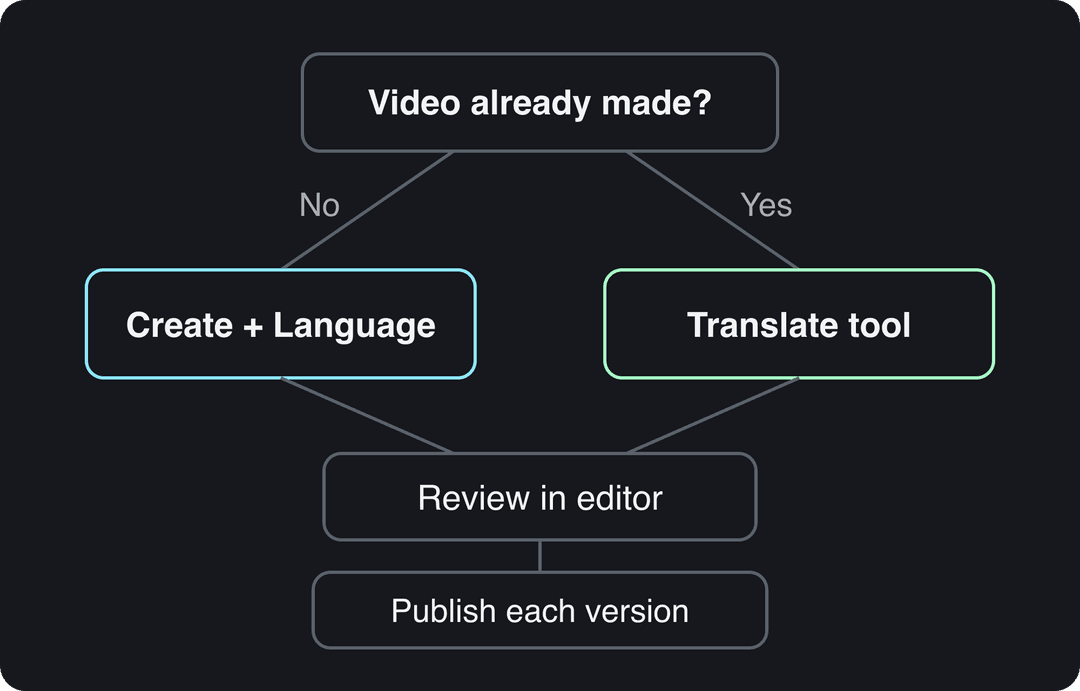
New video or translation: which method to use
Revid offers two routes, and the right one depends on whether the video already exists.
| Your situation | Use | Where to find it | What you get |
|---|---|---|---|
| Starting a new video for one language | Language setting | Create > Advanced options > Language & Localization | Script, voice-over and captions made in that language from the start |
| You already have a finished video | Translate | Project card menu > Translate | The same edit, media, timing and captions in a new language |
| You want a new video every day in another language | Auto Mode worker | Auto Mode > New worker > Pick the format | A daily video made with the language you set |
The decision rule: if the video exists and you are happy with it, translate it. If it does not exist yet, generate it directly in the target language. A script written for French viewers usually reads more naturally than one converted from English afterward.
Prompt to try
Crée une vidéo verticale de 30 secondes en français sur trois erreurs que font les touristes à Paris. Commence par l'accroche « Vous faites sûrement la deuxième sans le savoir ». Style documentaire rythmé avec images de rues parisiennes, voix française naturelle et sous-titres.
How to create a new video in French (or any language)
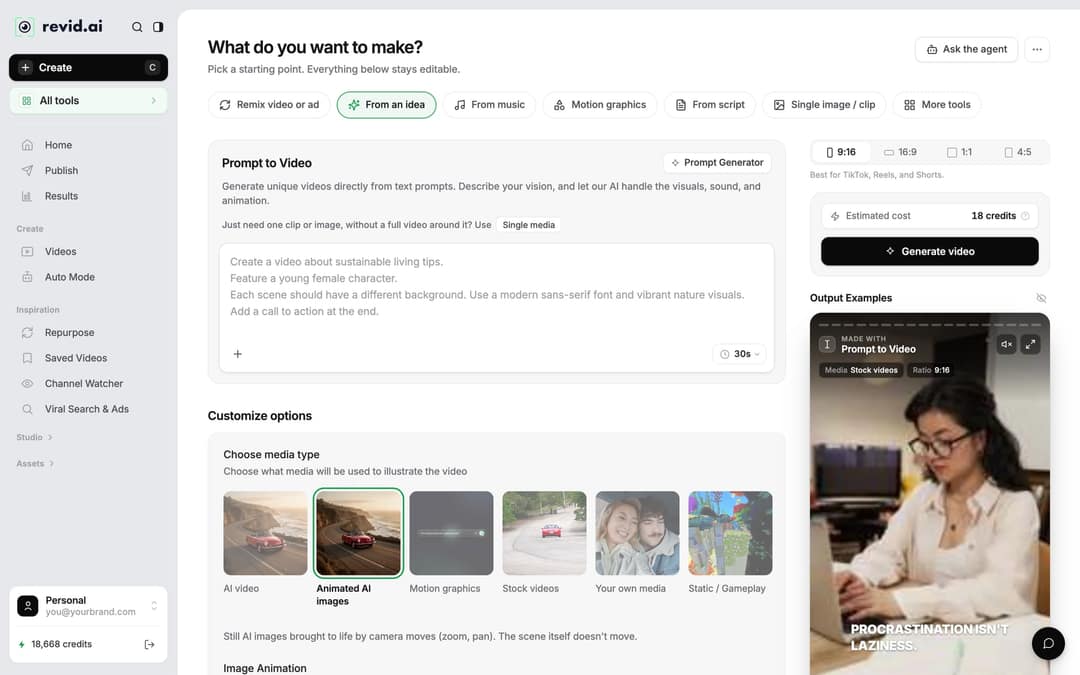
- Click Create at the top of the left sidebar, or press C. The page opens on "What do you want to make?".
- Pick a starting point. "From an idea" opens Prompt to Video, where the AI writes the script. "From script" opens the voiceover video tool, where you paste your own text into "Your video narrator script".
- Write the prompt or the script in French. With the default "Automatic" language, Revid works from the language you write in.
- Open "Advanced options" > "Language & Localization" and change "Language" from "Automatic" to French. The hint reads "Pick a language to help the AI be more accurate". Setting it explicitly removes the guesswork, especially on short scripts.
- Choose a voice. The voice picker filters by the same language list, so pick a voice listed for French.
- Check "Estimated cost" next to "Generate video", then click Generate video.
The clip below shows French being chosen from the language list.
Script details that behave differently in another language
- Pauses:
<break time="1.0s" />adds a pause of up to 10 seconds. ElevenLabs and MiniMax voices honor it. Gemini and Kling voices drop the tag and add no pause. The full method is in the guide to adding a pause in Revid voices. - Brackets: text in [square brackets] is treated as a note for the visuals, not narration. With ElevenLabs v3 and v4 voices, though, a bracketed word can be read as an acting cue such as [whispers]. Keep bracket notes short and descriptive.
- Line breaks: a new line starts new content in the video, so break your French script where you want the visuals to change.
How to translate a finished Revid video into another language
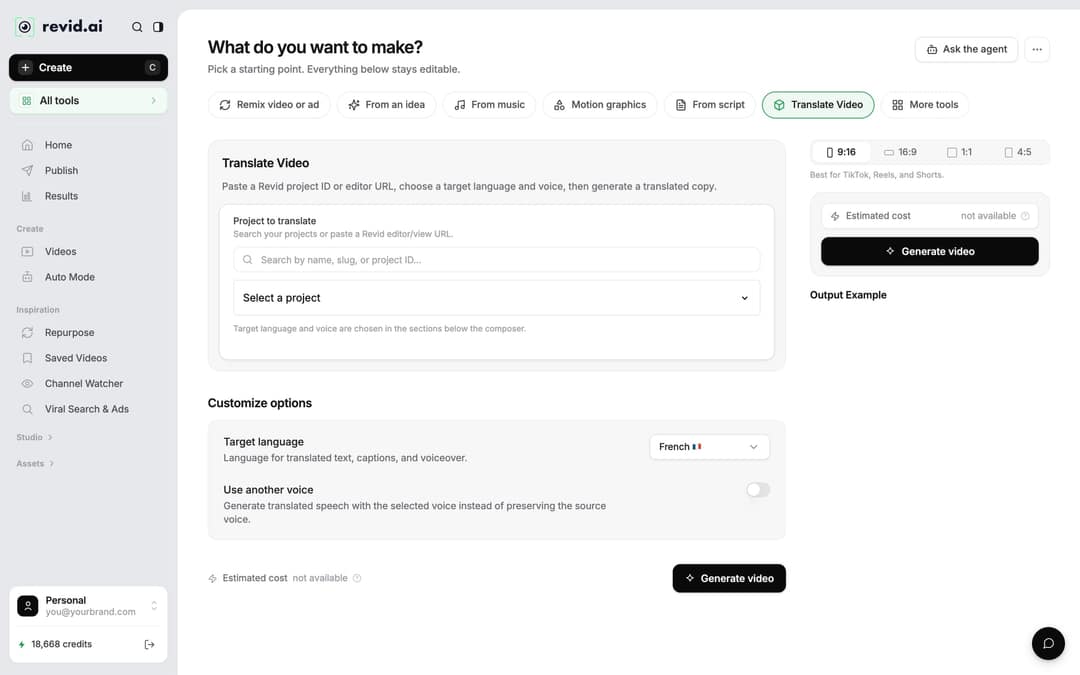
- Open "Videos" in the sidebar, open the menu on the project card and choose "Translate". This opens the Translate Video tool. You can also start from the AI Video Translator page.
- Under "Project to translate", search your projects or paste a Revid editor or view URL.
- Pick the "Target language". It defaults to French, and 74 languages are available as targets.
- Decide on "Use another voice". Leave it off to keep the original voice in the new language, which keeps every version sounding like the same brand. Turn it on to choose a different voice for that market.
- Check "Estimated cost", then click Generate video.
Translation keeps the edit, media, timing and captions of the original. It costs 10 credits per 500 characters for each voice segment. If the video uses a talking avatar, the avatar lip-sync is generated again on top. To produce several languages, run the tool once per target language.
How to fix a translated line in the editor
Check a translation before you publish it, especially product names, prices and slang. Fix any line directly in the editor:
- Open the translated project from "Videos": click the card, or choose "Open in editor" from its menu.
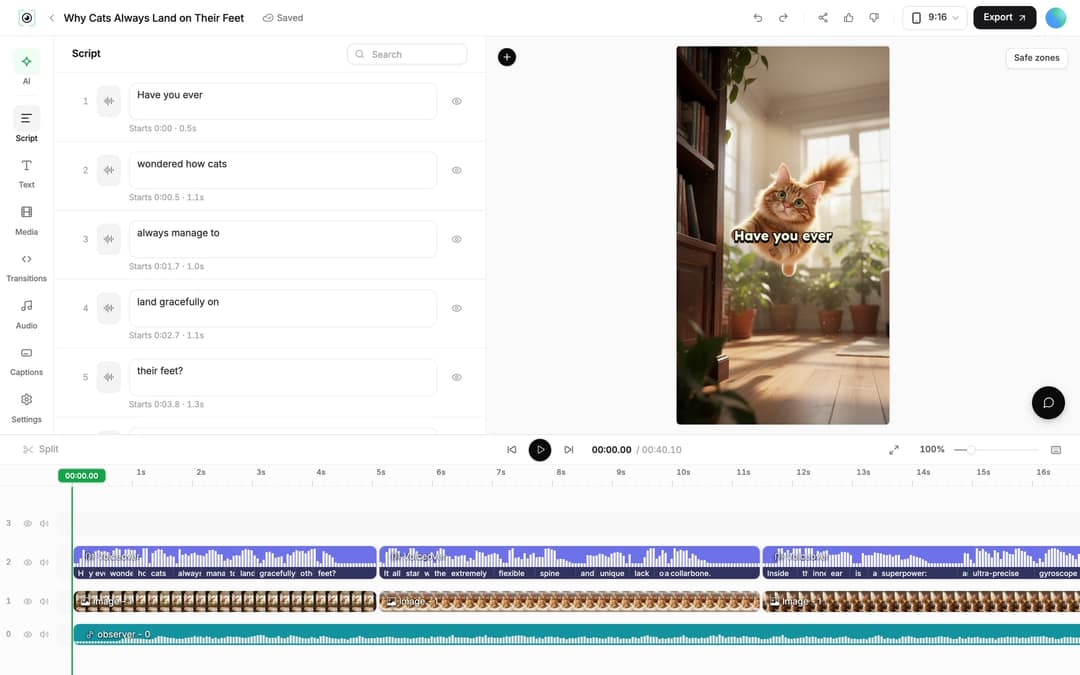
- In the left rail, open "Script". Every caption segment has its own text box and start time. Correct the wording there, and Revid shows "Caption updated. Re-generate voice if timing changed."
- Open "Audio". Under "Project Voiceovers", click "Re-generate" on the row you changed. You can also select the voiceover clip on the timeline and click "Re-generate Voiceover".
- In the dialog, leave "Keep timeline in sync" on so clips, texts and music follow the new narration timing, then click "Generate Voice".
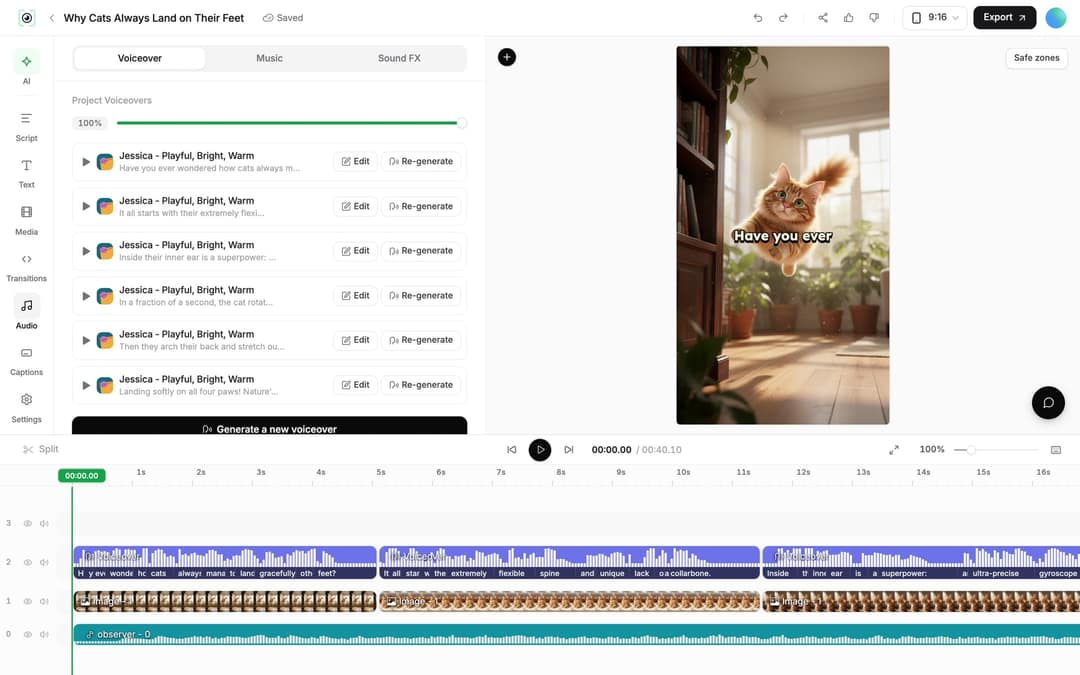
Regenerating a voiceover requires a paid plan and costs 10 credits per started 500 characters. The dialog shows the exact cost before you confirm.
How many languages does Revid support?
| What | Languages |
|---|---|
| Project language and voice list (ElevenLabs and Gemini voices) | 131 |
| Targets in the Translate Video tool | 74 |
| Voice-over languages as listed on the pricing page | 70+ |
| Automatic captions | 100+ |
The numbers differ because each feature depends on different voice models. Translation targets are the languages that at least one ElevenLabs model speaks. Across all languages, Revid offers 1,000+ AI voices.
The index leans toward videos that surface in hashtag and keyword searches, so its view counts run high: compare the groups, not the absolute numbers.
Source: Revid TikTok index: 2,377,477 TikToks with AI labels per video, snapshot of Sep 15, 2026. Median views estimated from view buckets.
Show the data
| Median views | Share past 1M views | |
|---|---|---|
| Indonesian | 314.3K | 32.6% |
| Vietnamese | 208.6K | 27.2% |
| Turkish | 200.3K | 23.7% |
| Korean | 195.2K | 26.8% |
| Japanese | 188K | 25.6% |
| Arabic | 185.5K | 25.7% |
| Portuguese | 174.8K | 26.2% |
| Russian | 160.4K | 26% |
| Chinese | 155.7K | 25% |
| Thai | 143.5K | 22.4% |
How to publish each language version
Connect your accounts once in Settings > "Integrations" under "Add a network". The options are TikTok, YouTube, Instagram (business or creator account), X and Webhook. Then open "Publish" on a project card, choose the accounts under "Publish to", and click "Publish" or "Add to queue". The full walkthrough is in the guide to linking social accounts to Revid.
If your audience splits by language, a separate account per language keeps each feed consistent for its viewers. Connect every account and pick the matching one for each version. To keep a non-English channel running without daily work, an Auto Mode worker can make a video every day with the language set in the format step. The same setup is shown in the guide to automating faceless videos.
FAQ
Does translating a video keep my voice?
Yes, by default. In the Translate Video tool, "Use another voice" is off, which keeps the original voice in the new language. Turn it on if you want a different speaker.
How much does it cost to translate a video in Revid?
Translation costs 10 credits per 500 characters for each voice segment, plus the avatar lip-sync again if the video has a talking avatar. The tool shows an "Estimated cost" before you generate.
Are the captions translated too?
Yes. The Translate Video tool keeps the edit, media, timing and captions, so the new version comes out captioned in the target language.
Can I make multilingual videos for free?
You can start for free: sign-up costs nothing and new accounts get free credits to try video creation. Regular creation then uses a paid plan's monthly credits, from $39/month; see Revid pricing for the current plans.