How to Compress a Video Without Wrecking the Quality (2026)
The fastest free ways to compress a video on a computer, phone or in the browser, the four settings that decide file size, and when you should not compress at all.

On this page
To compress a video, re-encode it at a lower resolution, a lower bitrate or with a more efficient codec. The quickest free method is HandBrake: open the file, choose the Fast 1080p30 preset (or Fast 720p30 for a smaller file) and click Start Encode. Browser tools and built-in Mac and Windows apps do the same without extra software.
The most common mistake is compressing a video just to upload it. TikTok Studio on the web accepts files up to 30 GB, YouTube up to 256 GB, and every platform re-encodes what you upload anyway. Shrinking the file first often means it gets compressed twice and looks worse. Compress when a size limit, a slow connection or storage forces you to, and use the settings below to do it once.
- Max file size for uploads through TikTok Studio on the web
- 30 GB
- TikTok upload limits
- Max file size for a YouTube upload
- 256 GB
- YouTube upload limits
- Max Instagram Reels file size when publishing through the Graph API
- 300 MB
- Instagram Graph API
- Starting H.264 bitrate for a 1080p video
- 5 Mbps
What does it mean to compress a video?
Compressing a video means re-encoding it so the same footage takes up fewer bytes. The encoder discards detail your eye is unlikely to notice. It also stores repeated information (a still background, a sky that barely changes) once instead of in every frame.
There are two kinds:
- Lossy compression permanently removes data. Nearly every video you watch online, from MP4 files to streams to social uploads, is lossy.
- Lossless compression shrinks the file without discarding anything, so the original can be rebuilt exactly. Files stay large, so lossless is used for archiving and editing masters, not for sharing.
Can you compress a video without losing quality?
Not strictly, if you want a much smaller file. What you can get is a visually lossless result: a well-configured lossy encode at 1080p usually looks identical to the original on a phone screen. Quality loss shows up first as blocky, smeared or banded patches in dark scenes and fast motion, so check those moments after every export.
The four settings that make a video file smaller
| Setting | What to change | Effect on file size | Leave it alone when |
|---|---|---|---|
| Resolution | 4K to 1080p, or 1080p to 720p | Large drop | Viewers watch on big screens or you plan to crop later |
| Bitrate | Lower it, or use a constant quality mode | Roughly proportional | The video is full of fast motion or fine texture |
| Frame rate | 60 fps to 30 fps | Moderate drop | Sports, gaming or anything with fast movement |
| Codec | H.264 to H.265 (HEVC) | Smaller at the same quality | The file must play on older devices or software |
Bitrate decides file size more than anything else. In megabytes, file size is roughly the bitrate in Mbps multiplied by the length in seconds, divided by 8. Halve the bitrate and you roughly halve the file.
Starting points for H.264:
| Resolution | Pixels (landscape) | Starting bitrate |
|---|---|---|
| 1080p | 1920x1080 | about 5 Mbps |
| 720p | 1280x720 | about 2.5 Mbps |
Vertical video uses the same pixel counts turned on their side (1080x1920 for 1080p). Go higher for fast motion and lower for talking heads or screen recordings.
Most encoders also offer a constant quality mode (the RF slider in HandBrake, CRF in ffmpeg) that adjusts the bitrate scene by scene. Use it when quality matters most. When the file must hit an exact size limit, use a target bitrate with two-pass encoding instead. The first pass analyzes the whole video and the second spends the bits where they are needed: it takes longer but looks better at a fixed size.
The fifth lever is length. Trimming dead air or speeding a clip up cuts the file in proportion.
MP4, MOV or AVI: does the format matter?
MP4, MOV and AVI are containers. The codec inside them does the compressing. MP4 with H.264 plays almost everywhere, which makes it the safest choice for sharing. iPhone MOV files often already contain efficient HEVC. AVI is an old container usually paired with inefficient codecs. Converting MOV to MP4 without re-encoding changes the wrapper, not the size.
Which compression method should you use?
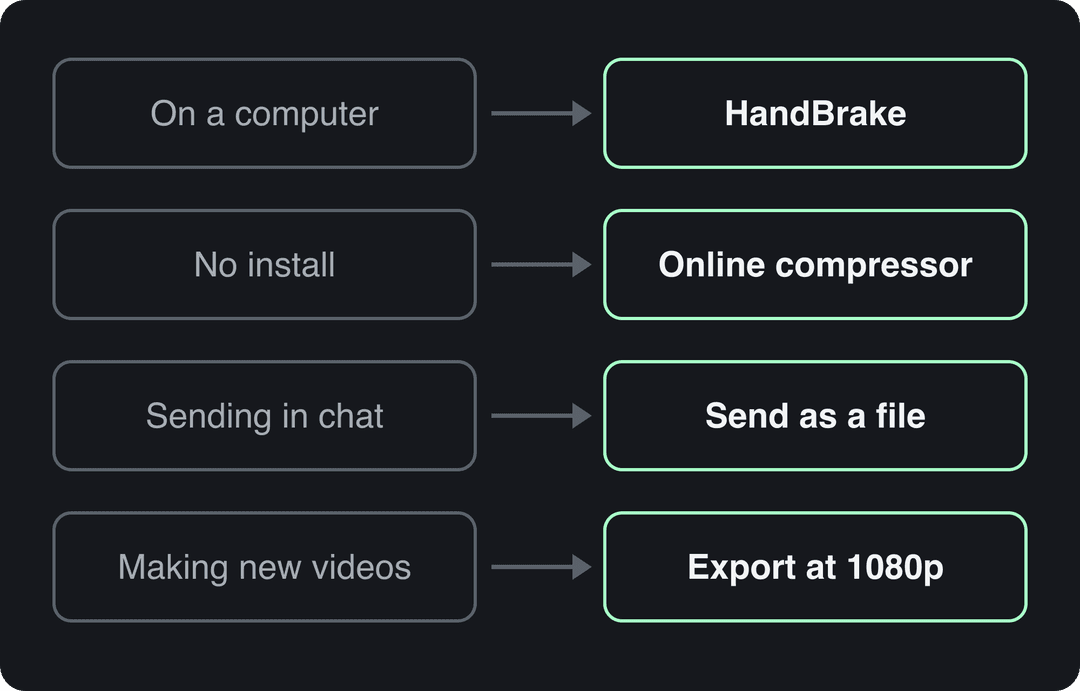
- If you are on a computer, or the file is large or private: use HandBrake.
- If you cannot install software and the footage is not confidential: use an online compressor.
- If you are sending the video in a chat app: send it as a file, or the app will compress it for you.
- If you are making new videos: record or export at the size you need, and skip compression entirely.
How to compress a video with HandBrake (Windows, Mac and Linux)
HandBrake is free and open source, and it gives you full control over every setting above.
- Download it from the official HandBrake website and install it.
- Click Open Source and select your video.
- In the Preset menu, choose Fast 1080p30 if your video is 1080p or larger, or Fast 720p30 for a smaller file.
- Optional: in the Video tab, move the Constant Quality (RF) slider to a higher RF number for a smaller file, or pick H.265 as the video encoder.
- Click Browse next to Save As and choose a name and location.
- Click Start Encode (Start on Mac). The encode takes longer on older computers and for longer videos.
- Play the new file and check the dark and fast-moving parts before deleting anything.
If the output comes out larger than the original, the source was already efficiently encoded. Raise the RF number or lower the resolution and run it again.
How to compress a video on Mac without installing anything
macOS has two built-in options:
- Finder: right-click the video and choose Encode Selected Video Files (listed under Quick Actions or Services, depending on your macOS version). Pick a lower resolution such as 1080p, and choose HEVC if the people you send it to have recent devices. macOS saves a new copy next to the original.
- QuickTime Player: open the video, go to File > Export As and choose 1080p or 720p.
Both are quick, but neither lets you set a bitrate. Use HandBrake when you need to hit a specific file size.
How to compress a video on Windows
Windows 11 includes Clipchamp, Microsoft's video editor. Import your video, drag it to the timeline, click Export and choose a lower resolution such as 720p or 1080p. For precise control over bitrate and codec, HandBrake works on Windows too.
How to compress a video online
Online compressors run in the browser, so they work on any computer or phone.
| Tool | Good for | Watch out for |
|---|---|---|
| Clipchamp's online video compressor | Quick resizing from Microsoft's editor | Free limits change, so check the page |
| YouCompress | Upload, compress and download with no account, per its site | Few settings to adjust |
| VEED's video compressor | Compression plus basic editing | Veed's free plan adds a watermark and exports at 720p |
Two trade-offs apply to every online tool. You have to upload the full original first, which is slow for big files on a weak connection. Your footage also sits on someone else's server, so read the privacy policy, and use HandBrake for anything confidential.
How to compress a video on iPhone or Android
The easiest win is to record smaller files in the first place:
- iPhone: in Settings > Camera > Formats, choose High Efficiency (HEVC). In Settings > Camera > Record Video, choose 1080p HD at 30 fps instead of 4K.
- Android: open your camera app's settings and lower the video size or resolution. The menu names vary by phone maker.
To shrink a video already on your phone, use a compressor app from your app store or open one of the online compressors above in your phone's browser. Sending a video through a messaging app also compresses it, but you get no say in the quality.
How do I re-encode a video to a smaller size?
If you are comfortable with the command line, ffmpeg re-encodes in one line and runs on every operating system:
ffmpeg -i input.mp4 -crf 23 -preset medium -c:a copy output.mp4- -crf 23 is the default quality of ffmpeg's H.264 encoder, which ffmpeg uses for MP4 output when you do not name a codec. A higher number gives a smaller file with lower quality.
- For HEVC, add -c:v hevc -crf 28. 28 is the HEVC encoder's default and looks roughly like H.264 at 23, in a smaller file.
- Add -vf scale=-2:720 to downscale to 720p while keeping the aspect ratio.
- -c:a copy keeps the audio as it is.
- A slower preset (for example -preset slow) produces a smaller file at the same quality but takes longer.
HandBrake uses the same open-source H.264 and H.265 encoders, so pick whichever interface you prefer.
The index leans toward videos that surface in hashtag and keyword searches, so its view counts run high: compare the groups, not the absolute numbers.
Source: Revid TikTok index: 2,377,477 TikToks with AI labels per video, snapshot of Sep 15, 2026. Median views estimated from view buckets.
Show the data
| Median views | Share past 1M views | |
|---|---|---|
| 0-7s | 88.3K | 19.9% |
| 8-15s | 111.1K | 22.6% |
| 16-30s | 141K | 25.1% |
| 31-60s | 120.4K | 22.8% |
| 61-120s | 97K | 19.8% |
| 2-5 min | 89.1K | 18.3% |
| 5 min+ | 90.1K | 17.2% |
How to compress a video for Instagram, TikTok and YouTube
For social platforms, the goal is not the smallest file. It is a clean file under the limit, at the specs the platform expects.
For Instagram Reels, export a 9:16 MP4 at 1080x1920 with H.264 at 30 fps. Instagram's minimum for reels is 30 FPS, so do not drop to 24 fps to save space. If you publish through a scheduler that uses Instagram's API, the file must be 300 MB or less and 3 seconds to 15 minutes long. Full specs are in the IG Reels resolution guide.
| Platform | Max file size | Max length | Notes |
|---|---|---|---|
| TikTok (Studio Web) | 30 GB | 60 minutes | 1080p, 2K or 4K |
| TikTok (Content Posting API) | 4 GB | 10 minutes | MP4 with H.264 recommended, 23 to 60 FPS |
| Instagram Reels (Graph API) | 300 MB | 15 minutes | 23 to 60 FPS, at most 1920 px wide |
| YouTube | 256 GB | 12 hours | 15 minutes until the account is verified |
| X (without Premium) | 8 GB | 20 minutes | DM videos: 512 MB and 140 seconds |
| X (Premium) | 16 GB | 125 minutes | DM videos: 1 GB and 10 minutes |
| 5 GB | 15 minutes | 10 to 60 fps |
Instagram publishes no app file size limit. Reels can run up to 20 minutes, but only those up to 3 minutes are recommended to non-followers. Facebook recommends 1080p MP4 with H.264 or H.265 at 24 to 60 FPS.
What is AI video compression?
The label covers two different things. Most AI video compressor websites run standard codecs such as H.264 and H.265 and choose the bitrate and resolution for you. The output is an ordinary MP4, and the AI part is the setting selection.
The other meaning is neural (learned) codecs, where a trained model does the encoding. These are mostly at the research and early-adoption stage and are not what a free upload tool runs. AI upscaling is related: it rebuilds detail when a low-resolution video is enlarged, but it does not make files smaller.
For everyday compression, a modern codec at sensible settings matters far more than the AI label. Judge any tool by the output size and how the dark and fast scenes look, and apply the same privacy check as for any online compressor.
Prompt to try
Make a 30-second vertical video explaining why you should not compress a video before uploading it to TikTok. Hook: "Your upload looks blurry because you compressed it twice." Use clean motion graphics, a calm confident voiceover and bold captions, ending with one tip: export at 1080p 30 fps.
Generating in the final shape matters: cropping a wide video to 9:16 cuts off text and faces. Avatar tools such as Synthesia and HeyGen default to 16:9 for training and web use.
Source: Revid data, Amplitude project_built by ratio for text-input tools, Sep 29 to Oct 28, 2026, 50,623 projects.
Show the data
| Share of projects | Projects | |
|---|---|---|
| 9:16 vertical | 83.2% | 42.1K |
| 16:9 wide | 15.2% | 7.7K |
| 1:1 square | 0.9% | 457 |
| 4:5 portrait | 0.7% | 356 |
Make the file the right size from the start
The simplest compression is the one you never need. If you make short-form videos with Revid's AI video generator, you can export at 720p, 1080p or 4K at 30 or 60 fps, and a 1080p 30 fps export already matches what TikTok, Reels and Shorts expect. You can also publish directly to TikTok, Instagram and YouTube, so there is no large file to move. To change a video's shape, the free video resizer converts it to 9:16, 4:5, 16:9 or 1:1. To get smaller files out of a long recording, turn the long video into short clips.
FAQ
Does Viber compress videos?
Yes. Like most messaging apps, Viber lowers the quality of videos sent as regular media messages to save data. To send the original quality, attach the video as a file instead, or share a cloud storage link.
Is videocompress.ai safe?
Revid is not affiliated with it and cannot vouch for it. Before uploading to any online compressor, read its privacy policy to see how long uploads are kept and who can access them. Do not upload private or client footage to a site you do not trust, and use HandBrake on your own computer for sensitive files.
Why is my compressed video bigger than the original?
Your settings asked for more data than the source had: a higher bitrate or resolution than the original, or a re-encode of a file that was already efficient (such as an iPhone HEVC video re-encoded to H.264). Lower the bitrate, raise the RF or CRF number, or switch to H.265.
How much can you compress a video?
It depends on the content, but resolution gives the biggest drop: 1080p has a quarter of the pixels of 4K. Talking heads and screen recordings compress far more than fast action, because less changes between frames.
What is the best format to compress a video?
MP4 with H.264 is the best default because it plays almost everywhere. Choose H.265 (HEVC) when you want smaller files and the viewers' devices support it.