How to Create a Video Quiz with Revid AI in 5 Steps (2026)
Make a narrated, illustrated quiz video in Revid in five steps, add a real thinking pause before the answer, and write questions that get viewers guessing in the comments.
On this page
To create a video quiz with Revid, open the AI Video Quiz Maker, write one question and its answer options, then pick an AI voice, a media type and a music track. Click Generate video. Revid narrates and illustrates the quiz and opens it in the editor, where you add a thinking pause, then export or publish.
Comments are the scarcest reaction on short-form video, and a quiz is one of the few formats built to get them. In Revid's analysis of 176,367 TikToks with 1,000+ likes posted between October 2025 and October 2026, comments came to 0.08% of views, against 7.1% for likes (see the full viral TikTok study). Those are videos that already did well, so the gap is not caused by your format. Still, the lesson holds: people rarely comment unless the video gives them a reason, and a good quiz question is that reason.
Here is the kind of finished quiz this guide builds:
- Comments as a share of views on TikToks with 1,000+ likes
- 0.08%
- Revid analysis of 176,367 TikToks
- Likes as a share of views on the same TikToks
- 7.1%
- Revid analysis of 176,367 TikToks
- AI voices available to narrate a quiz, in 70+ languages
- 1,000+
- Revid
- Monthly price of the entry paid plan, with 2,000 credits
- $39
- Revid pricing
Step 1: Open the AI Video Quiz Maker
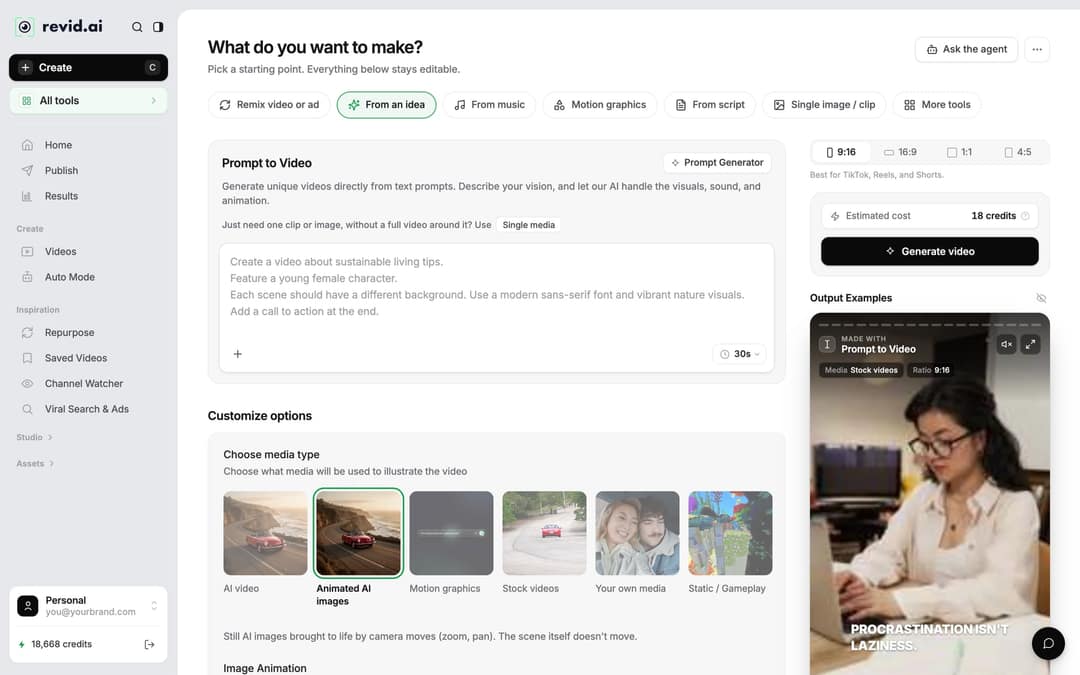
- Open the quiz maker from the link above, or sign in to Revid and click Create at the top of the sidebar (shortcut C).
- The Create page asks "What do you want to make?" with chips such as From an idea, From music and From script. The quiz maker is not one of the chips: open More tools, or the All tools card under Create in the sidebar, and pick the quiz maker.
Step 2: Write the question and the answer options
- Type your question in the question field. Keep it to one short, punctuated sentence: the AI voice reads it aloud, and clean punctuation gives a cleaner read.
- Add each answer option in its own field. Keep options short enough to read at a glance on a phone.
- Include one tempting wrong answer. That option is what makes viewers commit, and later argue in the comments.
Write one question per video. A single question keeps the video short and easy to finish, and you can turn ten questions into a ten-part series instead of one long quiz.
Prompt to try
Create a 20-second vertical quiz video. Hook: "90% of people get this wrong." Question: What is the capital of Australia? Options: Sydney, Melbourne, Canberra. Use a calm, curious narrator and a clean game-show look with the options on screen, then reveal Canberra and ask viewers to comment what they guessed.
The index leans toward videos that surface in hashtag and keyword searches, so its view counts run high: compare the groups, not the absolute numbers.
Source: Revid TikTok index: 2,377,477 TikToks with AI labels per video, snapshot of Sep 15, 2026. Median views estimated from view buckets.
Show the data
| Median views | Share past 1M views | |
|---|---|---|
| 0-7s | 88.3K | 19.9% |
| 8-15s | 111.1K | 22.6% |
| 16-30s | 141K | 25.1% |
| 31-60s | 120.4K | 22.8% |
| 61-120s | 97K | 19.8% |
| 2-5 min | 89.1K | 18.3% |
| 5 min+ | 90.1K | 17.2% |
Step 3: Pick the voice
Choose the narrator from Revid's 1,000+ AI voices in 70+ languages. The voice picker filters by language, so write your question in the language you want and pick a matching voice.
If you plan to add a thinking pause later (you should), pick the voice with that in mind. Pause tags work with ElevenLabs voices, MiniMax voices convert them, and Gemini and Kling voices drop the tag and read straight through.
Step 4: Choose the visuals, the music and the ratio
Under Choose media type, pick how the quiz is illustrated:
| Media type | What you get | Use it for quizzes when |
|---|---|---|
| Animated AI images (default) | Still AI images with camera moves (zoom, pan) | You want custom visuals for each question at a low cost |
| AI video | Generated clips (Seedance 2.5, MiniMax Hailuo H3, Wan 3.0, Google Veo 3), model chosen per scene; needs a subscription | The question is visual, such as "What happens next?" |
| Motion graphics | Animated text and shapes | You want a clean, game-show look with the options on screen |
| Stock videos | Real footage from a stock library | The topic is real places, animals or objects |
| Your own media | Your uploaded clips and images | You run a brand or class quiz with your own visuals |
| Static / Gameplay | A static or gameplay background | You want the text and options to carry the video |
Then pick a music track from the built-in library of 199 tracks. A calm or curious track sits under the narration without fighting it; save high-energy tracks for speed rounds.
Set the ratio to 9:16 for TikTok, Instagram Reels and YouTube Shorts. Use 1:1 or 4:5 for feed posts and 16:9 for a regular YouTube video.
Generating in the final shape matters: cropping a wide video to 9:16 cuts off text and faces. Avatar tools such as Synthesia and HeyGen default to 16:9 for training and web use.
Source: Revid data, Amplitude project_built by ratio for text-input tools, Sep 29 to Oct 28, 2026, 50,623 projects.
Show the data
| Share of projects | Projects | |
|---|---|---|
| 9:16 vertical | 83.2% | 42.1K |
| 16:9 wide | 15.2% | 7.7K |
| 1:1 square | 0.9% | 457 |
| 4:5 portrait | 0.7% | 356 |
Step 5: Check the estimated cost and generate
The Estimated cost next to Generate video shows the credits the quiz will use before you spend them. As a guide from Revid's current rates:
- Voice: 10 credits per started 500 characters, which covers a typical one-question script.
- Animated AI images: 1, 4 or 16 credits per image on the Low, Pro and Ultra tiers.
- AI video: from 15 credits (Low) to 100 credits (Ultra, Veo 3, MiniMax Hailuo H3) per 5 seconds, and up to 500 for Seedance 4K.
Click Generate video. Failed builds are refunded automatically. When the build finishes, the quiz opens in the Revid video editor; later you can reopen it from Videos in the sidebar by clicking the project card or choosing Open in editor.
How to add a thinking pause before the answer
The most common quiz mistake is a reveal that lands right after the options. Viewers need a beat to pick an answer; without it they just watch the reveal and scroll. Fix it in the editor.
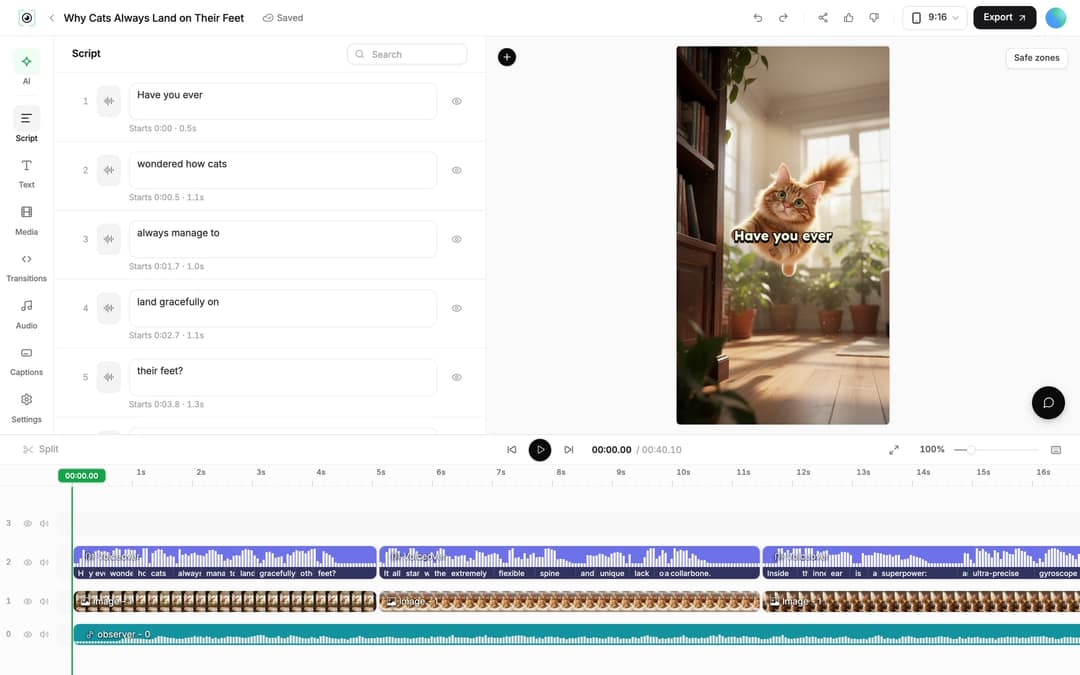
Add the pause in the Script panel
- Open the Script panel in the left rail. It lists every caption segment with its text and start time.
- Find the segment just before the answer and type
<break time="1.0s" />at its end. Raise the number for a longer pause, up to 10 seconds; longer values are capped. - Revid shows "Caption updated. Re-generate voice if timing changed." That is your cue for the next step.
Regenerate the voiceover
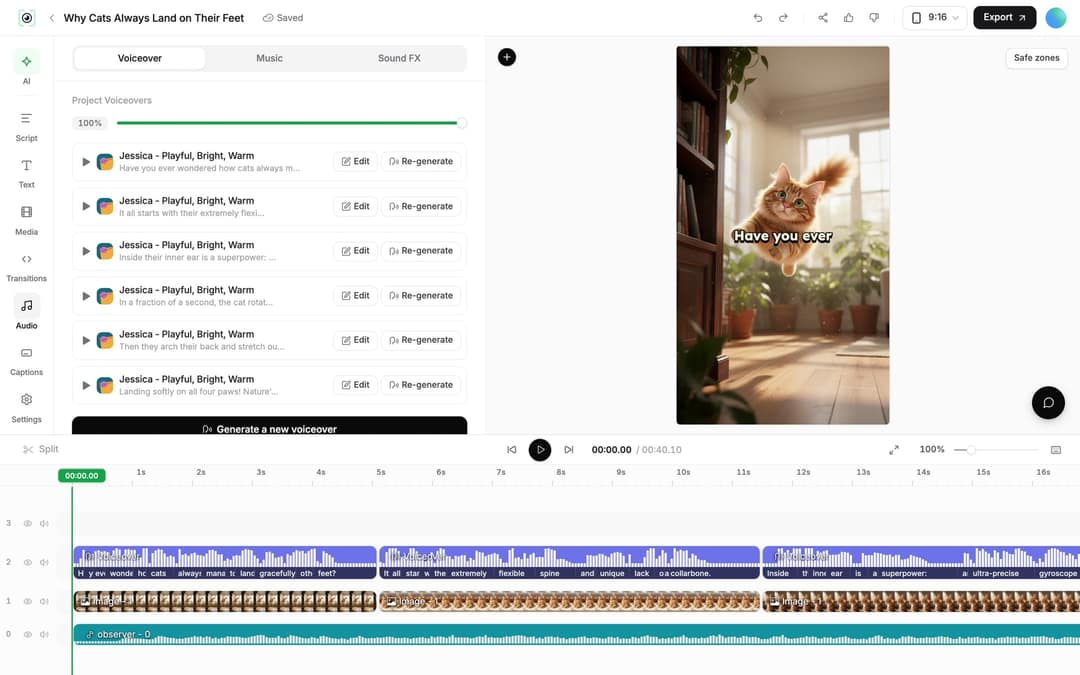
- Open the Audio panel. Under Project Voiceovers, click Re-generate on the voiceover.
- In the dialog, keep Keep timeline in sync on so clips, text and music follow the new timing, then click Generate Voice.
- This costs 10 credits per started 500 characters and needs a paid plan. For more pause options, see this guide to adding a pause in a Revid voice.
To tighten the ending after the reveal, drag the end edge of a clip on the timeline, or place the playhead and press S to split, then delete the extra part.
Publish the quiz to TikTok, Reels and Shorts
- Connect your accounts once in Settings > Integrations: TikTok, YouTube, Instagram (Business or creator account required), X, or a Webhook for Zapier and Make.
- In the editor, click Export (Export / Publish on a free account), or use Publish on the project card. The Publish Video dialog lets you choose where to post, then Publish now or Add to queue.
- Exports come in 720p, 1080p or 4K at 30 or 60 fps if you prefer to upload by hand.
Scheduled quizzes appear on the Publish page, so a ten-question series can go out one a day from a single session. More on scheduling and direct publishing.
How to write a quiz question people answer in the comments
A quiz works when viewers commit to an answer before the reveal. Build every quiz in the same order:
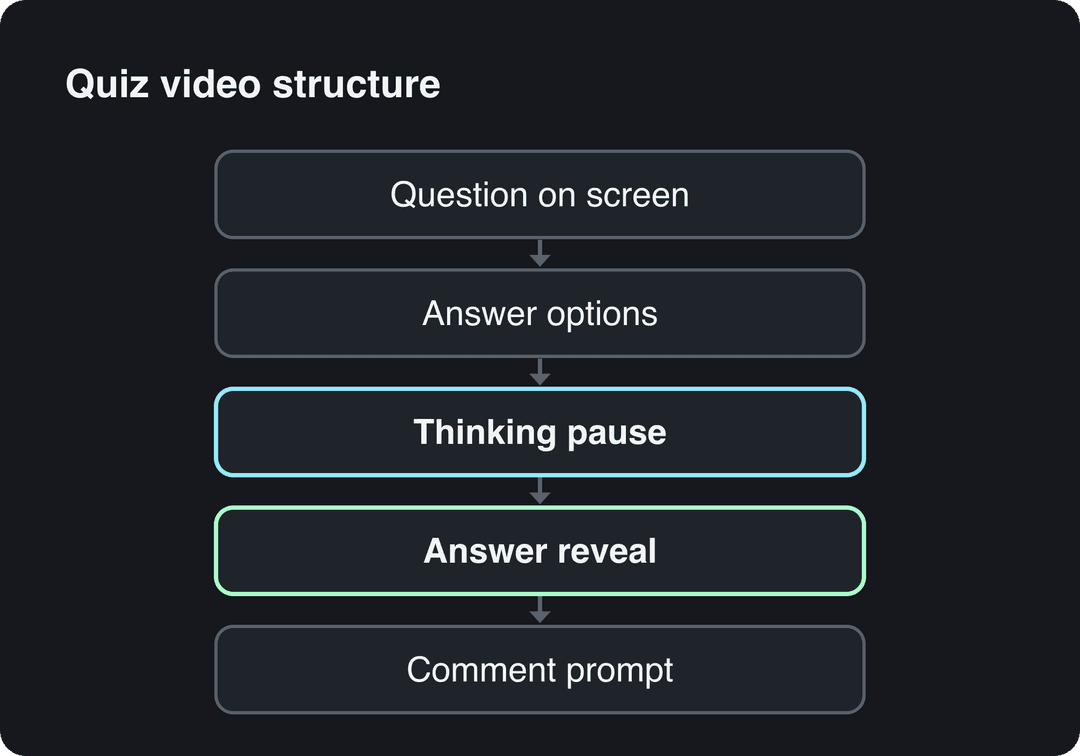
- Open on the question. The question is your hook, so put it on screen and in the voice from the first second. For more openers, browse these TikTok hooks that stop the scroll.
- Show the options clearly. Short options, one plausible wrong answer.
- Leave a thinking pause. Add it with the pause tag as shown above.
- Reveal, then ask. After the answer, ask viewers to comment what they guessed or tag a friend who would get it wrong.
These question types tend to work well:
| Question type | Example | Why it works |
|---|---|---|
| Common misconception | What is the capital of Australia? (Sydney, Melbourne, Canberra) | Many people pick Sydney, so the reveal surprises |
| Who did it | Who wrote the play Romeo and Juliet? | Easy enough to feel smart, good for a series opener |
| Odd one out | Which of these is not a fruit? | Viewers argue about the edge cases |
| Niche knowledge | A question only fans of your topic would get | Builds a loyal audience in your niche |
An unsure question is the opposite problem: if the answer is debatable for the wrong reasons, the comments fill with corrections instead of guesses. Check every answer before you generate.
If you make quizzes for a class or a course, the educational video maker covers the lesson videos the quiz tests.
Prompt for a series
Create a 15-second vertical odd-one-out quiz. Hook: "Only 1 in 10 spots this." Question: Which of these is not a fruit? Options: tomato, cucumber, carrot, avocado. Use bright stock footage of each food, reveal carrot after a short pause, and end by asking viewers to tag a friend who would get it wrong.
FAQ
Is Revid's video quiz maker free?
You can start free: sign-up is free and new accounts get free credits to try video creation, no credit card needed. Regular creation then uses the monthly credits of a paid plan, from $39/month for 2,000 credits; check Revid pricing for current plans.
Can I use my own voice for a quiz video?
Yes, with voice cloning, available on the Elite plan and above. Clone your voice once, then pick it as the narrator like any AI voice.
Can I make the same quiz in other languages?
Yes. Open the project card menu in Videos and choose Translate, which opens the video translator with 74 target languages; it keeps the edit, media and captions, and costs 10 credits per 500 characters of narration.
What aspect ratio should a quiz video be?
Use 9:16 for TikTok, Instagram Reels and YouTube Shorts. Revid also exports 1:1 and 4:5 for feed posts and 16:9 for regular YouTube videos.
Sources
- Revid TikTok index: 2,377,477 TikToks with AI labels per video, snapshot of Sep 15, 2026. Median views estimated from view buckets.
- Revid data, Amplitude project_built by ratio for text-input tools, Sep 29 to Oct 28, 2026, 50,623 projects.
Charts and figures checked on November 6, 2026.