On this page
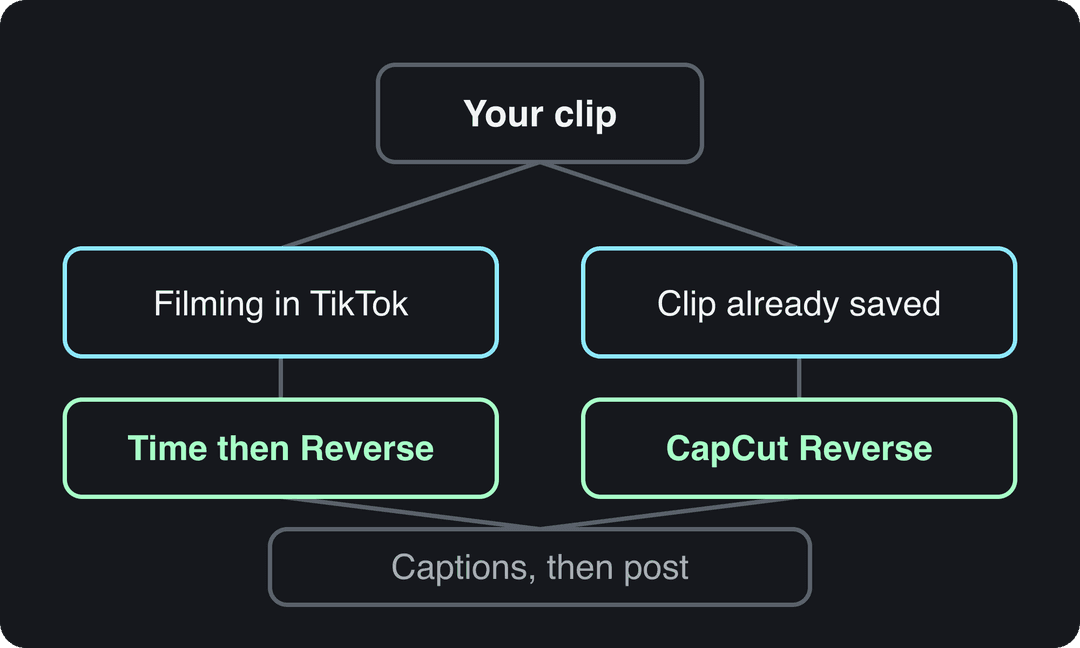
To reverse a TikTok video, tap + to record or upload a clip, tap Next to open the editor, then tap Effects, open the Time tab and choose Reverse. Save, add your sound, and post. If your app shows no Time tab, reverse the clip in CapCut (select the clip, tap Reverse) and upload it to TikTok.
The mistake that ruins most reverse videos is the sound: reversing a clip with its original audio turns speech and music into gibberish. Mute the original audio, reverse the footage, then add your sound or voiceover so it plays forward. That contrast is what makes the trick work: physics runs backwards while everything the viewer hears feels normal.
- Longest clip you can record with TikTok's in-app camera
- 10 min
- TikTok app
- Languages for automatic synced captions on a reversed clip
- 100+
- Revid AI caption generator
- Caption styles to choose from after uploading your clip
- 30
- Revid AI caption generator
How to reverse a video in the TikTok app
Use this route when you are filming in TikTok or uploading a clip straight from your camera roll.
- Open TikTok and tap + at the bottom of the screen.
- Record your clip with the in-app camera (up to 10 minutes), or tap Upload and pick a video from your camera roll.
- Tap Next (or the checkmark) to open the editing screen.
- Tap Effects.
- Open the Time tab and tap Reverse. The preview starts playing backwards.
- Tap Save to apply the effect.
- Tap Add sound to pick a track, or record a voiceover, so the audio plays forward over the reversed footage.
- Tap Next, write your caption and tap Post.
No Time tab or Reverse option in TikTok?
TikTok moves editing features between app versions and regions, so the Time tab is not always where older guides say it is. Work through these in order:
- Update TikTok from the App Store or Google Play, then reopen the editor.
- In the Effects panel, use the search field and type "reverse" to look for a reverse effect in the effects library.
- If neither works, reverse the clip in CapCut (next section) and upload the finished file to TikTok. It takes about the same time and gives you more control.
How to reverse a TikTok video with CapCut
CapCut has a dedicated Reverse button on its free tier and works on clips you have already filmed, including footage from your phone camera.
- Open CapCut and tap New project.
- Select your clip and tap Add.
- Tap the clip in the timeline to select it.
- Scroll the bottom toolbar and tap Reverse. CapCut processes the clip and replaces it with the reversed version.
- Tap Volume and mute the clip if it has speech or music, then add your sound from the audio menu.
- Tap Export, then share straight to TikTok from the export screen or save the file and upload it in TikTok.
What video editor can reverse a clip, add AI captions and post directly to TikTok?
CapCut is the simplest single answer: its free tier includes Reverse, auto-captions and a direct share to TikTok, and it has the tightest TikTok integration of any editor. If you only need one app for this, use CapCut.
If you also want styled captions in other languages, scheduling, and the same video going to Instagram and YouTube, split the work: reverse in TikTok or CapCut, then caption and publish from a tool built for that. Our Revid vs CapCut comparison covers where each one fits.
Add captions and publish with Revid
Revid does not have a reverse button, so do the reverse first and export the clip. Then use Revid for the captions and the posting:
- Upload the reversed video to the AI caption generator, which creates synced captions automatically in 100+ languages, and pick one of 30 caption styles.
- Adjust timing or wording in the timeline editor.
- Connect your TikTok account to Revid, then publish or schedule the video from one publishing queue for TikTok, Instagram and YouTube.
Captions come from speech, so a reversed clip with only music has nothing to transcribe. Record a short forward voiceover first if you want spoken captions.
How to watch a video in reverse on TikTok
TikTok has no reverse-playback or rewind button for videos in your feed. On videos that show a progress bar, you can drag it back to rewatch a moment, but the video still plays forward.
To actually see a TikTok play backwards, save it with Share then Save video (only available when the creator allows downloads), open the file in CapCut and tap Reverse. Keep that for your own viewing: reposting a reversed copy of someone else's video is reusing their content, not making your own.
Prompt to try
Make a 30-second vertical TikTok explaining why reverse videos grab attention, opening with the hook "Physics just took the day off." Show quick examples like a drink un-spilling, keys flying back into a hand and a sandwich rebuilding itself. Use an upbeat voiceover, bold captions and a playful, fast-cut style.
Reverse video ideas that work
The best reverse clips show one clear action that is impossible forwards. Film the action normally; the reverse does the magic.
| Idea | How to film it | On-screen text |
|---|---|---|
| Un-spilling a drink | Pour water slowly onto a table with the phone on a stand | "Physics took the day off" |
| The impossible catch | Drop your keys from your hand; reversed, they fly up into it | "No-look catch" |
| A room that cleans itself | Toss clothes off a bed in one sweep; reversed, they land neatly | "Cleaning with one gesture" |
| Jumping up a wall | Jump down from a low wall or step | "Parkour, but backwards" |
| The un-bitten snack | Take bites out of a sandwich; reversed, it rebuilds | "Undo button for snacks" |
Open with the text overlay so viewers know to watch closely, and keep it inside the TikTok safe zone so the caption bar and buttons do not cover it.
The index leans toward videos that surface in hashtag and keyword searches, so its view counts run high: compare the groups, not the absolute numbers.
Source: Revid TikTok index: 2,377,477 TikToks with AI labels per video, snapshot of Sep 15, 2026. Median views estimated from view buckets.
Show the data
| Median views | Share past 1M views | |
|---|---|---|
| Animal-focused | 273.2K | 36.3% |
| Faceless | 199.4K | 29.7% |
| Object-focused | 143.1K | 24.9% |
| Group-focused | 140.3K | 23.7% |
| Person-focused | 104.8K | 21.8% |
How to make a reverse video look clean
- Lock the camera. Use a tripod or lean the phone against something. Shaky footage looks twice as shaky backwards.
- Hold still at the start and end. Pause for a beat before and after the action, so the reversed clip opens on a clean frame.
- One action per clip. A single motion (a throw, a pour, a jump) reads instantly; a busy scene looks like random rewinding.
- Film the ending you want seen first. The last frame you record becomes the first frame viewers see, so finish on the most interesting shot.
- Add text after reversing. Any text you add before reversing will play backwards or flicker. Add overlays and captions last, for example with the TikTok subtitle generator.
If you want a steady flow of TikToks rather than one effect clip, the AI TikTok video generator turns a script or a link into a finished vertical video with voiceover and captions.
The index leans toward videos that surface in hashtag and keyword searches, so its view counts run high: compare the groups, not the absolute numbers.
Source: Revid TikTok index: 2,377,477 TikToks with AI labels per video, snapshot of Sep 15, 2026. Median views estimated from view buckets.
Show the data
| Median views | Share past 1M views | |
|---|---|---|
| Drone | 173.9K | 27.9% |
| Steady cam | 162.7K | 26.2% |
| Screen recording | 159.9K | 23.8% |
| Handheld | 140.9K | 25.6% |
| POV | 139.9K | 26% |
| Tripod | 117K | 23.6% |
| Selfie | 67K | 16.3% |
FAQ
Can you reverse a TikTok you already posted?
No, TikTok does not let you edit a posted video. Reverse your original file (or a saved copy of your post) in the TikTok editor or CapCut and post it as a new video; use the original file when you have it, because the saved copy can carry a TikTok watermark.
Does reversing a video reverse the sound too?
Often, yes: editors such as CapCut reverse the clip's original audio along with the picture, which makes speech unintelligible. Mute the clip and add your music or voiceover after reversing so it plays forward.
Can you reverse a video on iPhone without an app?
No, the iPhone Photos editor has no reverse option. Use the TikTok editor or a free editor such as CapCut.
How do you make a video play forward and then backward?
In CapCut, duplicate the clip, reverse the second copy and place it right after the first, then export. To repeat that back-and-forth several times, run the export through a video loop tool before uploading.
Sources
- Revid TikTok index: 2,377,477 TikToks with AI labels per video, snapshot of Sep 15, 2026. Median views estimated from view buckets.
Charts and figures checked on November 6, 2026.