How to Regenerate a Video Scene or Image in Revid (2026 Editor)
Fix one bad scene instead of rebuilding the whole video. This guide covers regenerating images, AI video clips and voiceovers in Revid's current editor, with the credit cost of each option.
On this page
To regenerate a video scene in Revid, open the project from Videos, click the image or video clip on the timeline, then use "Regenerate/Edit image" for an AI image or "Regenerate from prompt" for an AI video clip. Write a new prompt and generate: only that clip changes.
Fixing one scene this way costs far less than starting over. A new Pro-quality image costs 4 credits, while a fresh 30-second video with Pro AI visuals and a voice-over costs about 40 to 80. Older guides describe a "Frames" panel and a single "Regenerate" button under the image. Neither matches today's editor, so the steps below follow the current one.
- Credits to regenerate one Pro-quality AI image
- 4
- Revid credit costs
- Credits for an AI edit of an existing image
- 8
- Revid credit costs
- Credits per 5 seconds to regenerate a Pro AI video clip
- 50
- Revid credit costs
- Credits per started 500 characters of new voiceover
- 10
- Revid credit costs
Open your project in the editor
- In the sidebar, click Videos (under Create).
- Click the project card to open it. You can also open the card menu and choose "Open in editor".
- If the old editor opens, switch to "v2 editor (new)" at the top of the Videos page, or choose "Open in the new editor" from the card menu. New accounts use the v2 editor by default.
The AI video editor opens with a left rail (Script, Text, Media, Transitions, Audio, Captions, Settings), the preview in the middle and the timeline at the bottom. Every image, video clip and voiceover is a block on the timeline. Clicking a block opens its settings on the left.
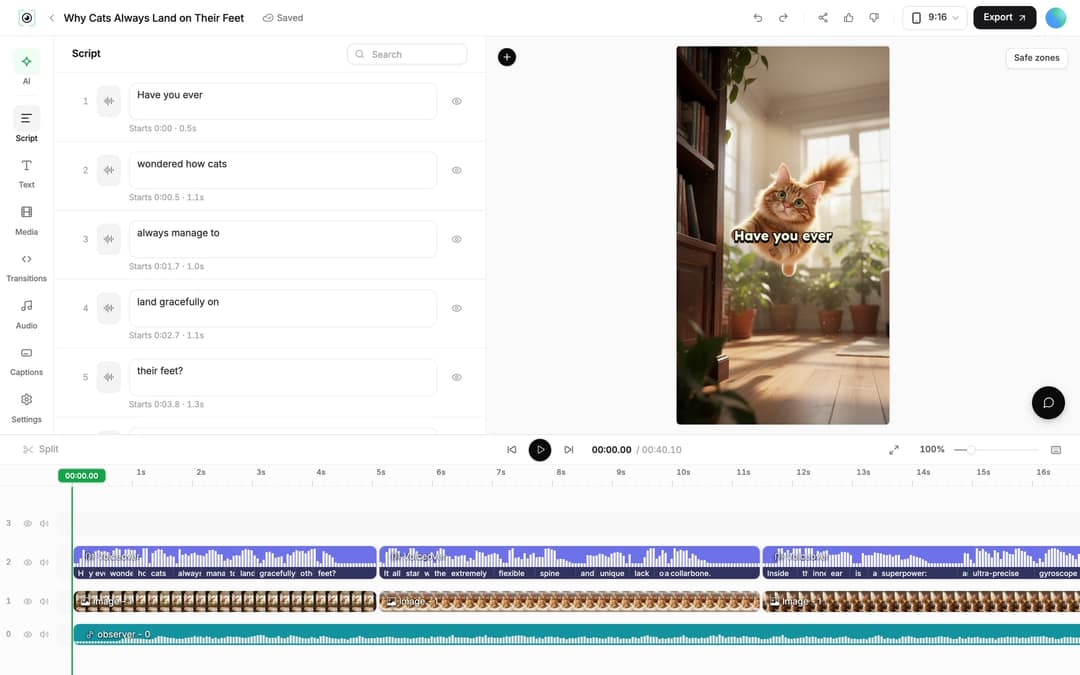
The short clip below was recorded in an earlier version of the editor. You still pick scenes on the timeline, but the panel names have changed, so follow the steps in this guide.
How to regenerate an AI image in a scene
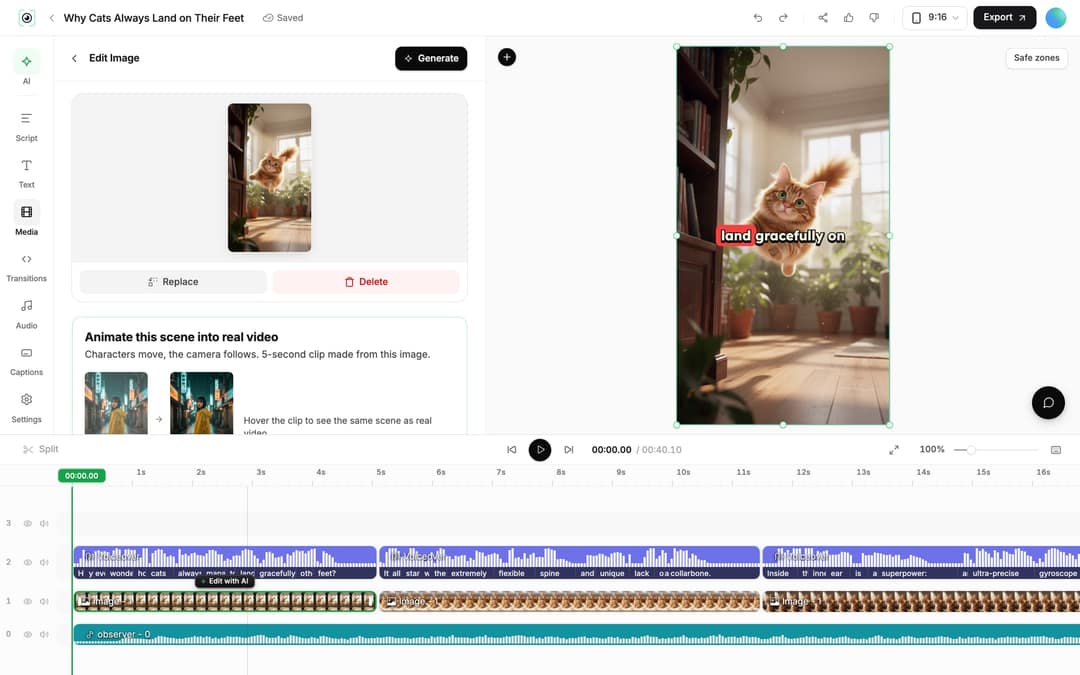
- Click the image clip on the timeline. Its panel opens with Replace and Delete at the top.
- Open "Regenerate/Edit image" and pick a tab:
- Regenerate image creates a new image from a prompt. Use it when the subject or style is wrong.
- Edit existing image changes the current image from a prompt and keeps the rest. Use it for a wrong detail, a stray object or a color.
- If the image has no original prompt (for example, a stock photo or an upload), you only see "Edit image with prompt".
- Write your prompt and generate. The new image replaces the old one in the same slot on the timeline, with the same timing.
Short, visual prompts work better than vague ones. Some examples:
| Goal | Weak prompt | Better prompt |
|---|---|---|
| New image | "a cat" | "Orange tabby cat twisting mid-air above a wooden floor, warm window light, photorealistic, vertical framing" |
| Edit a detail | "fix it" | "Remove the bookshelf on the left, keep the cat and the lighting unchanged" |
| Change style | "make it better" | "Same scene as a flat 2D illustration, soft pastel colors" |
Image regeneration is charged per image: Low 1 credit, Pro 4, Ultra 16. An AI edit of an existing image costs 8 credits.
Calls that failed
Source: Revid production data: 713,649 AI video clips generated Jun 29, 2026 to Sep 26, 2026.
Show the data
| Calls that failed | |
|---|---|
| Seedance | 2.7% |
| MiniMax Hailuo | 2.2% |
| PixVerse | 6.4% |
How to regenerate an AI video clip
Click an AI video clip on the timeline and open "Regenerate from prompt". It has three tabs:
- Re-animate: keeps the clip's starting image and generates new motion. Use it when the picture is right but the movement looks off.
- New image + video: generates a new image, then animates it. Use it when the whole scene is wrong.
- Edit with AI: changes the existing clip from a prompt. If the clip has no generation settings (an upload or a stock clip), this is the only tab you see.
Video clips keep a version history, so you can go back to an earlier take if the new one is worse.
AI video is billed per 5 seconds, pro rata per second, so a regenerated 3-second clip costs less than a 5-second one:
| Model or tier | Credits per 5 seconds |
|---|---|
| Low | 15 (image-to-video on Low: 40) |
| Pro | 50 |
| Ultra | 100 |
| MiniMax Hailuo H3 | 100 |
| Google Veo 3 | 100 |
| Seedance 2.5 (1080p) | 250 |
| Seedance (4K) | 500 |
Sora 2 is no longer offered, because OpenAI shut down the Sora API on September 24, 2026. A project that was set to Sora 2 is billed at the Veo 3 rate. To compare how fast and how reliably each model renders, see the AI video model index.
Replace a scene with your own file, stock or a new generation
Sometimes the fastest fix is not a new prompt but a different file.
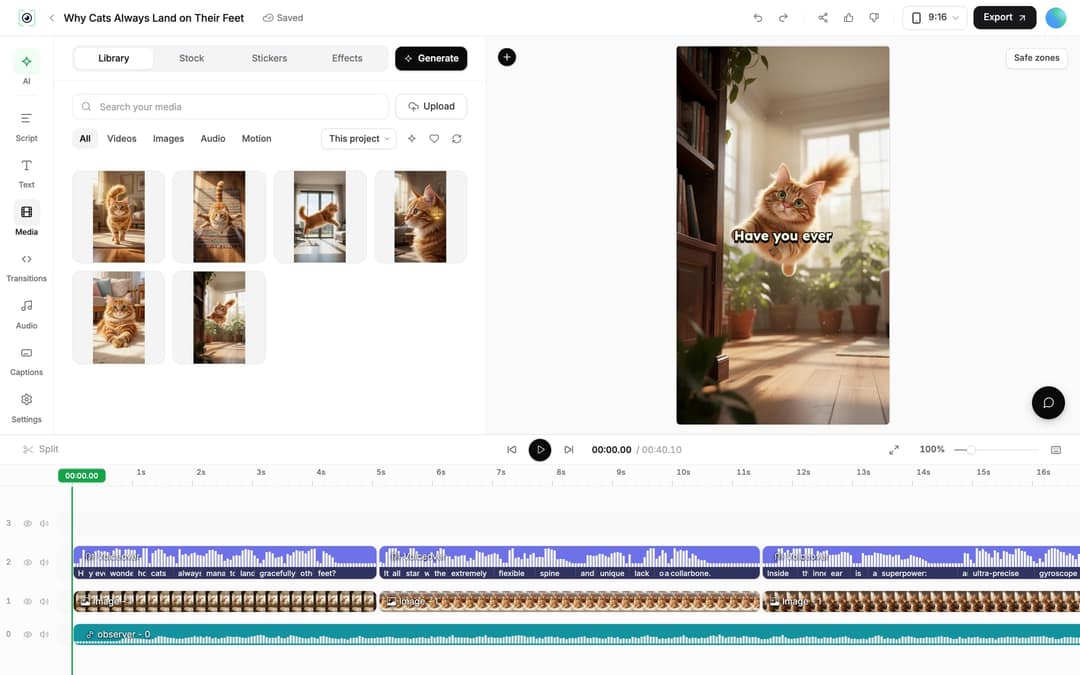
- Select the clip and click Replace. The Media panel opens on its Library.
- Pick from your uploads, or switch to another section:
- Library: your uploads. Drag a file onto the panel to upload it.
- Stock: Videos and Photos.
- Stickers: Stickers and Emojis.
- Effects: FX and Visualizers.
- To make something new, click Generate in the Media panel. It opens the AI generation page.
To add a scene rather than swap one, see how to add new media to a project.
Which option should you use?
| What's wrong | Use this | Where |
|---|---|---|
| The image shows the wrong subject or style | Regenerate image | Regenerate/Edit image |
| One detail in the image is wrong | Edit existing image | Regenerate/Edit image |
| The picture is right, the motion is bad | Re-animate | Regenerate from prompt |
| The whole AI video scene is wrong | New image + video | Regenerate from prompt |
| A stock or uploaded clip needs a change | Edit with AI | Regenerate from prompt |
| You already have the right shot | Replace | Clip panel, then Media panel |
| The scene is fine but too long | Trim | Timeline |
Regenerate the voiceover after changing the script
If the media is fine but the words are wrong, edit the script and regenerate the voice:
- Open Script in the left rail and edit the text of any caption segment. Revid shows: "Caption updated. Re-generate voice if timing changed."
- Open Audio, Voiceover tab. Under Project Voiceovers, click Re-generate on the line you changed. You can also select the voiceover clip on the timeline and click "Re-generate Voiceover".
- In the "Re-generate existing voiceover" dialog, check the text under "Edit Input Text", pick a voice, and keep "Keep timeline in sync" on (under Options) so clips, texts and music follow the new narration timing.
- Click Generate Voice.
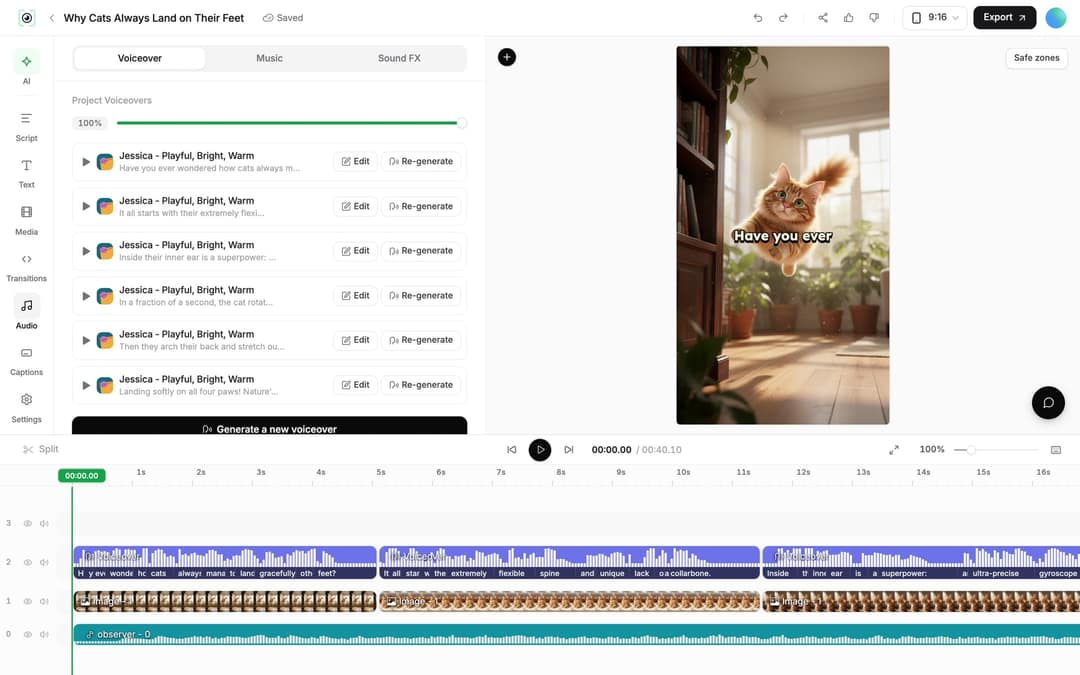
A new voiceover costs 10 credits per started 500 characters, and regenerating it requires a paid plan. The dialog shows the exact cost before you confirm. To add a pause, use a break tag: see how to add a pause in the voice. If the captions need restyling afterwards, follow the guide to captions and subtitles in Revid.
Trim a scene instead of regenerating it
A scene that runs too long does not need new media:
- Drag the start or end edge of the clip on the timeline.
- Place the playhead and press S (or click Split) to cut the clip in two, then delete the part you don't want. Shift+Del ripple-deletes and closes the gap.
- For a video clip, use the "Trim" section in its panel to set exact start and end times. "Reset" restores the original.
In dollars at the Growth rate ($39 for 2,000 credits), a 60-second video costs about $0.43 with stock footage, $0.68 with animated AI images, $1.46 with pro AI images, $4.29 with AI video clips and $13.30 with pro AI video. A 90-second video costs 1.5 times the 60-second price. Every price includes the AI voice-over (10 credits per 30 seconds); motion graphics show the calculator's upper bound.
Source: Revid public credit calculator (POST /api/public/v3/calculate-credits, no key), prompt-to-video workflow, 30, 60 and 90 seconds, queried Oct 29, 2026.
Show the data
| 60-second video, credits | 30-second video, credits | 60-second videos per Growth month | |
|---|---|---|---|
| Stock footage | 22 | 11 | 90 |
| Animated AI images | 35 | 18 | 57 |
| AI images, pro | 75 | 37 | 26 |
| AI video clips | 220 | 110 | 9 |
| Motion graphics | 275 | 160 | 7 |
| AI video, pro | 682 | 341 | 2 |
When a fresh video makes more sense
If most scenes are wrong, start again from a better prompt or script with the AI video generator rather than regenerating scene by scene. Check the "Estimated cost" next to Generate video first. To make the same video in another language, use Translate Video: it keeps the edit, media and captions and only redoes the voice. For a silent clip that needs narration, add an AI voice to a silent video. Plans and credit amounts are on the pricing page.
FAQ
Does regenerating one scene change the rest of my video?
No. Regenerating an image or video clip only replaces that clip. Regenerating the voiceover can retime the timeline, which is why the dialog offers "Keep timeline in sync".
How many credits does it cost to regenerate an image in Revid?
A new image costs 1 credit on Low, 4 on Pro and 16 on Ultra. An AI edit of an existing image costs 8 credits. Your balance shows as "N credits" at the bottom of the sidebar.
Why do I only see "Edit with AI" on a video clip?
The clip has no generation settings, usually because it is an upload or a stock clip. Revid can only re-animate or rebuild clips it generated itself, so it offers a prompt edit instead.
Can I go back to the previous version of a video clip?
Yes. AI video clips keep a version history in the clip's panel, so you can return to an earlier take after regenerating.
Do I need a paid plan to regenerate media?
Regenerating the voiceover requires a paid plan, and AI video visuals need a subscription. Image regeneration uses credits from your balance, and new accounts get free credits to try video creation.
Sources
- Revid production data: 713,649 AI video clips generated Jun 29, 2026 to Sep 26, 2026.
- Revid public credit calculator (POST /api/public/v3/calculate-credits, no key), prompt-to-video workflow, 30, 60 and 90 seconds, queried Oct 29, 2026.
Charts and figures checked on November 6, 2026.