How to Trim a Video in Revid AI: Edges, Splits and Exact Times
The Revid editor changed in 2026. Here is how to trim a clip, cut out a middle section with Split and Ripple delete, set exact times, and shorten the voiceover too.
On this page
To trim a video in Revid, open it from Videos and drag the start or end edge of a clip on the timeline. To remove a middle part, press S to split at the playhead twice, select the piece and press Shift+Del. Video clips also have a Trim section for exact start and end times.
The editor has changed since older guides were written. The Trim Video button and its pop-up are now a Trim section in the clip's panel, and the Frames panel is now called Script. The mistake that costs people time is something else: a Revid video keeps the voiceover, the visuals and the music on separate tracks, so shortening a scene does not shorten what the voice says. Decide which track you are cutting before you start.
- Median views of TikToks under 15 seconds, the lowest of any length bucket
- 58K
- Revid analysis of TikToks
- Shares per 100 views for TikToks under 15 seconds, the most of any length
- 1.41
- Revid analysis of TikToks
- Cost to regenerate a voiceover, per started 500 characters
- 10 credits
- Revid editor
- Maximum clips the YouTube clip maker cuts from one link
- 3
- Revid YouTube clip maker
How to trim a video in Revid, step by step
These steps use the v2 editor, the default for new accounts in the Revid AI video editor.
- In the sidebar, under Create, click Videos.
- Click the video's card to open it in the editor, or open the card menu and choose Open in editor. If the menu shows "Open in the new editor" instead, your account opens the legacy v1 editor by default: use that item, or set the switch at the top of Videos to "v2 editor (new)".
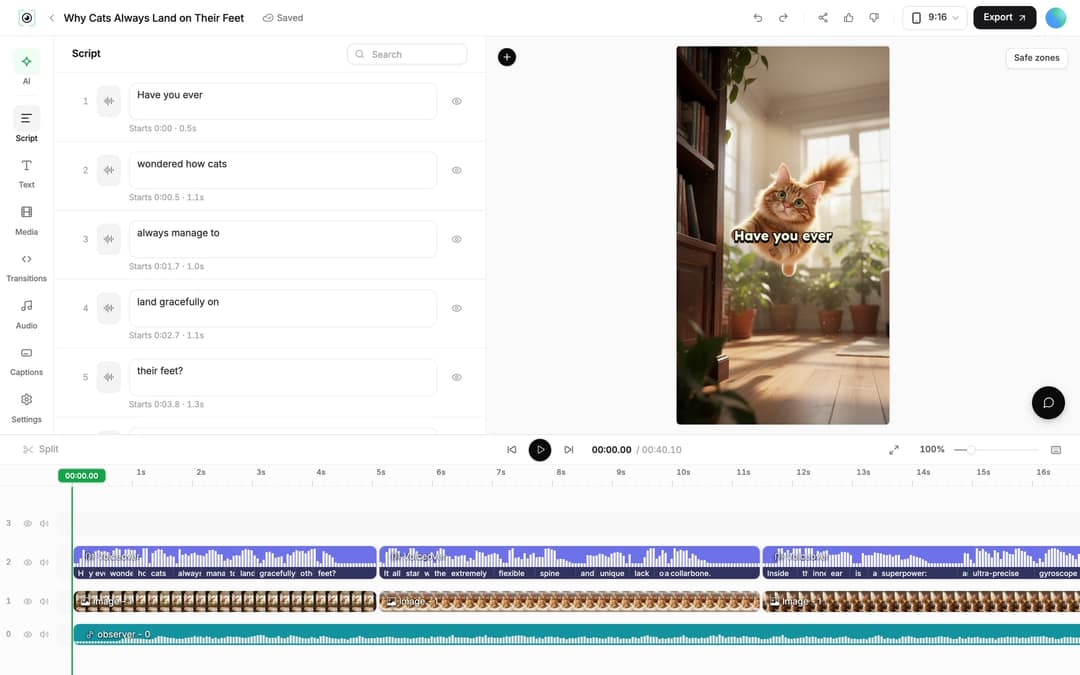
- Find the clip in the timeline at the bottom. Each row is a track: voiceover, images or video, and music.
- Click the clip to select it, then drag its start edge to the right or its end edge to the left.
- Press play in the preview to check the cut, then export (see the last section).
How do you cut a section out of the middle?
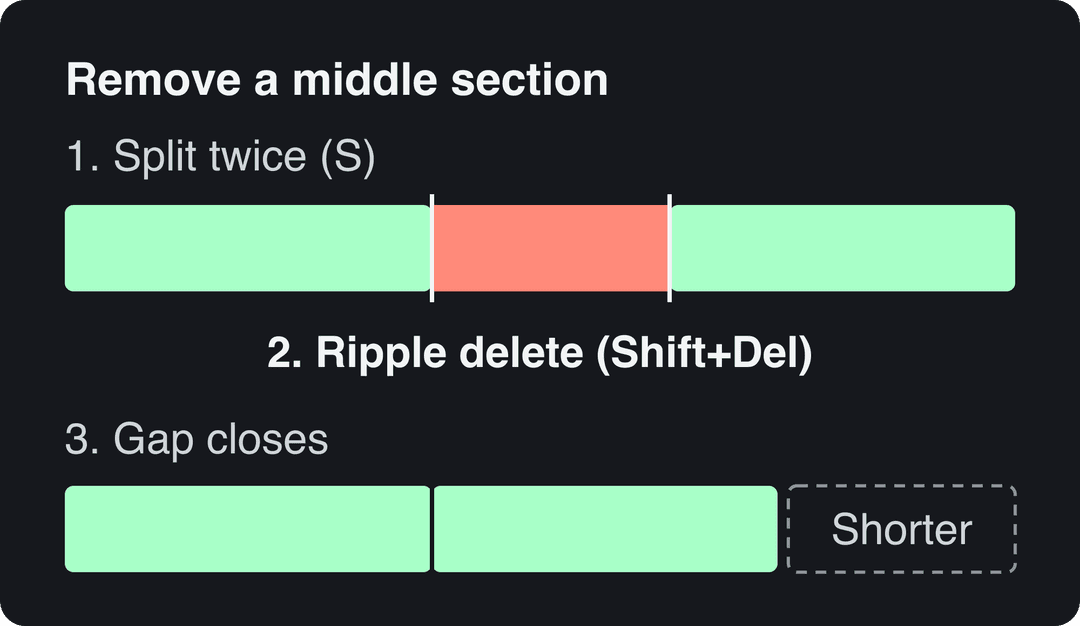
Dragging edges only shortens the start or the end. To remove a part in the middle of a clip:
- Select the clip and move the playhead to where the unwanted part begins.
- Press S (or click Split) to split the clip at the playhead.
- Move the playhead to where the unwanted part ends and press S again.
- Select the middle piece and press Shift+Del (Ripple delete), so the clips after it move back and close the gap. Plain Del (Delete selection) removes only the selected piece.
How to set exact start and end times
When the clip is a video (AI video, stock footage or your own upload), select it and open the Trim section in its panel. Type the start and end times you want; Reset brings back the full clip. This is the precise option when you need a cut to land on a specific second.
Image clips have no Trim section. Drag their edges on the timeline instead.
Videos include an AI voiceover; clip quotes are AI highlights without one. Clip and motion graphics quotes are minimums: the final charge depends on the source video or the footage generated. AI video clips are on the Pro model; the Base model costs 110 credits for 30 s.
Source: Revid public endpoint POST /api/public/v3/calculate-credits, queried October 29, 2026: workflow video-to-clips with 1 and 3 outputs, and prompt-to-video at 30 and 60 seconds with each media type. Cents = credits x $39 / 2,000, rounded.
Show the data
| Credits | US cents on Growth | |
|---|---|---|
| 1 clip from a YouTube link | 1 | 2 |
| 3 clips from a YouTube link | 3 | 6 |
| 30 s video, stock footage | 11 | 21 |
| 30 s video, animated AI images | 37 | 72 |
| 60 s video, animated AI images | 75 | 146 |
| 30 s video, motion graphics (estimate) | 190 | 371 |
| 30 s video, AI video clips (Pro model) | 341 | 665 |
Why is the voiceover still playing after you trim?
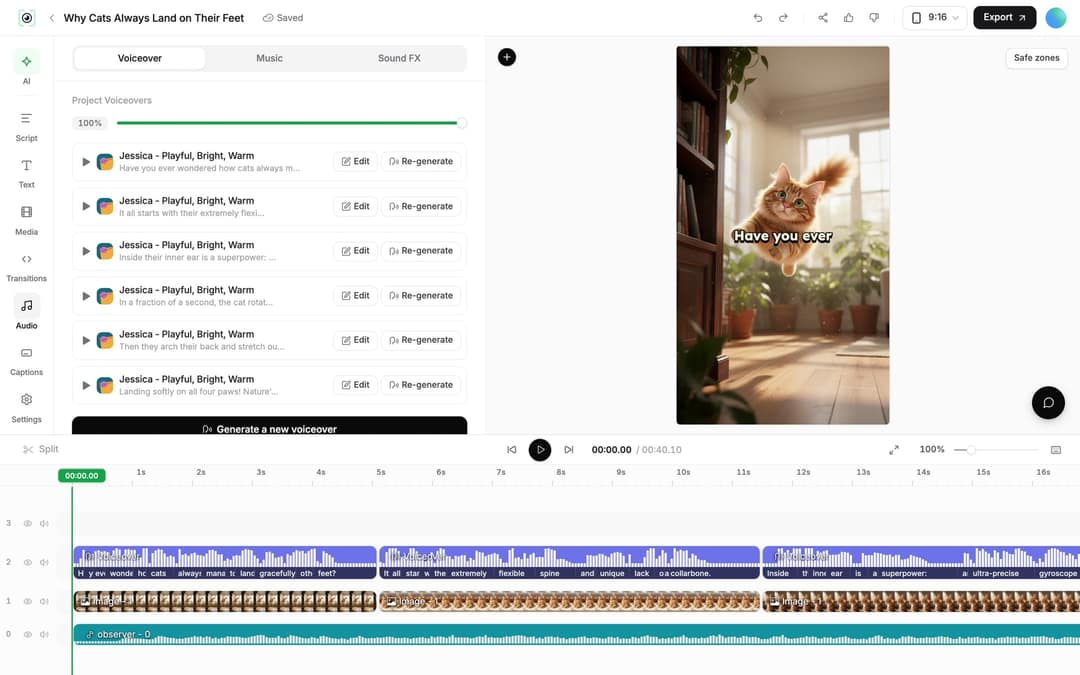
Because the narration is its own clip on its own track. Trimming an image or video clip changes what viewers see, not what they hear. To shorten what is said:
- Open Script in the left rail. Each caption segment has its own text box and start time.
- Edit or remove the words you no longer want. Revid shows "Caption updated. Re-generate voice if timing changed."
- Open Audio in the left rail, Voiceover tab, and click Re-generate on the voiceover (or select the voiceover clip on the timeline and click Re-generate Voiceover).
- In the dialog, open Options, turn on Keep timeline in sync so clips, texts and music follow the new narration timing, then click Generate Voice.
Regenerating a voiceover costs 10 credits per started 500 characters and needs a paid Revid plan; the dialog states the exact cost before you confirm. To hide a line from the on-screen captions only, click the eye icon next to its segment in the Script panel.
How to trim your own footage in Revid
You do not need a Revid-generated video to use the editor. Open Studio in the sidebar and choose Video Editor to start an empty project, then drag your file into the Media panel (it shows "Drop to upload"). The upload appears in Library; add it to the timeline and trim it with the steps above. To join several clips into one video, follow this guide on making a video from video clips.
For a long YouTube video, trimming by hand is the slow way. The YouTube clip maker (the YouTube Long to Shorts tool, under More tools on the Create page) cuts 1 to 3 extracts from a link, with Auto-reframe video on by default.
Prompt to try
Make a 30-second vertical TikTok on 3 kitchen habits that keep food fresh longer. Open with the hook "You are throwing away half your groceries", give one quick tip per habit with no slow intro or repeated points, and end on the most surprising tip. Use fast-paced stock footage, bold captions and an upbeat voiceover.
Length alone barely moves views: every bucket lands between 58K and 76K median views (the 790 videos over 10 minutes are a small, unusual group). Clips under 15 seconds get shared the most per view.
Source: Revid analysis of 176,367 TikToks with 1,000+ likes posted between Oct 1, 2025 and Oct 16, 2026 (61,203 creators)
Show the data
| Median views | Share that passed 1M views | Shares per 100 views | |
|---|---|---|---|
| Under 15 s | 57.6K | 11.6% | 1 |
| 16 to 30 s | 64.9K | 12.3% | 1 |
| 31 to 60 s | 61.8K | 11.8% | 1 |
| 61 to 90 s | 70.5K | 12.2% | 1 |
| 91 s to 3 min | 63.4K | 11.1% | 1 |
| 3 to 10 min | 76.4K | 12.4% | 1 |
| 10 min+ | 129.6K | 13.8% | 0 |
How short should you trim a short-form video?
Shorter is not automatically better. In Revid's analysis of 176,367 TikToks with 1,000+ likes posted between October 2025 and October 2026, every length bucket from under 15 seconds to 10 minutes had a median between 58K and 76K views. Videos under 15 seconds had the lowest median (58K) but the most shares per view, 1.41 per 100. The sample only includes videos that already passed 1,000 likes, so it shows what successful videos have in common, not what causes views. The full method is in our study of what makes a TikTok go viral.
The decision rule: trim to remove dead air, slow intros and repeated points, not to hit a target length. If a cut makes the video shorter but removes the payoff, put it back. For more editing habits for TikToks, Reels and Shorts, see this short-form editing guide.
Export and publish the trimmed video
Click Export in the editor header (accounts without a paid plan see Export / Publish). You can export in 720p, 1080p or 4K at 30 or 60 fps; a 4K export costs 10 credits.
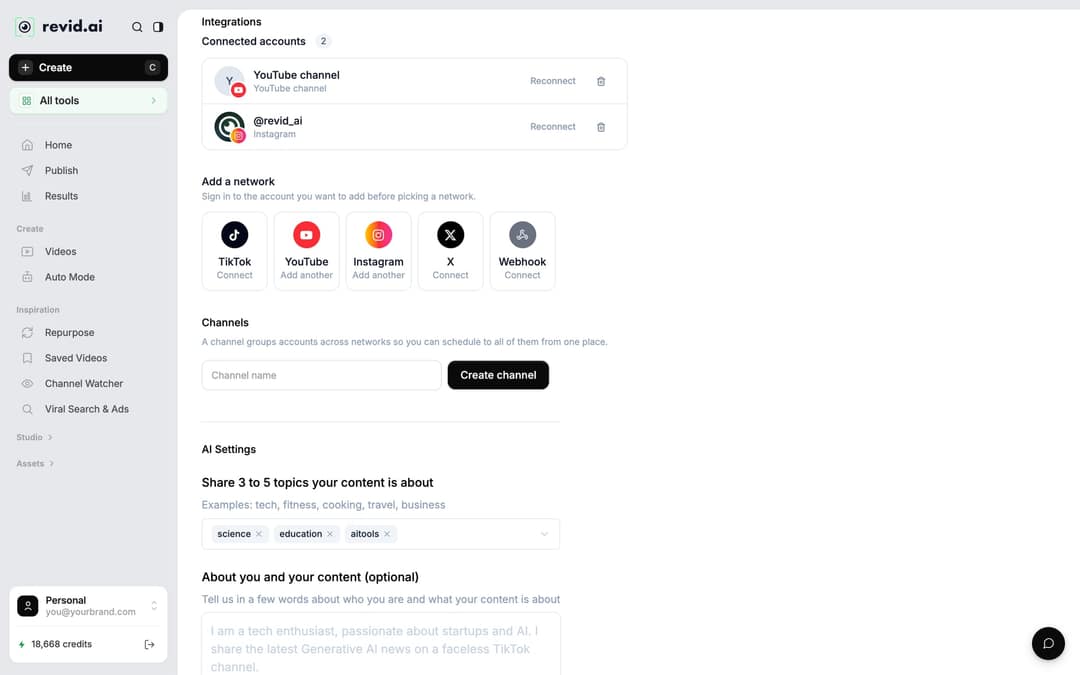
To post it, open the Publish Video dialog (from Export / Publish in the editor, or Publish on the project card), choose your accounts under Publish to, then click Publish to post now or Add to queue to schedule it. Connect TikTok, YouTube, Instagram or X first in Settings, in the Integrations section. More on direct publishing from Revid. If the trimmed video needs another shape, such as 4:5 for the feed, you can resize the video afterward.
FAQ
Where is the Trim Video button in Revid?
It is no longer a separate button with a pop-up. Select a video clip and use the Trim section in its panel, or drag the clip's edges on the timeline.
How do I trim the beginning of a video in Revid?
Select the first clip and drag its start edge to the right, or type a later start time in the clip's Trim section. If the narration also starts with words you want gone, edit the first segments in the Script panel and regenerate the voiceover.
What are the keyboard shortcuts for cutting in the Revid editor?
S splits the selected clip at the playhead, Del deletes the selection, and Shift+Del ripple deletes it. On the dashboard, C opens the Create page.
Can I trim a video I didn't make in Revid?
Yes. Start a project from Studio > Video Editor, drop your file into the Media panel, add it to the timeline and trim it like any other clip.
Sources
- Revid analysis of 176,367 TikToks with 1,000+ likes posted between Oct 1, 2025 and Oct 16, 2026 (61,203 creators)
- Revid public endpoint POST /api/public/v3/calculate-credits, queried October 29, 2026: workflow video-to-clips with 1 and 3 outputs, and prompt-to-video at 30 and 60 seconds with each media type. Cents = credits x $39 / 2,000, rounded.
Charts and figures checked on November 6, 2026.