Post Revid Videos on YouTube With Make: 7-Step Webhook Setup
How to route finished Revid videos to YouTube through a Make scenario (webhook, HTTP download, YouTube upload), and when Revid's direct YouTube publishing is the simpler choice.
On this page
To post Revid videos on YouTube with Make, add a Webhook integration in Revid (Settings > Integrations > Add a network) and connect it to a three-module Make scenario: Custom webhook, HTTP Get a file, and YouTube Upload a Video. Map video_url, title and description, turn the scenario on, then publish a video to the webhook from Revid.
You may not need Make at all. Revid now publishes and schedules directly to YouTube, TikTok, Instagram and X from one queue. Make only earns its setup time when you want logic around the upload: a filter, a log, a second destination, or a publishing stack you already run in Make.
- Maximum characters in a YouTube title, rejected by the Make module if longer
- 100
- YouTube limit
- Maximum characters in a YouTube description
- 5,000
- YouTube limit
- Longest vertical or square video YouTube classifies as a Short
- 3 minutes
- YouTube Official Blog, October 2024
- Daily YouTube Shorts views
- 200 billion+
- YouTube Official Blog, June 2025
Direct publishing or Make: which should you use?
| Your situation | Use |
|---|---|
| You want videos posted or scheduled to a YouTube channel, nothing more | Revid direct publishing (YouTube network) |
| You want extra steps before or after posting (a filter, a spreadsheet log, a Slack alert, another platform) | Make or Zapier with Revid's webhook |
| Your publishing already runs through Make or Zapier | Make or Zapier with Revid's webhook |
| You are on Make's free plan and do not want to upgrade | Revid direct publishing (see the warning in step 4) |
Both options are set up in the same place in Revid. For the direct route, follow the guide to connecting social accounts to Revid and pick YouTube instead of Webhook.
How to post Revid videos on YouTube through Make, step by step
Step 1: Open Integrations in Revid and choose Webhook
Click Settings at the bottom of the Revid sidebar (it opens /account) and scroll to the Integrations section. Under "Add a network", choose Webhook ("Send each post to Zapier, Make or your own URL"). Keep this tab open while you set up Make. If you work in a team workspace, the same section lives in the workspace settings instead.
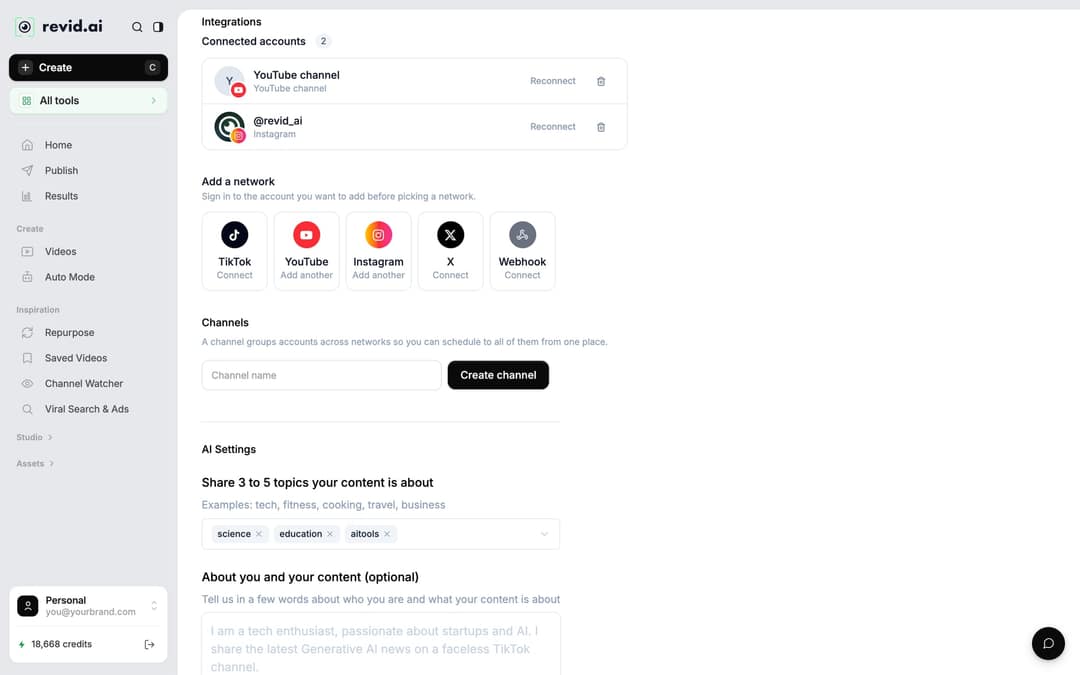
Step 2: Create the scenario and the webhook in Make
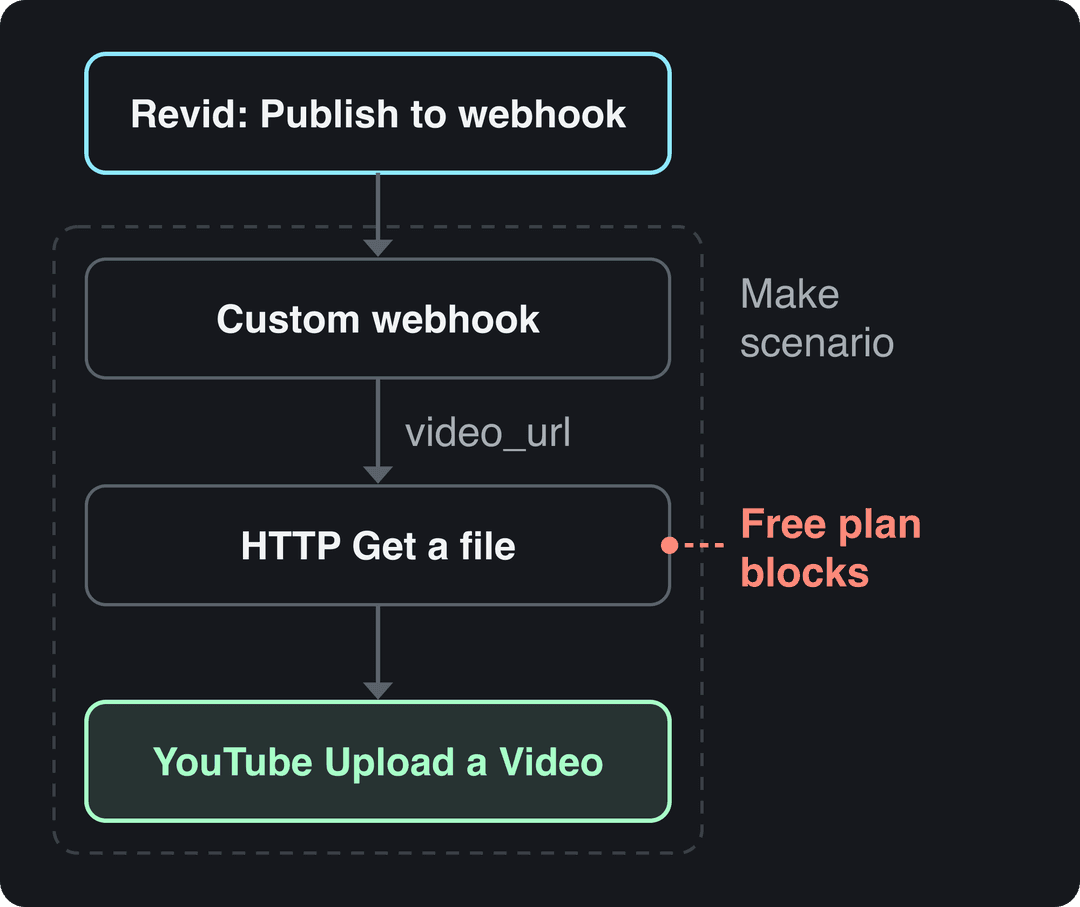
In your Make account, create a new scenario and add a Webhooks > Custom webhook module as the trigger. Click "Copy address to clipboard". The finished scenario will look like this:
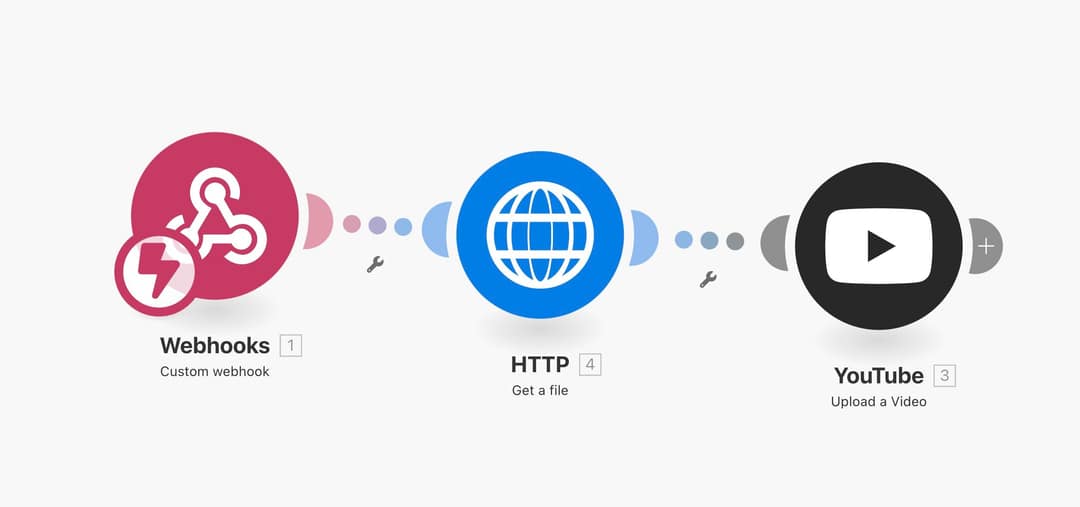
Step 3: Paste the address into Revid and send a test
Back in Revid, paste the Make address into the webhook URL field, give the integration a recognizable name (for example "YouTube via Make"), send a test, and save. The test matters: it sends Revid's data structure to Make, so the next modules can see fields like video_url, title, description and privacy_status.
Step 4: Download the file with an HTTP module
Add an HTTP > Get a file module after the webhook and map 1. data: video_url into its URL field. This turns Revid's video link into a file the YouTube module can upload.
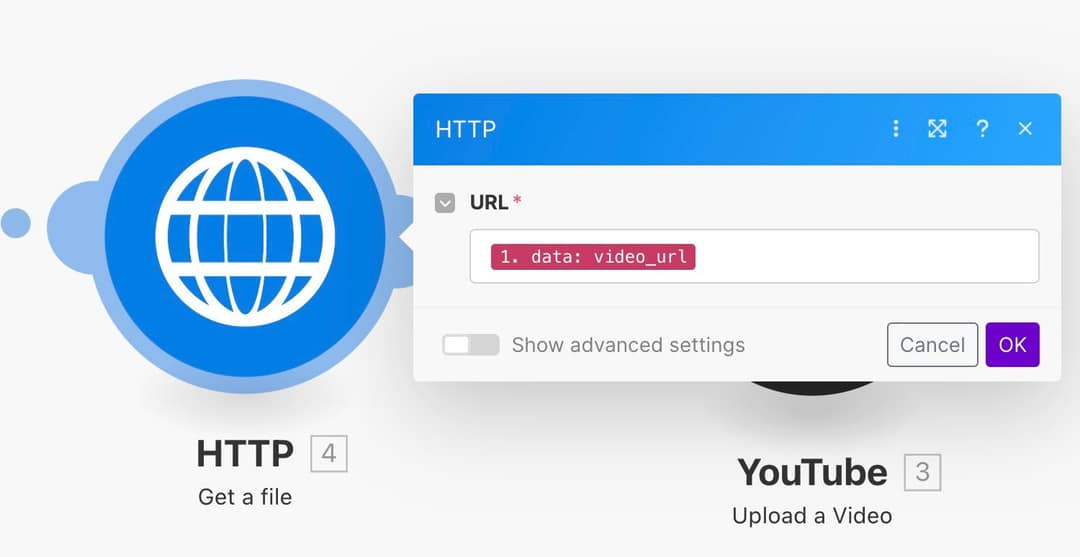
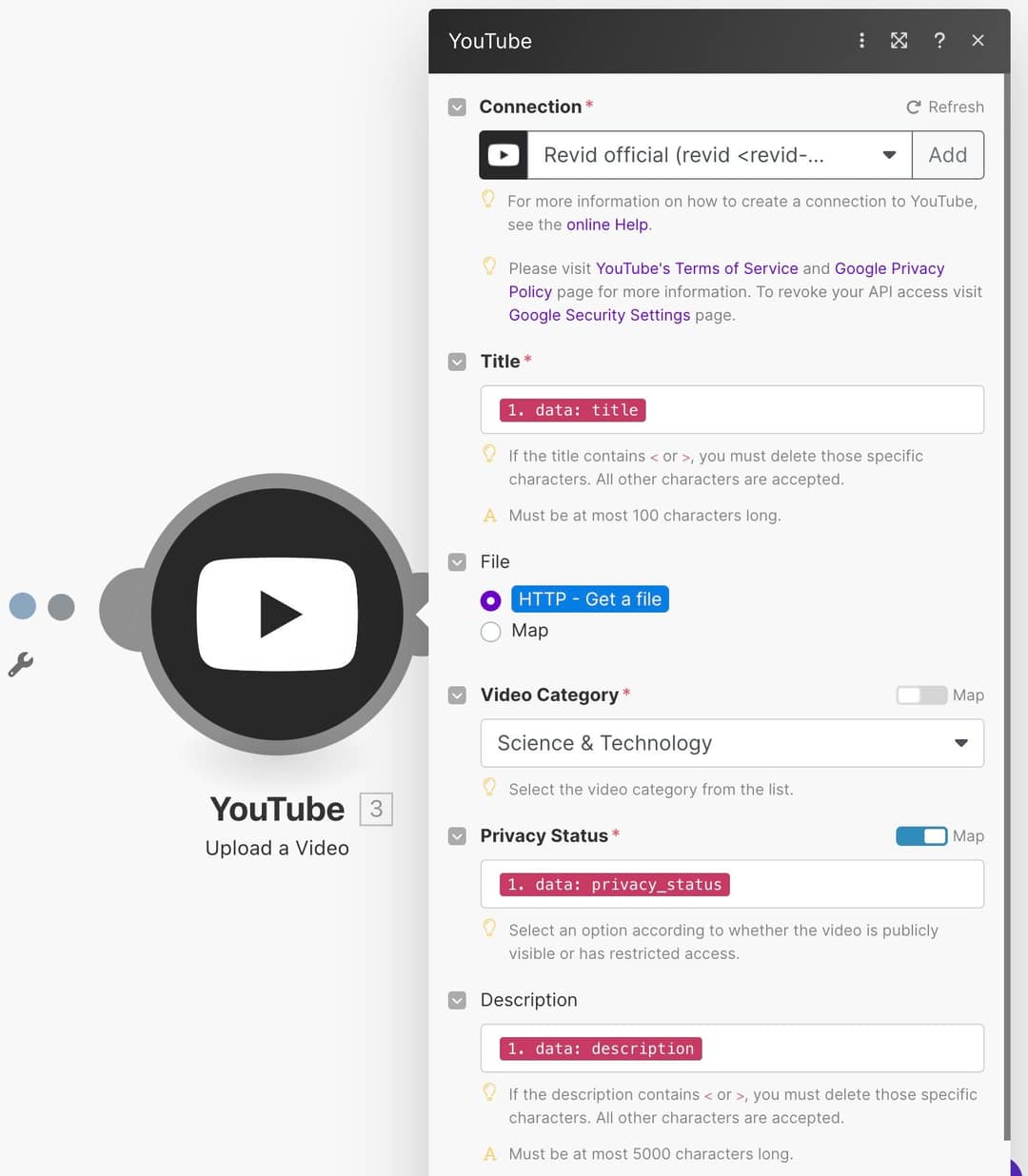
Step 5: Map the YouTube Upload a Video module
Add YouTube > Upload a Video, connect your channel, and map the fields from the first two modules (the full mapping is in the table below).
Step 6: Save the scenario and turn it on
Save the scenario and switch it on so it listens for new webhook calls. A scenario left off will receive nothing, and Revid's posts will go nowhere.
Step 7: Publish a video from Revid to the webhook
Open the menu on a project card in Videos and choose Publish (or use the export button in the editor). In the Publish Video dialog, select your webhook integration under "Publish to", then click "Publish" to send it now or "Add to queue" to schedule it from the Publish page. Each post sent to the webhook triggers the scenario, which downloads the file and uploads it to YouTube.
How to map the YouTube module fields
| YouTube module field | What to put in it |
|---|---|
| Connection | Your YouTube channel, connected with Make's Add button |
| Title | 1. data: title from the webhook |
| File | HTTP - Get a file (the download from step 4) |
| Video Category | A fixed category picked from the list |
| Privacy Status | 1. data: privacy_status with Map on, or Map off and a fixed value such as private for a first test |
| Description | 1. data: description from the webhook |
YouTube limits titles to 100 characters and descriptions to 5,000 characters, and the Make module rejects anything longer. The module also refuses the characters < and > in titles and descriptions, so remove them in Revid before you publish.
Vertical or square videos up to 3 minutes long are classified as YouTube Shorts, so a standard 9:16 Revid video sent this way lands in the Shorts feed. If that feed is your target, make the videos with the AI YouTube Shorts generator and check text placement with the YouTube Shorts safe zone checker. To upload a single Short by hand instead, see uploading Shorts from a PC.
Generating in the final shape matters: cropping a wide video to 9:16 cuts off text and faces. Avatar tools such as Synthesia and HeyGen default to 16:9 for training and web use.
Source: Revid data, Amplitude project_built by ratio for text-input tools, Sep 29 to Oct 28, 2026, 50,623 projects.
Show the data
| Share of projects | Projects | |
|---|---|---|
| 9:16 vertical | 83.2% | 42.1K |
| 16:9 wide | 15.2% | 7.7K |
| 1:1 square | 0.9% | 457 |
| 4:5 portrait | 0.7% | 356 |
Why is my Make scenario not uploading to YouTube?
- Make received nothing after the test: confirm you pasted the full Custom webhook address into Revid, that the webhook module is listening (click "Run once" in Make), then send the test again.
- Fields are empty in Make: Make never received the data structure. Re-run the test from Revid, then remap
video_url,titleanddescription. - The HTTP module fails: the file may exceed your Make plan's limits. Check the plan, or use direct publishing.
- The YouTube module rejects the upload: the title is probably over 100 characters or contains < or >. Edit it in Revid and publish again.
- The scenario ran but nothing posted from Revid: the scenario was off, or the video was published to another destination. Check that the webhook was selected under "Publish to".
One rule applies however you upload: YouTube requires you to disclose realistic AI-generated or altered content with the "AI use" setting in YouTube Studio. Disclosure on its own does not limit a video's reach or earnings. Since May 2026, YouTube also labels undisclosed videos with significant photorealistic AI automatically.
How to automate the whole channel
The Make scenario handles posting; something still has to make the videos. In Revid, sidebar Auto Mode opens the workers page, where a worker creates one video a day from a topic, a feed or a product page. Set its delivery to "Review First" to check each video before you publish it to the webhook, or "Auto Queue" to send each successful run to the posting queue of the accounts you select. Workers need a paid plan (3 on Growth, 5 on Elite, 10 on Ultra); see automated video creation for the formats they support.
If you prefer code to a visual scenario, every paid plan includes the Revid API documentation and the MCP server and CLI for AI agents, which can create and publish videos programmatically.
Prompt to try
Make a 40-second YouTube Short on 3 everyday habits that quietly drain your phone battery. Open with the hook "Your phone is dying faster because of this setting." Use clean close-up phone visuals, a fast, friendly voiceover and bold captions, and end with one quick fix viewers can try today.
Accounts
Source: Revid analytics (project_built events from the API, MCP and CLI), checked October 22, 2026
Show the data
| Accounts | |
|---|---|
| Oct 25 | 52 |
| Nov | 42 |
| Dec | 41 |
| Jan 26 | 58 |
| Feb | 75 |
| Mar | 92 |
| Apr | 110 |
| May | 114 |
| Jun | 124 |
| Jul | 135 |
| Aug | 134 |
| Sep | 148 |
FAQ
Can Revid post to YouTube without Make or Zapier?
Yes. Add YouTube under Settings > Integrations > Add a network, and Revid uploads Shorts and videos to your channel directly, now or on a schedule from the Publish page.
Does this setup work with Zapier instead of Make?
Yes. Revid's Webhook integration sends each post to Zapier, Make or your own URL. In Zapier, use a webhook trigger, paste its URL into Revid, send a test, then download video_url and map the fields into a YouTube upload action.
Do I need a paid Make plan to post Revid videos on YouTube?
In practice, yes. On Make's free plan the scenario is blocked at the HTTP download step because the video files are too big, so upgrade your Make plan or use Revid's direct YouTube publishing instead.
Where do I find the webhook settings in Revid?
In Settings (bottom of the sidebar), Integrations section, under "Add a network". The Publish page also has a "Connect" card that leads to the same place.
Sources
- Revid data, Amplitude project_built by ratio for text-input tools, Sep 29 to Oct 28, 2026, 50,623 projects.
- Revid analytics (project_built events from the API, MCP and CLI), checked October 22, 2026
- YouTube Official Blog, Tall updates coming to Shorts (October 2024)
- YouTube Official Blog, Neal Mohan at Cannes Lions 2025: What 20 years of YouTube reveals about creativity's future (June 2025)
Charts and figures checked on November 6, 2026.