Revid AI Guide: Create AI Videos From Prompt to Post (2026)
A step-by-step guide to making AI videos in Revid's current interface: the Create page, a prompt template, media types and costs, editing, music videos, Auto-Mode and publishing.
On this page
To create an AI video with Revid AI, click Create in the sidebar (or press C), pick a starting point such as "From an idea", describe the video, choose a media type and ratio, then click "Generate video". Edit the draft in the timeline editor, then export in 720p, 1080p or 4K or publish to TikTok, Instagram or YouTube.
The most common mistake is a vague prompt. Every AI video tool rents the same generation models, so the model rarely decides the result: the input does. That is why Revid also includes a library of about 2.77 million real short-form videos with their engagement data, so you can start from a format audiences already watch instead of a guess.
- Real short-form videos with engagement data in Revid's viral library
- 2.77M
- Revid
- Monthly price of the Growth plan, with 2,000 credits
- $39
- Revid pricing
- AI voices available for voice-overs, in 70+ languages
- 1,000+
- Revid
- Video marketers who have used AI video tools to create or edit videos
- 63%
- Wyzowl, December 2025
What is Revid AI?
Revid (revid.ai, sometimes searched as "arevidai") is an AI video platform that turns an idea, a link or a proven viral format into finished short-form videos and publishes them to TikTok, Instagram and YouTube. It runs in the browser, so there is nothing to install. It was founded in Paris in 2023 as Typeframes and has been called Revid since April 2024.
One project gives you the script, scene-by-scene visuals (stock footage, AI images, AI video or motion graphics), a voice-over from 1,000+ AI voices in 70+ languages, synced captions in 30 styles, music and a timeline editor.
Sign-up is free and new accounts get free credits to try video creation, no credit card needed. Regular creation then uses the monthly credits of a paid plan, starting with Growth at $39/month (2,000 credits, or $32/month billed yearly). The Revid pricing page has the live price list.
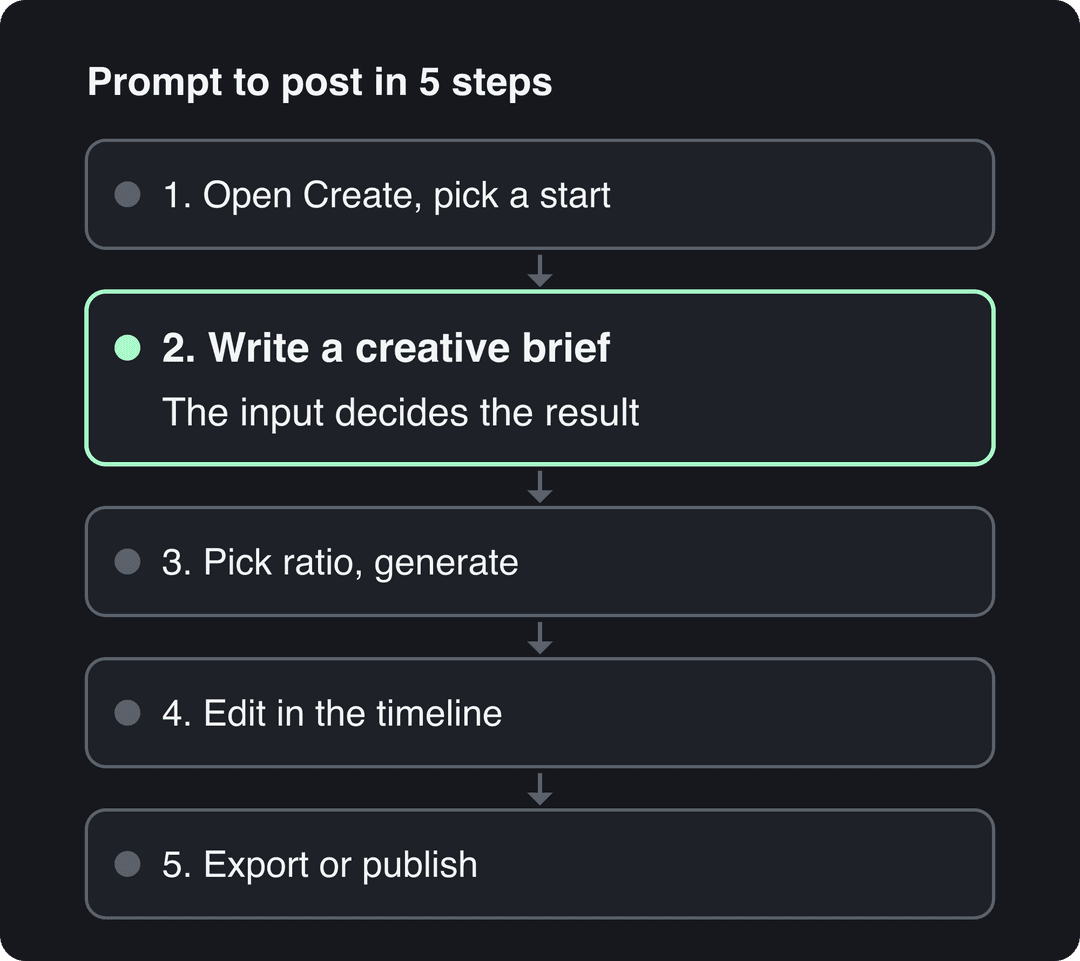
The Revid workflow in 5 steps
- Open the Create page and pick a starting point.
- Write a prompt that reads like a creative brief (or paste a script, a song or a link).
- Choose the media type and ratio, check the estimated cost, and click "Generate video".
- Fix words, voice and scenes in the timeline editor.
- Export the file or publish it to TikTok, Instagram, YouTube or X.
The sidebar holds everything else: "Home", "Publish" (your posting queue) and "Results" (post stats) at the top, "Videos" and "Auto Mode" under Create, and "Repurpose", "Saved Videos", "Channel Watcher" and "Viral Search & Ads" under Inspiration. Your credit balance sits in the account card at the bottom, and "Settings" is in the footer.
Step 1: Open the Create page and pick a starting point
Click the "Create" button at the top of the sidebar, or press C anywhere in the app. The page that opens asks "What do you want to make?" and shows a row of starting points.
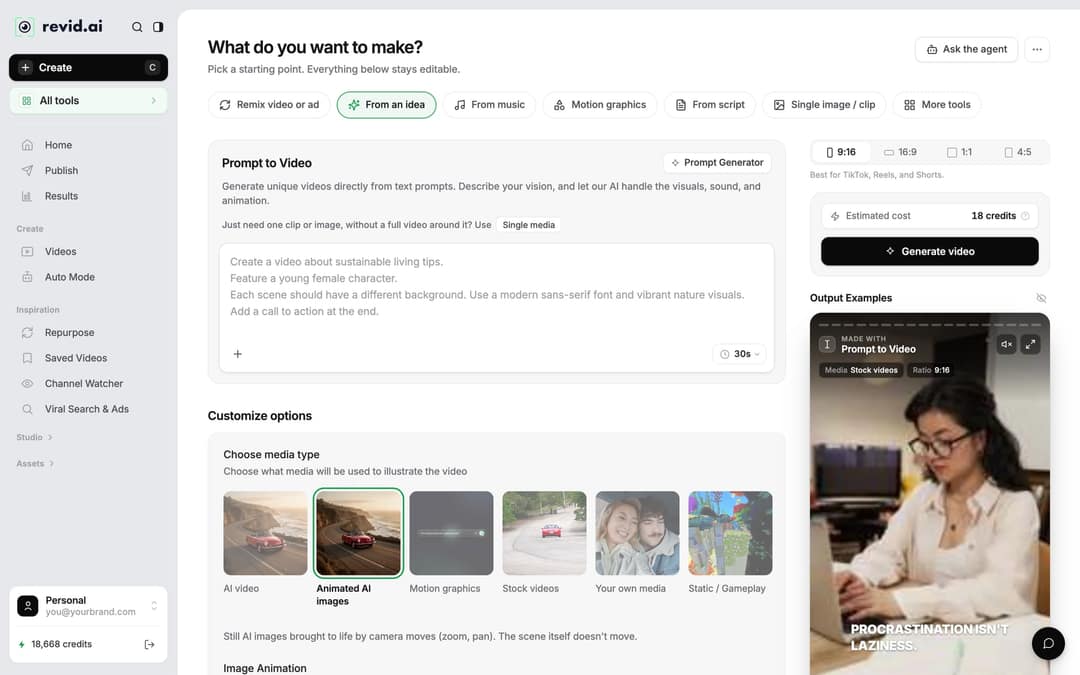
| Starting point | What you give it | Pick it when |
|---|---|---|
| Remix video or ad | A video from Revid's viral library | You want a format that already performed |
| From an idea | A written description (Prompt to Video) | You have a concept but no script |
| From music | A song (MP3, WAV or a Suno link) | You want a music video |
| Motion graphics | A description of the animation | Product explainers, kinetic text, launch videos |
| From script | Your narration text (Voiceover Video) | You already wrote the words |
| From a link or audio | A recording or a video or audio link | You want a video built around existing audio |
| Single image / clip | A prompt for one asset | You need one shot, not a full video |
Starting points that do not fit on your screen fold into "More tools". The "All tools" card in the sidebar lists the rest, including "YouTube Long to Shorts", "Article to Video" and "Talking Avatar". For most first videos, prompt to video ("From an idea") is the most direct route.
Step 2: Write a prompt that works like a creative brief
Treat the prompt as the brief you would hand a video editor, not a search term. A vague prompt returns a vague video.
Say you need a 30-second promo for wireless earbuds called EchoPod. "Make a video for a new gadget" gives the AI nothing to work with. This prompt does:
Create a 30-second, high-energy promotional video for the 'EchoPod' wireless earbuds. Start with a close-up shot of the futuristic charging case opening. Show a person jogging through a vibrant city at sunrise, smiling and listening to music. Include quick cuts of the earbud fitting snugly. The visual style should be modern, clean, and aspirational. Use an upbeat, electronic soundtrack.
| What the prompt specifies | EchoPod example |
|---|---|
| Product | "EchoPod" wireless earbuds |
| Length | 30 seconds |
| Key scenes | Case opening, jogging at sunrise, earbud close-ups |
| Mood and style | High-energy, modern, clean, aspirational |
| Audio | Upbeat electronic soundtrack |
The same rule applies to a single shot. Instead of "a video about coffee", describe the action (a 15-second slow-motion shot of espresso pouring into a white ceramic cup), the setting (a cozy café in the morning, soft light through a window) and the detail (steam rising from the cup). For more on structuring scenes, see the shot brief method for AI video prompts.
Prompt to try
Create a 30-second, upbeat vertical video for a reusable glass water bottle called ClearSip. Open with a close-up of ice cubes dropping into the bottle with the hook "Your plastic bottle is costing you more than you think." Show a cyclist refilling it at a park fountain, then a desk scene with the bottle beside a laptop. Visual style: bright, clean and natural light, ending on the line "Sip clear, waste less."
A prompt template you can copy
Create a [length] [mood] video for [product or topic].
Open with [hook shot].
Show [scene 2], then [scene 3].
Visual style: [style words].
Audio: [music style or voice-over tone].
End with [call to action or final shot].If you paste your own script
The "From script" box ("Your video narrator script") reads three kinds of markup:
- A new line starts new content, so put each scene on its own line.
- Square brackets such as [golden dragon] are treated as visual hints, not narration. Note that some ElevenLabs voices read bracketed words as acting cues like [whispers].
- A pause tag such as
<break time="1.0s" />adds silence, up to 10 seconds. ElevenLabs and MiniMax voices honor it; Gemini and Kling voices drop the tag with no pause.
If you want help drafting the script first, this walkthrough covers writing one with AI:
Or remix a video that already worked
A blank prompt carries no evidence of what performs in your niche. Choose "Remix video or ad" on the Create page, or search the library from "Viral Search & Ads" in the sidebar, by topic, platform, engagement tier and length. Open a video and choose what to make from it, for example "Same energy, new script" (an original video with the same recipe) or "Make it about your topic" (its hook style, pacing and energy applied to your niche).
Revid keeps the spoken structure, timing and tone, and writes new words, new visuals and an original music direction. Its free deep analysis (up to 60 a day) explains why a video worked: the hook, the timed structure and the scroll-stopping moment. The viral video remix feature lists every option.
Step 3: Choose the media type, ratio and model, then generate
Below the prompt, "Choose media type" decides what illustrates each scene. It is the biggest lever on both the look and the credit cost.
| Media type | What you get | Credit guide |
|---|---|---|
| Animated AI images (default) | Still AI images moved by camera zooms and pans | 1 (Low), 4 (Pro) or 16 (Ultra) per image |
| AI video | Generated moving clips (needs a paid plan) | Per 5 seconds: 15 (Low), 50 (Pro), 100 (Ultra) |
| Motion graphics | Animated text and graphics | 2, 3 or 5 per second (Low, Pro, Ultra), minimum 15 seconds |
| Stock videos | Stock footage matched to each scene | Shown in Estimated cost |
| Your own media | Clips and images you upload | Shown in Estimated cost |
| Static / Gameplay | A static or gameplay background behind the narration | Shown in Estimated cost |
The voice-over is billed separately at 10 credits per started 500 characters.
Calls that failed
Source: Revid production data: 713,649 AI video clips generated Jun 29, 2026 to Sep 26, 2026.
Show the data
| Calls that failed | |
|---|---|
| Seedance | 2.7% |
| MiniMax Hailuo | 2.2% |
| PixVerse | 6.4% |
Which AI video model should you use?
Revid's AI video models are Seedance 2.5, MiniMax Hailuo H3, Wan 3.0 and Google Veo 3, plus lower-cost tiers, all under one credit system, and a model can be chosen per scene. Premium models cost more: Veo 3 and MiniMax Hailuo H3 cost 100 credits per 5 seconds, Seedance 2.5 at 1080p costs 250, and Seedance at 4K costs 500. OpenAI's Sora 2 is no longer offered, because OpenAI shut down the Sora API on September 24, 2026.
A practical rule: if most scenes are simple (talking points, b-roll, transitions), keep Animated AI images or a lower tier for them and spend a premium model on the one or two hero shots that carry the video.
Share of clips
Source: Revid production data: 713,649 AI video clips generated Jun 29, 2026 to Sep 26, 2026.
Show the data
| Share of clips | |
|---|---|
| 16:9 | 54% |
| 9:16 | 40.3% |
| 1:1 | 4.3% |
| 3:4 | 0.5% |
Pick the ratio before you generate
The ratio picker at the top right of the Create page offers 9:16, 16:9, 1:1 and 4:5. Choose it now, since recropping a finished video costs you framing.
| Where it will play | Ratio | Why |
|---|---|---|
| TikTok | 9:16 | TikTok's Creator Academy recommends 9:16 at 1080x1920 |
| Instagram Reels | 9:16 | Reels accept 1.91:1 to 9:16; vertical fills the screen |
| YouTube Shorts | 9:16 | Vertical or square videos up to 3 minutes count as Shorts |
| Instagram or Facebook feed | 4:5 | Taller than square without being cut in the feed |
| Standard YouTube video | 16:9 | The landscape player format |
Check "Estimated cost" in the footer, then click "Generate video". Revid writes the script, builds the scenes, adds the voice, captions and music, and the draft appears in "Videos" a few minutes later. Failed builds are refunded automatically.
Step 4: Edit the draft in the timeline editor
Open "Videos" in the sidebar and click the project card (or choose "Open in editor" from its menu). Revid's timeline editor has a left rail with "Script", "Text", "Media", "Transitions", "Audio", "Captions" and "Settings", a preview in the middle and the timeline below.
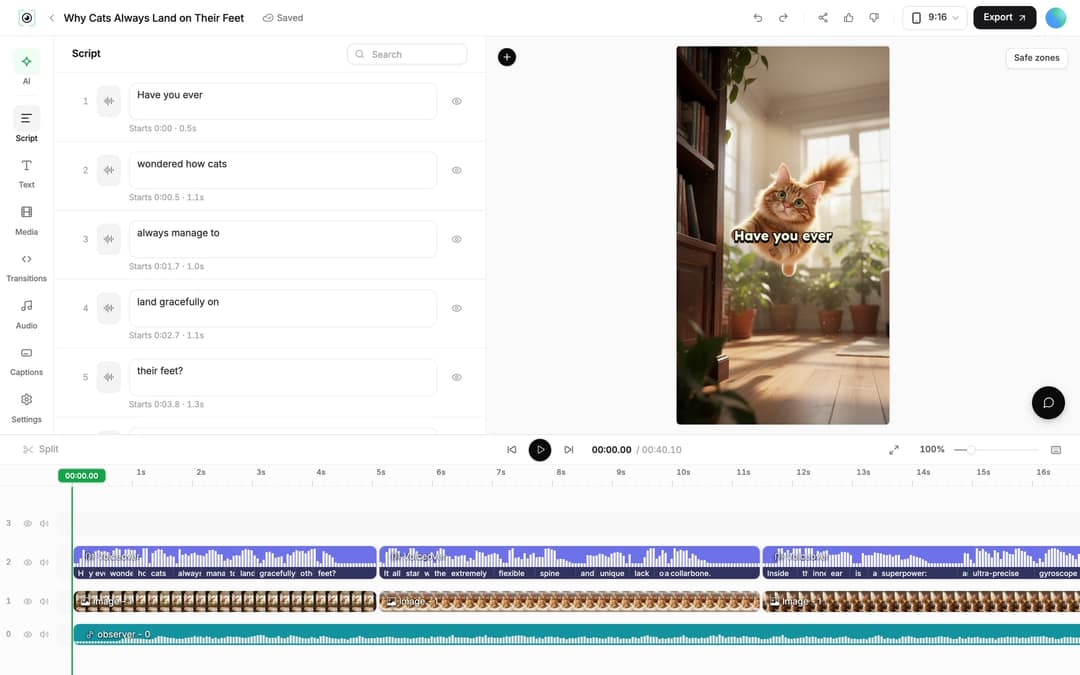
Fix the words, then regenerate the voice-over
The "Script" panel lists every caption segment with its text box and start time. Edit a line and Revid shows "Caption updated. Re-generate voice if timing changed." The eye icon hides a segment.
To update the narration, open "Audio", stay on the "Voiceover" tab and click "Re-generate" on the voiceover row (or select the voiceover clip on the timeline and click "Re-generate Voiceover"). In the dialog, keep "Keep timeline in sync" on so clips, text and music follow the new timing, then click "Generate Voice". It costs 10 credits per started 500 characters and needs a paid plan.
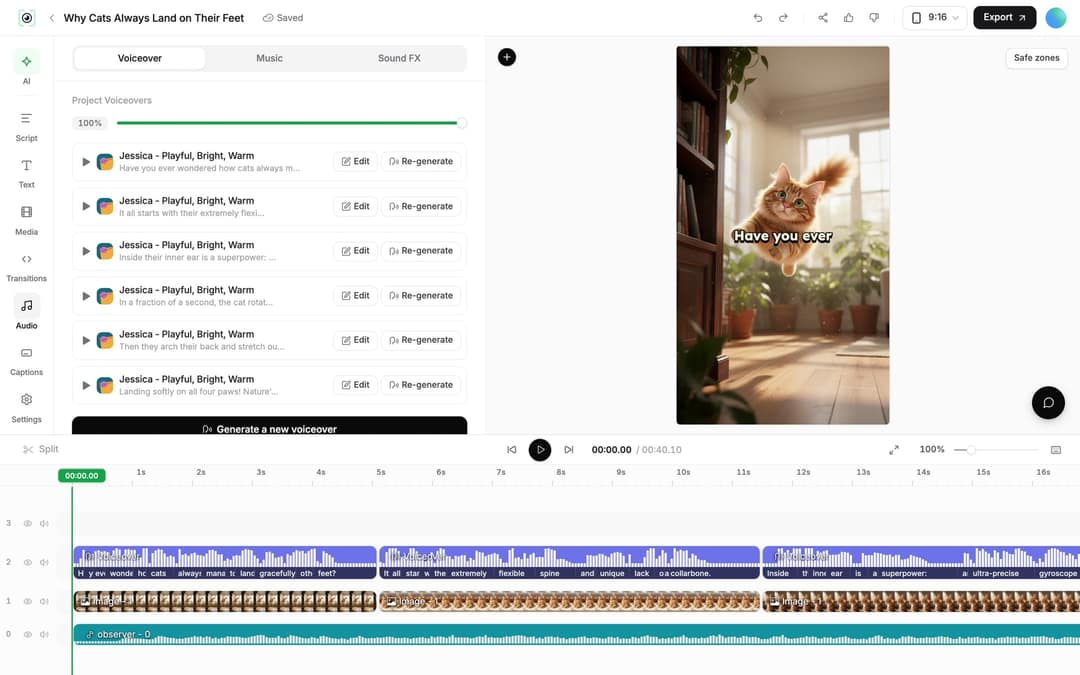
Replace or regenerate a scene
Select an image or video clip on the timeline. "Replace" opens the Media panel library so you can swap in another file, such as b-roll you filmed. For an AI image, "Regenerate/Edit image" lets you regenerate it or edit the existing image with a prompt. For an AI video clip, "Regenerate from prompt" offers "Re-animate", "New image + video" and "Edit with AI".
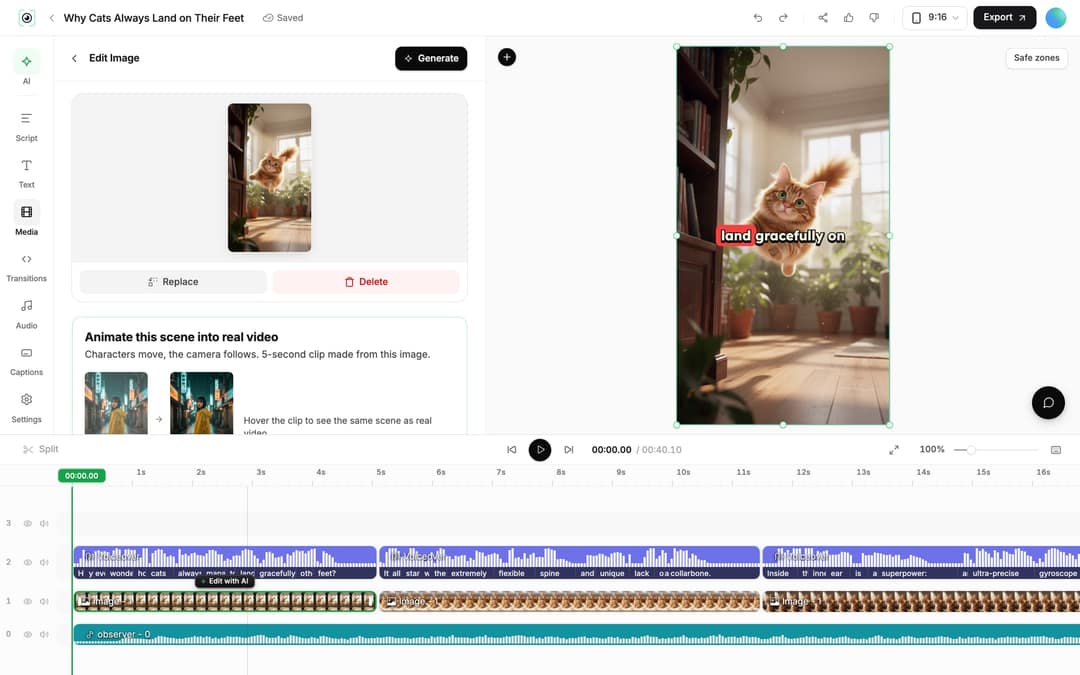
To add your own files, drag them into the "Media" panel, which also has "Stock", "Stickers" and "Effects" tabs and a "Generate" button for new AI media.
Prompt to try
Make a 20-second vertical video about why cold brew tastes smoother than iced coffee. Hook in the first second: "You've been making iced coffee wrong." Use slow-motion close-ups of coffee pouring over ice in a cozy cafe with soft morning light, and end with an on-screen call to action to follow for more coffee tips.
Trim and tighten
- Drag a clip's start or end edge on the timeline to shorten it.
- Press S (or click "Split") to cut at the playhead, Del to delete the selection, and Shift+Del to ripple delete and close the gap.
- For exact cuts, select a video clip and set start and end times in its "Trim" section.
A good first pass: cut anything before the first spoken line, make sure the opening second shows the most interesting image, and end on a clear call to action in "Text".
Use your own voice
If you want your own narration from the start, record it and choose "From a link or audio" on the Create page: Revid builds the visuals and captions around your recording. If you would rather not record every time, the Elite plan and above include voice cloning, so the AI voice-over can sound like you.
Step 5: Export or publish to TikTok, Instagram and YouTube
Click "Export" in the editor header ("Export / Publish" on accounts without a paid plan). Revid exports in 720p, 1080p or 4K at 30 or 60 fps; a 4K export costs 10 credits.
- 1080p for almost all social content: sharp on phones without a heavy file.
- 4K when a client or the destination asks for it.
- 720p for quick internal drafts.
To post without downloading, connect your accounts first: Settings, then "Integrations", then "Add a network". You can add TikTok, YouTube, Instagram (a Business or creator account is required), X, and a Webhook for Zapier, Make or your own URL. Revid does not publish to LinkedIn, Threads or Pinterest.
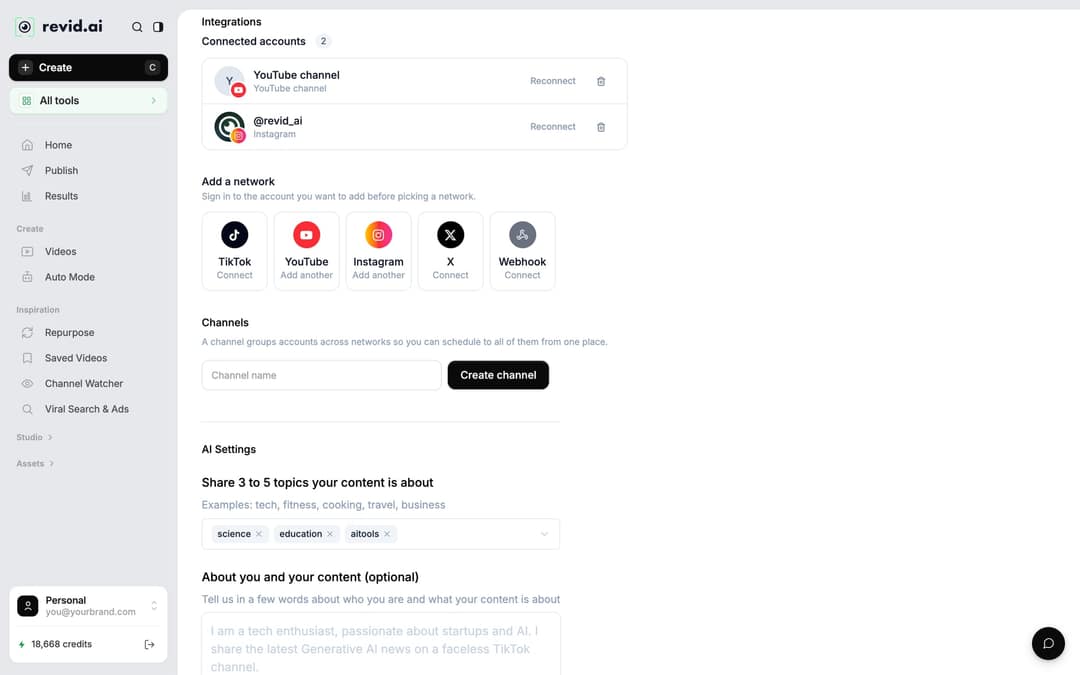
Then use "Publish" on the project card (or "Export / Publish" in the editor). In the "Publish Video" dialog, pick accounts under "Publish to" and choose "Publish" to post now or "Add to queue" to schedule posts to TikTok, Instagram and YouTube. The "Publish" page in the sidebar shows "Scheduled" and "Past Publications", and "Results" reports the views, likes and comments of every post published through Revid.
Input
Create a cinematic live stage performance inside an intimate restored theatre.
Output
Can Revid AI make music videos?
Yes. The Revid AI music video generator turns a song into a music video: choose "From music" on the Create page and upload an MP3 or WAV file or paste a Suno link. You can sync the scenes to the lyrics or to the beat, add optional singer lip sync, and output in 9:16, 16:9, 1:1 or 4:5 at 720p, 1080p or 4K.
The result opens in the same timeline editor, so steps 4 and 5 apply unchanged. Two tips: pick the section of the song with the strongest hook for a short-form cut, and describe a consistent look for the singer or main character in your prompt so scenes match.
How do you get a new video every day without starting from scratch?
Use Auto-Mode. Click "Auto Mode" in the sidebar, then "New worker" (or start from a template such as "YouTube to Shorts" or "Blog to Video"). Workers need a paid plan: 3 on Growth, 5 on Elite and 10 on Ultra.
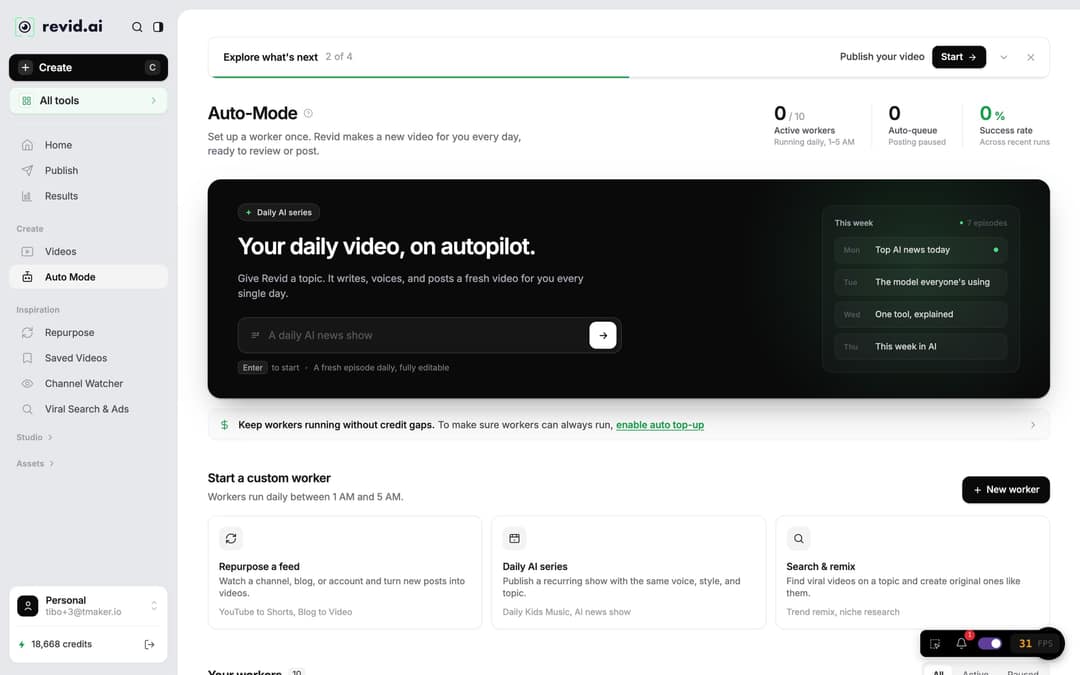
The builder has three steps: "Name your worker", "What should it make?" (jobs such as "Repurpose Fresh Content", "Run a Daily AI Series", "Promote a Product" and "Search and Remix a Video") and "Pick the format". For a daily series, give a high-level topic so each day gets a different story. For a feed, give an account, channel, subreddit or RSS feed, not a single post URL.
The "Worker preflight" panel shows "Est. credits per run" and "Est. monthly credits" before you click "Create worker". Each worker runs once a day between 1 AM and 5 AM. By default videos wait in Revid for review ("Review First"); choose "Auto Queue" and select connected accounts if you want them posted automatically. More detail is on the automated video creation page.
How do you translate a Revid video into another language?
Open the project card menu in "Videos" and click "Translate". The AI video translator keeps the edit, media, timing and captions, and lets you pick a target language from 74 options. Leave "Use another voice" off to keep the original voice. It costs 10 credits per 500 characters per voice segment, plus lip sync again if the video has an avatar.
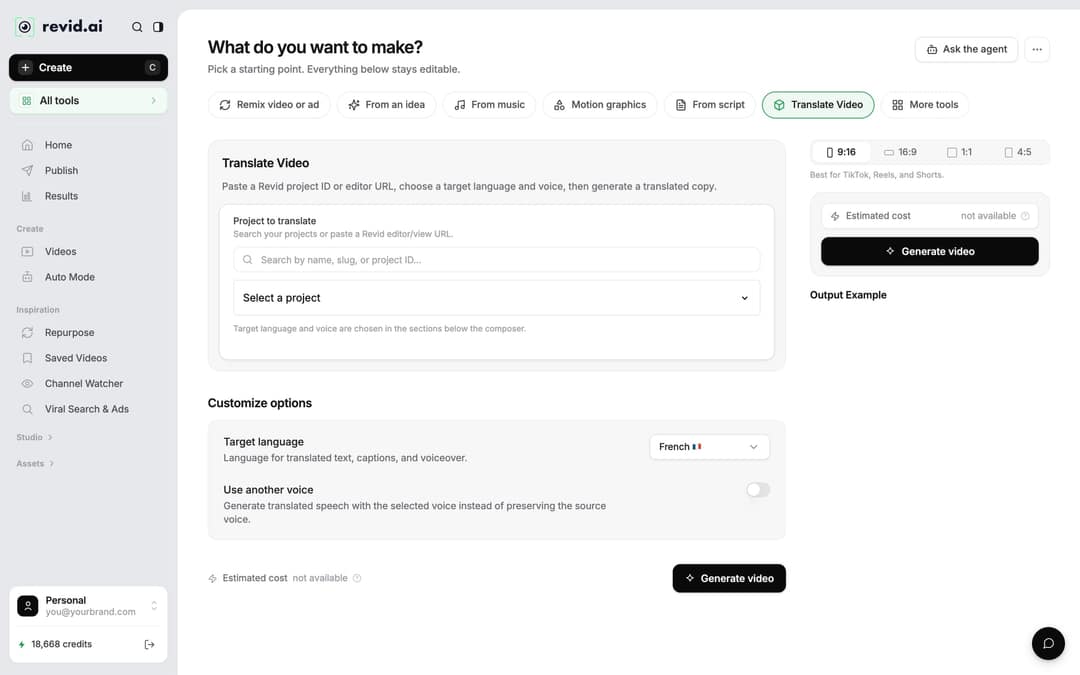
To make a new video directly in another language, write the prompt or script in that language, or set it under "Advanced options", "Language & Localization".
When Revid fits, and when another tool fits better
Revid fits when you want finished short-form videos from an idea, a link, a song or a proven format, plus publishing in the same place. Marketers are moving this way: in Wyzowl's 2026 video marketing survey, 63% of video marketers said they had used AI video tools to create or edit marketing videos, up from 51% a year earlier. Analysts also track the category, for example Market Report Analytics in its report on the AI video creation tools market.
Another tool may fit better if you cut long films shot by shot (Premiere Pro or DaVinci Resolve), need corporate training with a fixed presenter (Synthesia), mainly clip your own long recordings (OpusClip), or only edit your own footage by hand (CapCut). For a wider view, this third-party roundup of the best AI video generators compares several options.
The fastest next step: fill in the prompt template above with one real product or topic, run it through "From an idea", and edit the draft with the Script and Audio panels.
FAQ
Is Revid AI safe to use?
Yes. Revid is a browser-based AI video platform run by an independent software company in Paris (TMAKER), with 3,000,000+ sign-ups from August 2024 to July 2026. The privacy policy explains how your data is handled, and revid.ai is not affiliated with other apps that use the name Revid.
Is Revid AI free?
You can start free: sign-up costs nothing, new accounts get free credits to try video creation, and a free account can search the viral video library. Regular creation uses the monthly credits of a paid plan, from $39/month for Growth, and AI video media needs a paid plan.
How many credits does a Revid video cost?
As a guide, a 30-second video with Pro AI visuals and a voice-over costs about 40 to 80 credits. Premium AI video models cost 100 credits (Veo 3, MiniMax Hailuo H3, Ultra) to 500 credits (Seedance 4K) per 5 seconds, and the Create page shows the estimated cost before you generate.
Can I use Revid videos commercially?
Commercial use is governed by Revid's terms of service, so read the current terms (linked in the site footer) before running ads with your videos. You also need the rights to anything you upload yourself, such as music or footage.
Can I still use Sora 2 in Revid?
No. OpenAI shut down the Sora API on September 24, 2026, so Revid now offers Seedance 2.5, MiniMax Hailuo H3, Wan 3.0 and Google Veo 3, plus lower-cost tiers.
Does Revid copy the viral videos you remix?
No. Revid uses a reference video for its structure, hook, pacing and style, and writes a new script, new visuals and an original music direction. The exception is "Reuse the script", which keeps the spoken words with new visuals, and you are responsible for having the rights to reuse them.
Sources
- Revid production data: 713,649 AI video clips generated Jun 29, 2026 to Sep 26, 2026.
- Wyzowl, Video Marketing Statistics 2026 (December 2025)
Charts and figures checked on November 6, 2026.