Best Video Editing Program in 2026: 10 Picks for Every Workflow
Ten video editing programs compared by the work you actually do, from free DaVinci Resolve to Premiere Pro, CapCut, Descript and Revid, with prices and decision rules.

On this page
The best video editing program depends on what you make. DaVinci Resolve is the strongest free professional editor, Premiere Pro is the standard for client work, Final Cut Pro is the fastest pick on a Mac, CapCut and Descript lead for social and talking videos, and Revid builds finished short-form videos from an idea.
The usual mistake is buying the most powerful program instead of the one that fits the video you make every week. The choice has also widened: 63% of video marketers in Wyzowl's 2026 video marketing survey said they had used AI video tools to create or edit videos, up from 51% a year earlier. So you are no longer only choosing a timeline. You are choosing between editing footage you have and generating footage you don't.
- Video marketers who have used AI video tools to create or edit videos
- 63%
- Wyzowl, December 2025
- Revid Growth plan per month, with 2,000 credits
- $39
- Revid pricing
- One-time price of DaVinci Resolve Studio (the base version is free)
- $295
- Blackmagic Design
- Real short-form videos in Revid's searchable viral library
- 2.77M
- Revid
The 10 best video editing programs at a glance
| Program | Best for | Platforms | Pricing model | Learning curve |
|---|---|---|---|---|
| Revid | Short-form videos from an idea, link or script | Browser | Subscription from $39/month | Low |
| CapCut | Fast vertical edits of your own clips | Web, desktop, mobile | Free tier; Standard about $9.99/month | Low |
| Microsoft Clipchamp | Quick branded videos on Windows | Web, Windows 11 | Free; premium via Microsoft 365 | Low |
| Descript | Podcasts, interviews, talking heads | Desktop with cloud sync | Free plan; from $24/month ($16 billed annually) | Low |
| Wondershare Filmora | A first real timeline | Windows, Mac, iOS, Android | Subscription or perpetual license | Low to medium |
| TechSmith Camtasia | Screen recordings and tutorials | Windows, Mac | Yearly plans | Low |
| Apple Final Cut Pro | Fast pro editing on a Mac | Mac | One-time purchase | Medium |
| DaVinci Resolve | Color, VFX and audio, free | Windows, Mac, Linux | Free; Studio about $295 one-time | High |
| VEGAS Pro | Windows editors who want strong audio tools | Windows | Varies by edition | Medium |
| Adobe Premiere Pro | Client work and team pipelines | Windows, Mac | Subscription only | Medium to high |
The list is grouped by workflow, not ranked. Prices change often, so confirm on each vendor's pricing page before you buy.
How to choose a video editing program
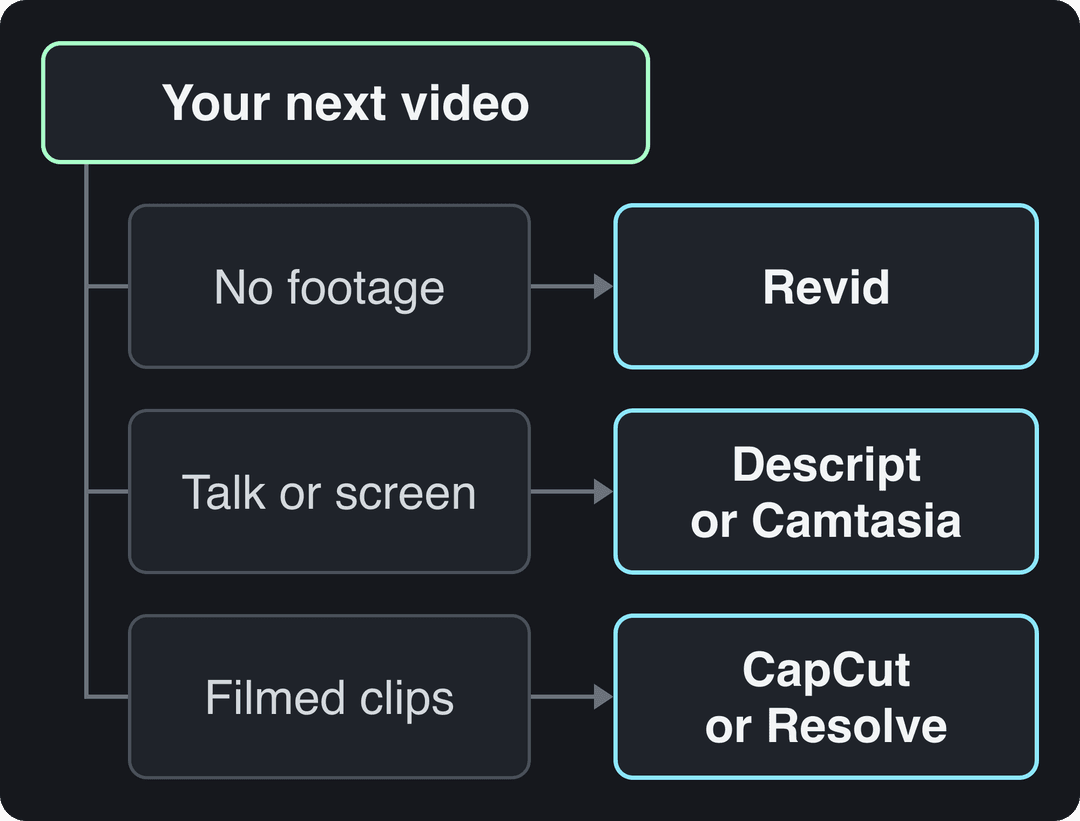
Start from what you have and what you publish, not from a feature list:
- No footage, weekly short-form posts: start with Revid. It writes, voices, captions and assembles the video for you.
- Mostly someone talking (podcast, interview, founder update): use Descript and edit the transcript.
- Screen demos and courses: use Camtasia.
- Phone footage for TikTok, Reels or Shorts: use CapCut (or Instagram's free Edits app if you post mainly Reels).
- A quick branded video on Windows: use Clipchamp.
- A timeline you can grow into: Filmora on any system, Final Cut Pro on a Mac, VEGAS Pro on Windows.
- Color grading, VFX and audio in one free app: DaVinci Resolve.
- Clients or employers expect Adobe project files: Premiere Pro.
If you are completely new to editing, this outside guide to video editing software for beginners covers basic vocabulary such as cuts, tracks and exports.
1. Revid: social videos from an idea, without a timeline
Revid is an AI video platform that turns an idea, a link or a proven viral format into a finished short-form video and publishes it to TikTok, Instagram and YouTube. Instead of importing clips, you start from a prompt, a script, a blog post, a YouTube link or a song, and Revid produces the script, scene-by-scene visuals, a voice-over in 70+ languages, synced captions and music.
What makes it different from other AI generators is the starting point. Revid includes a searchable library of about 2.77 million real short-form videos with their public engagement data, so you can start from a format audiences already watch and turn it into an original video. That speeds up production; it does not guarantee views. Your topic, hook and accuracy still decide the result.
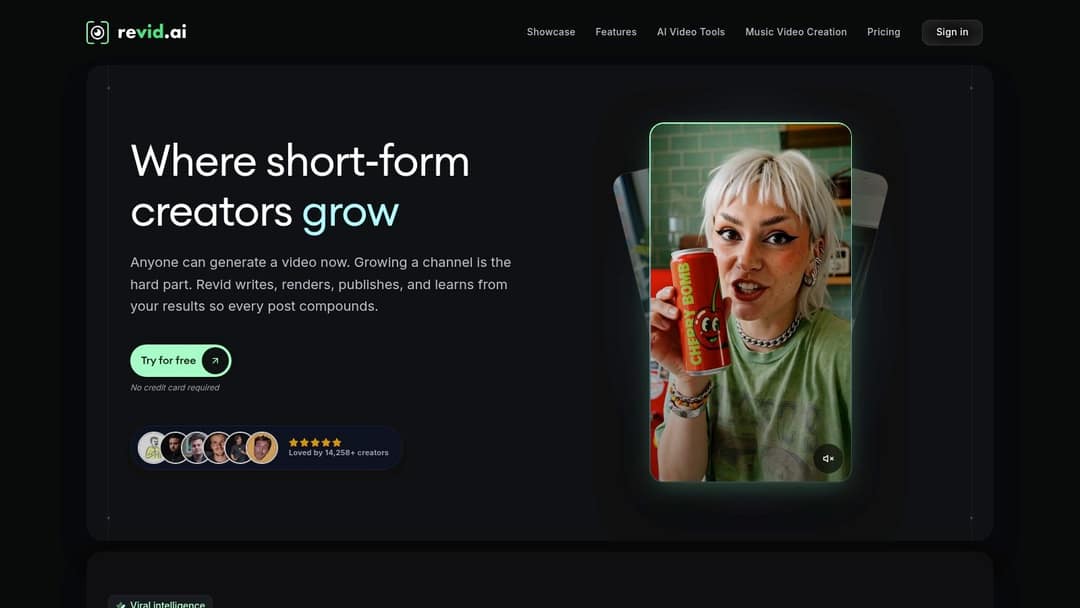
After generation, a full timeline editor lets you rewrite text segments, change timing, regenerate a scene's media, adjust music and voice tracks, pick one of 30 caption styles, check safe zones and switch aspect ratios. Export runs at 720p, 1080p or 4K at 30 or 60 fps. Visuals can come from stock footage, AI images or AI video models (Seedance 2.5, MiniMax Hailuo H3, Wan 3.0 and Google Veo 3), and you can choose a model per scene.
Revid fits faceless channels, social media managers, founders and small businesses publishing a recurring series. Auto-Mode workers can create a fresh video every day from a prompt or content source, and every paid plan includes the API, MCP server and CLI. More than 30,000 videos are published to TikTok, Instagram and YouTube through Revid every month.
Where it fits less: cutting a documentary from hours of your own footage, or hand-editing every frame. For that, use CapCut, Resolve or Premiere. Our side-by-side Revid vs CapCut comparison covers the split in detail.
Prompt to try
Make a 30-second vertical video called '3 editing mistakes that kill your retention'. Open with the hook 'Your first two seconds are losing you viewers.' Use fast stock b-roll, bold captions and an upbeat, confident voiceover, and end with one clear tip to fix each mistake.
Videos include an AI voiceover; clip quotes are AI highlights without one. Clip and motion graphics quotes are minimums: the final charge depends on the source video or the footage generated. AI video clips are on the Pro model; the Base model costs 110 credits for 30 s.
Source: Revid public endpoint POST /api/public/v3/calculate-credits, queried October 29, 2026: workflow video-to-clips with 1 and 3 outputs, and prompt-to-video at 30 and 60 seconds with each media type. Cents = credits x $39 / 2,000, rounded.
Show the data
| Credits | US cents on Growth | |
|---|---|---|
| 1 clip from a YouTube link | 1 | 2 |
| 3 clips from a YouTube link | 3 | 6 |
| 30 s video, stock footage | 11 | 21 |
| 30 s video, animated AI images | 37 | 72 |
| 60 s video, animated AI images | 75 | 146 |
| 30 s video, motion graphics (estimate) | 190 | 371 |
| 30 s video, AI video clips (Pro model) | 341 | 665 |
How much does Revid cost?
Sign-up is free, and a free account can search the viral video library and try the product with free credits. Regular video creation uses the monthly credits of a paid plan: Growth is $39/month with 2,000 credits ($32/month billed yearly), Elite is $89/month and Ultra is $199/month. A 30-second video with AI visuals and a voice-over costs about 40 to 80 credits, and Revid shows the estimated cost before you generate. The Revid pricing page is the authoritative list.
How to make a video with Revid
- Open the AI video generator and paste an idea, a script or a link.
- Choose a voice, a caption style and the visual style or AI model.
- Review the generated video in the timeline and fix the hook, timing or any scene.
- Export, or publish and schedule to TikTok, Instagram and YouTube from one queue.
2. CapCut: fast vertical edits across phone and desktop
CapCut is built around the pace of short-form social video. Its web, desktop and mobile apps share projects, so you can rough-cut on your phone and finish on a laptop. Templates, trending effects, auto-captions, stabilization, chroma key and keyframes are all a tap away, and export presets target TikTok, Reels and Shorts.
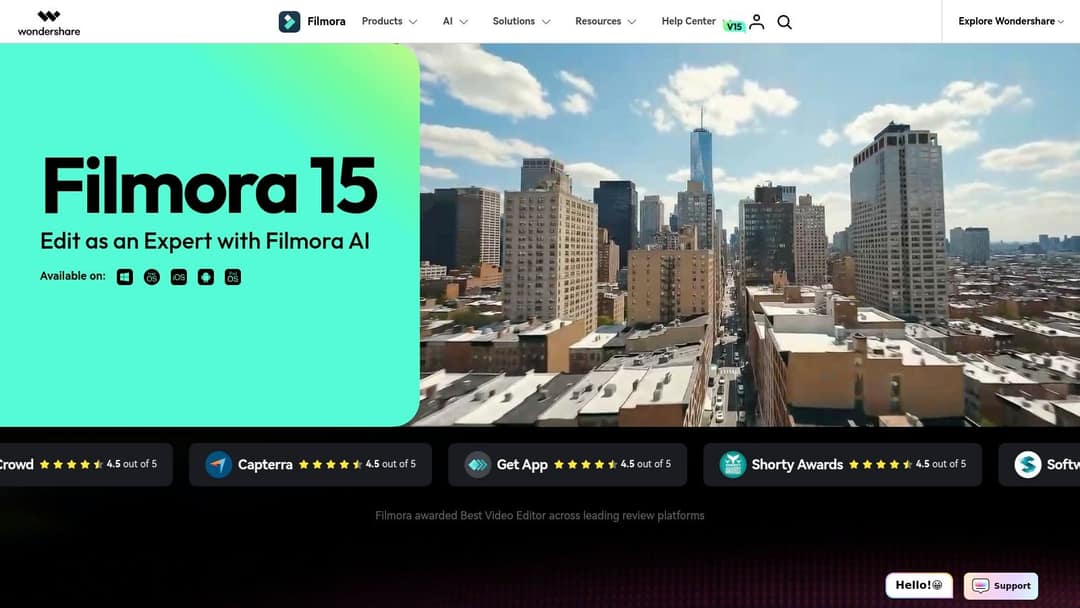
The free tier includes the full editor and 1080p export; premium templates, effects and most AI features are paid (Standard is about $9.99/month). Entitlements can differ between web, mobile and app-store purchases, so buy on the platform you will use. Leaning too hard on trending templates can make your channel look like every other account using them.
If you are a small business weighing other options, our roundup of CapCut alternatives for 2026 compares more than 25 of them, and this guide to video editing software for social media goes deeper on short-form workflows.
3. Microsoft Clipchamp: the easiest start on Windows
Clipchamp runs in the browser and comes built into Windows 11, so many people can start without installing anything. You pick a template or a social format, drop clips on a simple timeline, add titles and export. AI voiceovers, auto-subtitles and a screen and webcam recorder cover product updates, internal announcements and light social posts.
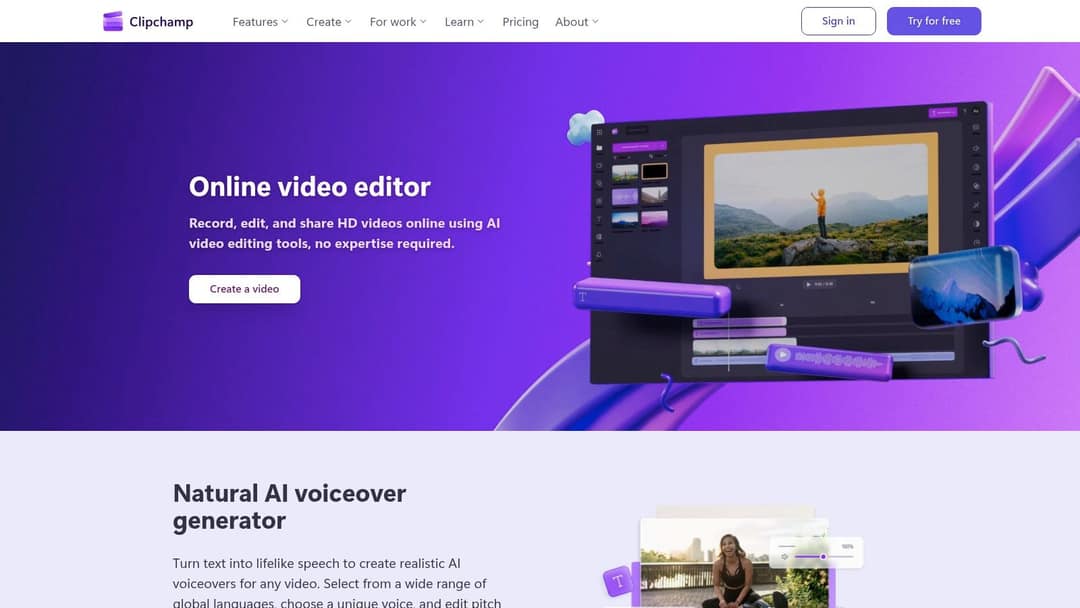
It gets more useful inside Microsoft 365: OneDrive and SharePoint integration simplify sharing, and Microsoft 365 Personal and Family plans add 4K export, premium stock and brand-kit tools. It is the wrong tool for detailed audio mixing, compositing or serious color work.
4. Descript: edit video by editing the transcript
Descript transcribes your recording, then lets you cut video by deleting words. Remove a sentence and the footage goes with it; move a paragraph and the sequence follows. That makes it the most direct editor for podcasts, interviews, webinars, tutorials and founder-led explainers, where the words carry the video.
Studio Sound cleans up audio, filler-word removal tightens delivery, and Underlord (its AI co-editor) plus Create Clips help turn one long recording into several short cuts. Cloud projects let a producer or client comment on a draft. The free plan gives 60 media minutes a month with 720p export; watermark-free export starts on paid plans, from $24/month ($16 billed annually).
The trade-off is visual control: elaborate motion graphics and keyframing are easier in a traditional editor. Our Revid vs Descript comparison explains when to edit a recording and when to generate a new video.
5. Wondershare Filmora: a friendly first timeline
Filmora sits between beginner apps and professional editors. You get a conventional timeline, ready-made titles, transitions and effects, plus speech-to-text, text-based editing, object removal and idea-to-video tools. It handles 4K footage and runs on Windows, Mac, iOS and Android.
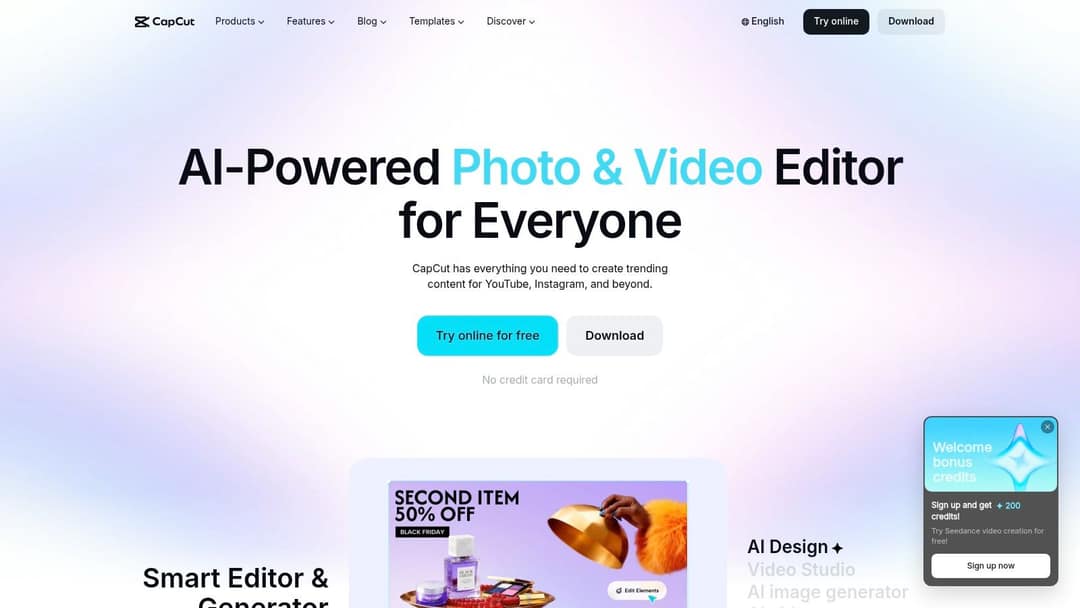
It is a good place to learn sequencing, pacing, audio balance and aspect-ratio changes while templates handle routine visuals. You can choose a subscription or a device-locked perpetual license. The free version watermarks exports, some AI tools use credits, and finishing depth is lower than Resolve or Premiere. For an outside overview of the brand, see SponsorRadar's Filmora brand profile.
6. TechSmith Camtasia: screen recordings and tutorials
Camtasia is a screen recorder first and an editor second, which is exactly why it wins for software demos, online courses, onboarding and support videos. Record your screen and webcam, then add zooms, callouts, cursor effects and annotations on a simple timeline.
A typical workflow takes three steps:
- Record the process: capture the app window, cursor and presenter.
- Explain the action: add zooms, arrows and labels where viewers might hesitate.
- Publish the lesson: export for a course platform, knowledge base or YouTube.
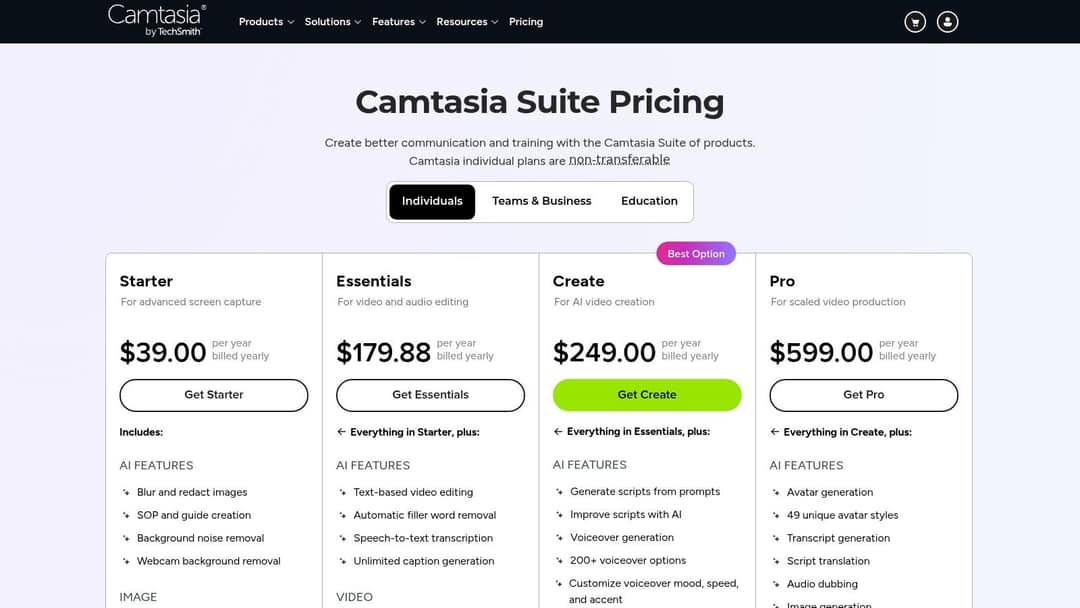
TechSmith now sells Camtasia as yearly plans, with AI script and voiceover tools on higher tiers. It is not built for cinematic montages, advanced grading or heavy VFX.
7. Apple Final Cut Pro: the best video editing program on a Mac
Final Cut Pro is optimized for macOS and Apple silicon, and it is sold as a one-time purchase on the Mac App Store rather than a subscription. The Magnetic Timeline keeps clips connected as you edit, roles-based audio organizes dialogue, music and effects, and multicam tools handle multi-camera shoots. Motion and Compressor extend it for graphics and delivery.
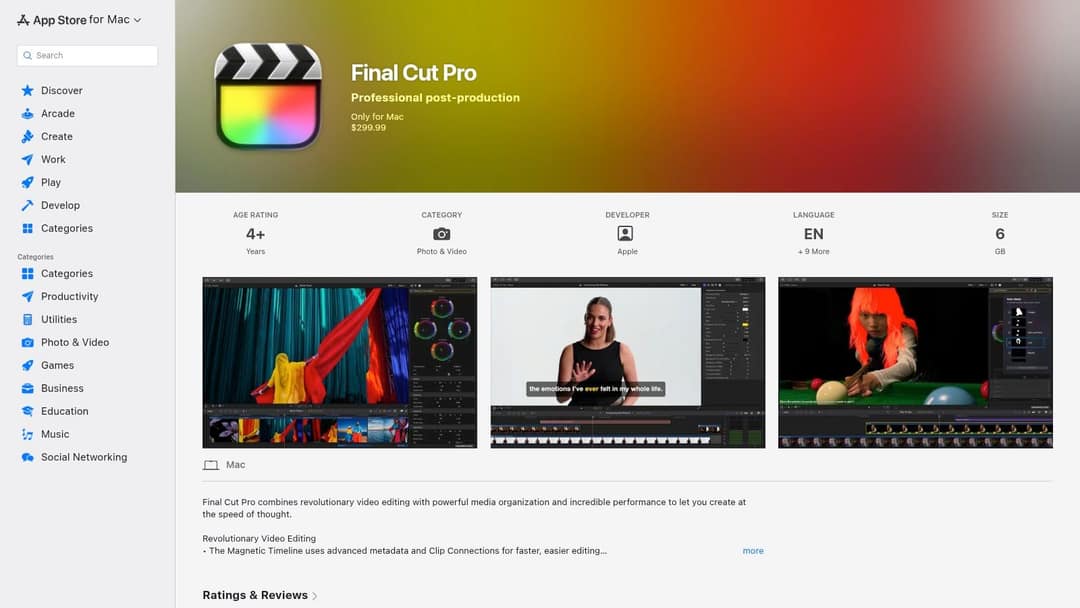
AI-assisted features such as Magnetic Mask, Transcript Search, Visual detection and Beat detection cut down manual selection work, and vertical reframing helps when you turn a YouTube video into Shorts. The catch is lock-in: there is no Windows version, so mixed-platform teams usually standardize on Premiere or Resolve instead.
8. DaVinci Resolve: the best free professional editor
DaVinci Resolve puts editing, color, effects and sound in one project. The Edit and Cut pages handle cutting, the Color page uses node-based grading, Fusion handles compositing and Fairlight provides full audio post. The free version is genuinely usable for YouTube videos, short films and learning professional post-production.
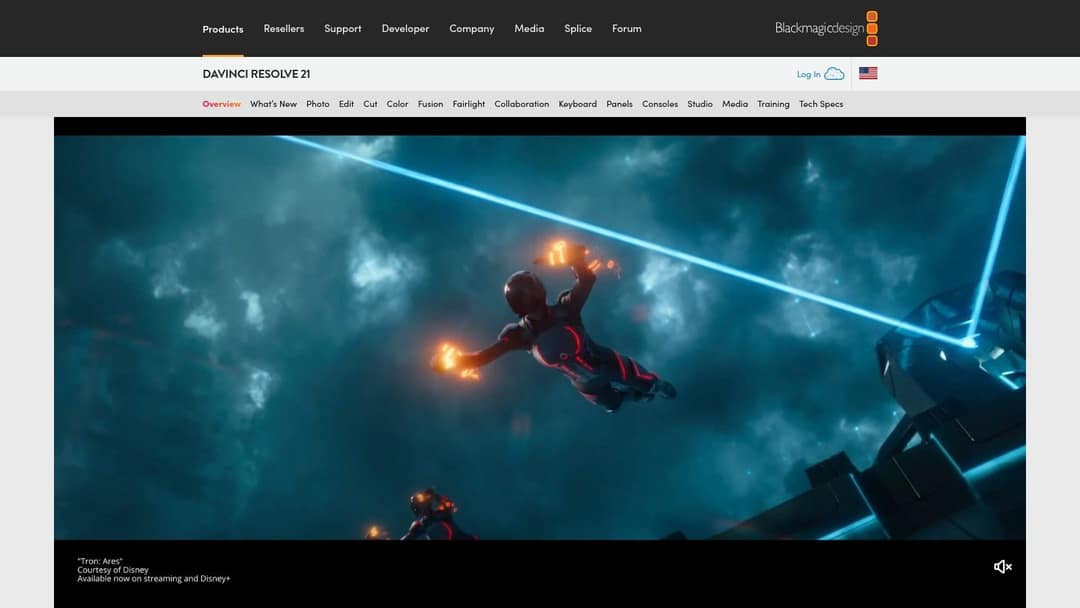
Resolve Studio (about $295, one-time) adds Neural Engine AI features such as advanced masking, text-based editing and noise reduction, plus performance and finishing tools. Blackmagic Cloud supports shared projects for remote teams. Budget for the learning curve and the hardware: high-resolution footage, noise reduction and complex grades want a capable GPU.
9. VEGAS Pro: a fast Windows timeline with strong audio
VEGAS Pro, now part of Boris FX, is a Windows editor known for direct timeline manipulation and solid audio tools. It supports advanced color, multicam, GPU-accelerated playback, AI masking, speech-to-text and voiceover functions.
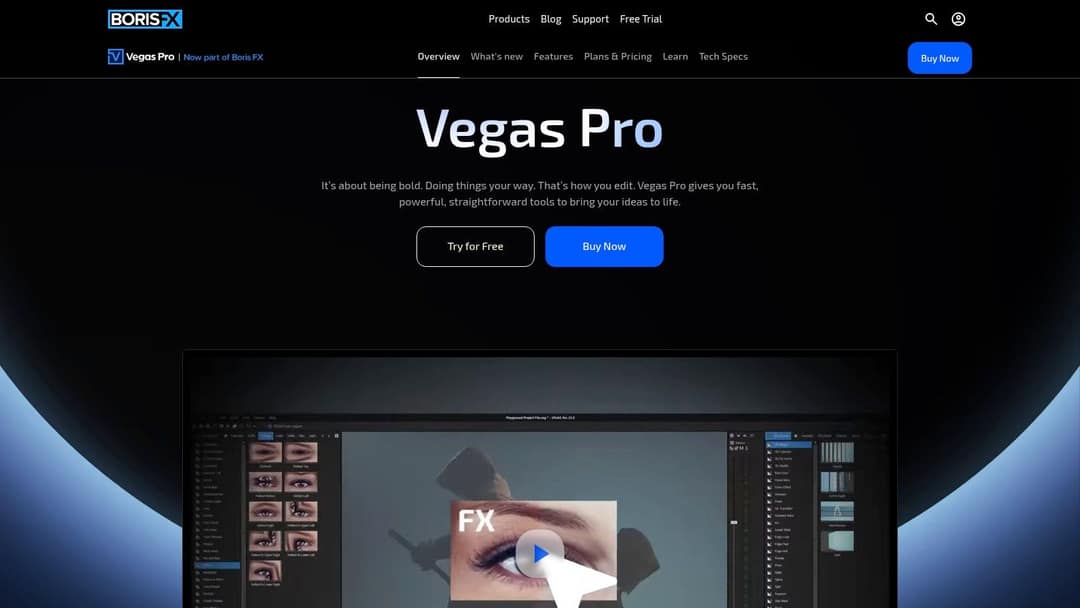
Higher editions can bundle Sound Forge, CrumplePop audio cleanup, Particle Illusion and Mocha planar tracking, so compare bundle contents rather than edition names. Pricing varies by edition and promotion; use the free trial to test playback, exports and plugins on your own machine. It is Windows-only.
10. Adobe Premiere Pro: the industry standard for client work
Premiere Pro (branded simply Adobe Premiere on Adobe's site) is the safest pick when clients, collaborators or employers expect Adobe files. It handles social, YouTube, documentary and commercial work, supports common professional formats such as HEVC, ProRes and MXF, and offers Lumetri color, multicam and integrated audio. Frame.io review plus round-tripping with After Effects, Audition and Photoshop make it a hub for multi-discipline projects.
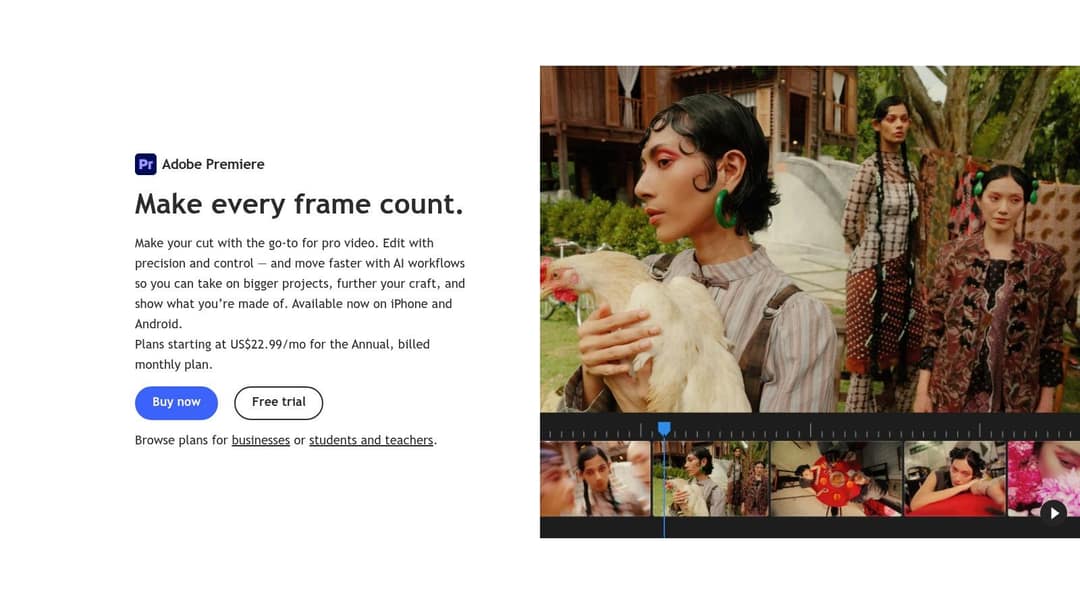
Recent updates focus on object masking, faster mask tracking and in-app review, as described in Adobe's January 2026 Premiere and After Effects update. Generative AI features use Firefly credits depending on your plan. It is subscription-only and can feel heavy on modest hardware.
Which all-in-one cloud video editors are best for content creators?
If you want to work from any computer without managing project files, four programs on this list run in the cloud or sync to it:
| Cloud editor | What it does best | Starts from |
|---|---|---|
| Revid | Generates the whole video (script, visuals, voice, captions) and publishes it | An idea, link or script |
| Clipchamp | Template-led editing in the browser | Your clips |
| CapCut (web) | Social editing with effects and captions | Your clips |
| Descript | Transcript editing with shared review | A recording |
For review and revisions (the "video production revision tool" job), the strongest options are Premiere with Frame.io, Descript's comments on shared projects, and Blackmagic Cloud for Resolve teams. Pick the one your reviewers can open without installing a full editor.
The category is crowded and growing: Straits Research's market analysis puts the video editing software market at USD 2.54 billion in 2026, rising to USD 3.80 billion by 2034. For a broader read on where AI and browser editing are heading, see Loopdesk's 2026 AI video editing trends. Treat trend pieces as context and test upload speed, review and exports yourself.
Which video editors have the best repurposing features?
Repurposing means turning one long video into many short ones, or one format into several. The best tools for each case:
- Long YouTube video or podcast to vertical clips: Revid's long video to short video converter finds moments and reframes them; Descript's Create Clips does the same from a transcript.
- High-volume clipping as your main job: a dedicated clipper such as OpusClip; our Revid vs OpusClip comparison explains clipping versus creating.
- Manual reframing with full control: Final Cut Pro's vertical reframing, or Resolve and Premiere with a 9:16 timeline.
- One video, several aspect ratios: Revid and CapCut both switch between 9:16, 16:9 and square in a click.
What's a user-friendly alternative to DaVinci Resolve?
If Resolve's pages and node graph feel like too much, pick by task. Filmora is the closest conventional timeline with far less complexity. CapCut is easier still for vertical social video. Clipchamp is the simplest on Windows. Camtasia is the easiest for screen tutorials. If you would rather skip the timeline entirely, Revid generates the edit and leaves you only corrections.
Which video editor is best for YouTube?
For long-form YouTube videos, choose Premiere Pro if you work with other editors, Final Cut Pro if you edit alone on a Mac, and DaVinci Resolve if you want professional color and audio for free. VEGAS Pro is a solid Windows alternative, and Descript is the fastest option for talking-head and interview channels.
For Shorts, speed matters more than depth: CapCut, Revid or a 9:16 timeline in your main editor. Our guide to video editing software for YouTube Shorts covers that workflow in detail.
What are the best free video editors, including AI ones?
- DaVinci Resolve (free): the most capable free editor, with no watermark.
- CapCut free tier: full editor and 1080p export with auto-captions; most AI features are paid.
- Clipchamp: free in the browser and on Windows 11, with AI voiceovers and subtitles.
- Descript free plan: 60 media minutes a month at 720p, with a small one-time AI credit allowance.
- Instagram Edits: Instagram's free editor for iPhone and Android, with generated captions and no watermark. Meta said nearly 10% of the Reels people view each day are now created in Edits.
- Filmora free version: good for testing, but exports carry a watermark.
Free AI generation is rare because generation costs money to run. Revid's free sign-up lets you search the viral video library and try it with free credits; regular creation uses a paid plan's credits.
US dollars per month
Revid's $39 Growth plan includes 2,000 credits, the editor, direct posting and the API. Yearly billing is cheaper on most tools.
Source: Pricing page of each tool, checked for Revid's comparison pages (revid.ai/vs) in November 2026.
Show the data
| US dollars per month | |
|---|---|
| Creatify | 15 |
| OpusClip | 15 |
| Higgsfield | 19 |
| Synthesia | 19 |
| CapCut | 20 |
| InVideo | 20 |
| Fliki | 28 |
| Klap | 29 |
| Revid | 39 |
Subscription or one-time purchase: where each program stands
If you are looking for subscription-based video editing platforms, these are the main ones: Premiere Pro, Revid, Descript (paid tiers), Camtasia (yearly plans), CapCut Pro and Clipchamp premium through Microsoft 365. One-time purchases are now the minority: Final Cut Pro, DaVinci Resolve Studio, Filmora's perpetual license and some VEGAS Pro editions.
A simple rule: if you edit every week for years, a one-time license usually costs less over time; if you need cloud features, AI credits or team seats, a subscription is the only route. Professional film and broadcast teams also use Avid Media Composer, a subscription NLE built for large shared-storage pipelines; at the other end, template-based makers such as Renderforest assemble videos from presets with little editing at all.
Which programs handle color grading and audio mixing best?
| Task | Best pick | Why |
|---|---|---|
| Color grading | DaVinci Resolve | Node-based Color page, free |
| Audio mixing | Resolve (Fairlight), Premiere with Audition | Full mixing and effects tools |
| Dialogue cleanup | Descript Studio Sound, Resolve Studio | One-click noise and echo reduction |
| Social transitions and effects | CapCut, Filmora | Large preset libraries |
| Motion graphics | Premiere with After Effects, Final Cut Pro with Motion | Dedicated companion apps |
| Weak hardware | Clipchamp, CapCut web, Revid | Processing happens in the cloud |
If you edit in Premiere and fight noisy audio or footage, these Premiere Pro denoiser tips walk through the settings.
Test one real project before you pay
A feature that looks good in a demo can slow you down every week. Run one real video through the full path during the trial:
- Start with the idea: check whether the program helps with the hook or opening, or leaves that to you.
- Import your actual footage: the phone clips, screen recordings or audio you will use every week.
- Make every format you need: a horizontal version, a vertical crop, captions and safe zones.
- Inspect the export: audio levels, subtitles, resolution, watermarks and file size.
- Hand it off: confirm collaborators can comment, approve and receive the final file.
Add accessibility to that test if it matters to you or your team. A 2023 ACM study of AVscript found that a text-based video editor significantly reduced mental demand and increased confidence and independence for blind and low-vision creators, per the ACM research paper on AVscript. Transcript editing (Descript, Resolve Studio, Premiere) and keyboard access deserve a place on the checklist alongside visual simplicity.
FAQ
Is DaVinci Resolve really free?
Yes. The free version includes editing, color, Fusion effects and Fairlight audio with no watermark. Resolve Studio, about $295 one-time, adds Neural Engine AI tools, noise reduction and extra performance features.
Which apps support real-time video editing for creators?
For real-time collaboration, use cloud editors: Descript and Clipchamp share projects online, Premiere uses Frame.io review, and Resolve uses Blackmagic Cloud. For smooth real-time playback while editing, Final Cut Pro on Apple silicon and GPU-accelerated editors like Resolve and VEGAS Pro perform best.
What is the best creative app bundle for students learning video editing and design?
Adobe offers plans for students and teachers that pair Premiere with its design apps, which matches what many schools and employers use. For a zero-cost setup, DaVinci Resolve free plus a free design tool covers editing, color and graphics.
What's the difference between a video editor and an AI video generator?
A video editor cuts and polishes footage you already have. An AI video generator such as Revid creates the footage, script, voice and captions from an idea or link, then gives you an editor to fix the result.
Do I need a powerful computer to edit video?
Only for heavy desktop work. Resolve and Premiere want a strong GPU for high-resolution footage and effects, while browser tools like Clipchamp, CapCut web and Revid do the processing in the cloud and run on modest laptops.
Sources
- Revid public endpoint POST /api/public/v3/calculate-credits, queried October 29, 2026: workflow video-to-clips with 1 and 3 outputs, and prompt-to-video at 30 and 60 seconds with each media type. Cents = credits x $39 / 2,000, rounded.
- Pricing page of each tool, checked for Revid's comparison pages (revid.ai/vs) in November 2026.
- Wyzowl, Video Marketing Statistics 2026 (December 2025)
Charts and figures checked on November 6, 2026.