Best Video Editing Apps for Social Media in 2026: 12 Tools Compared
Twelve video editing apps for social media compared on price, platforms and best use, from CapCut and Canva to DaVinci Resolve and Revid, plus what replaced Premiere Rush.
On this page
The best video editing apps for social media in 2026 are CapCut for fast short-form edits, Canva for branded team content, DaVinci Resolve as the best free pro editor, Final Cut Pro for Mac users, and Revid when you need finished videos without filming or editing footage yourself.
Check the date on any list before you buy. Adobe Premiere Rush, a staple of these roundups, was discontinued on September 30, 2025. The bigger mistake is choosing on power: most social accounts stall on volume, not color grading. Pick the tool that removes the step where your hours actually go, whether that is filming, cutting, captioning or coming up with the next video.
- CapCut Standard plan per month; the free tier exports in 1080p
- $9.99
- CapCut pricing
- Revid entry paid plan per month (Growth, 2,000 credits)
- $39
- Revid pricing page
- Real short-form videos in Revid's searchable library
- 2.77M
- Revid
- Maximum length of a YouTube Short
- 3 min
- YouTube Official Blog, October 2024
The 12 best video editing apps for social media at a glance
| Tool | Best for | Platforms | Free option | Paid price |
|---|---|---|---|---|
| Revid | Finished videos without footage | Browser, plus API | Free sign-up with free credits to try; then plan credits | From $39/month |
| CapCut | Fast short-form edits and trends | Mobile, desktop, web | Yes, with 1080p export | About $9.99/month (Standard) |
| Canva | Branded templates and teams | Browser, mobile | Yes, 1.6 million+ templates | Pro from €110/year |
| InShot | Quick edits on a phone | iOS, Android | Yes | In-app purchases |
| LumaFusion | Multi-track editing on iPad and iPhone | iPhone, iPad | No | One-time purchase |
| Wondershare Filmora | Easy desktop editing | Windows, Mac, mobile | Trial with watermark | Paid plans; AI features use credits |
| CyberLink PowerDirector | Desktop editing with stock media | Windows, Mac, mobile | Free download | Subscription or perpetual license |
| DaVinci Resolve | Free pro post-production | Windows, Mac, Linux | Yes, full editor | Studio: one-time purchase |
| Final Cut Pro | Mac users | Mac (iPad version separate) | Free trial | One-time purchase |
| Veed | Browser editing and subtitles | Browser | Yes, watermark and 720p | Roughly $10 to $24/month |
| Descript | Talking videos and podcasts | Desktop, browser | 60 media minutes/month, 720p | From $24/month ($16 billed annually) |
| OpusClip | Clipping long videos | Browser | Yes, watermarked captions | From $15/month |
Prices change often, so confirm on each vendor's pricing page before you commit. If you want a second opinion with different picks, our social media video editor comparison covers the category from the editor side.
1. Revid: best for finished videos when you have no footage
Revid is not a classic editor. It is an AI video platform that turns an idea, a script, a link or a proven viral format into a finished short-form video (script, scene-by-scene visuals, a voice-over in 70+ languages, synced captions and music) and publishes it to TikTok, Instagram and YouTube. If your bottleneck is producing enough videos rather than polishing clips you filmed, it removes most of the editing work.
What sets it apart is where a video starts. Revid includes a searchable library of about 2.77 million real short-form videos with their public engagement data, and when it writes a script from a prompt it first pulls transcripts of related TikToks with more than 10,000 likes as references. You can also open a video that performed and remix its hook, structure and pacing into an original one.
- Best for: founders, small businesses, faceless channels and social managers who publish daily.
- Key features: Seedance 2.5, MiniMax Hailuo H3, Wan 3.0 and Google Veo 3 under one credit system, chosen per scene; a full timeline editor; 30 caption styles; export in 720p, 1080p or 4K at 30 or 60 fps; Auto-Mode workers that create a fresh video every day.
- Price: free sign-up with free credits to try video creation, no credit card needed; regular creation uses credits from a paid plan, starting at $39/month (Growth, 2,000 credits a month, $32/month billed yearly).
- Skip it if: you only want to cut your own footage by hand. A manual editor fits better, as our Revid vs CapCut comparison explains.
Prompt to try
Make a 30-second vertical video for a small coffee shop showing 3 ways to brew better coffee at home. Open with the hook "You're making coffee wrong, and it's one easy fix." Use warm stock footage of brewing, an upbeat friendly voice, bold synced captions and light acoustic music.
How to make a social video with Revid
- Open the AI video generator and enter a prompt, a script or a link (a blog post or a YouTube video), or pick a viral video from the library as a reference.
- Revid writes the script, picks visuals for each scene (stock footage, AI images or AI video), adds an AI voice and synced captions.
- Fix anything in the timeline editor: swap a scene, change the voice, restyle the captions.
- Export, or publish and schedule to TikTok, Instagram and YouTube from one queue and track each post's views, likes and comments.
2. CapCut: best free app for short-form editing
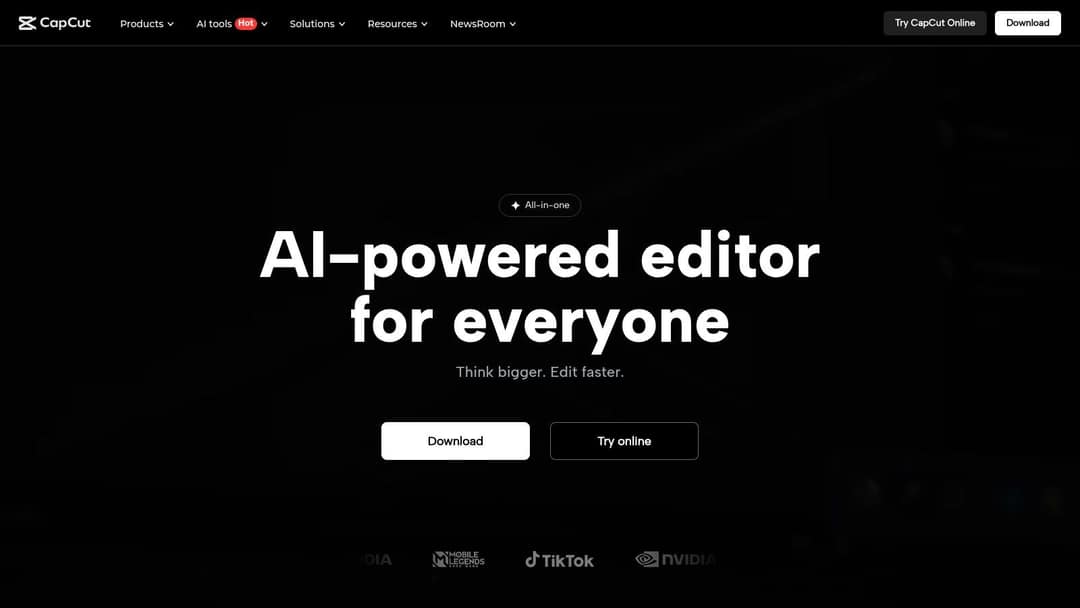
CapCut started as a phone app and now runs on mobile, desktop and the web, with projects syncing between them. It has the tightest TikTok integration of any editor and a constantly updated library of trend templates that drop your clips into viral formats.
Its AI tools handle most of the busywork: auto captions (speaker-identified on Pro), text-to-speech, and Auto Reframe to turn one edit into 9:16, 1:1 and 16:9 versions without repositioning your subject by hand. Download it or open the browser editor from CapCut's official site.
- Best for: creators and small teams editing their own footage for TikTok, Reels and Shorts.
- Price: free tier with the full editor and 1080p export; premium templates, effects and most AI features are paid (Standard is about $9.99/month).
- Watch out for: long, complex projects, where a desktop editor like DaVinci Resolve gives more control.
For a shortlist built only around TikTok, see our guide to the best video editors for TikTok.
3. Canva: best for branded content and marketing teams
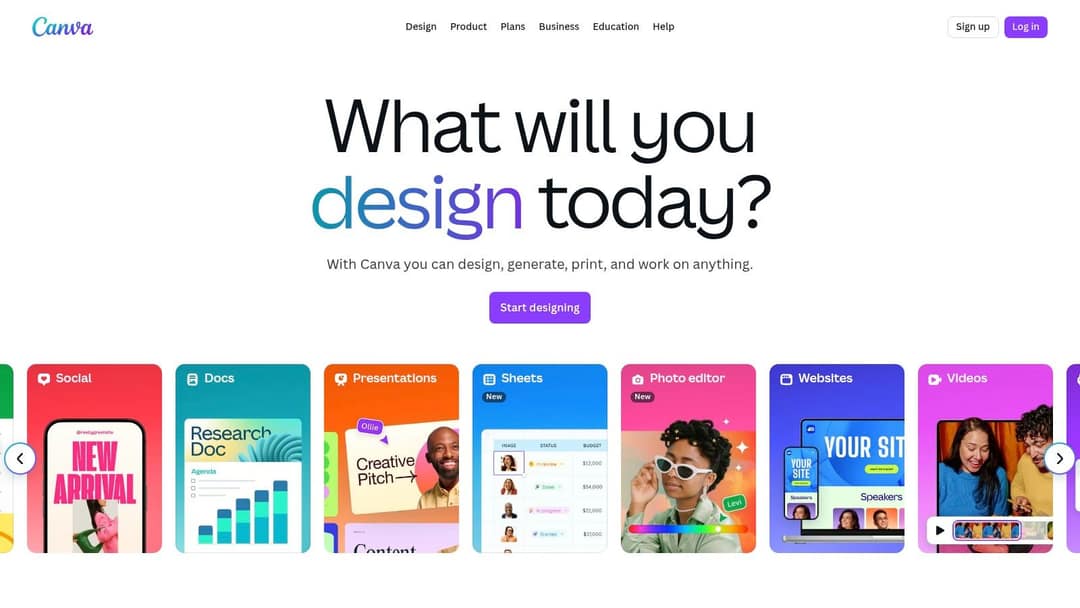
Canva is a design suite first, and that is its advantage for marketing teams: the same Brand Kit (logos, colors, fonts) drives your graphics, presentations and videos, so every Reel looks on-brand without an editor on staff. The video editor is drag-and-drop on top of 1.6 million+ templates on the free plan.
Paid plans add short Veo 3 clips with synchronized audio inside your designs, one-click resizing into other formats, and team comments and approvals. The Content Planner schedules finished posts to your social accounts. Start from Canva's homepage.
- Best for: social media managers, marketing teams and small businesses that need branded video fast.
- Price: free plan; Pro from €110/year.
- Watch out for: limited control over timing and advanced effects compared with a real timeline editor.
4. InShot: simplest editor on your phone
InShot is a phone editor with a clean timeline for trimming, splitting, speed ramps, text, stickers and music, plus photo editing and collages in the same app. It has fewer AI features than CapCut but almost nothing to learn, and a huge base of tutorials. Get it from InShot's website.
- Best for: creators who shoot and post entirely from a phone.
- Price: free with in-app purchases.
- Watch out for: keep every clip in local storage, because projects can break when source files are offloaded to iCloud or another cloud. Check music rights before commercial use.
5. LumaFusion: pro multi-track editing on iPhone and iPad
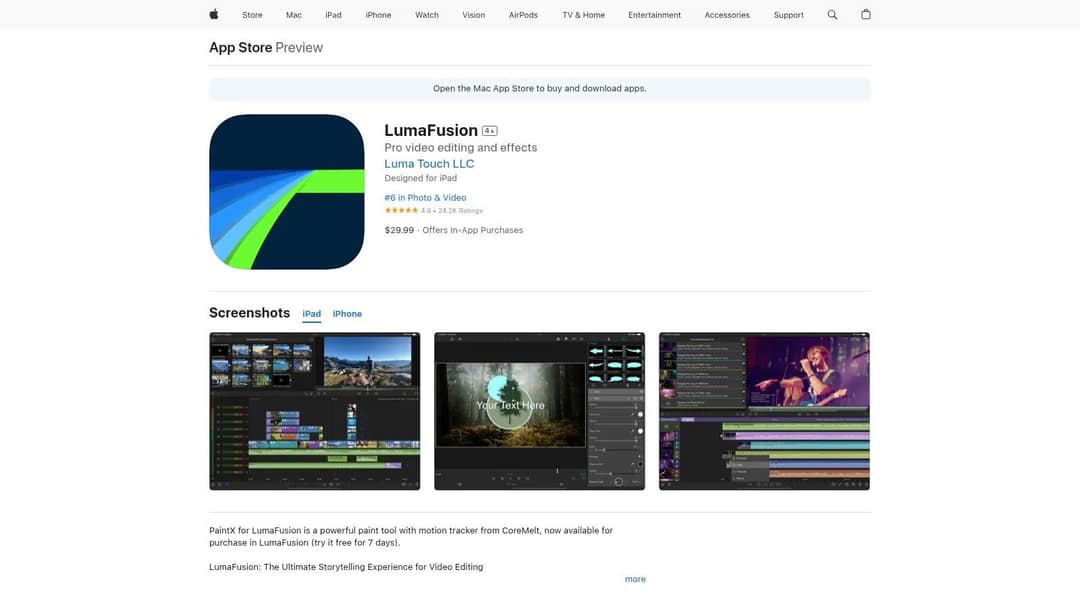
LumaFusion turns an iPad or iPhone into a multi-track editor with frame-accurate trimming, keyframes, color correction with LUTs, and FCPXML export to finish a project in Final Cut Pro. Multicam editing is a paid add-on. On iPad, an Apple Pencil makes trimming and keyframing far more precise. See the current listing on the LumaFusion App Store page.
- Best for: mobile journalists and creators who want desktop-style control without a laptop.
- Price: one-time purchase plus optional add-ons; check the App Store for the current price.
- Watch out for: a steeper learning curve than template apps.
6. Wondershare Filmora: easiest desktop editor
Filmora sits between phone apps and pro software: a familiar timeline, a large library of titles, transitions and effects, and AI tools such as Auto Reframe, smart cutout (background removal without a green screen) and silence detection. Its audio visualizer effect is handy for podcast and music clips. Download it from Filmora's official site.
- Best for: beginners moving from mobile apps to a computer, and YouTubers who also cut Shorts.
- Price: free trial exports carry a watermark; some AI features consume credits, and add-on packs raise the total cost.
7. CyberLink PowerDirector: desktop editor with built-in stock media
PowerDirector (sold as PowerDirector 365 on subscription) packs AI motion tracking, intro and title templates, video collages and Shutterstock stock footage, photos and music into an approachable desktop editor, with regular content-pack updates. The full feature list is on CyberLink's PowerDirector features page.
- Best for: YouTubers and small business marketers who want lots of built-in assets for B-roll.
- Price: subscription or perpetual license, with a free download to try.
- Watch out for: the subscription and perpetual versions have different features, mobile differs from desktop, and the interface can feel busy.
8. DaVinci Resolve: best free post-production suite
Resolve combines editing, color grading, Fusion visual effects and Fairlight audio in one application, which is why it tops most lists of the best post-production software suites. The free version is a complete professional editor, and vertical (9:16) or square timelines take one setting. The paid Studio version, a one-time purchase, adds the advanced AI tools and higher-end delivery formats. Downloads and editions are listed on Blackmagic Design's products page.
- Best for: serious creators who want pro tools for free and will invest time to learn them.
- Tip: right-click clips in the Media Pool and generate proxy media to edit 4K smoothly on a modest computer.
- Watch out for: the steepest learning curve on this list, and it wants strong hardware.
9. Final Cut Pro: best for Mac users
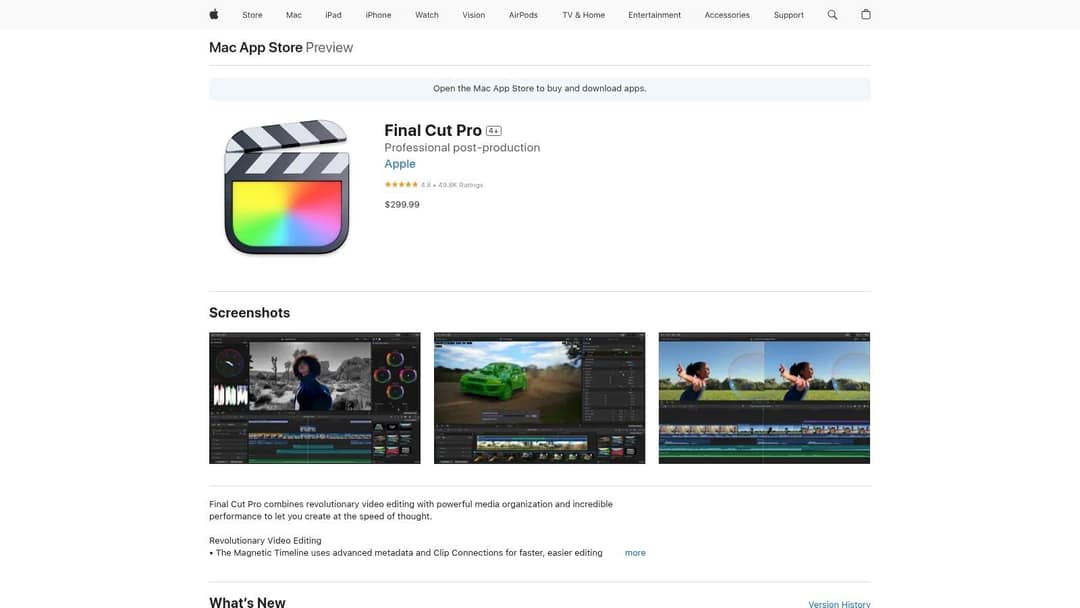
Final Cut Pro is Apple's professional editor and it is fast on Apple silicon. Smart Conform analyzes your footage and reframes horizontal video into vertical or square versions, the magnetic timeline prevents gaps as you rearrange clips, and object tracking plus Magnetic Mask isolate people without a green screen. Buy it on the Final Cut Pro Mac App Store page.
- Best for: Mac-based creators and teams who want pro control without a subscription.
- Price: one-time purchase; the iPad version is sold separately.
- Watch out for: Mac only.
10. Veed: best browser editor for subtitles
Veed is a browser editor with a multi-track timeline, screen recording, brand kits, and some of the category's best-known auto subtitles and translation. It adds AI dubbing, eye-contact correction and stock avatar presenters, and it works well on real footage you filmed.
- Best for: marketing teams who want subtitles, translation and light editing without installing anything.
- Price: free plan with a watermark and 720p export; paid plans start at roughly $10 to $24/month.
11. Descript: best for talking videos and podcasts
Descript lets you edit recorded video by editing its transcript: delete a sentence in the text and it disappears from the video. Studio Sound cleans audio, filler-word removal tightens delivery, Underlord acts as an AI co-editor, and Create Clips pulls short clips out of long recordings. Teams get Brand Studio and SSO.
- Best for: podcasters, educators and founders recording talking-head content.
- Price: free plan with 60 media minutes a month and 720p export; paid from $24/month ($16 billed annually).
US dollars per month
The plans do not buy the same thing: OpusClip, Vizard and Quso sell minutes of uploaded video, Klap sells clips, Submagic sells videos, Descript and Kapwing sell seats, and Revid sells credits that also make new videos from scratch. Billed yearly, most of these drop by 30 to 50%.
Source: Vendor pricing pages read October 29, 2026. Vizard's page did not render prices that day, so its figure is from vizard.ai/pricing on September 30, 2026; Klap's page showed yearly prices only, so its monthly price is from klap.app/pricing on August 13, 2026.
Show the data
| US dollars per month | |
|---|---|
| OpusClip Starter | 15 |
| Kapwing Pro | 16 |
| Submagic Starter | 19 |
| Descript Hobbyist | 24 |
| Vizard Creator | 29 |
| Klap Basic | 29 |
| Quso Lite | 29 |
| Revid Growth | 39 |
12. OpusClip: best for turning long videos into short clips
OpusClip finds the strongest moments in podcasts, streams and webinars, ranks them with a virality score, reframes talking-head footage to vertical and adds animated captions. Paid tiers post and schedule to social platforms.
- Best for: anyone with hours of recorded content and no time to scrub through it.
- Price: free plan with 1080p exports and watermarked captions (media expires after 3 days); paid from $15/month.
- Compare: Revid vs OpusClip explains clipping existing footage versus creating new videos.
What happened to Adobe Premiere Rush?
Adobe discontinued Premiere Rush on September 30, 2025, and it is no longer available on Adobe.com. Adobe's Premiere Rush support page now points users to its Premiere app for iPhone instead.
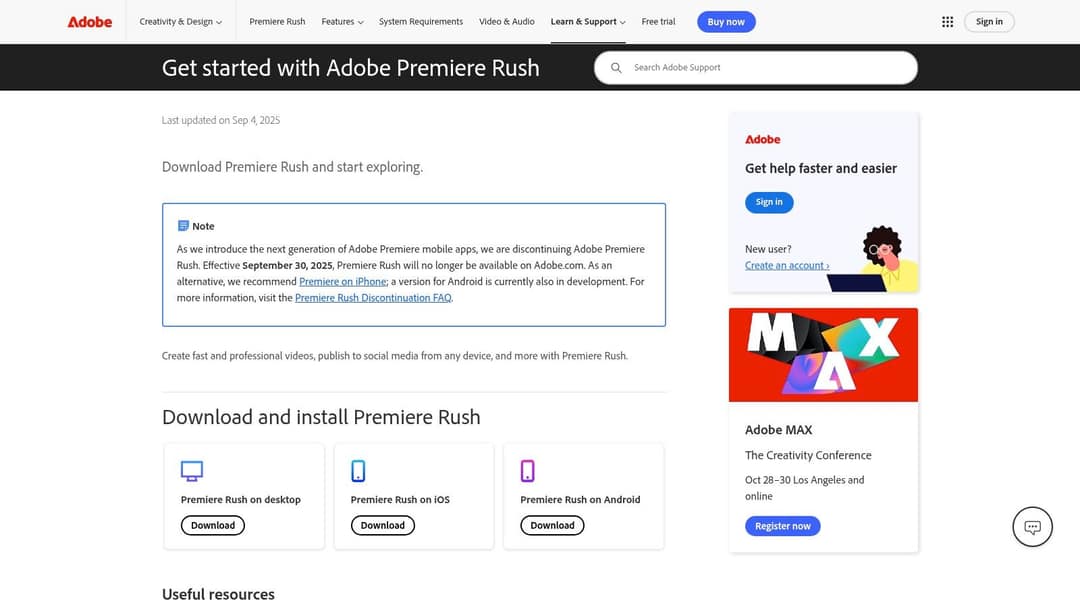
Rush did what most questions about it ask: it let creators edit short-form videos on desktop and mobile without complex software, synced projects through Creative Cloud, and offered built-in motion graphics templates, Auto Reframe and direct sharing to social platforms. It was designed for one person working across devices, not for team review with comments.
If you used Rush, move to CapCut for the same cross-device simplicity, to Canva for team comments and approvals, or to Premiere Pro to stay with Adobe.
Which editors auto-reframe 16:9 footage into 9:16?
These tools detect the main subject and keep it in frame when they crop horizontal video to vertical, with no manual keyframing:
- CapCut: Auto Reframe.
- Final Cut Pro: Smart Conform.
- Filmora: Auto Reframe.
- OpusClip and Klap: face-tracked vertical reframing of talking-head footage.
- Revid: the YouTube clip maker turns a long YouTube video into short vertical clips from a link.
A 9:16 crop of 16:9 footage keeps the full height and only a narrow slice of the width, so framing matters. If two people sit at opposite edges of a wide shot, auto reframe has to follow one of them.
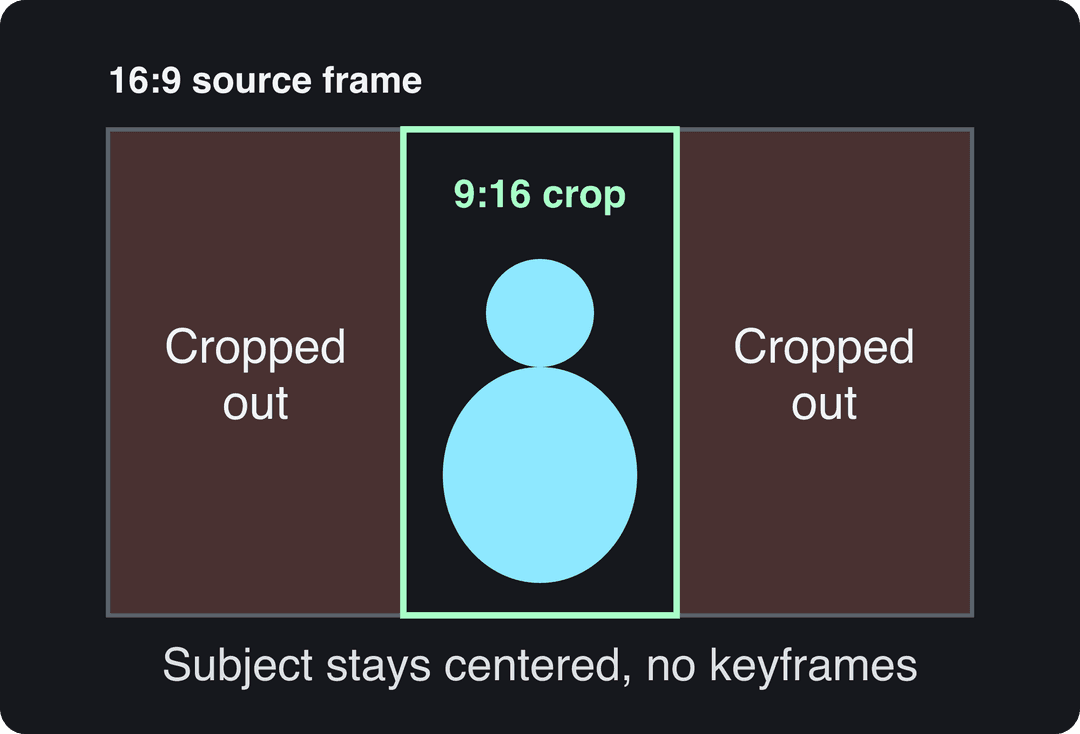
If you only need a different aspect ratio without subject tracking, you can resize a video to 9:16, 4:5, 16:9 or 1:1 in the browser.
Which video software posts directly to YouTube and social media?
- Revid publishes and schedules to TikTok, Instagram and YouTube from one queue.
- Canva schedules finished designs through its Content Planner.
- OpusClip posts and schedules on paid tiers; Vizard schedules to up to 6 social accounts on its Creator plan or 20 on Business; Submagic publishes to TikTok, Instagram and YouTube.
- CapCut has the closest link to TikTok.
Desktop editors such as DaVinci Resolve, Final Cut Pro and Filmora mainly export files that you upload yourself or hand to a scheduler. If you also publish to Vimeo or another host, check each tool's delivery presets before you buy.
Price divided by included minutes, assuming you use the whole allowance. Descript's hours are editing hours, not automatic clipping, so it is cheap per hour but you do the picking. Klap (billed per clip) and Revid (billed per job in credits) do not bill by source minutes and are left out.
Source: Monthly prices and allowances from vendor pricing pages on October 29, 2026 (Quso, Descript, Munch Studio yearly price), OpusClip allowances (150 and 300 minutes) from Castmagic's OpusClip pricing guide verified August 20, 2026, Vizard from vizard.ai/pricing on September 30, 2026.
Show the data
| US dollars per 10 hours of uploads | Minutes of video included per month | |
|---|---|---|
| Quso Lite | 174 | 100 |
| Quso Essential | 78 | 300 |
| OpusClip Starter | 60 | 150 |
| OpusClip Pro | 58 | 300 |
| Munch Studio Essential | 46 | 500 |
| Vizard Creator | 29 | 600 |
| Descript Hobbyist | 24 | 600 |
What should you use to clip 50 webinar recordings a week?
Use a clipping tool, not a general editor. At that volume, finding the moments is the job, and CapCut or Veed would leave you scrubbing timelines by hand.
- OpusClip: virality scoring ranks which moments to post, with captions and reframing built in.
- Vizard: $29/month ($14.50 billed yearly) at 1 credit per minute of video, 4K export, auto reframe, subtitle translation, and a brand kit on Business.
- Klap: highlight detection, captions in 52 languages and unlimited connected social accounts.
Run a few of your own webinars through each free tier or trial and compare which tool picks the clips you would have picked. Then add Veed or Canva only if you need extra brand polish on top.
What are the best free video editors for social media?
- DaVinci Resolve: the most complete free editor, if you can handle the learning curve.
- CapCut: the best free option for short-form, with 1080p export.
- Canva: free templates and simple video editing for branded posts.
- Descript: free plan with 60 media minutes a month for talking videos.
- InShot: free phone editing with optional in-app purchases.
Veed's free plan and Filmora's trial add a watermark, which rules them out for client or brand work.
Prompt to try
Create a 45-second faceless vertical video on 5 money habits that quietly drain your savings. Hook: "Number 3 costs the average person hundreds a year without them noticing." Use clean motion graphics, a calm confident voiceover and punchy captions on every line.
Which tool should you pick?
- If you edit your own phone footage for TikTok and Reels, use CapCut.
- If a marketing team needs on-brand videos without an editor, use Canva.
- If you need videos but have no footage or no time to edit, use Revid.
- If you record podcasts or talking-head videos, use Descript, then OpusClip to clip them.
- If you want cinematic color and full control for free, use DaVinci Resolve.
- If you work on a Mac and want to pay once, use Final Cut Pro.
- If you edit only on an iPad, use LumaFusion.
What export settings work for TikTok, Reels and Shorts?
All three are vertical-first, so one 9:16 master usually covers them.
| Platform | Aspect ratio | Resolution and frame rate | Length to know |
|---|---|---|---|
| TikTok | 9:16 | 1080x1920 recommended | Uploads up to 60 minutes |
| Instagram Reels | 1.91:1 to 9:16 accepted | At least 720 pixels and 30 FPS | Up to 20 minutes; over 3 minutes is not recommended to non-followers |
| YouTube Shorts | Square or vertical | Vertical 9:16 for a full-screen look | Up to 3 minutes |
Every editor on this list can export 9:16. If yours defaults to 16:9, set the project or timeline to vertical before you start cutting, not at export.
Where to buy desktop video editing software
If you prefer a perpetual license or boxed copy, two retailers are worth checking. The Amazon video editing software bestsellers list is useful for comparing customer reviews of established PC and Mac editors and finding discounted older editions. Buy only when the seller is Amazon.com or the publisher's own storefront, and check the version and edition (Pro vs. Ultimate) before you pay.
B&H Photo Video's editing software section sells authorized download codes for professional tools from Adobe, Apple and Blackmagic Design, with business sales support and financing. Many digital downloads cannot be returned once the code is delivered, so confirm your computer meets the requirements first.
FAQ
Is CapCut free to use for social media videos?
Yes. CapCut's free tier includes the full editor and 1080p export; premium templates, effects and most AI features need a paid plan, with Standard at about $9.99/month.
Can I post the same vertical video to TikTok, Reels and Shorts?
Yes, a 9:16 video works on all three. Keep it under 3 minutes if you want Shorts to classify it as a Short and Instagram to recommend it to non-followers.
Is Final Cut Pro worth it for social media?
It is worth it if you edit on a Mac and want to pay once instead of subscribing. Smart Conform handles vertical reframing, but beginners who only post short clips will move faster in CapCut.
Which tool is best for shoppable product videos?
For product videos made from a store page, Revid's product video generator reads a product URL, keeps its real photos and writes the script. To edit footage you shot of the product, CapCut or Canva templates are quicker.
Can an AI tool replace a video editor for social media?
For many faceless, explainer and product formats, yes: AI tools now write, assemble, caption and publish the video. If your content depends on footage you filmed, you still need an editor such as CapCut or DaVinci Resolve, though AI features inside them cut the work.
Sources
- Vendor pricing pages read October 29, 2026. Vizard's page did not render prices that day, so its figure is from vizard.ai/pricing on September 30, 2026; Klap's page showed yearly prices only, so its monthly price is from klap.app/pricing on August 13, 2026.
- Monthly prices and allowances from vendor pricing pages on October 29, 2026 (Quso, Descript, Munch Studio yearly price), OpusClip allowances (150 and 300 minutes) from Castmagic's OpusClip pricing guide verified August 20, 2026, Vizard from vizard.ai/pricing on September 30, 2026.
- YouTube Official Blog, Tall updates coming to Shorts (October 2024)
Charts and figures checked on November 6, 2026.