YouTube Video Format: The Best Upload Settings for Videos and Shorts
MP4 with H.264 video and AAC-LC audio is the YouTube video format to use. Here are the exact resolution, bitrate, frame rate, audio and Shorts settings for 2026.

On this page
The best YouTube video format is an MP4 file with H.264 video and AAC-LC audio, exported at your footage's native resolution and frame rate. Use 16:9 (1920x1080 or 3840x2160) for regular videos and 9:16 at 1080x1920 for Shorts, which can run up to 3 minutes.
YouTube accepts 16 upload formats, so almost any file will go through. The catch: YouTube re-encodes every file it receives, so your export is the best your video will ever look on the platform. A file sent at a low bitrate, a converted frame rate or with black bars only gets worse from there. The settings below matter more than the file extension.
- Longest square or vertical upload YouTube classifies as a Short
- 3 min
- YouTube Official Blog, October 2024
- Largest YouTube upload, or 12 hours, whichever is less
- 256 GB
- YouTube upload limits
- Recommended upload bitrate for 1080p at 24 to 30 fps
- 8 Mbps
- YouTube encoding settings
- Daily YouTube Shorts views
- 200B+
- YouTube Official Blog, August 2026
YouTube video specs at a glance
| Setting | Recommended for most uploads |
|---|---|
| Container | MP4, with fast start and no edit lists |
| Video codec | H.264, progressive scan, High Profile, variable bitrate |
| Audio codec | AAC-LC, stereo, 48 kHz |
| Regular video | 16:9 at 1920x1080 (1080p) or 3840x2160 (4K) |
| Shorts | 9:16 (or square) at 1080x1920, up to 3 minutes |
| Frame rate | Same as the source: 24, 25, 30, 48, 50 or 60 fps |
| Bitrate at 1080p | 8 Mbps at 24 to 30 fps, 12 Mbps at 48 to 60 fps |
| Bitrate at 4K | 35 to 45 Mbps at 24 to 30 fps, 53 to 68 Mbps at 48 to 60 fps |
| Largest upload | 256 GB or 12 hours, whichever is less |
The codec, audio and bitrate rows follow YouTube's recommended upload encoding settings. That page also lists bitrates for other resolutions and for HDR uploads.
What format is a YouTube video?
"YouTube format" (or "YT format") is really four separate choices. Mixing them up is where most export problems start:
- Container: the file wrapper, such as MP4 or MOV. It holds the video, the audio and the metadata in one file.
- Codec: how the video is compressed and decoded, such as H.264, HEVC (H.265) or AV1.
- Resolution: the pixel dimensions, such as 1920x1080.
- Aspect ratio: the shape of the frame, such as 16:9, 9:16 or 1:1.
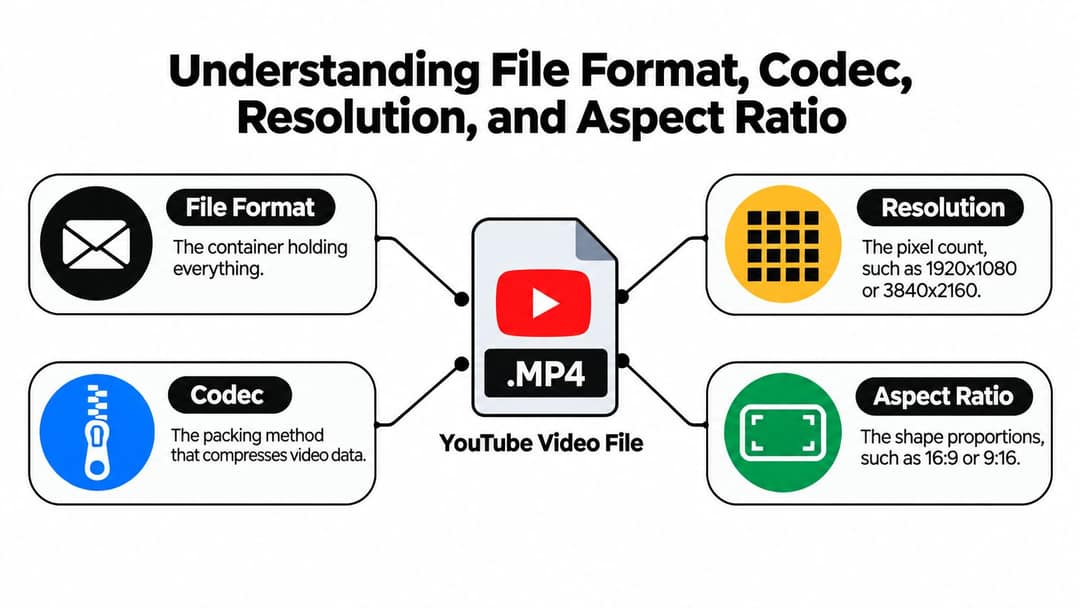
A file with the right extension can still be wrong on the other three. YouTube will accept an MP4 holding a 720p clip upscaled to 4K, but it will look soft, because upscaling cannot add detail the camera never captured. Pick the resolution and aspect ratio from your footage first, then the container and codec.
The accepted list includes MP4, MOV, AVI, WMV, WebM, FLV, 3GPP, ProRes, DNxHR, CineForm and HEVC, among others. Accepted does not mean recommended: MP4 with H.264 is the combination YouTube's own guidance is built around.
Which video codec should you use for YouTube?
Use H.264 unless you have a specific reason not to. Every editor exports it, every phone and laptop plays it back for review, and it gives YouTube a clean file to re-encode.
- If you export from a phone app or a simple editor, choose MP4 with H.264 and stop there.
- If you edit in Premiere Pro, DaVinci Resolve or Final Cut, a high-bitrate H.264 MP4 is still the safest delivery file. A ProRes or DNxHR master also uploads, but the files are far larger and take much longer to send.
- If upload speed or storage is tight at 4K, HEVC (H.265) keeps similar quality in a smaller file. Expect slower encoding and weaker support on older computers.
- If your workflow is web-based (WebM with VP9 or AV1), it uploads fine. Check that your editor and review devices handle it before you commit.
| Container | Typical codec | Best for | Avoid when |
|---|---|---|---|
| MP4 | H.264 with AAC-LC audio | Almost every upload | Your workflow requires a professional master file |
| MOV | H.264, ProRes or another editing codec | Editing masters and production handoffs | You want the smallest, simplest delivery file |
| WebM | VP9 or AV1 | Web-first, efficient workflows | Your editor has limited support |
| AVI | Varies | Legacy projects | You are building a modern upload preset |
Inside an H.264 export, four settings make the difference. Use progressive scan (not interlaced), the High Profile and a variable bitrate. Turn on fast start, which some exporters call "web optimized". YouTube's guidance also warns against edit lists, which can stop a file from processing correctly. Most editors' built-in YouTube presets set these for you, but check them once.
YouTube audio specs
Audio is the part creators skip, and it is the part viewers notice first.
- Codec: AAC-LC.
- Channels: stereo. YouTube also accepts a surround mix alongside the stereo track.
- Sample rate: 48 kHz is the standard choice. YouTube also recommends a higher rate for studio-grade sources.
- Bitrate: YouTube publishes a recommended AAC bitrate for stereo and for surround on the encoding page linked above. If your exporter asks for a number, take it from that page rather than guessing low.
Then listen to the rendered file, not the timeline. Check for clipping, music that buries speech, sudden level jumps and room hum. If the recording is noisy, run it through an AI audio enhancer before export: no codec setting fixes muddy dialogue.
What is the YouTube video format size?
"Size" means two different things: the frame size (resolution) and the file size.
| Video type | Aspect ratio | Resolution |
|---|---|---|
| Regular video, 1080p | 16:9 | 1920x1080 |
| Regular video, 4K | 16:9 | 3840x2160 |
| Short, vertical | 9:16 | 1080x1920 |
| Short, square | 1:1 | 1080x1080 |
For files, the maximum upload is 256 GB or 12 hours, whichever is less. New accounts are limited to 15 minutes per video by default. Verify your account in YouTube Studio to upload anything longer. For every common dimension, including 720p and 1440p, see the guide to YouTube video width and height.
File size grows with duration, resolution, frame rate and bitrate. If a file is enormous, lower the bitrate toward the table above. Do not cut the resolution below what you filmed.
Prompt to try
Make a 45-second vertical YouTube Short explaining why vertical videos under 3 minutes become Shorts. Open with the hook "Your regular video just turned into a Short, here's why." Use clean motion graphics, a calm confident voiceover and bold centered captions that stay clear of the bottom and right edges.
YouTube Shorts format
A Short is a vertical (9:16) or square video. Export it at 1080x1920, in MP4 with H.264 and AAC-LC audio, at the source frame rate. Since October 15, 2024, square or vertical uploads up to 3 minutes long are classified as Shorts.
Three more rules shape a Short:
- Interface overlap: the title, buttons and channel name cover the bottom and right edge. Keep captions, faces and calls to action in the center, and check the layout with the YouTube Shorts safe zone checker.
- Copyrighted music: any Short longer than one minute with an active Content ID claim is blocked globally and cannot be monetized. Keep claimed audio to Shorts of a minute or less, or use the Shorts audio library.
- Custom covers: verified accounts can upload a custom Short thumbnail, but only in YouTube Studio on a computer. YouTube recommends 9:16 at 2160x3840, with a minimum height of 640 px.
The upload steps on phone and desktop are in our guide on how to upload YouTube Shorts.
Generating in the final shape matters: cropping a wide video to 9:16 cuts off text and faces. Avatar tools such as Synthesia and HeyGen default to 16:9 for training and web use.
Source: Revid data, Amplitude project_built by ratio for text-input tools, Sep 29 to Oct 28, 2026, 50,623 projects.
Show the data
| Share of projects | Projects | |
|---|---|---|
| 9:16 vertical | 83.2% | 42.1K |
| 16:9 wide | 15.2% | 7.7K |
| 1:1 square | 0.9% | 457 |
| 4:5 portrait | 0.7% | 356 |
Aspect ratio: why black bars hurt your video
YouTube advises uploading at the native aspect ratio, without letterboxing (bars above and below) or pillarboxing (bars on the sides). Its player adapts to the shape of your file, so the bars just shrink your picture.
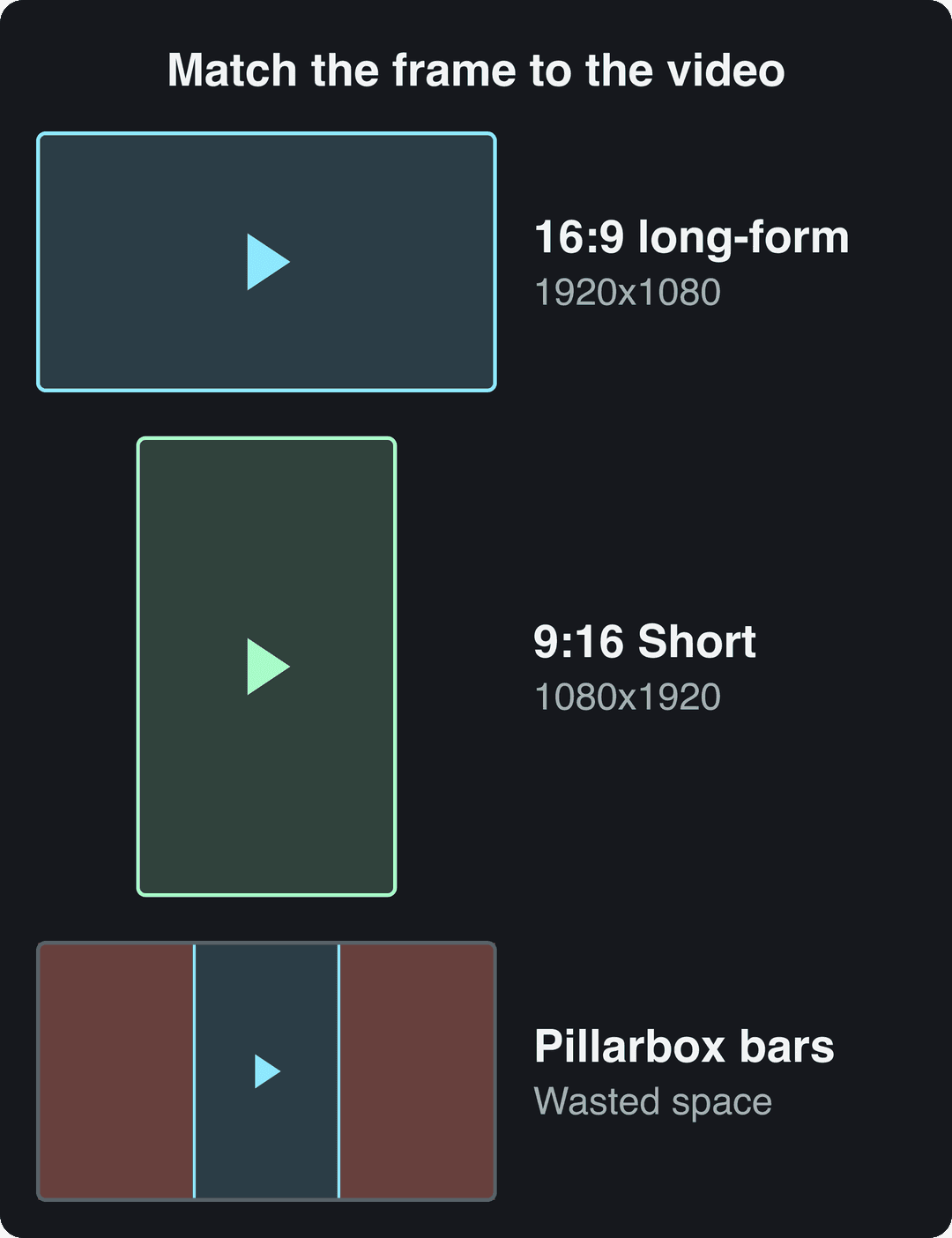
The most common mistake is dropping a vertical phone clip into a 16:9 timeline. You get a narrow strip of video and two wasted panels. The reverse is just as bad: a wide master forced into a 9:16 feed turns the speaker into a dot and pushes captions off-screen.
If you publish one piece of footage in both shapes, keep the original project and reframe each version around the subject. Do not crop a finished upload again. A video resizer converts a file to 9:16, 4:5, 16:9 or 1:1 when you need a quick variant. The same reframing logic applies when you convert a video to TikTok format.
Bitrate and frame rate for YouTube
Bitrate is the amount of data per second of video. More data preserves fast motion, gradients and small text, which YouTube's re-encode would otherwise smear. Use the upload targets in the spec table: 8 Mbps for 1080p at 24 to 30 fps, and 35 to 45 Mbps for 4K at the same frame rates. A higher bitrate will not rescue footage that was soft to begin with.
Frame rate is how many images play each second. Export at the rate you filmed. Converting 24 fps to 60 fps does not create smoother motion, it duplicates or blends frames. Converting 60 fps down throws motion detail away.
Live streaming bitrates are different
If you stream rather than upload, YouTube's live encoder settings apply instead. For H.264, YouTube lists 10 Mbps for 1080p30, 12 Mbps for 1080p60, 30 Mbps for 4K30 and 35 Mbps for 4K60. YouTube also accepts HEVC and AV1 for live ingest, with minimums of 3 to 10 Mbps depending on the format. These are live figures, not upload targets.
YouTube thumbnail format
The old "1280x720, under 2 MB" rule is out of date. YouTube now recommends 3840x2160 custom thumbnails in 16:9, with a minimum width of 640 px. Files can be up to 50 MB on desktop but only 2 MB from mobile, and custom thumbnails need a verified account. For vertical videos, YouTube replaces a 16:9 custom thumbnail with an auto-generated 4:5 one on the home, explore and subscription pages.
Design tips and safe text placement are in the YouTube thumbnail size guide.
How to format a YouTube video: export checklist
- Identify the source shape: wide, vertical or square. Build the project in that shape.
- Set the resolution: match what you filmed, such as 1920x1080 or 3840x2160 for regular videos and 1080x1920 for Shorts.
- Choose MP4 and H.264, with fast start on and progressive scan.
- Match the frame rate to the footage.
- Set the bitrate from the spec table for your resolution and frame rate.
- Export audio as AAC-LC stereo at 48 kHz, and listen to the rendered file.
- Check safe zones for captions, logos and faces, especially on Shorts.
- Upload privately first. Inspect the processed version on a phone and a desktop: the first seconds, fast motion, small text and speech.
If you edit in DaVinci Resolve, this walkthrough shows where each of these settings lives:
Make YouTube-ready videos with Revid
If you would rather not set export dialogs by hand, Revid produces correctly shaped videos from the start:
- Open the AI YouTube Shorts generator and start from a script, a prompt or a link. Revid writes the script and builds the visuals, voice-over and synced captions in vertical format.
- To cut an existing long video into Shorts, paste its link into the YouTube clip maker.
- Fix anything in the timeline editor, then export in 720p, 1080p or 4K at 30 or 60 fps.
- Publish directly to YouTube, or schedule it alongside TikTok and Instagram from the same queue.
FAQ
Is MP4 or MOV better for YouTube?
MP4 is better for most uploads. It produces smaller files, plays everywhere and matches YouTube's recommended settings. MOV makes sense when your editor exports a professional master such as ProRes and upload time is not a problem.
Does YouTube compress uploaded videos?
Yes. YouTube re-encodes every upload, so start from a clean, high-bitrate file. Detail lost in your export cannot come back after YouTube processes it.
Can I upload a vertical video as a regular YouTube video?
Only if it runs longer than 3 minutes. Vertical or square videos of 3 minutes or less are classified as Shorts, so export in 16:9 if you want it treated as a regular video.
Does YouTube support 4K and 60 fps?
Yes. Upload 3840x2160 at up to 60 fps, at 53 to 68 Mbps for high frame rates or 35 to 45 Mbps at 24 to 30 fps. Only upload 4K if the footage was actually shot in 4K.
Sources
- Revid data, Amplitude project_built by ratio for text-input tools, Sep 29 to Oct 28, 2026, 50,623 projects.
- YouTube Official Blog, Tall updates coming to Shorts (October 2024)
- YouTube Official Blog, New opportunities to earn and changes to the YouTube Partner Program (August 2026)
Charts and figures checked on November 6, 2026.