How to Create a Character with AI in Revid (4 Steps, 2026)
Create a character with AI in Revid in four steps: open Studio > AI Characters, describe the look, pick a style and generate. Then reuse the same description to keep the character consistent in every video.
On this page
To create a character with AI in Revid, open Studio > AI Characters in the sidebar, write a detailed description of how the character looks, choose a visual style and generate images. Save the best image and the exact description, then paste that description into every video prompt to keep the character consistent.
A recurring character also means you never have to appear on camera. In Revid's analysis of 176,367 TikToks with 1,000+ likes posted between October 2025 and October 2026, faceless videos had a median of 114K views and 17.4% passed 1 million views. Videos with one person on camera had a median of 67K, and 12.7% passed 1 million (full study of what makes a TikTok go viral). The sample only holds videos that already cleared 1,000 likes, so it shows what successful videos have in common, not a guaranteed cause.
Faceless videos earned a median of 114K views, against 67K for videos with one person on camera, and passed 1M views 38% more often.
Source: Revid analysis of 176,367 TikToks with 1,000+ likes posted between Oct 1, 2025 and Oct 16, 2026 (61,203 creators)
Show the data
| Median views | Share that passed 1M views | |
|---|---|---|
| Animals | 147.4K | 24.1% |
| Faceless | 113.9K | 17.4% |
| Groups of people | 96.1K | 16% |
| Objects or products | 70.8K | 13.2% |
| One person on camera | 67.4K | 12.7% |
- Median views of faceless TikToks, vs 67K with one person on camera
- 114K
- Revid analysis of 176,367 TikToks
- Share of faceless TikToks that passed 1 million views
- 17.4%
- Revid analysis of 176,367 TikToks
- Credits per AI image, from Low to Ultra quality tier
- 1 to 16
- Revid pricing
- Monthly price of Revid's Growth plan, the first paid plan
- $39
- Revid pricing page
How to create an AI character in Revid, step by step
Step 1: Open AI Characters in the Studio section
Log in, expand the Studio section in the left sidebar and click AI Characters. If you used Revid before, this moved: it was a top-level "AI Characters (beta)" item and now sits in Studio, next to Media Generation, Voices, Scripts, Hooks and Effects.
Step 2: Describe what the character looks like
Write a precise description of the visible traits: style, age, hair, face, outfit, one signature detail, expression and setting. Use the template in the next section. A chatbot can help you turn a rough idea into this format, but keep the final text short and concrete.
Step 3: Choose a style that matches your video
Pick the visual style the character will keep in every video: realistic for a presenter, 3D for a Pixar-style story, anime or a flat cartoon look for a series. Choose it now, because switching styles later changes the character.
Step 4: Generate, then save the image and the description
Generate the images and keep the one that looks most like what you described. Save it with the exact description in one note. You will reuse both in every video.
If you only need one picture of the character, the Create page also has a Single image / clip option that makes one image or clip without building a full video. AI images cost 1, 4 or 16 credits each depending on the quality tier (Low, Pro or Ultra).
Prompt to try
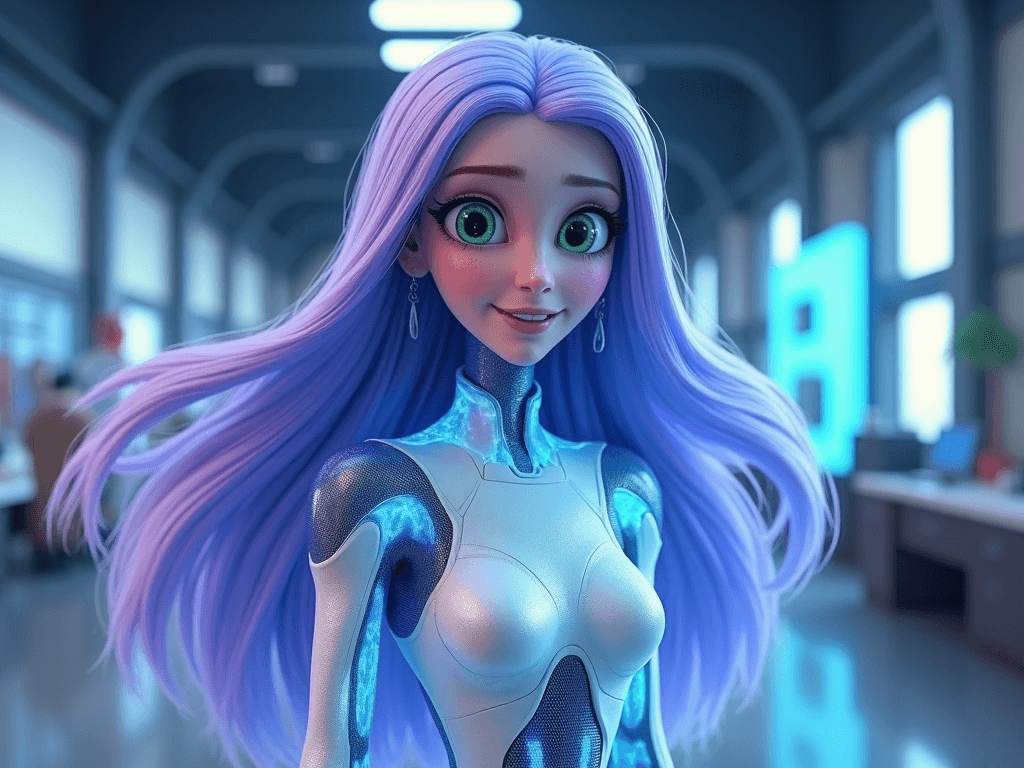
Pixar-style 3D animation, young woman with long straight lavender hair, large green eyes and rosy cheeks, fitted white bodysuit with glowing blue panels, silver drop earrings, warm slightly shy smile. Open with her waking up to find her futuristic office robot has rearranged everything overnight. She follows a trail of clues to discover it planned a surprise for her first day. Make it a 40-second vertical story with a light, upbeat voice-over.
How to write a character description that works
The image generator only sees what you write, so describe what is visible. Personality matters only through what it shows: an expression, a posture, a style of clothing. Write the traits in a fixed order so you can copy the same block every time.
| Field | What to write | Example (the character above) |
|---|---|---|
| Style | The look you want | Pixar-style 3D animation |
| Who | Age range, gender, body type | Young woman, slim |
| Hair | Color, length, texture | Long, straight lavender hair |
| Face | Eye color, a distinctive feature | Large green eyes, rosy cheeks |
| Outfit | Main garment with colors | Fitted white bodysuit with glowing blue panels |
| Signature detail | One item that makes her recognizable | Silver drop earrings |
| Expression | The mood the character carries | Warm, slightly shy smile |
| Setting | Background and framing | Futuristic office, waist-up shot |
Put together, the description reads: "Pixar-style 3D animation, young woman with long straight lavender hair, large green eyes and rosy cheeks, fitted white bodysuit with glowing blue panels, silver drop earrings, warm slightly shy smile, waist-up shot in a futuristic office."
Three rules keep results clean:
- Be specific about color. "Lavender hair" gives a steadier result than "colorful hair".
- Pick one signature detail and never drop it. It is what makes the character recognizable from one scene to the next.
- Change only the setting and expression between scenes. If you rewrite the hair or outfit, you get a different character.
Which style should your character use?
Match the style to the kind of video the character will star in, then use the Revid tool built for that look.
| If you want | Style to describe | Where the character goes next |
|---|---|---|
| A realistic presenter or spokesperson | Realistic photo | AI talking avatar videos |
| A family-friendly 3D story | Pixar-style 3D | Pixar AI video generator |
| An anime series | Anime | AI anime video generator |
| A simple animated explainer or cartoon | Flat 2D cartoon | AI cartoon video generator |
| An artistic or hand-drawn look | Sketch or ink drawing | Any story video, with the same description in every prompt |
Prompt for a series
Episode 1 of a vertical drama series starring a Pixar-style young woman with long straight lavender hair, green eyes, a white bodysuit with glowing blue panels and silver drop earrings. Hook: on her first day at a futuristic tech company, she finds a message from her future self warning her not to trust her new boss. End on a cliffhanger, about 60 seconds.
How to keep the same character across scenes and videos
To keep the same character from one video to the next, reuse the exact saved description in every new prompt. Repeating the same hair, outfit and accessory details (for the character above: lavender hair, green eyes, the white and blue bodysuit and the silver earrings) keeps every scene showing the same character.
For a recurring series, the AI short drama generator turns a story idea or script into a vertical micro-drama episode with consistent characters and voiced dialogue. For a full example of how a recurring cast runs week after week, see how to build an animated series with consistent characters.
Turn your AI character into a video
Static images are the starting point. To put the character into a finished short with a script, voice-over, captions and music:
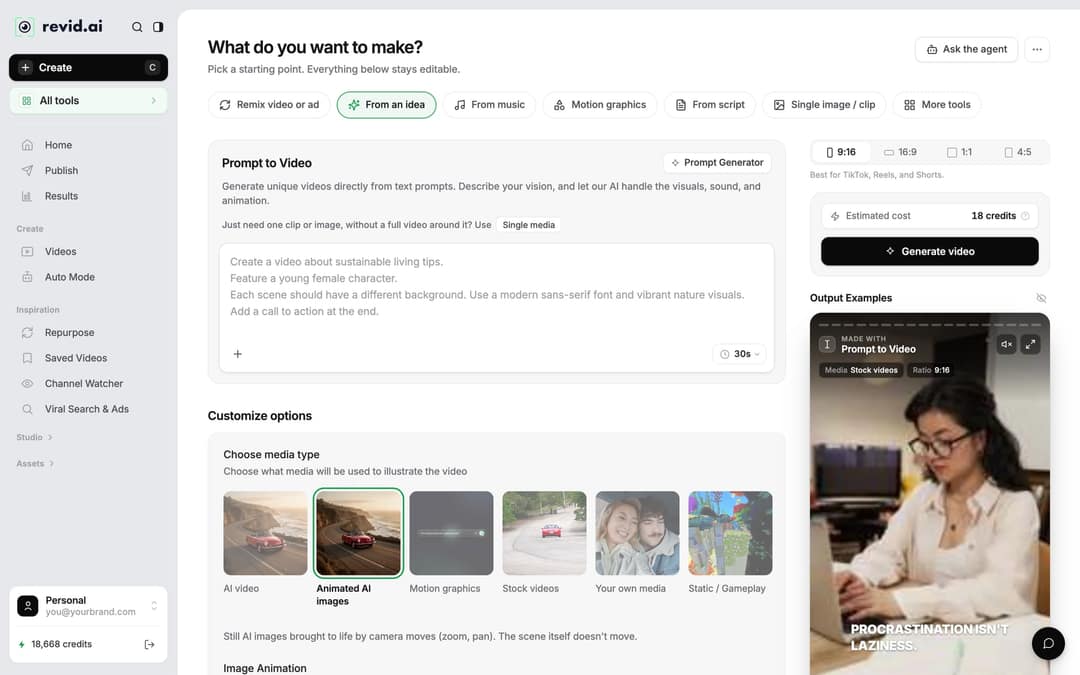
- Click Create at the top of the sidebar (shortcut C). Pick From an idea, or open the Pixar AI video generator or the AI movie maker for a short film written from a script or a one-line idea.
- Paste your saved character description into the prompt, then describe the story.
- Under Choose media type, pick Animated AI images (the default) or AI video, which needs a subscription. Check the Estimated cost and click Generate video.
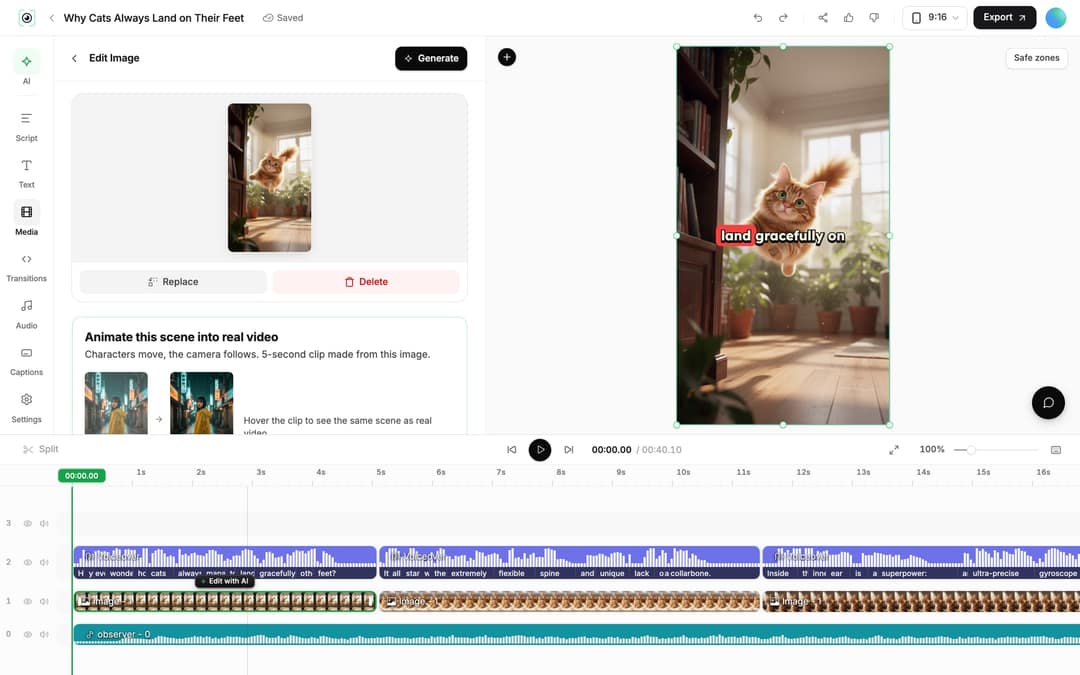
- Review every scene in the editor. If the character drifts in one scene, select that image clip and use Replace or Regenerate/Edit image with your description.
- Click Export / Publish (or Export on a paid plan) to download the video or post it to TikTok, Instagram, YouTube or X.
Platform matters for AI-made characters. In Revid's study of AI videos vs real footage, AI-generated TikToks averaged twice the views of real footage. On X, Instagram and Threads, AI visuals clustered in the lowest engagement tier. If your character is built for TikTok first, that is where the format has the strongest evidence.
Posts with AI visuals
Source: Revid social index: 388,379 posts from X, Instagram, Threads, Reddit and LinkedIn with AI labels per post, snapshot of Sep 15, 2026.
Show the data
| Posts with AI visuals | |
|---|---|
| High engagement | 1.6% |
| Medium engagement | 2.9% |
| Low engagement | 6.7% |
FAQ
Can you create a character with AI for free?
Yes, you can start for free: signing up for Revid is free, and new accounts get free credits to try creation with no credit card needed. Regular generation then uses the monthly credits of a paid plan, starting with Growth at $39/month. The pricing page lists current plans.
Do I have to label an AI character on TikTok or YouTube?
Only if it looks realistic. TikTok requires a label on realistic AI-generated images, audio or video, and YouTube does not require disclosure for non-realistic content. A clearly animated Pixar-style character usually needs no label, and both platforms say the label alone does not reduce reach.
Can I make my AI character talk?
Yes. Use a realistic character with the Talking Avatar tool, which turns a script or URL into a video of the avatar speaking. You can also put a stylized character in a story video with an AI voice-over.
Can I turn real people into characters in an existing video?
Yes, with the AI character swap tool: upload a video and one photo per person (up to 4), and every person in the clip is replaced. Only use photos of people who have agreed to it.
Sources
- Revid analysis of 176,367 TikToks with 1,000+ likes posted between Oct 1, 2025 and Oct 16, 2026 (61,203 creators)
- Revid social index: 388,379 posts from X, Instagram, Threads, Reddit and LinkedIn with AI labels per post, snapshot of Sep 15, 2026.
Charts and figures checked on November 6, 2026.