Audio to Video AI: Turn Any Recording Into a Video in 3 Steps
Upload a podcast, interview or voice note, and Revid's audio to video AI transcribes it, syncs captions and adds matching visuals. Here is the current 3-step workflow, plus the right ratio and clip length for each platform.
On this page
Audio to video AI turns a recording into a video: it transcribes the speech, syncs captions to the voice and adds matching visuals. In Revid, click Create, choose From a link or audio, upload an MP3, WAV or M4A, pick a ratio and media type, then click Generate video and export in up to 4K.
The usual mistake is uploading a whole episode and getting a video that talks nonstop. In Revid's analysis of 176,367 TikToks with 1,000+ likes, videos that talked throughout had a median of 68K views, against 123K for videos with under 40 characters of speech. A spoken clip has to be short, and its visuals have to do real work.
- Median TikTok views for videos with under 40 characters of speech
- 123K
- Revid analysis of 176,367 TikToks
- Median TikTok views for videos that talk the whole way through
- 68K
- Revid analysis of 176,367 TikToks
- Share of short-speech TikToks that passed 1M views, vs 11.9% for 300+ characters
- 20.2%
- Revid analysis of 176,367 TikToks
- Average daily YouTube Shorts views
- 200 billion
- Alphabet, July 2025
What does an audio to video AI generator do?
It does the editing you would otherwise do by hand in a timeline. With Revid's Audio to Video tool, the AI:
- Transcribes your recording, so every word is on the timeline.
- Syncs captions to your voice, which matters because many people scroll with the sound off.
- Adds visuals that match what is being said: stock footage, animated AI images, motion graphics or AI video.
- Keeps your original audio as the soundtrack, so the voice, tone and timing stay yours.
The result opens in the editor, where you can change any caption, clip or timing before you export.
How do you create a video from audio using AI?
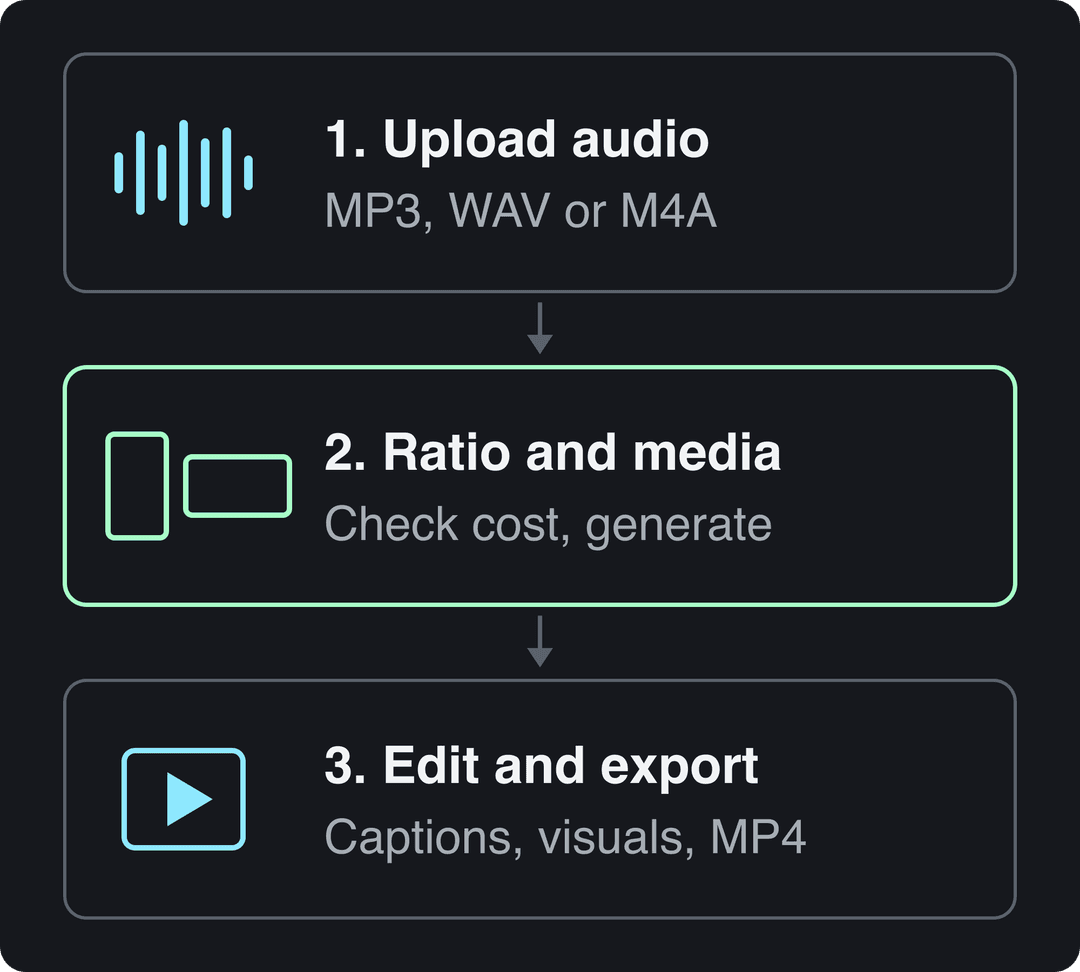
The short version, in Revid:
- Click Create in the sidebar, choose From a link or audio, and upload your audio file (MP3, WAV or M4A).
- Pick the screen ratio and the media type, check the estimated cost, and click Generate video.
- Fix captions and visuals in the editor, then export the MP4 or publish it to TikTok, Instagram or YouTube.
The detailed steps follow.
Step 1: Open Audio to Video and upload your file
Click Create at the top of the left sidebar (or press C). The page asks "What do you want to make?" and shows a row of starting points. Pick From a link or audio. On a narrower window that chip is folded into More tools, first in the list. The tool opens under the title "Audio/Video to video". You can also go straight to the tool page from the link above.
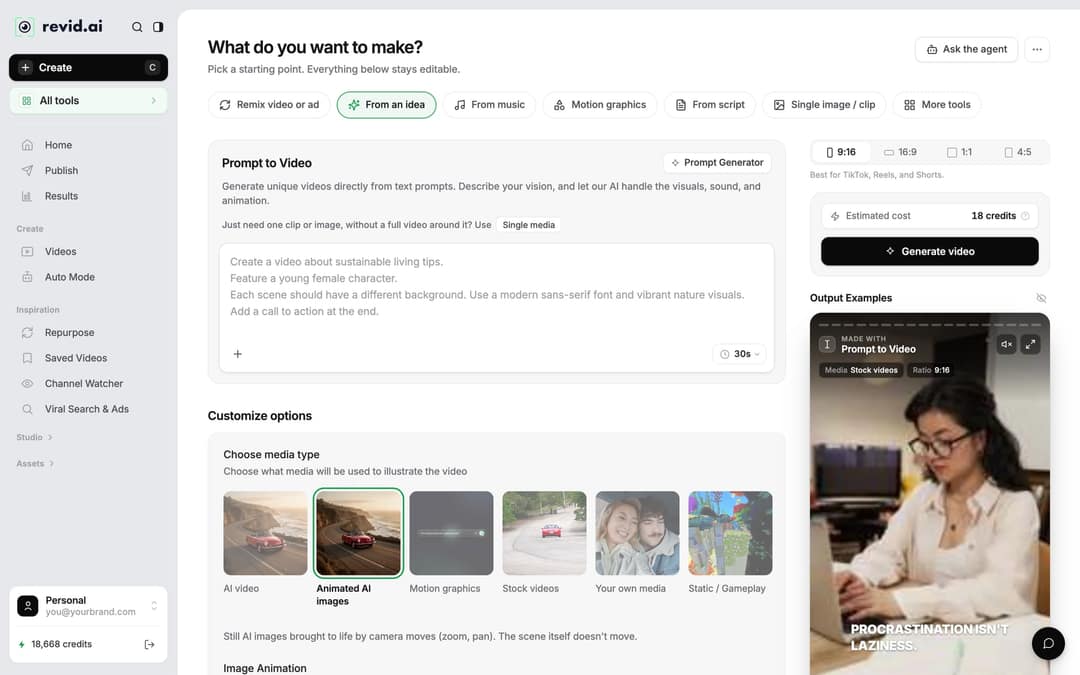
Upload your recording. MP3, WAV and M4A all work, so podcasts, interviews, voice memos and recorded talks are fine. As the chip name says, you can also start from a link instead of a file.
Choose the recording well before you upload:
- One idea per video. A single story, tip or answer works better than a full conversation.
- Clean audio. Background noise and crosstalk make transcription and captions less accurate.
- Cut long recordings first. A shorter segment is easier to watch to the end, and each segment can be its own video.
The data backs the last point. In Revid's study of what makes a TikTok go viral, 20.2% of videos with under 40 characters of speech passed 1M views, against 11.9% for videos with 300+ characters of speech; silent videos sat in between at a 73K median. The sample only holds TikToks that already reached 1,000+ likes, so it shows what strong videos share, not a cause. The practical rule: keep the talking tight and let captions and visuals carry the rest.
Videos with just a few spoken words (a line or two) beat both silent videos and videos that talk the whole way through, which were the most common and the weakest.
Source: Revid analysis of 176,367 TikToks analyzed by AI, with 1,000+ likes posted between Oct 1, 2025 and Oct 16, 2026 (61,203 creators)
Show the data
| Median views | Share that passed 1M views | |
|---|---|---|
| No speech | 73.3K | 14.3% |
| Under 40 | 122.7K | 20.2% |
| 40 to 120 | 97.2K | 17.6% |
| 120 to 300 | 91.6K | 16.8% |
| 300+ | 67.7K | 11.9% |
If your podcast still needs show notes or other written assets, a dedicated podcast tool such as PodSqueeze handles that side of production. Revid's job starts once you have the audio you want to turn into video.
Step 2: Choose the ratio and the visuals, then generate
Which ratio should you pick?
The ratio picker on the Create page offers 9:16, 16:9, 1:1 and 4:5. Choose it for the feed the video is going to.
| Where it will be posted | Ratio to choose | Notes |
|---|---|---|
| TikTok, Instagram Reels, YouTube Shorts | 9:16 | TikTok recommends 1080x1920 for vertical video |
| Regular YouTube videos, your website | 16:9 | Landscape, fills a desktop player |
| Square feed posts | 1:1 | Works in feeds that crop vertical video |
| Instagram or Facebook feed posts | 4:5 | Taller than square without going full vertical |
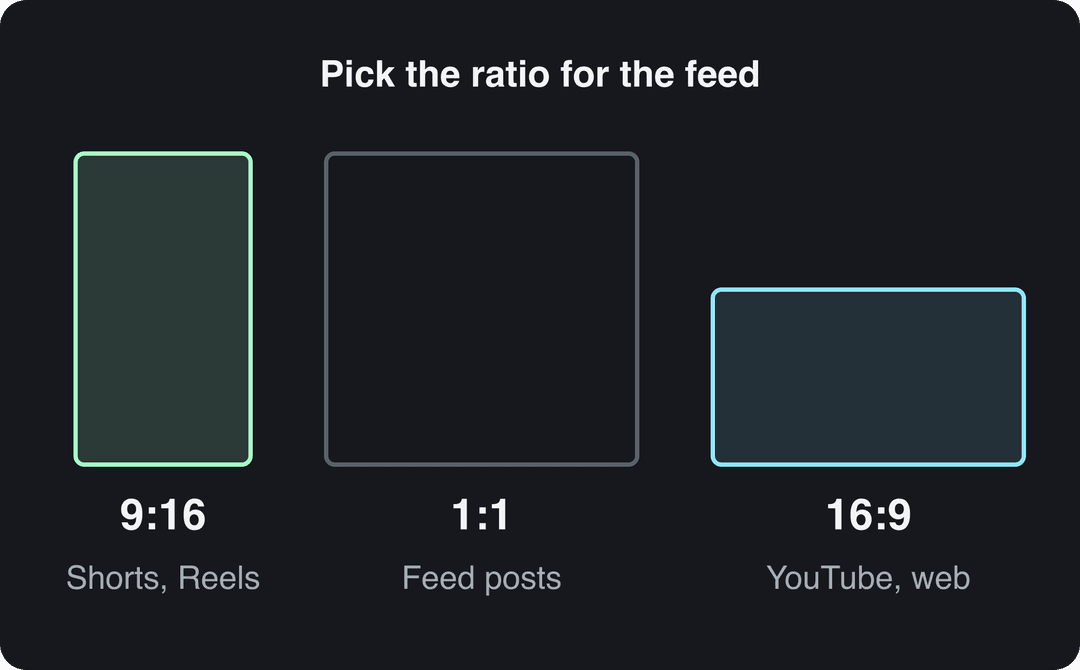
If you need the same clip in two shapes, export it once and convert a copy with the free video resizer.
Which media type fits spoken audio?
Under Choose media type, Revid offers six ways to illustrate the video:
| Media type | Best for spoken audio when... |
|---|---|
| Stock videos | The talk names concrete things: a city, a product category, people at work |
| Animated AI images (the default) | You want custom scenes; still images with camera moves (zoom, pan) |
| AI video | You want moving AI scenes; needs a paid subscription |
| Motion graphics | The talk is about numbers, steps or a product explained on screen |
| Your own media | You have your own photos or clips of the subject |
| Static / Gameplay | You want one calm background so captions do the work |
AI video scenes come from Seedance 2.5, MiniMax Hailuo H3, Wan 3.0 and Google Veo 3, and in the editor you can change the model scene by scene. A simple rule: stock footage for concrete subjects, AI scenes for abstract ideas or story moments no stock clip shows.
Check the cost and generate
The panel shows Estimated cost in credits next to the Generate video button, so you know what the video will use before you start. Click Generate video. If a build fails, its credits are refunded automatically.
If you used the older Audio to Video page, you may remember a setting for how many extracts to make. That count (1 to 3 extracts) now lives in the YouTube clip maker ("YouTube Long to Shorts"), which works from YouTube links. For an audio file, cut it into segments before upload or trim in the editor (next step).
Step 3: Edit the result and export
The finished video opens in the editor. The left rail has Script, Text, Media, Transitions, Audio, Captions and Settings, with the preview in the middle and the timeline below.
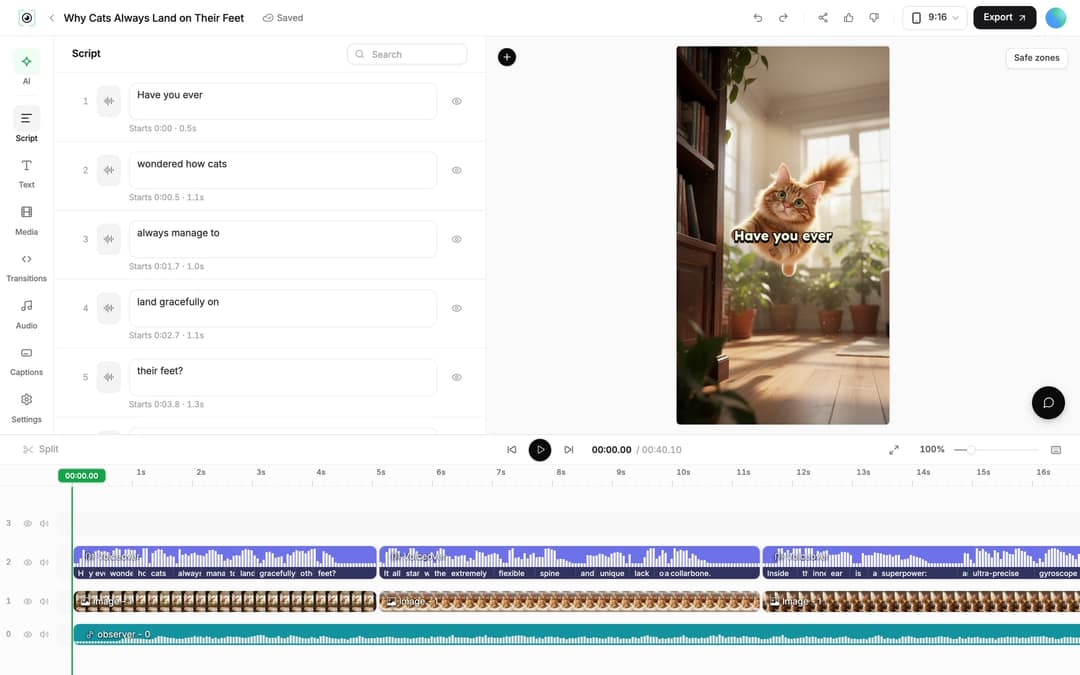
Fix the captions
Open Script. Every caption segment has its own text box, a start time and an eye toggle to hide it. When the video has a transcript, as audio videos do, the panel also shows Transcript and Edit captions tabs. Check three things every time: names and brand terms spelled correctly, the first scene matching the first sentence, and no clip that contradicts what is said.
Swap a visual
Select an image or video clip and use Replace to pick a new file from the Media panel's Library, or Delete to remove it. AI images also offer "Regenerate/Edit image", and AI video clips offer "Regenerate from prompt". The Media panel has Library, Stock, Stickers and Effects tabs, a Generate button for new AI media, and drag-and-drop uploads.
Trim the timeline
Drag a clip's start or end edge on the timeline, or move the playhead and press S to split. Ripple delete (Shift+Del) removes a section and closes the gap. A selected video clip also has a Trim section with start and end times.
Export the MP4
Click Export in the top right (it reads "Export / Publish" on free accounts). Revid exports in 720p, 1080p or 4K at 30 or 60 fps; 4K export costs 10 credits. For TikTok, Reels and Shorts, 1080p is the safe default.
How do you publish it to TikTok, Instagram and YouTube?
Connect your accounts once in Settings > Integrations, under "Add a network": TikTok, YouTube, Instagram (business or creator account required), X, and Webhook for Zapier, Make or your own URL. Sign in to the account you want to add before you pick the network.
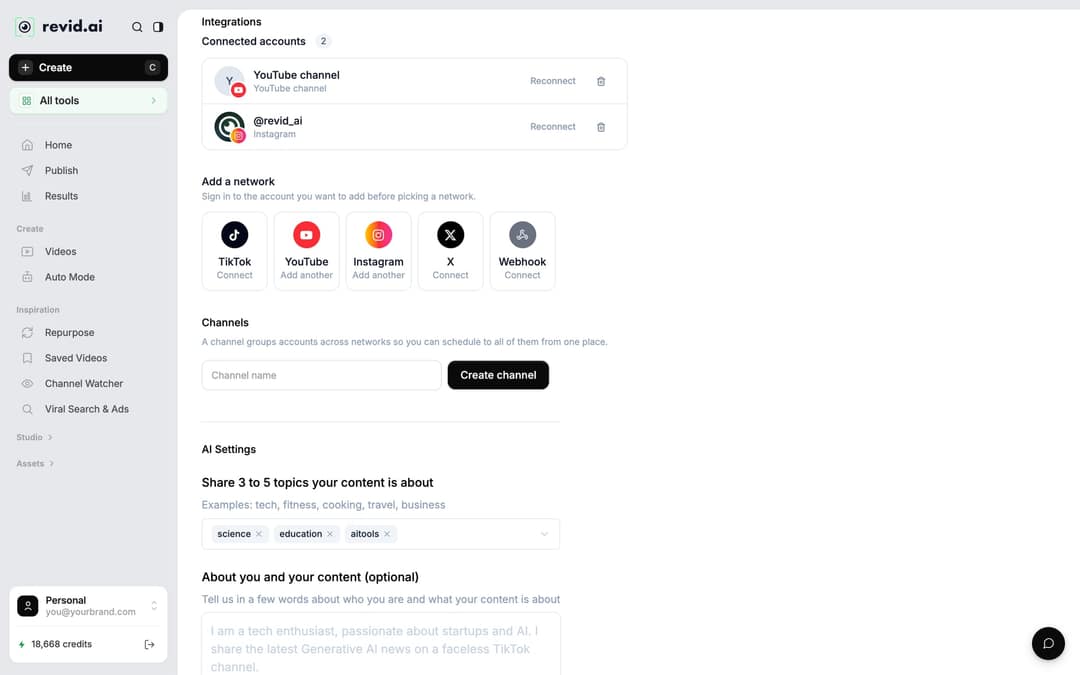
Then open Publish on the project card (or Export / Publish in the editor). In the "Publish Video" window, choose the destination under "Publish to" and click Publish to post now or Add to queue to schedule the video. Queued posts appear on the Publish page.
How long should an audio clip be?
Match the length to where the video will live. These are the current platform limits:
| Platform | What to know about length |
|---|---|
| YouTube Shorts | Square or vertical videos up to 3 minutes count as Shorts |
| Instagram Reels | Reels can run up to 20 minutes, but reels over 3 minutes are not recommended to non-followers |
| TikTok | Uploads can be up to 60 minutes long |
| YouTube (regular videos) | Use 16:9 for anything longer than a Short |
For discovery on short-form feeds, keep each clip under 3 minutes. Within that, length matters less than you might think: in Revid's 12-month TikTok sample, every length bucket from under 15 seconds to 10 minutes had a median between 58K and 76K views, with 61 to 90 seconds at 70K. Videos under 15 seconds got the most shares (1.41 per 100 views). Cut to the length the point needs, not to a magic number.
Length alone barely moves views: every bucket lands between 58K and 76K median views (the 790 videos over 10 minutes are a small, unusual group). Clips under 15 seconds get shared the most per view.
Source: Revid analysis of 176,367 TikToks with 1,000+ likes posted between Oct 1, 2025 and Oct 16, 2026 (61,203 creators)
Show the data
| Median views | Share that passed 1M views | Shares per 100 views | |
|---|---|---|---|
| Under 15 s | 57.6K | 11.6% | 1 |
| 16 to 30 s | 64.9K | 12.3% | 1 |
| 31 to 60 s | 61.8K | 11.8% | 1 |
| 61 to 90 s | 70.5K | 12.2% | 1 |
| 91 s to 3 min | 63.4K | 11.1% | 1 |
| 3 to 10 min | 76.4K | 12.4% | 1 |
| 10 min+ | 129.6K | 13.8% | 0 |
If the point needs longer than 3 minutes, publish it as a 16:9 YouTube video and cut short vertical clips from it as teasers.
Which Revid tool fits your audio?
Audio to Video is built for spoken content. For other recordings, a more specific tool does the job better:
| Your audio | Best tool | Why |
|---|---|---|
| Podcast, interview, lecture, voice note | Audio to Video | Transcript, synced captions and matching visuals |
| A song or instrumental track | AI Music Visualizer | Animated visuals that move to the beat |
| A song you want as a full music video | AI Music Video Generator | Beat-synced AI scenes from an audio file or music link |
| An existing video that only needs subtitles | Subtitle Generator | Adds captions without rebuilding the visuals |
| A long YouTube video | YouTube Long to Shorts | Finds 1 to 3 extracts and reframes them vertically |
For full podcast episodes headed to YouTube, the walkthrough on turning podcast audio into a video covers the long-form version, and the guide to podcast clips for social media covers turning one episode into a series.
Why turn audio into video?
- Short-form feeds only take video. A podcast clip can't run on TikTok, Reels or Shorts until it has visuals, and those feeds are big: YouTube Shorts alone averaged over 200 billion daily views, Alphabet said in July 2025.
- Captions reach sound-off viewers. Synced captions also make the content accessible to people who are deaf or hard of hearing.
- Video can be found in search. A YouTube video with a clear title and description is searchable in a way an audio file is not. If the video will live on your site, you can check how that page is found with an SEO audit tool such as SEOAudit.me.
- One recording becomes many posts. Each strong segment of an episode can be its own video.
FAQ
Is there a free audio to video AI?
You can start free: sign-up for Revid is free and new accounts get free credits to try video creation, no credit card needed. Regular creation then uses the monthly credits of a paid plan, from $39/month; the Revid pricing page lists current plans.
What audio formats can I turn into a video?
Revid's Audio to Video tool accepts MP3, WAV and M4A files. Podcasts, interviews, voice memos and recorded talks all work, as long as the speech is clear.
Can I turn a song into a video with AI?
Yes, but use the AI Music Visualizer or the AI Music Video Generator rather than Audio to Video, since they sync visuals to the beat. On YouTube, any Short longer than one minute with an active Content ID claim is blocked globally.
Do I have to label AI-generated visuals?
Only when they are realistic. TikTok requires a label on AI-generated content with realistic images, audio or video, YouTube asks you to disclose realistic AI scenes in YouTube Studio, and both say the label alone does not reduce a video's reach.
Can I translate the video into another language?
Yes. Open the project card menu and choose Translate, pick the target language, and Revid keeps the edit, media, timing and captions. Translation costs 10 credits per 500 characters of each voice segment.
Can I make several short videos from one long recording?
Yes. Cut the recording into segments before upload and generate one video per segment, or split and ripple delete in the editor timeline to keep only the part you want.
Sources
- Revid analysis of 176,367 TikToks analyzed by AI, with 1,000+ likes posted between Oct 1, 2025 and Oct 16, 2026 (61,203 creators)
- Revid analysis of 176,367 TikToks with 1,000+ likes posted between Oct 1, 2025 and Oct 16, 2026 (61,203 creators)
- Alphabet, Alphabet Q2 2025 earnings call: CEO's remarks (July 2025)
Charts and figures checked on November 6, 2026.