Podcast to Social Media: Turn Any Episode Into Video Clips (2026)
Turn a podcast episode into vertical clips for TikTok, Reels and Shorts: pick the moment, upload the audio to Revid, choose visuals that carry a talking clip, fix captions and publish.
On this page
To turn a podcast into social media videos, pick one strong 30 to 90 second moment, upload the audio or paste its link into Revid's Audio to Video tool, choose visuals, set the ratio to 9:16 and generate. Revid adds synced captions, and you can publish the clip to TikTok, Instagram and YouTube from the same app.
The common mistake is posting the audio over a still cover image. A podcast clip talks from start to finish, and in Revid's TikTok data, videos that talk throughout had a lower median than videos where the visuals carry the story. Your clip needs moving visuals and readable captions from the first second, and that is what the steps below build.
Here is the finished example:
- Median TikTok views for videos with under 40 characters of speech
- 123K
- Revid analysis of 176,367 TikToks
- Median TikTok views for videos that talk throughout, like most podcast clips
- 68K
- Revid analysis of 176,367 TikToks
- Maximum length of a YouTube Short in square or vertical format
- 3 min
- YouTube Official Blog, October 2024
- Monthly price of Revid's Growth plan, which includes 2,000 credits
- $39
- Revid pricing
Step 1: Pick the podcast moment worth clipping
Choose one segment your audience would stop for: an insight, a story, a disagreement or a funny exchange. A full episode does not work on TikTok or Reels; one complete thought does. These moments make the best podcast highlight clips.
A moment is worth clipping when it passes most of these checks:
- It opens strong. The first sentence makes a claim, asks a question or starts a story. If the speaker warms up for 20 seconds, start the clip later.
- It stands alone. A viewer who never heard the episode understands it without context.
- It ends on a payoff. The point lands before the clip stops, not halfway through.
- It has a reason to share. A surprising number, a strong opinion or a line people will quote.
Add a short on-screen hook that names what the viewer gets. Templates that fit podcast clips:
- "Why [guest] thinks [common belief] is wrong"
- "The mistake most [audience] make with [topic]"
- "[Guest] on the one thing that changed [result]"
The example video uses an excerpt from the episode "What is AI Anyways" on YouTube, saved as an MP3 with a third-party downloader such as Y2Mate. That audio is the narration of the social media video. If your episode is online, you can paste its link in Step 2 and skip the download.
Step 2: Upload the podcast audio to Revid
- Click Create at the top of the left sidebar (or press C). The page asks "What do you want to make?"
- Pick the From a link or audio chip. On a narrow screen it folds into More tools. The tool opens as "Audio/Video to video". You can also go straight to the Revid audio to video tool.
- Upload your segment as an MP3, WAV or M4A file, or paste a link to the episode.
Step 3: Choose visuals that carry a talking clip
In Revid's analysis of 176,367 TikToks with 1,000+ likes posted between October 2025 and October 2026, videos with under 40 characters of speech had a 123K median and 20.2% passed 1M views, while videos talking throughout had a 68K median and 11.9% passed 1M. A podcast clip is the second kind by definition. The sample only holds videos that already passed 1,000 likes, so it shows what successful videos share, not causes; the method is in our study of what makes a TikTok go viral. The practical takeaway: the visuals and captions have to work even for someone scrolling with the sound off.
Videos with just a few spoken words (a line or two) beat both silent videos and videos that talk the whole way through, which were the most common and the weakest.
Source: Revid analysis of 176,367 TikToks analyzed by AI, with 1,000+ likes posted between Oct 1, 2025 and Oct 16, 2026 (61,203 creators)
Show the data
| Median views | Share that passed 1M views | |
|---|---|---|
| No speech | 73.3K | 14.3% |
| Under 40 | 122.7K | 20.2% |
| 40 to 120 | 97.2K | 17.6% |
| 120 to 300 | 91.6K | 16.8% |
| 300+ | 67.7K | 11.9% |
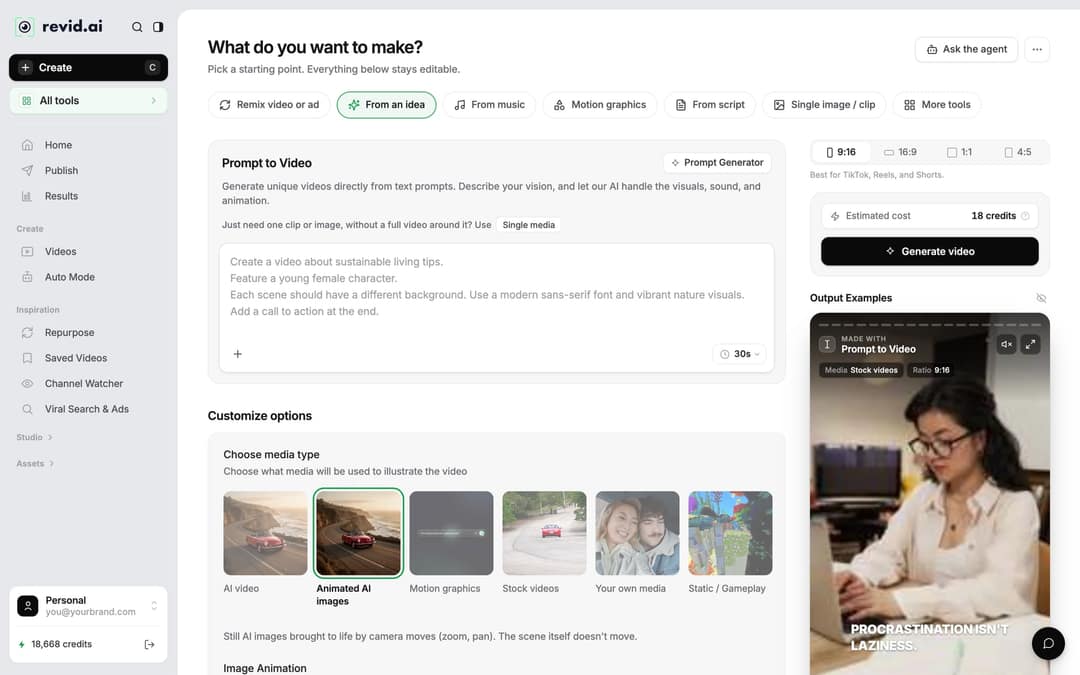
- Under Choose media type, pick what illustrates the audio:
| Media type | Pick it when |
|---|---|
| Stock videos | The topic has real-world scenes to show (the example video uses stock) |
| Animated AI images | You want custom scenes on a budget: still AI images moved by zoom and pan |
| AI video | You want generated motion from Seedance 2.5, MiniMax Hailuo H3, Wan 3.0 or Google Veo 3 (needs a subscription) |
| Motion graphics | The clip is about numbers, quotes or steps you want animated on screen |
| Your own media | You filmed the recording or have B-roll of the show |
| Static / Gameplay | You want one background behind big captions |
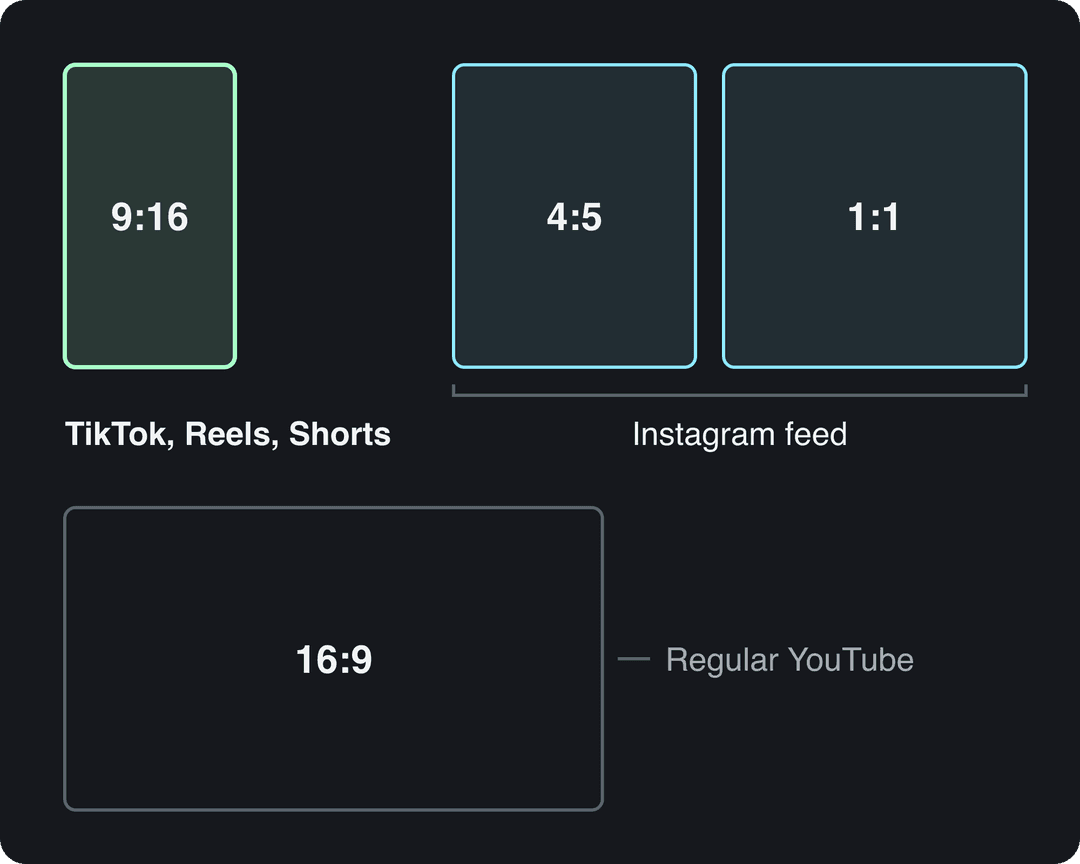
- Set the ratio in the picker at the top right: 9:16 for TikTok, Instagram Reels and YouTube Shorts, 4:5 or 1:1 for an Instagram feed post, 16:9 only for a regular YouTube upload.
- If the episode is not in English, set the language under Advanced options > Language & Localization so the AI transcribes and captions it more accurately.
If you choose realistic AI video, TikTok and YouTube expect you to label it as AI-generated when you post. Both say the label alone does not reduce a video's distribution.
Step 4: Check the cost and generate
The footer shows Estimated cost in credits next to Generate video, so you know the price before anything renders. Click Generate video. If a build fails, Revid refunds its credits automatically.
When the clip is ready, watch the first three seconds with the sound off. If the captions and visuals alone do not tell a viewer what the clip is about, sharpen the on-screen hook in the next step.
Step 5: Fix captions, visuals and length in the editor
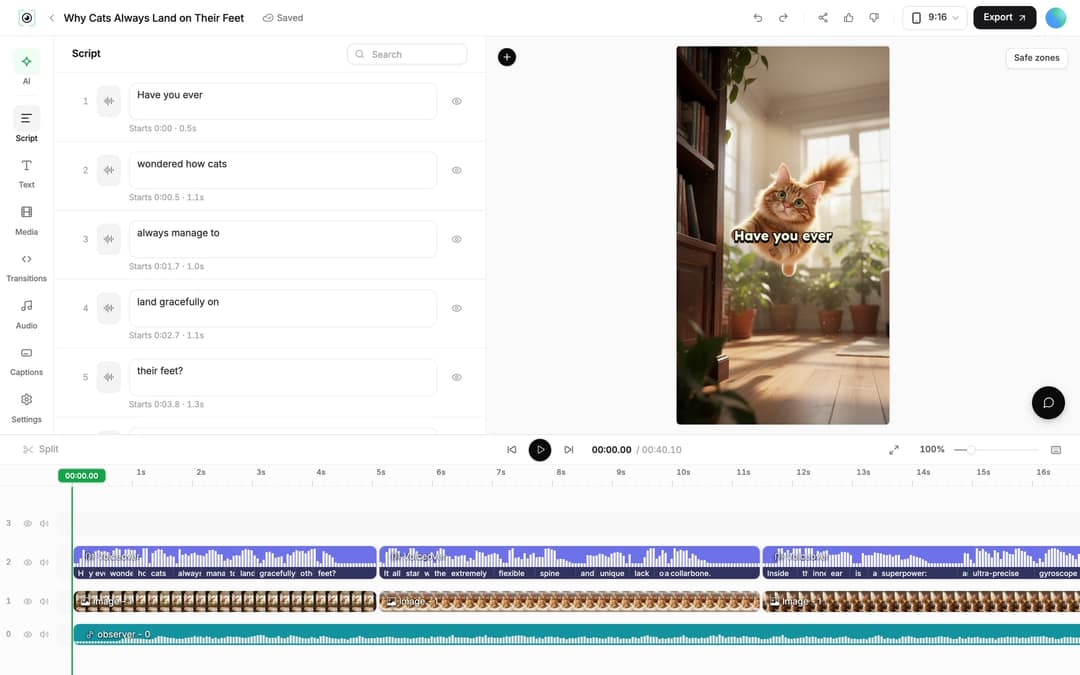
Open the project from Videos in the sidebar (click its card) to land in the editor.
- Fix a misheard word: the Script panel lists every caption segment with its text box and start time. Correct the text there. Because the narration is your own recording, do not regenerate the voiceover: that would replace the host's voice with an AI voice.
- Change the caption look: open Captions in the left rail.
- Swap a weak visual: select the clip on the timeline and click Replace to pick another file from the Media library, or regenerate an AI image or AI video clip from its prompt.
- Tighten the length: drag a clip's start or end edge on the timeline, or use Split (key S) at the playhead and delete the part you do not need.
Step 6: Publish podcast clips to social media
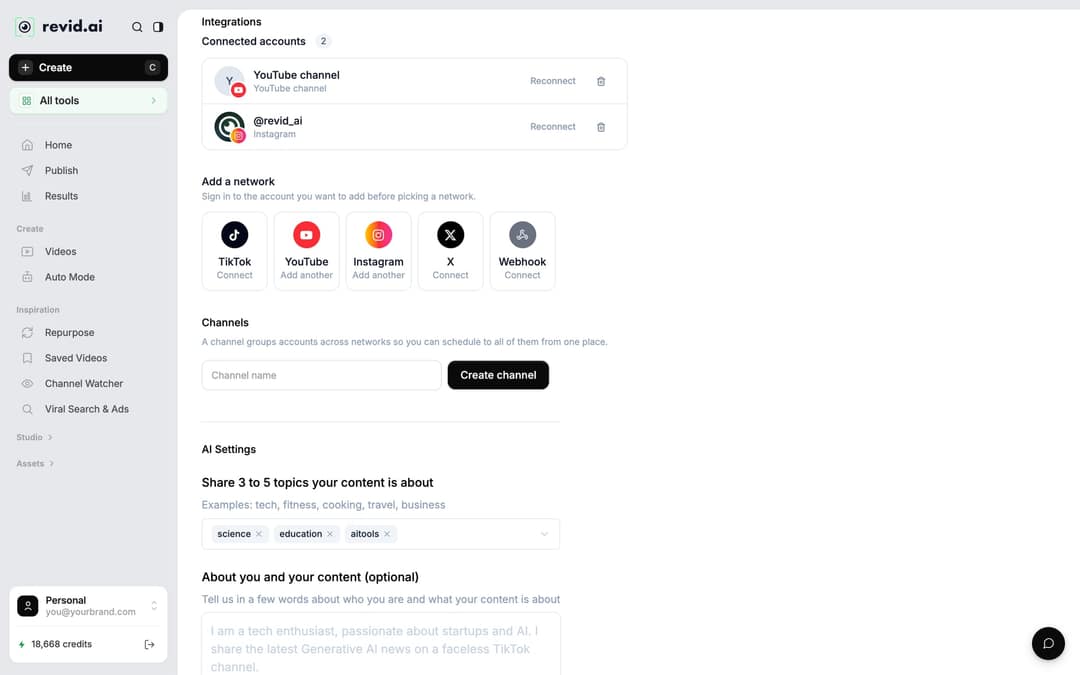
First connect your accounts: go to Settings > Integrations and use Add a network. Revid publishes to TikTok, YouTube, Instagram (a Business or creator account is required) and X, and a Webhook option sends posts to Zapier, Make or your own URL.
Then click Publish in the project card menu, or Export in the editor header, to open Publish Video. Choose the accounts under Publish to, then post now with Publish or schedule it with Add to queue. All scheduled posts sit on the Publish page, which is how Revid lets you publish and schedule clips to several platforms from one queue.
To get listeners, not just views:
- Link back to the full episode in the caption or your bio.
- Embed clips in show notes or blog posts so each episode page has something to watch.
- Promote an upcoming episode with a clip from the recording before it goes live.
- Post the same clip to every vertical platform, each with its own caption.
For tools that cover newsletters, carousels and long-form too, see our list of content repurposing software. Repurposing is standard practice: over half of companies turn their videos into social clips, according to Wistia's 2026 State of Video Report (more in our short-form video statistics).
| Platform | Format | Length rule to know |
|---|---|---|
| TikTok | 9:16, 1080x1920 recommended | Uploads can be up to 60 minutes |
| Instagram Reels | 9:16 | Up to 20 minutes, but reels over 3 minutes are not recommended to non-followers |
| YouTube Shorts | Vertical or square | Up to 3 minutes; a Short over 1 minute with a Content ID claim is blocked |
| Facebook Reels | 9:16 | Every new Facebook video is a reel, with no length restriction (Revid does not publish to Facebook, so post it there yourself) |
| Instagram feed | 4:5 or 1:1 | Use when the clip is for your grid rather than the Reels feed |
How long should a podcast clip be?
Cut where the idea ends, not to a target duration. In the same 12-month Revid sample of TikToks, every length bucket from under 15 seconds to 10 minutes had a median between 58K and 76K views, with 61 to 90 seconds at 70K. Clips under 15 seconds got the most shares per view, so a sharp one-liner is worth posting on its own.
Length alone barely moves views: every bucket lands between 58K and 76K median views (the 790 videos over 10 minutes are a small, unusual group). Clips under 15 seconds get shared the most per view.
Source: Revid analysis of 176,367 TikToks with 1,000+ likes posted between Oct 1, 2025 and Oct 16, 2026 (61,203 creators)
Show the data
| Median views | Share that passed 1M views | Shares per 100 views | |
|---|---|---|---|
| Under 15 s | 57.6K | 11.6% | 1 |
| 16 to 30 s | 64.9K | 12.3% | 1 |
| 31 to 60 s | 61.8K | 11.8% | 1 |
| 61 to 90 s | 70.5K | 12.2% | 1 |
| 91 s to 3 min | 63.4K | 11.1% | 1 |
| 3 to 10 min | 76.4K | 12.4% | 1 |
| 10 min+ | 129.6K | 13.8% | 0 |
In practice, most podcast moments that pass the Step 1 checklist land around 30 to 90 seconds. Go longer only when the story needs it, and stay under 3 minutes if the clip is for Reels.
Clip every new episode automatically with Auto Mode
If your show goes up on YouTube every week, a worker can pick up each new upload for you. Auto Mode needs a paid plan (3 workers on Growth).
- Open Auto Mode in the sidebar and click New worker.
- Under Name your worker, give it a name such as your show title.
- Under What should it make?, choose Repurpose Fresh Content and paste your YouTube channel or playlist as the source.
- Under Pick the format, choose the YouTube Long to Shorts tool so the worker clips your real episode. The "YouTube to Shorts" template uses the Voiceover Video tool instead, which writes and voices a new script.
- Pick the delivery: Review First keeps each video in Revid; Auto Queue sends it to the posting queue of the accounts you select. Check Est. credits per run in the Worker preflight panel, then click Create worker.
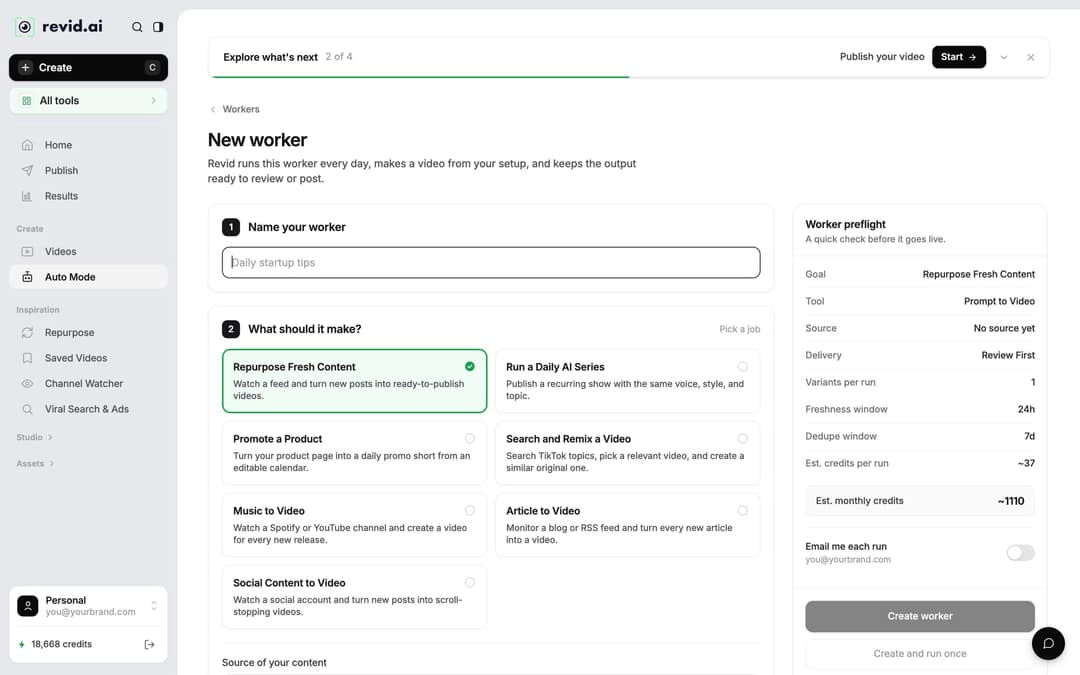
The worker runs once a day between 1 AM and 5 AM, picks one new post from the source and skips the run when nothing new appeared. More on how workers fit together in automated video creation.
Other ways to convert a podcast to video
- Your podcast is filmed and on YouTube: the YouTube clip maker (YouTube Long to Shorts) cuts the long video into vertical clips from the link, with "Auto-reframe video" on by default.
- You want the full episode on YouTube, not just clips: follow this guide to turn podcast audio into a YouTube video with subtitles.
- You only have an audio recording: Audio to Video, used above, is the right tool.
FAQ
Is Revid free for converting a podcast to video?
You can start free: sign-up needs no credit card, and new accounts get free credits to try converting an episode. Regular creation then uses the monthly credits of a paid plan, starting at $39/month for Growth (2,000 credits); the Revid pricing page has the current list.
Can I make several clips from one podcast episode?
Yes. For an audio file, run Audio to Video once per segment you picked in Step 1. For a filmed episode on YouTube, the YouTube Long to Shorts tool asks "How many extracts do you want?" and makes 1 to 3 clips per run.
Can I turn an audio-only podcast into a video?
Yes. Audio to Video adds stock, AI or motion graphics visuals and synced captions to an MP3, WAV or M4A file, so you do not need any footage.
Do I need permission to post clips of a podcast?
Yes, unless it is your own show. Clip only episodes you own or have the rights to use, and ask the host before posting clips from an episode you guested on.
Sources
- Revid analysis of 176,367 TikToks analyzed by AI, with 1,000+ likes posted between Oct 1, 2025 and Oct 16, 2026 (61,203 creators)
- Revid analysis of 176,367 TikToks with 1,000+ likes posted between Oct 1, 2025 and Oct 16, 2026 (61,203 creators)
- YouTube Official Blog, Tall updates coming to Shorts (October 2024)
Charts and figures checked on November 6, 2026.