How to Make a Cartoon Video With AI: 6 Steps in Revid (2026)
Turn a one-sentence story into a narrated cartoon video in Revid: prompt, media type, voice, music, editing and publishing, with today's interface and real credit costs.
On this page
To make a cartoon video with AI in Revid, open the AI Cartoon Video Generator, describe your story in one sentence, choose AI video or animated AI images, pick a voice and music, check the estimated cost and click Generate video. Revid writes the script and builds the scenes; you fix anything in the editor.
Cartoons are a faceless format, and faceless videos do well on short-form feeds. In Revid's analysis of 176,367 TikToks with 1,000+ likes posted between October 2025 and October 2026, faceless videos had a median of 114K views, against 67K for one person on camera, and 17.4% of them passed 1M views (12.7% for on-camera videos). The sample only holds videos that already passed 1,000 likes, so it shows what successful videos share, not a guarantee.
Faceless videos earned a median of 114K views, against 67K for videos with one person on camera, and passed 1M views 38% more often.
Source: Revid analysis of 176,367 TikToks with 1,000+ likes posted between Oct 1, 2025 and Oct 16, 2026 (61,203 creators)
Show the data
| Median views | Share that passed 1M views | |
|---|---|---|
| Animals | 147.4K | 24.1% |
| Faceless | 113.9K | 17.4% |
| Groups of people | 96.1K | 16% |
| Objects or products | 70.8K | 13.2% |
| One person on camera | 67.4K | 12.7% |
Here is a finished example, made from the prompt "a story about an 8 year old girl exploring a magical forest":
- Median TikTok views for faceless videos, vs 67K with one person on camera
- 114K
- Revid analysis of 176,367 TikToks
- Share of faceless TikToks that passed 1M views (12.7% for on-camera)
- 17.4%
- Revid analysis of 176,367 TikToks
- Starting price per month of a paid Revid plan for regular creation
- $39
- Revid pricing
- AI voices available for narration, in 70+ languages
- 1,000+
- Revid
Step 1: Write a one-sentence story
The AI writes the full script from your sentence, so the sentence decides how good the cartoon is. Name three things: the main character, the setting and the mood.
| Weak prompt | Strong prompt |
|---|---|
| A dragon story | A shy baby dragon learns to share at a forest picnic |
| Space for kids | A curious robot visits each planet and says one fun fact about it |
| A funny cat | A grumpy cat tries every trick to get the last pancake |
Describe characters instead of naming famous ones. Original characters are safer for copyright and give you a mascot you can reuse across episodes.
If you want control over every line, write the script yourself and paste it into a script tool instead (the field is titled "Your video narrator script").
In your own script, add <break time="1.0s" /> for a pause of up to 10 seconds; it works with ElevenLabs and MiniMax voices, while Gemini and Kling voices skip it. Words in [brackets] are not read aloud and guide the visuals, and each new line starts new content.
Prompt to try
A grumpy orange cat tries every trick to steal the last pancake from a busy family kitchen, opening on the cat staring down the plate. Bright Pixar-style 3D cartoon, playful narrator, upbeat music, 9:16, about 45 seconds.
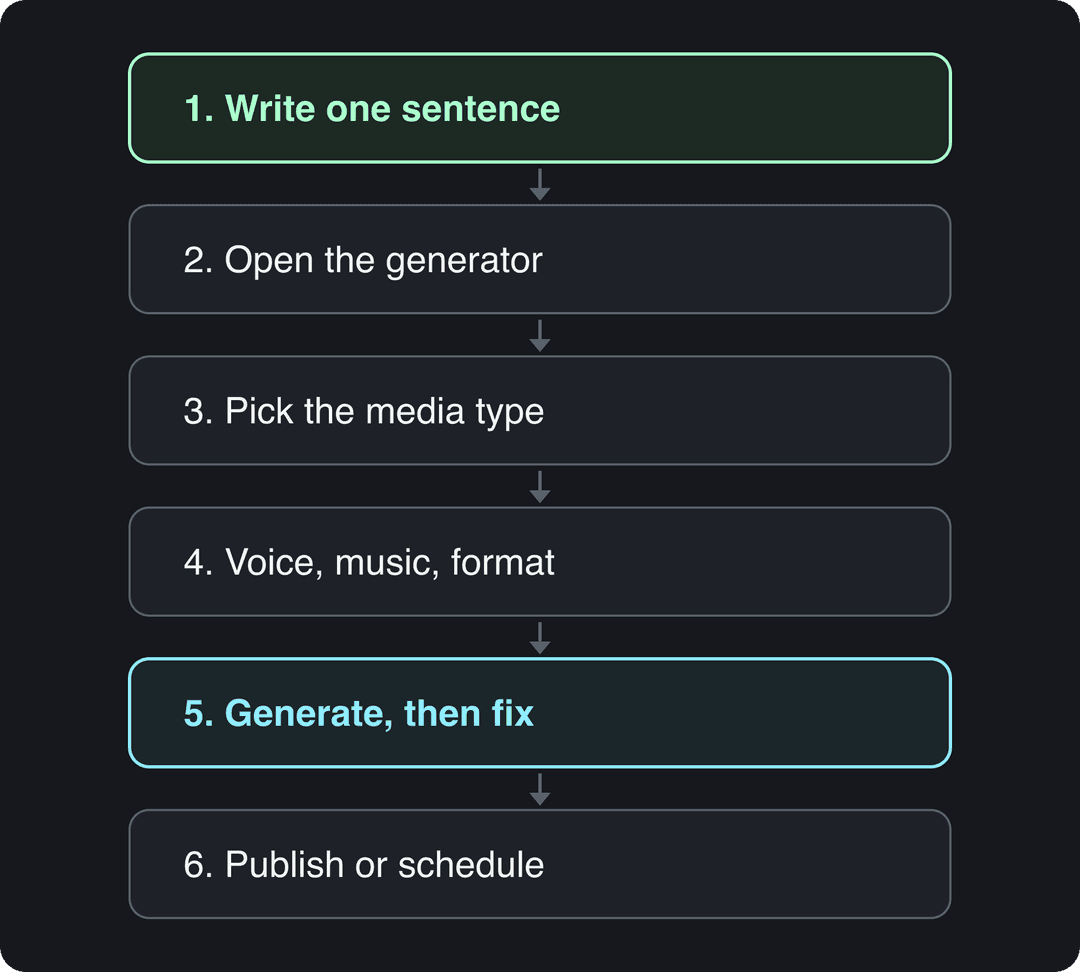
Step 2: Open the cartoon generator
- Go to the AI Cartoon Video Generator, or inside the app open All tools at the top of the sidebar and search for it.
- Alternatively, click Create in the sidebar (shortcut C). The page asks "What do you want to make?": pick From an idea (Prompt to Video) and write the cartoon style into your prompt, for example "3D animated cartoon style".
- Paste your one-sentence story into the prompt box.
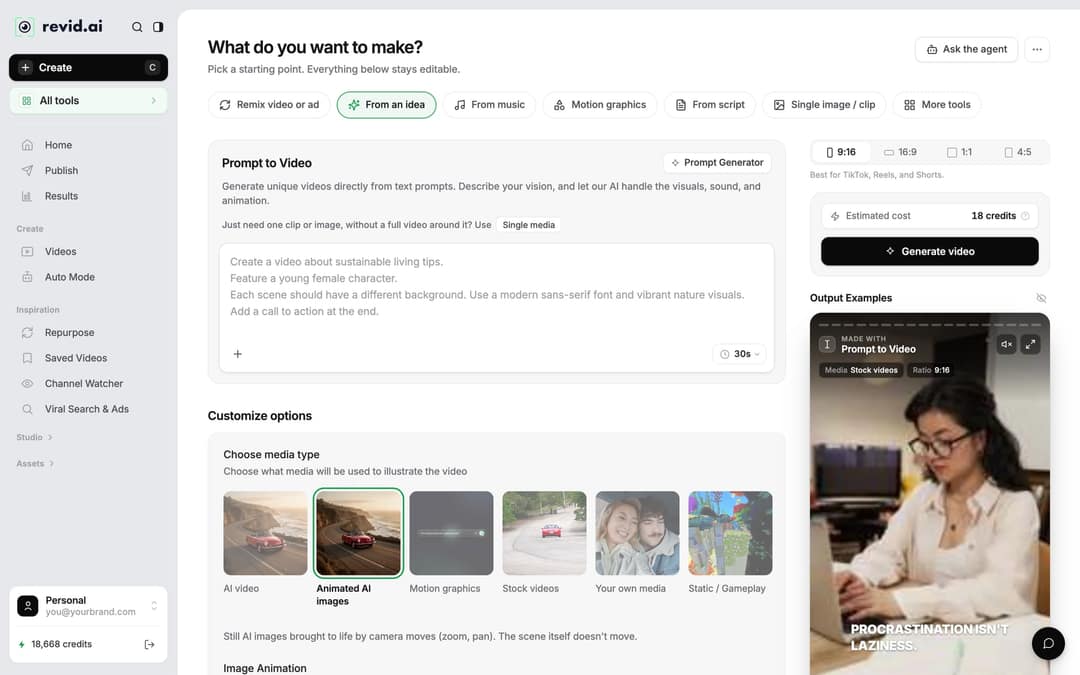
Step 3: Choose AI video or animated images
Under Choose media type, pick how the story is illustrated. For cartoons, two options matter:
- AI video: real moving scenes, generated with models such as Seedance 2.5, MiniMax Hailuo H3, Wan 3.0 or Google Veo 3, with a model choice per scene. It needs a paid subscription.
- Animated AI images (the default): still AI images brought to life with camera moves such as zoom and pan. The scene itself does not move.
The other options (Motion graphics, Stock videos, Your own media, Static / Gameplay) suit explainers more than stories.
A simple rule: if your story has action (chasing, flying, dancing), use AI video. If it is a calm bedtime story or a lesson where the narration carries the meaning, animated AI images cost far less and still hold attention.
The index leans toward videos that surface in hashtag and keyword searches, so its view counts run high: compare the groups, not the absolute numbers.
Source: Revid TikTok index: 2,377,477 TikToks with AI labels per video, snapshot of Sep 15, 2026. Median views estimated from view buckets.
Show the data
| Median views | Share past 1M views | |
|---|---|---|
| AI generated | 151.7K | 19.5% |
| Animation/Cartoon | 121.3K | 14.2% |
| Mixed | 87.3K | 11.4% |
| Real shot | 67.3K | 9.5% |
How many credits does a cartoon video cost?
| Element | Credits |
|---|---|
| AI image, per image | Low 1, Pro 4, Ultra 16 |
| AI video, per 5 seconds | Low 15, Pro 50, Ultra 100 |
| Veo 3 or MiniMax Hailuo H3, per 5 seconds | 100 |
| Seedance 2.5 at 1080p, per 5 seconds | 250 |
| AI voice-over | 10 per started 500 characters |
You never have to guess: the Estimated cost box next to Generate video shows the total before you spend anything.
Step 4: Pick the voice, music and format
- Voice. Revid has 1,000+ AI voices in 70+ languages. Pick a playful, bright voice for comedy and a warm, slow one for bedtime stories or lessons.
- Language. To narrate in another language, write the prompt in that language or set it in Advanced options > Language & Localization > Language.
- Music. Choose a track from the built-in library of 199 tracks, or generate one. Upload your own music only if you have the rights to it.
- Format. Use the ratio picker: 9:16 for TikTok, Reels and Shorts, 16:9 for regular YouTube videos, 1:1 or 4:5 for feeds.
Step 5: Generate, then fix scenes in the editor
Click Generate video. When the video is ready, click its card in Videos to open the editor, where you can change anything without starting over.
- Change a line. Open the Script panel, edit the text of any segment, then regenerate the voice if the timing changed.
- Regenerate the voice. In the Audio panel, click Re-generate next to a voiceover, or select the voiceover clip and click Re-generate Voiceover. This is for paid plans and costs 10 credits per 500 characters.
- Redo a scene. Select an AI image and use Regenerate/Edit image, or select an AI video clip and use Regenerate from prompt (Re-animate, New image + video, or Edit with AI). Replace swaps in a file from your library.
- Trim. Drag a clip's edge on the timeline, or press S to split at the playhead.
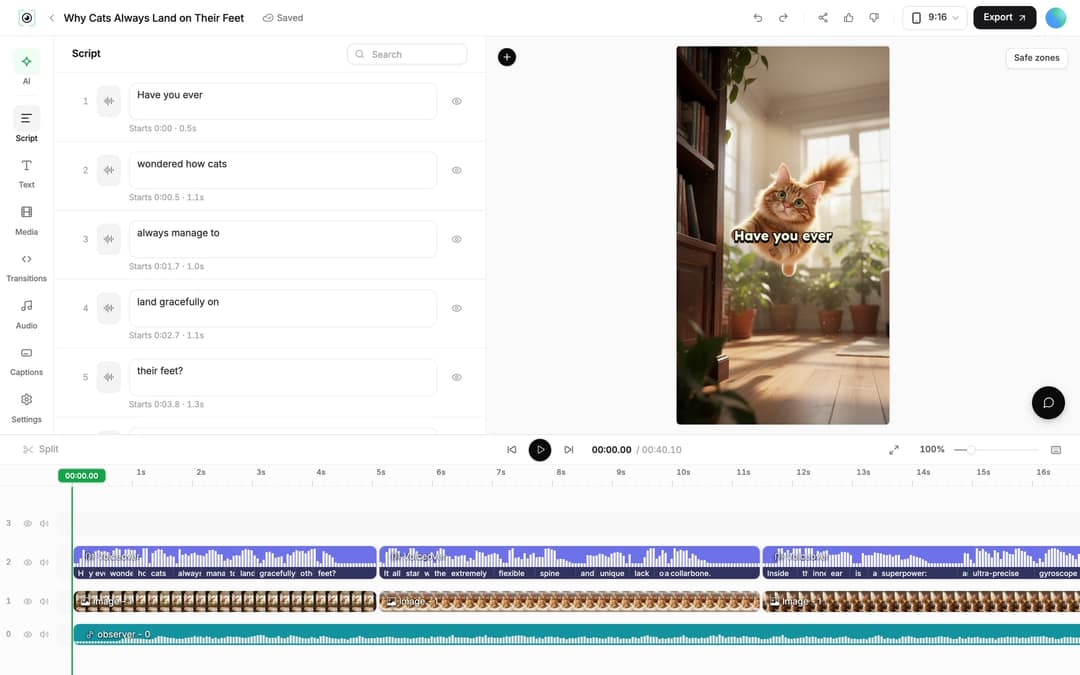
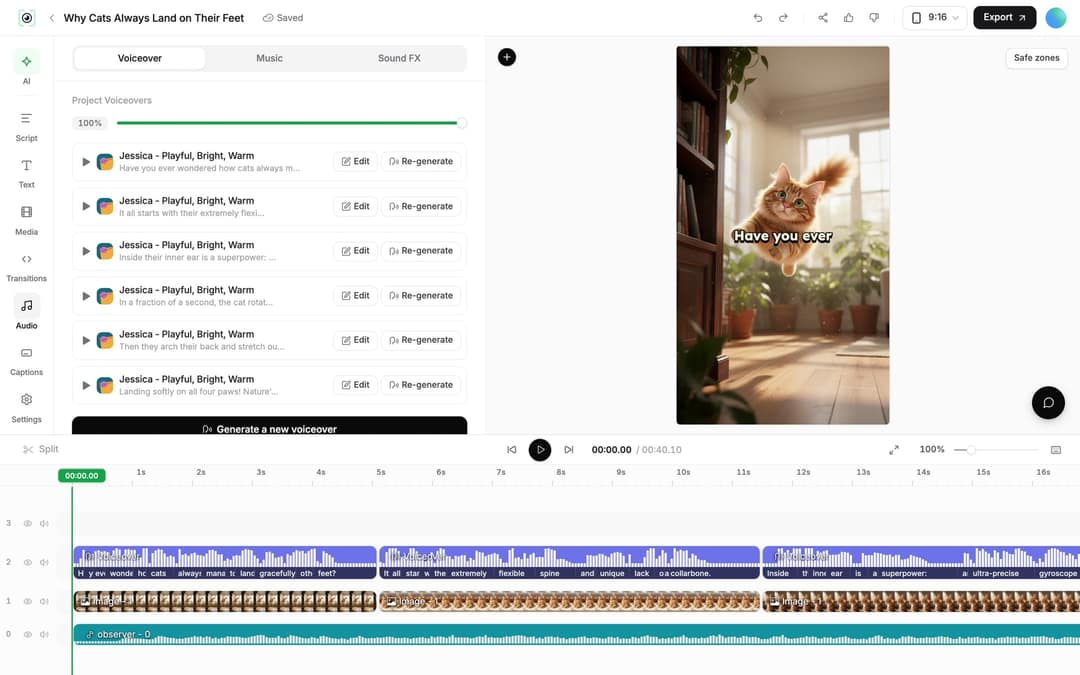
Step 6: Publish or schedule your cartoon
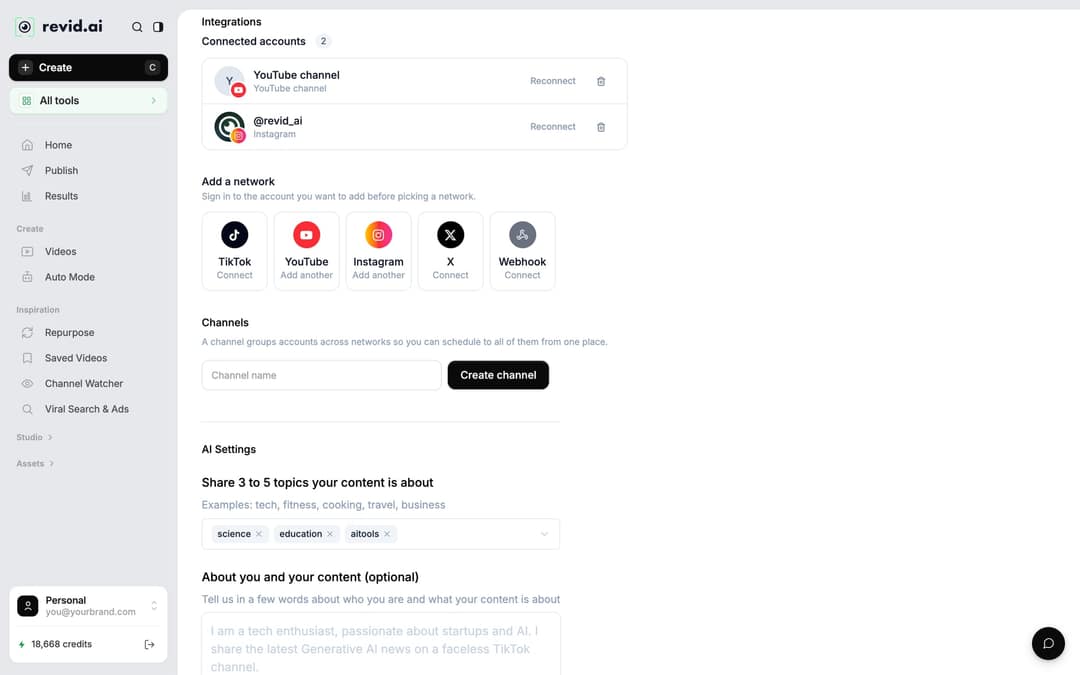
- Connect your accounts once in Settings > Integrations under Add a network: TikTok, YouTube, Instagram, X or a Webhook.
- In the editor, click Export (or Export / Publish) and choose where to post under Publish to.
- Click Publish to post now, or Add to queue to schedule it from one queue.
If the cartoon is aimed at children, set its audience to "made for kids" in YouTube Studio, as YouTube requires for content directed at kids.
Make it a series or translate it
A cartoon channel grows on recognition: keep the same main character, voice and style in every episode. To get a new episode every day, open Auto Mode in the sidebar, click New worker and pick the job Run a Daily AI Series. Give it a broad topic ("a shy dragon's daily adventures") so each day brings a different story. By default, workers keep each video for review; posting automatically needs Auto Queue and a connected account.
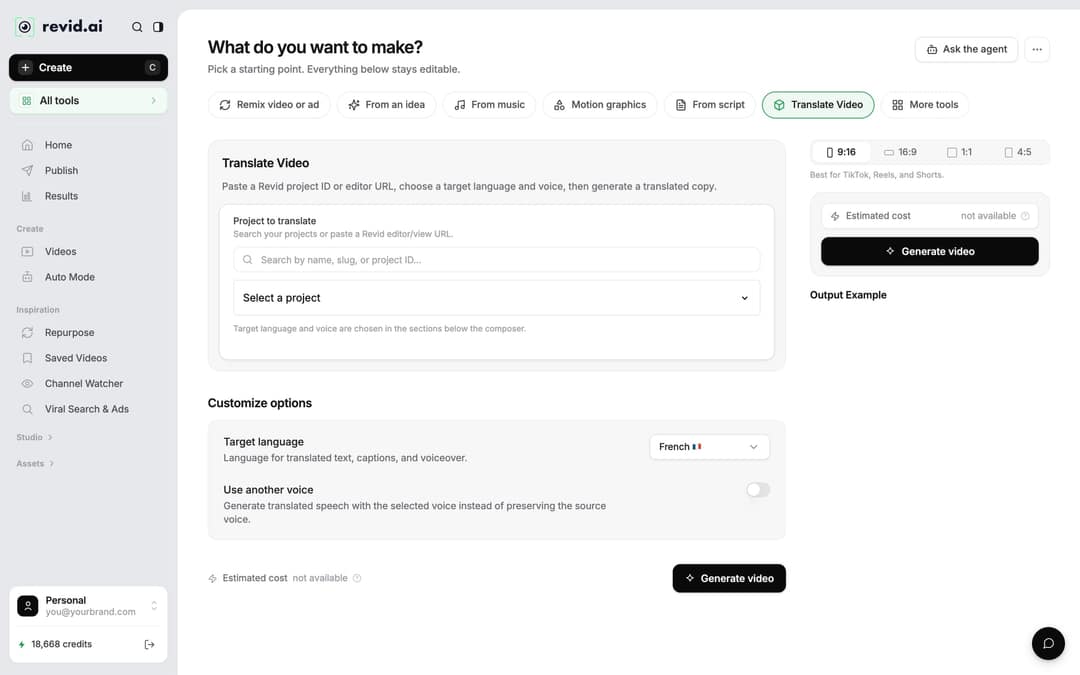
To reach kids who speak another language, open the project card menu in Videos and click Translate. The video translator keeps the edit, media, timing and captions, lets you pick a Target language (74 are available) and keeps the original voice unless you turn on Use another voice. It costs 10 credits per 500 characters of narration.
Anime, Ghibli and Pixar styles
The same steps work in Revid's style-specific generators. The AI anime video generator turns a story, a script or a one-line idea into an anime-style video. The Ghibli AI video generator gives soft, hand-painted-looking scenes, and the Pixar-style AI video generator makes short 3D animated stories.
For black-and-white panels, see how to make manga-style story videos. For songs instead of narrated stories, this guide to nursery rhyme videos for YouTube covers the kids' music format.
FAQ
Can I make a cartoon video with AI for free?
Yes, to start: sign-up is free and new accounts get free credits to try video creation, with no credit card. Regular creation then uses a paid plan's monthly credits, from $39/month (see Revid pricing); a 30-second video with Pro AI visuals and a voice-over costs about 40 to 80 credits.
Do I need to label an AI cartoon video on YouTube or TikTok?
Usually not. YouTube requires disclosure only for realistic AI content, and TikTok's labeling rule targets realistic images, audio or video, so a clearly animated cartoon normally needs no label. TikTok may still auto-label uploads carrying C2PA Content Credentials, and that label cannot be removed.
Can AI cartoon videos be monetized on YouTube?
Yes, if the video shows your own creative vision and gives real educational or entertainment value. YouTube does not let mass-produced AI content made from generic templates monetize, so vary stories, characters and scripts instead of posting near-identical episodes.
Can the cartoon be narrated in my own voice?
Yes, with voice cloning, which is included on the Elite plan and above. On other plans, pick one of the 1,000+ AI voices.
Sources
- Revid analysis of 176,367 TikToks with 1,000+ likes posted between Oct 1, 2025 and Oct 16, 2026 (61,203 creators)
- Revid TikTok index: 2,377,477 TikToks with AI labels per video, snapshot of Sep 15, 2026. Median views estimated from view buckets.
Charts and figures checked on November 6, 2026.