Revid AI Guide 2026: Every Feature, Where It Is and What It Costs
An up-to-date guide to Revid AI in 2026: what each feature does, where it sits in the new interface, what it costs in credits, and what you can do for free.
On this page
Revid AI (revid.ai) is an AI video platform that turns an idea, a script, a link or a song into a finished short-form video and publishes it to TikTok, Instagram and YouTube. You click Create, pick a starting point, check the estimated credit cost, generate, then fix anything in the timeline editor.
Most Revid tutorials online, including the first version of this one, describe buttons that no longer exist: "Create New Video", the "Frames" panel, "AI Credits" in the sidebar. A new Create page rolled out to every account on October 8, 2026. This guide follows the interface as it is today, with the credit cost of each step so nothing on your balance surprises you.
- Real short-form videos and posts in Revid's searchable viral library
- 2.77M
- Revid
- Monthly price of the Growth plan, with 2,000 credits per month
- $39
- Revid pricing page
- Credits for a 30-second video with Pro AI visuals and a voice-over
- 40-80
- Revid credit costs
- Revid sign-ups between August 2024 and July 2026
- 3M+
- Revid
What can Revid AI do? Features at a glance
Revid covers the whole short-form loop in one product: research what already works, create the video, edit it, publish it and read the results. What most AI video tools lack is the starting point: a searchable library of about 2.77 million real short-form videos and posts with their public engagement data. You start from a format audiences already watch instead of a blank prompt.
| Feature | What it does | Where it is |
|---|---|---|
| Create | Script, visuals, voice-over, captions and music from an idea, script, link, song or reference video | Sidebar "Create" button (shortcut C) |
| Video editor | Timeline editor to change text, voice, media, captions and timing | Click any project in "Videos" |
| Viral library and remix | Search proven videos and turn one into an original video | Sidebar "Inspiration" > "Viral Search & Ads" and "Repurpose" |
| Channel Watcher | Track TikTok and YouTube channels and spot their outlier videos | Sidebar "Inspiration" > "Channel Watcher" |
| Auto Mode | Workers that make a new video every day | Sidebar "Auto Mode" |
| Publishing | Post now or schedule to TikTok, YouTube, Instagram and X | Sidebar "Publish" |
| Results | Views, likes and comments of posts published through Revid | Sidebar "Results" |
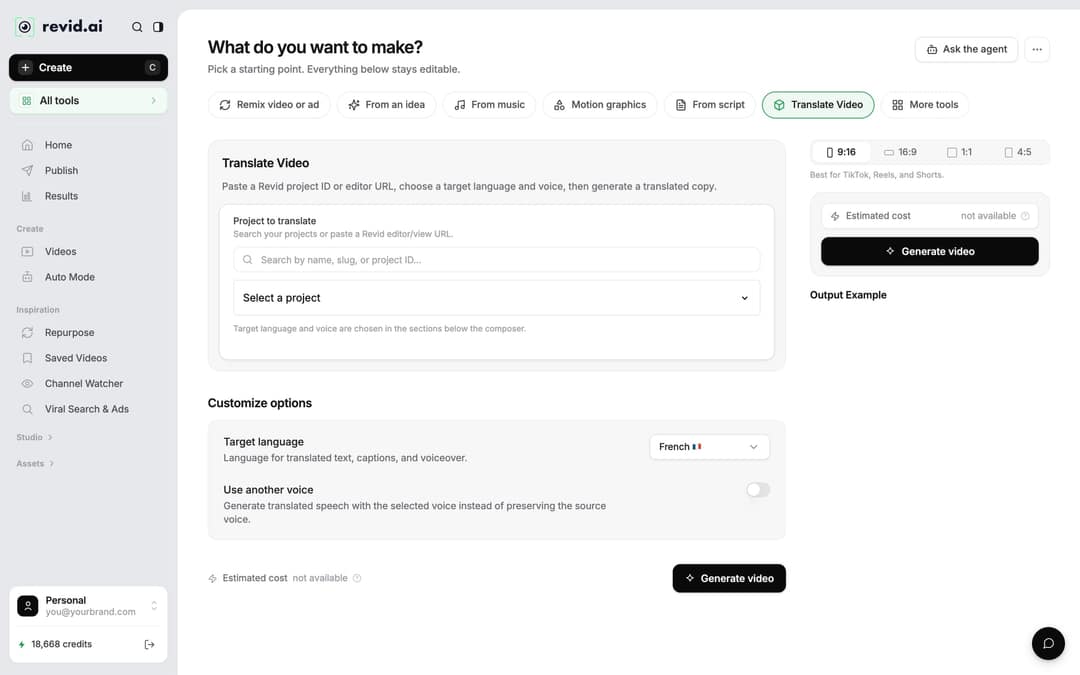
| Translate | Re-voice an existing project in another language | Project card menu > "Translate" |
| API, MCP, CLI | Let AI agents research, render and publish | Sidebar footer "API" |
Behind those features: 1,000+ AI voices in 70+ languages, 30 caption styles, automatic captions in 100+ languages, AI video from Seedance 2.5, MiniMax Hailuo H3, Wan 3.0 and Google Veo 3, and export up to 4K.
Is Revid AI free? Pricing and credits
Revid is free to start: sign-up costs nothing, new accounts get free credits to try video creation, and no credit card is needed. A free account can also search the viral video library and run Deep analysis on up to 60 videos a day. Regular creation then uses the monthly credits of a paid plan.
| Plan | Monthly | Billed yearly | Credits per month | Auto Mode workers | Watched channels |
|---|---|---|---|---|---|
| Growth | $39 | $32/month | 2,000 | 3 | 5 |
| Elite | $89 | $74/month | 5,000 | 5 | 20 |
| Ultra | $199 | $166/month | 12,000 | 10 | 50 |
Elite adds voice cloning, and every paid plan includes the API, MCP server and CLI. Monthly credits don't stack: each renewal refills your balance to the plan amount. If you run out mid-month, "Credit Boost" packs start at 1,000 credits for $49 (4,000 for $99, 10,000 for $199); those credits don't expire and are spent after your monthly balance. The live list on Revid's pricing page is the reference.
How many credits does a video cost?
A 30-second video with Pro AI visuals and a voice-over costs about 40 to 80 credits. The Create page shows an "Estimated cost" next to "Generate video" before you spend anything, and failed builds are refunded automatically (so are builds stuck for more than 2 hours). Your balance sits at the bottom of the sidebar as "N credits"; click it to upgrade or buy credits.
| What you generate | Credits |
|---|---|
| Voice-over | 10 per started 500 characters |
| AI image, Low / Pro / Ultra | 1 / 4 / 16 per image |
| AI video, Low / Pro / Ultra tier | 15 / 50 / 100 per 5 seconds |
| AI video, Veo 3 or MiniMax Hailuo H3 | 100 per 5 seconds |
| AI video, Seedance 2.5 1080p / Seedance 4K | 250 / 500 per 5 seconds |
| Motion graphics, Low / Pro / Ultra | 2 / 3 / 5 per second, 15 seconds minimum |
| Talking avatar, Low / Pro / Ultra | 80 / 100 / 200 per 500 characters |
| AI music | 20 per generation |
| Auto-reframe or 4K export | 10 each |
The rule of thumb: animated AI images keep a video cheap, and premium AI video models are where credits go fast. Use them on the scenes that need real motion.
Prompt to try
Make a 30-second vertical video explaining why cats almost always land on their feet. Open with the hook "Drop a cat upside down and watch what its spine does." Use animated AI images in a clean documentary style, a calm narrator voice, bold captions and a short payoff line at the end.
In dollars at the Growth rate ($39 for 2,000 credits), a 60-second video costs about $0.43 with stock footage, $0.68 with animated AI images, $1.46 with pro AI images, $4.29 with AI video clips and $13.30 with pro AI video. A 90-second video costs 1.5 times the 60-second price. Every price includes the AI voice-over (10 credits per 30 seconds); motion graphics show the calculator's upper bound.
Source: Revid public credit calculator (POST /api/public/v3/calculate-credits, no key), prompt-to-video workflow, 30, 60 and 90 seconds, queried Oct 29, 2026.
Show the data
| 60-second video, credits | 30-second video, credits | 60-second videos per Growth month | |
|---|---|---|---|
| Stock footage | 22 | 11 | 90 |
| Animated AI images | 35 | 18 | 57 |
| AI images, pro | 75 | 37 | 26 |
| AI video clips | 220 | 110 | 9 |
| Motion graphics | 275 | 160 | 7 |
| AI video, pro | 682 | 341 | 2 |
How to create a video with Revid, step by step
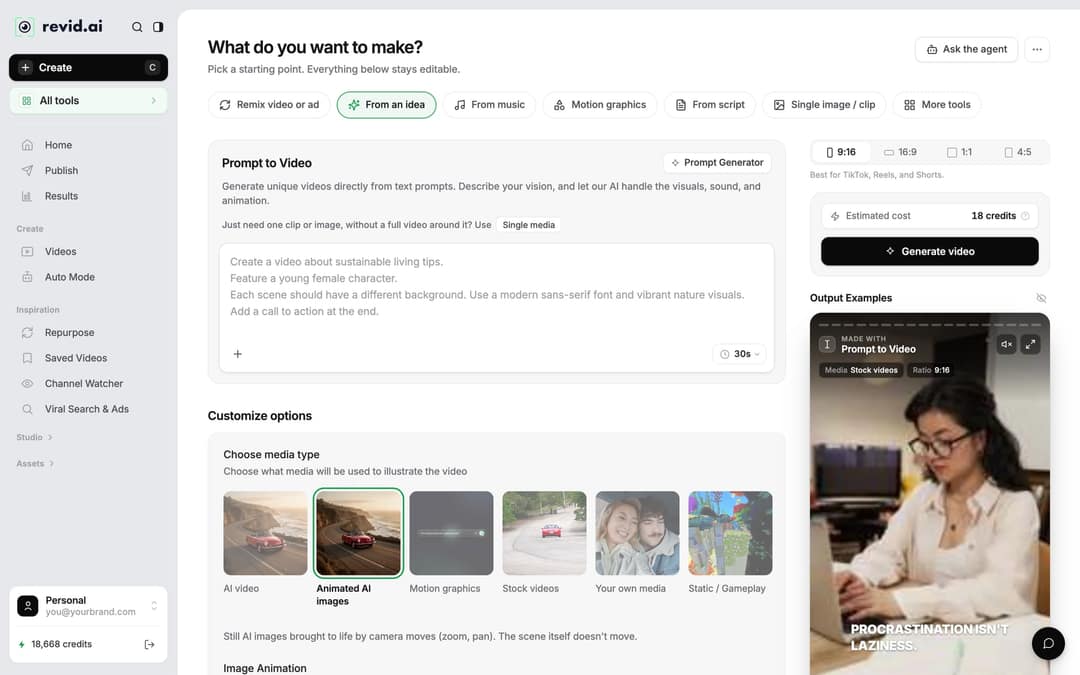
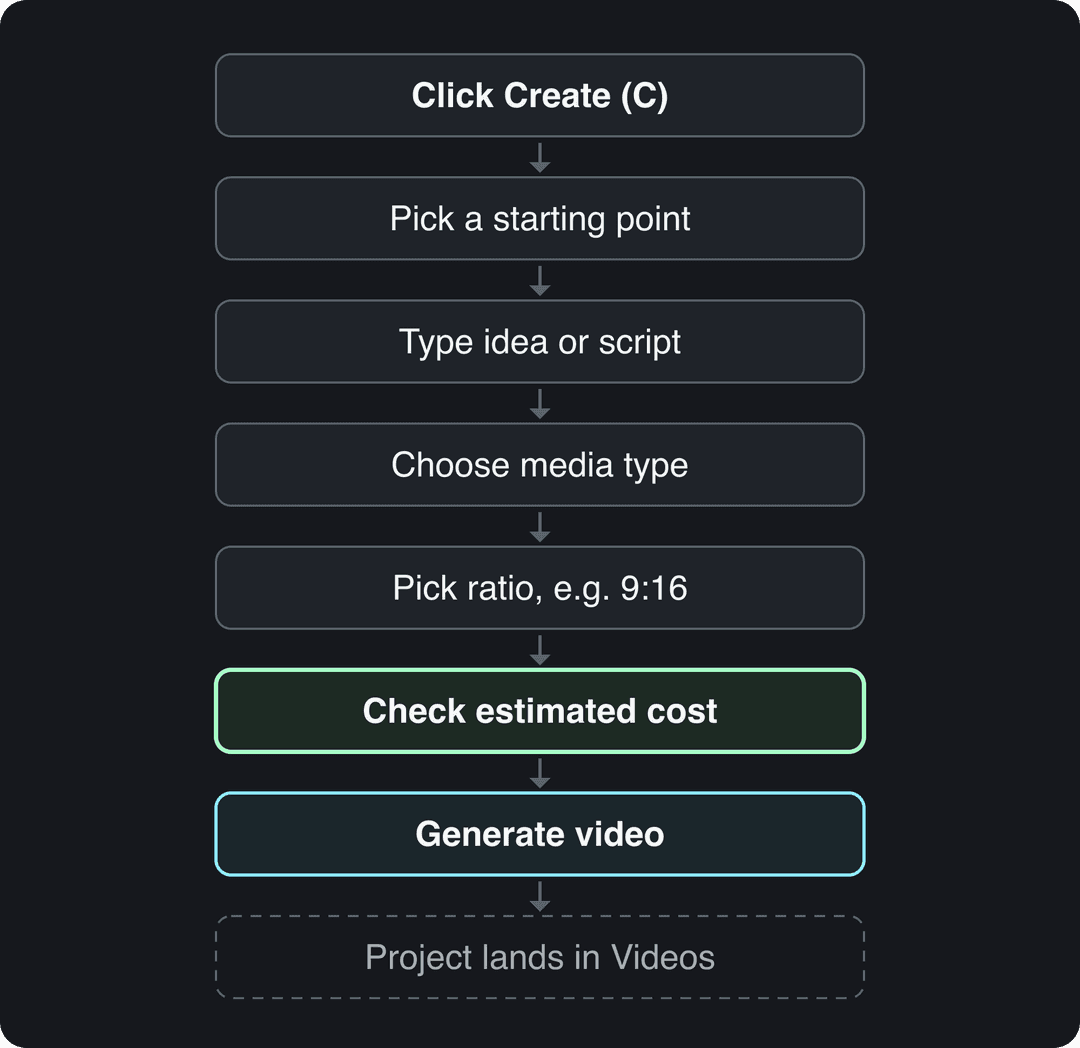
- Click Create at the top of the sidebar (or press C). The page asks "What do you want to make?".
- Pick a starting point from the chips (see the table below). Chips that don't fit on screen sit under "More tools", and the "All tools" card in the sidebar lists every tool.
- Type your idea or paste your script. For a quick first test, prompt to video ("From an idea") only needs a sentence or two.
- Under "Choose media type", pick how scenes are illustrated: "AI video" (needs a subscription), "Animated AI images" (the default), "Motion graphics", "Stock videos", "Your own media" or "Static / Gameplay".
- Choose a ratio in the ratio picker: 9:16 for TikTok, Reels and Shorts, or 16:9, 1:1 and 4:5.
- Check "Estimated cost", then click "Generate video". The finished project lands in "Videos".
If you'd rather describe what you want in plain words, the "Ask the agent" button at the top of the page lets an AI agent set the video up for you.
Which starting point should you pick?
| Chip or tool | Use it when you have | Name in older guides |
|---|---|---|
| Remix video or ad | A viral video or ad you want to adapt | (new) |
| From an idea | A topic or a one-line prompt | Short Video Generator |
| From script | Your exact words (tool "Voiceover Video") | Short Video Generator |
| From music | A song: MP3, WAV or a Suno link | Music to Video |
| Motion graphics | A product, stat or concept to animate | (new) |
| From a link or audio | A YouTube or TikTok link or an audio file (tool "Audio/Video to video") | Audio to Video |
| Single image / clip | A need for one image or clip, not a full video | (new) |
| More tools > YouTube Long to Shorts | A long YouTube video to cut into clips | YouTube Long to Shorts |
| More tools > Article to Video | A blog post or article URL | Article to Video |
| All tools > Talking Avatar | A script for an AI presenter | AI Talking Avatar |
A few tool settings worth knowing:
- The YouTube clip maker ("YouTube Long to Shorts") asks "How many extracts do you want?" (1 to 3) and has "Auto-reframe video" on by default, which costs 10 credits.
- The AI music video generator ("From music") builds scenes around your track, so start with the final mix, not a demo.
- Tools that read a URL ask "How should we handle your content": "Summarize", "Summarize if long" or "Keep as is". Pick "Keep as is" when every word of the article must stay.
For the wider method (writing prompts, picking models, getting realistic results), see our guide to making AI videos.
Shares are of all 77,016 videos built in the period, including tools not shown.
Source: Revid product analytics (Amplitude), event project_built grouped by tool slug, September 29 to October 28, 2026, 77,016 builds
Show the data
| Videos built | Share of all videos (%) | |
|---|---|---|
| Prompt to video | 33.5K | 43.5% |
| Voice-over video from a script or link | 14.7K | 19.1% |
| Music video from a song | 12.4K | 16.1% |
| Audio to video | 4.3K | 5.6% |
| Article to video | 1.3K | 1.7% |
| Character swap | 1.2K | 1.6% |
| Captions on your own video | 999 | 1.3% |
| Clips from a long video | 973 | 1.3% |
| Talking avatar | 745 | 1% |
How to format a Revid script: line breaks, brackets and break tags
Script tools have a field titled "Your video narrator script" that understands three kinds of formatting.
| Formatting | Example | What it does |
|---|---|---|
| New line | Press Enter between ideas | Starts a new scene with new media |
| [Brackets] | [golden dragon over a castle] | A note for the visuals, not read aloud |
| Break tag | <break time="1.0s" /> | A timed pause in the voice-over |
A script that uses all three:
[close-up of a cat] Cats almost always land on their feet. <break time="1.0s" />
[cat twisting in mid-air] It starts in the inner ear.
[cat landing softly] Then the spine does the rest.How break tags behave:
- A pause can last up to 10 seconds; longer values are capped. A number with no unit above 10 is read as milliseconds, so always write the "s".
- Revid converts smart quotes and "1s" to "1.0s", so text pasted from a notes app still works.
- ElevenLabs voices honor the pause and MiniMax voices convert it, but Gemini and Kling voices drop the tag and add no pause. If timing matters, pick an ElevenLabs or MiniMax voice.
Short, punctuated sentences also make any AI voice sound more natural: a comma or a period is a free pause.
How to edit a video in the Revid editor
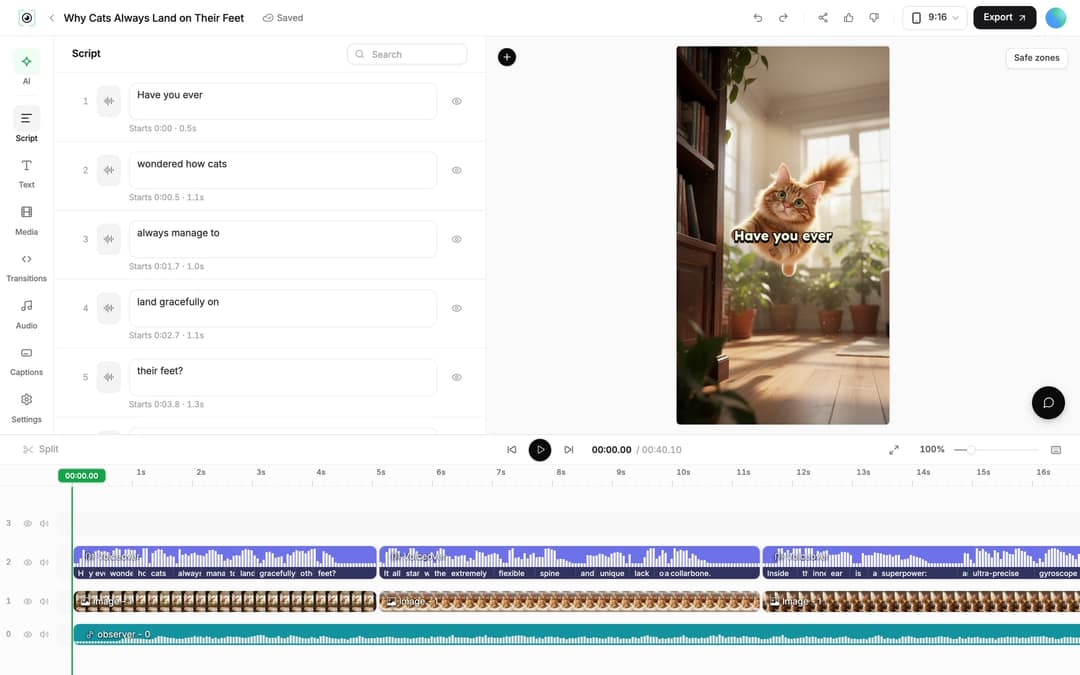
Click any project card in "Videos" to open it (the card menu also has "Open in editor"). New accounts use the v2 editor; a switch on the Videos page still offers "v1 editor (legacy)". The left rail has seven panels: Script, Text, Media, Transitions, Audio, Captions and Settings, with the timeline along the bottom.
How do I change the text and regenerate the voice-over?
- Open "Script" (it replaced the old "Frames" panel). Each caption segment has its own text box and start time; edit the text directly, or click the eye icon to hide a segment.
- After an edit, Revid shows "Caption updated. Re-generate voice if timing changed."
- To redo the voice, open "Audio" > "Voiceover" and click "Re-generate" on a row, or select the voiceover clip on the timeline and click "Re-generate Voiceover".
- In the dialog, adjust "Edit Input Text", pick a voice, leave "Keep timeline in sync" on so clips, text and music follow the new timing, then click "Generate Voice".
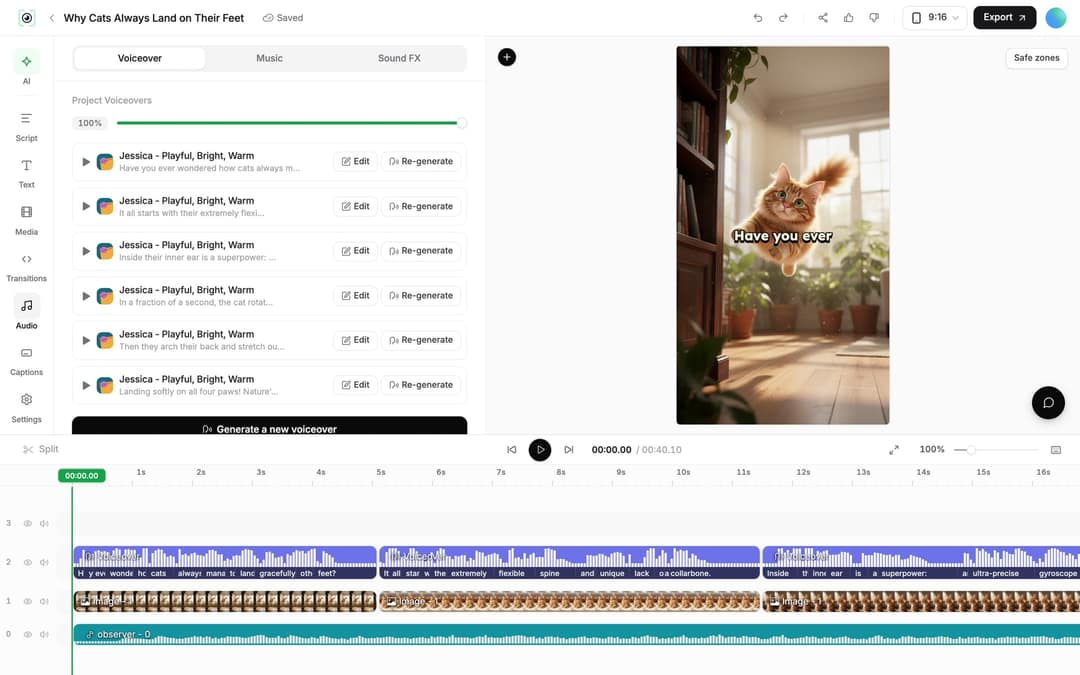
Voice regeneration is for paid plans and costs 10 credits per started 500 characters. Avatar videos cost more, because the avatar's lip sync is regenerated too. The dialog states the exact cost before you confirm.
How do I replace or regenerate a scene?
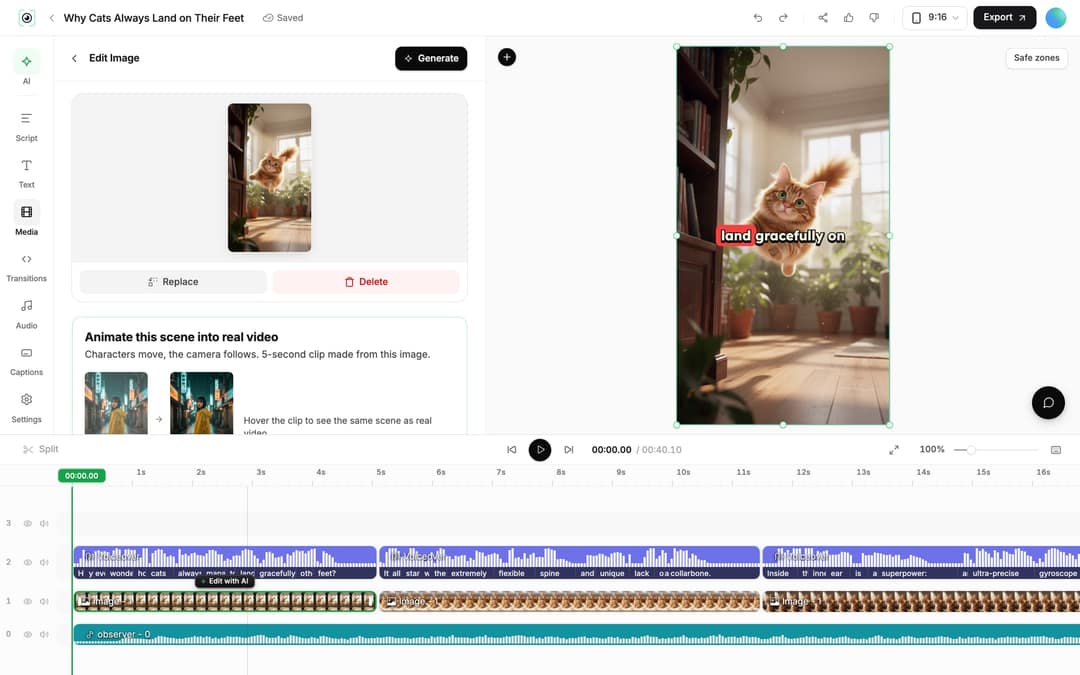
- Select an image or video clip on the timeline. Its panel has "Replace" (pick a new file from the Media library) and "Delete".
- For an AI image, "Regenerate/Edit image" offers "Regenerate image" or "Edit existing image" with a prompt.
- For an AI video clip, "Regenerate from prompt" offers "Re-animate", "New image + video" and "Edit with AI". Video clips keep a version history, so a bad regeneration is never final.
- To add something new, open "Media": "Library", "Stock" (videos and photos), "Stickers" and "Effects", plus a "Generate" button for new AI media. Drag and drop a file to upload it.
How do I trim or split a clip?
Drag a clip's start or end edge on the timeline. To cut, place the playhead and press S (or click "Split"); Del deletes the selection, and Shift+Del ripple-deletes it so the gap closes. A selected video clip also has a "Trim" section with exact start and end times and a "Reset" button.
If you mostly edit footage you filmed yourself, compare options in our roundup of AI video editors.
How do you export a Revid video in high quality?
Click "Export" at the top right of the editor (accounts without a plan see "Export / Publish"). Revid exports in 720p, 1080p or 4K at 30 or 60 fps, and past exports stay under "Assets" > "Exports" in the sidebar.
Quality comes from the inputs more than the export setting:
- Export at 1080p for TikTok, Reels and Shorts. 4K export costs 10 extra credits and is worth it only if you'll crop or reuse the footage.
- Pick the "Pro" or "Ultra" tier for AI images, and a premium AI video model for the scenes that need motion.
- Set the right ratio before generating (9:16 for vertical) so nothing has to be reframed later.
- Fix weak scenes in the editor with "Replace" or "Regenerate" instead of regenerating the whole video.
Can you download a Revid video without paying?
Yes, within the free credits: new accounts get them with no card, and you can generate and export a first video with them. Once they run out, new videos use a paid plan's monthly credits or a Credit Boost pack. If your project depends on a file with no branding, check what your account includes on the pricing page before you post.
How to publish to TikTok, Instagram and YouTube from Revid
- Go to Settings > "Integrations" (or click "Connect" on the "Connect your social accounts" card of the Publish page), then "Add a network". Sign in to the account you want to add in your browser first.
- Choose TikTok, YouTube, Instagram (a Business or creator account is required), X, or Webhook, which sends each post to Zapier, Make or your own URL.
- Click "Publish" on a project card, or "Export / Publish" in the editor. In "Publish Video", pick accounts under "Publish to", then click "Publish" to post now or "Add to queue" to schedule.
- Follow scheduled posts on the "Publish" page (tabs "Scheduled" and "Past Publications") and their views, likes and comments under "Results".
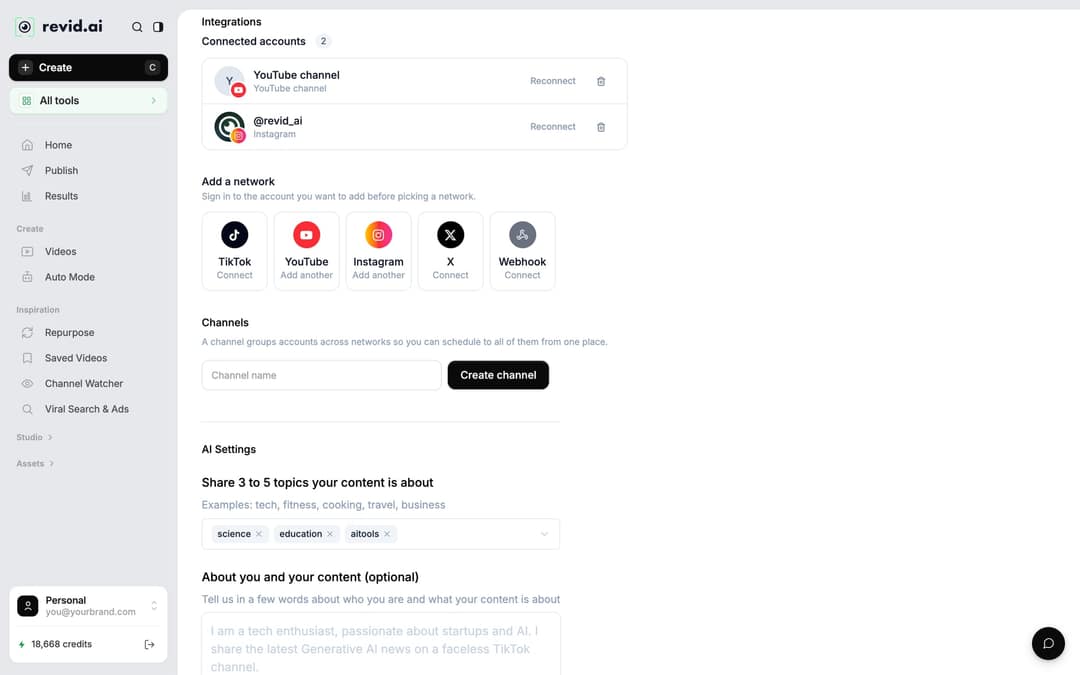
Team workspaces connect accounts in the workspace settings instead. Revid doesn't publish to Facebook, LinkedIn, Threads or Pinterest; download the file and upload it there yourself.
How to make Revid videos in other languages
- New video: write the script in your language, or set it under "Advanced options" > "Language & Localization" > "Language" (default "Automatic"). The list has 131 languages, and the voice picker filters voices to match.
- Existing video: open the project card menu and click "Translate". The video translator keeps the edit, media, timing and captions. Pick a "Target language" (74 options) and leave "Use another voice" off to keep the original voice.
Translation costs 10 credits per 500 characters per voice segment, plus a new lip sync for avatar videos.
How to start from a viral video
Every video in Revid's library is stored with its public views, likes, comments and shares, a full transcript and an AI description of its visuals. Open "Viral Search & Ads" in the sidebar (or the "Remix video or ad" chip on the Create page), search by topic, platform, engagement tier and length, open a video and choose what to make from it:
| Option | What you get |
|---|---|
| Same energy, new script | An original video with the same recipe |
| Make it about your topic | The hook style, pacing and energy applied to your niche |
| Post the Part 2 | A sequel that answers the question the original leaves open |
| Same footage, new look | An AI restyle of the footage |
| React on camera | An AI avatar reacting to the video |
| Your face in it | A face swap |
| Reuse the script | New visuals for the same words |
Revid keeps the structure, timing and tone and writes new words, visuals and an original music direction. Only "Reuse the script" keeps the spoken words, and you're responsible for having the rights to anything you reuse. The viral video repurposing page shows the flow in more detail.
Two research tools sit next to it. Deep analysis (free, up to 60 a day) watches any video and explains why it worked: the hook, the timed structure, the scroll-stopping moment, three ways to adapt it and a checklist to replicate it. Channel Watcher syncs the TikTok and YouTube channels you track every night so you can spot their outliers.
How to automate a daily video with Auto Mode
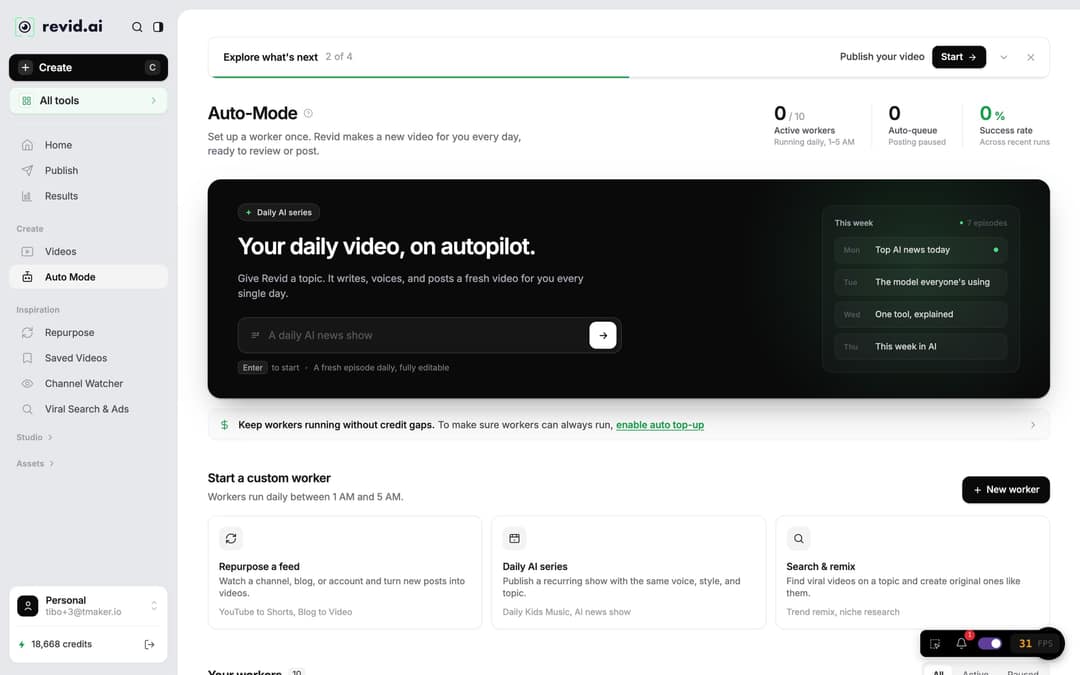
- Click "Auto Mode" in the sidebar, then "New worker" (or type a topic into the "Daily AI series" box).
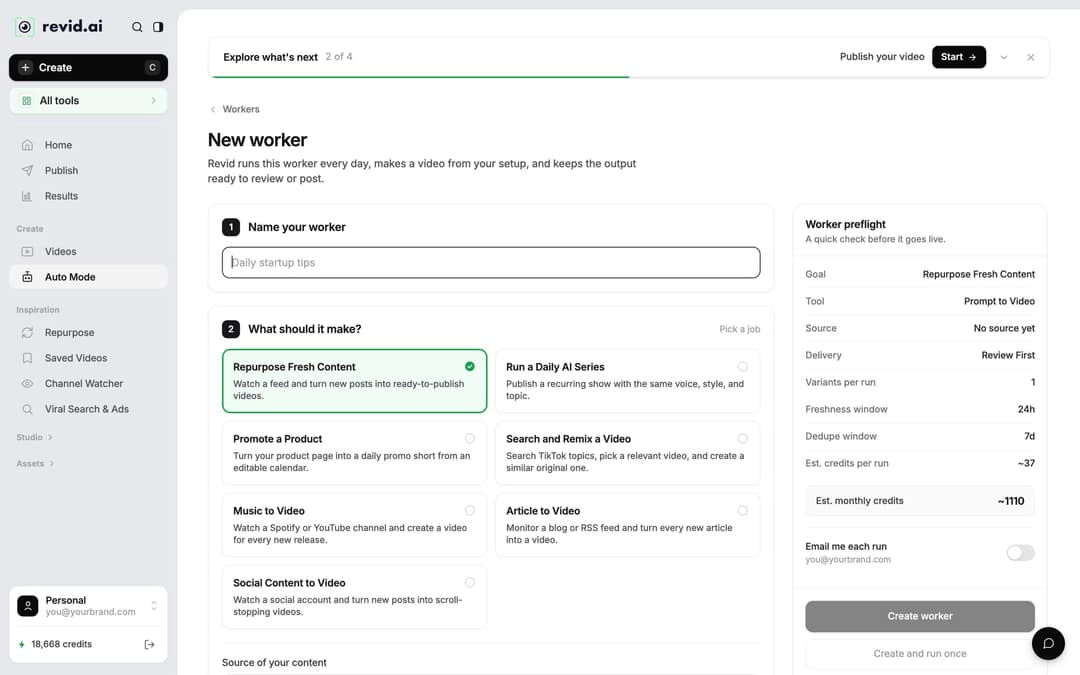
- Step 1, "Name your worker".
- Step 2, "What should it make?": pick a job: "Repurpose Fresh Content", "Run a Daily AI Series", "Promote a Product", "Search and Remix a Video", "Music to Video", "Article to Video" or "Social Content to Video".
- For feed jobs, paste a source: an X account, LinkedIn profile, YouTube channel or playlist, subreddit, blog RSS feed, or Instagram or TikTok profile. Separate several with commas. Links to a single post are refused.
- Step 3, "Pick the format": choose the tool and its usual options (media type, voice, music).
- Choose delivery: "Review First" keeps each video in Revid for you to check; "Auto Queue" sends it straight to your posting queue and needs a connected account.
- Read "Est. credits per run" and "Est. monthly credits" in the "Worker preflight" panel, then click "Create worker" or "Create and run once".
Each worker runs once a day at a fixed hour between 1 AM and 5 AM in your account's time zone. A feed worker picks one post newer than 3 days that the last 3 runs didn't use; if nothing new turned up, the run is skipped. A run costs what the same video costs when made by hand. Workers need an active plan, and turning on auto top-up from the Auto-Mode page keeps runs from failing on an empty balance.
Which AI video models does Revid use?
Revid offers Seedance 2.5, MiniMax Hailuo H3, Wan 3.0 and Google Veo 3, plus lower-cost tiers, under one credit system, and you can choose a model per scene, up to native 4K. OpenAI's Sora 2 is no longer offered: OpenAI removed the Sora 2 models from its API on September 24, 2026.
Since every video tool rents the same models, the model is rarely what separates a good video from a skipped one. Revid's view is that the inputs decide it: the hook, structure and pacing, which is why script writing draws on videos that already performed.
Can AI agents use Revid?
Yes. Every paid plan includes a REST API (v3), an MCP server at https://www.revid.ai/api/mcp with 15 tools and one-click sign-in for Claude, ChatGPT, Claude Code, Cursor and VS Code, and the revid-cli npm package. An agent can search the viral library (MCP tool search_viral_videos, CLI command revid search), then render and publish a video with the same API key. Setup is on the Revid MCP, CLI and API page.
Is Revid AI safe?
Revid is an independent software company based in Paris (operated by TMAKER), founded in 2023 as Typeframes and renamed Revid in April 2024. It reports 3,000,000+ sign-ups between August 2024 and July 2026 and users in 68 countries. Sign-up needs no card, failed builds are refunded automatically, and the terms of service and privacy policy are published on revid.ai. Revid isn't affiliated with other apps that use the name Revid.
The bigger risk is breaking a platform's rules. TikTok requires a label on AI content with realistic images, audio or video, and YouTube asks you to disclose realistic AI content with the "AI use" setting in YouTube Studio; both say the label alone doesn't reduce distribution. YouTube also won't monetize mass-produced AI videos made from generic templates without your own insight, so give every video a real angle.
FAQ
Is Revid AI good?
Revid is a strong pick if you publish short-form video often and want script, visuals, voice, captions, music and posting in one place, starting from formats that already performed. For hand-editing your own footage, long-form film work or corporate training presenters, a dedicated tool such as CapCut, Premiere Pro or Synthesia fits better; our Revid comparisons go tool by tool.
How do I log in to Revid AI?
Go to www.revid.ai and sign in, or create a free account if you don't have one (no credit card needed). Once inside, the "Create" button at the top of the sidebar starts a new video.
Is Revid the same as Typeframes?
Yes. Revid started in Paris in 2023 as Typeframes, a tool for SaaS launch videos, and has been called Revid since April 2024.
Can I make Revid videos in languages other than English?
Yes. Write the script in your language or pick it under "Language" in "Advanced options" (131 languages), and captions are generated automatically in 100+ languages. To convert a finished video, use "Translate" on the project card.
Does Revid copy viral videos?
No. Revid uses a reference video for its structure, hook, pacing and style, then writes a new script, new visuals and an original music direction. Only the "Reuse the script" option keeps the original words, and you need the rights to them.
Sources
- Revid public credit calculator (POST /api/public/v3/calculate-credits, no key), prompt-to-video workflow, 30, 60 and 90 seconds, queried Oct 29, 2026.
- Revid product analytics (Amplitude), event project_built grouped by tool slug, September 29 to October 28, 2026, 77,016 builds
Charts and figures checked on November 6, 2026.