On this page
To edit an educational YouTube video for kids, write a script around one learning goal in short sentences, build the visuals scene by scene, keep narration louder than the music, add large captions, leave pauses for kids to answer aloud, and close with a one-line recap. Before publishing, set the audience to made for kids in YouTube Studio.
The audience is huge and crowded: Tubular Labs' 2025 year-in-review found that 8 of the 10 most-viewed videos across all social video platforms in 2025 were kids' YouTube Shorts (see more YouTube Shorts statistics). That pull has filled YouTube with cheap AI cartoons, and YouTube does not monetize AI content built from generic templates that looks mass-produced. Your edit is what proves a teacher made the video, not a template.
- Most-viewed videos across social video platforms in 2025 that were kids' YouTube Shorts
- 8 of 10
- Tubular Labs, December 2025
- Maximum length of a YouTube Short (square or vertical)
- 3 minutes
- YouTube Official Blog, October 2024
- How long most Shorts Audio Library songs can play in a 3-minute Short
- 90 seconds
- YouTube Help, October 2026
- Median views of faceless tutorials, vs 52K for on-camera tutorials
- 156K
- Revid analysis of 176,367 TikToks
The workflow at a glance
| Step | What you do | Why it matters for kids |
|---|---|---|
| 1. Script | One learning goal, short sentences, a character | Kids follow one idea, not three |
| 2. Visuals | One scene per idea, consistent characters | The picture carries the meaning |
| 3. Length and format | Short for one fact, long-form for a lesson | Matches attention to content |
| 4. Colors and text | One focal point, big words, no flashing | Easy to read on a phone or TV |
| 5. Sound | Voice first, music low, repeatable sound cues | Kids must hear every word |
| 6. Interaction | Questions, pauses, quizzes | Active kids remember more |
| 7. Captions | On-screen words and a recap | Early readers see and hear the word |
| 8. Settings | Made for kids, AI disclosure | Legal and monetization rules |
| 9. Search | Titles, descriptions, thumbnails | Parents find the video |
| 10. Review | Checklist and a test viewer | Catches errors before kids do |
Step 1: Write the script around one learning goal
State the goal as something the child can do after watching: "name the four stages of the water cycle", not "learn about water". Everything that does not serve that goal gets cut before you open an editor.
- Use short, everyday words. "Photosynthesis is the process by which green plants use sunlight to synthesize foods" becomes "Plants make food from sunlight."
- Give the idea a character. "Sunny the Sun" explaining how he warms a puddle is easier to follow than a narrator listing facts.
- Connect to something kids have done. "You jumped in a puddle after the rain. Where did that puddle go the next day?"
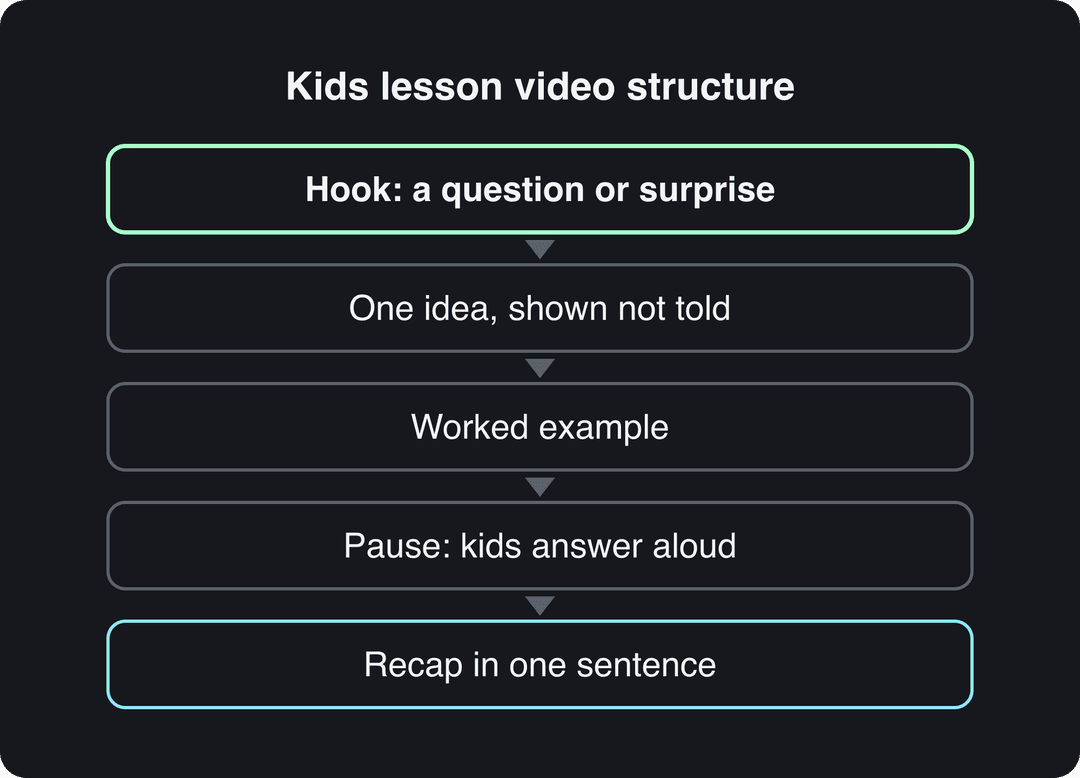
Use this five-beat template for almost any lesson, here filled in for the water cycle:
- Hook: a question or a surprise. "Where does a puddle go when it disappears?"
- One idea, shown: "The sun warms the puddle. The water floats up as invisible vapor. That is evaporation."
- Worked example: Sunny follows one drop through evaporation, condensation, precipitation and collection.
- Pause: "Can you say the four steps with me?" Then leave silence on screen.
- Recap: "Water goes up, makes clouds, falls as rain, and collects again."
Prompt to try
Make a 60-second kids' science video about the water cycle for ages 4 to 7. Open with the hook "Where does a puddle go when it disappears?", then follow Sunny the Sun as he warms a puddle through evaporation, condensation, precipitation and collection, one bright cartoon scene per step with the key word on screen. Pause to ask kids to say the four steps aloud, and end with the recap "Water goes up, makes clouds, falls as rain, and collects again."
Step 2: Build the visuals scene by scene with AI
Give each sentence or idea its own scene, and make the picture show what the narrator says. If the voice says "condensation", the screen shows droplets gathering into a cloud, with the word on screen.
AI video tools now do the first assembly for you. In Revid, a script becomes scene-by-scene visuals (stock footage, AI images or AI video) with a voice-over in 70+ languages and synced captions, all editable on a timeline. For a cartoon look, the AI cartoon video generator turns a script or a one-line idea into an animated video.
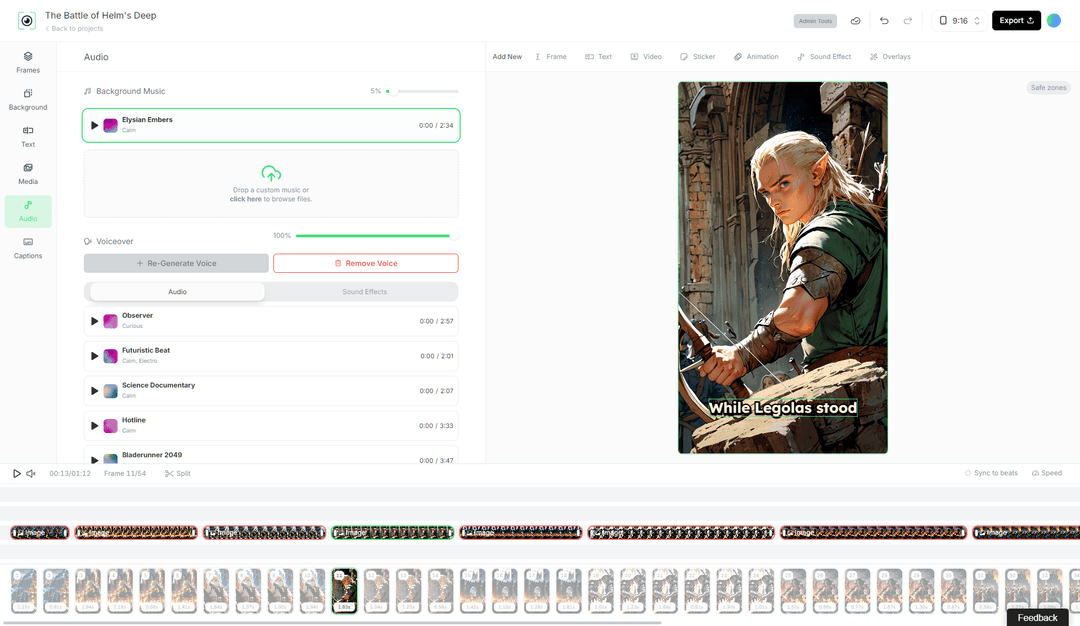
Treat the AI draft as a rough cut. Replace any scene that shows the wrong thing, check every fact on screen, and keep the same character design from video to video. If you plan a recurring cast, this walkthrough on an animated series with consistent characters shows how to keep them the same across episodes.
You do not need to be on camera. In Revid's analysis of 176,367 TikToks with 1,000+ likes posted between October 2025 and October 2026, faceless tutorials had a median of 156K views (22.1% passed 1M) against 52K (10%) for tutorials with a person on camera. This is TikTok data, not YouTube, and the sample only includes videos that already reached 1,000 likes, so it shows what successful videos have in common rather than a cause. The full method is in the study what makes a TikTok go viral.
Faceless tutorials earned about 3x the median views of on-camera tutorials (156K vs 52K).
Source: Revid analysis of 176,367 TikToks with 1,000+ likes posted between Oct 1, 2025 and Oct 16, 2026 (61,203 creators)
Show the data
| Median views | Share that passed 1M views | |
|---|---|---|
| Faceless tutorials | 155.6K | 22.1% |
| Product or object tutorials | 80.7K | 14.9% |
| On-camera tutorials | 52.5K | 10% |
| Faceless storytelling | 72.7K | 13.3% |
| On-camera storytelling | 64.4K | 11.7% |
| Faceless comedy | 326.7K | 26.4% |
| On-camera comedy | 135.5K | 20.7% |
Step 3: Pick the length and format
Teach one concept per video. Addition gets one video and subtraction gets the next; if a topic needs more, split it into a series.
| Format | Best for | Length rule |
|---|---|---|
| YouTube Short (vertical or square) | One fact, a song chorus, a quick quiz | Up to 3 minutes counts as a Short |
| Long-form lesson (16:9) | A full concept with examples and practice | Start around 5 to 10 minutes, then adjust |
| Series | Topics too big for one video | One concept per episode |
Decision rule: if you can teach it in one sentence plus one example, make a Short. If kids need practice, make a long-form lesson and cut a Short from its best moment. After a few uploads, the audience retention graph in YouTube Studio tells you where kids drop off; cut there next time instead of guessing.
The index leans toward videos that surface in hashtag and keyword searches, so its view counts run high: compare the groups, not the absolute numbers.
Source: Revid TikTok index: 2,377,477 TikToks with AI labels per video, snapshot of Sep 15, 2026. Median views estimated from view buckets.
Show the data
| Median views | Share past 1M views | |
|---|---|---|
| 0-7s | 88.3K | 19.9% |
| 8-15s | 111.1K | 22.6% |
| 16-30s | 141K | 25.1% |
| 31-60s | 120.4K | 22.8% |
| 61-120s | 97K | 19.8% |
| 2-5 min | 89.1K | 18.3% |
| 5 min+ | 90.1K | 17.2% |
Step 4: Use bright colors, big shapes and readable text
- One focal point per frame. A bright character on a simple background beats a busy scene where everything competes.
- Few words, large type. Put the key word on screen ("EVAPORATION") and nothing else. Keep it clear of the bottom of the frame, where captions sit.
- Diagrams for anything with parts. The planets in order, the steps of an experiment, the stages of a life cycle.
- No strobe or rapid flashing effects. They are uncomfortable for many viewers and a risk for photosensitive children.
- Cut when the idea changes, not on a timer. Young kids need a beat to look at each new picture.
Step 5: Mix narration, music and sound effects
The voice comes first. Keep background music clearly under the narration and lower it further while someone speaks, so a child watching on a tablet speaker still hears every word.
Use sound effects as signals, not decoration: the same pop every time an answer appears, the same chime when a new section starts. Kids learn the pattern and start anticipating it.
Only use music you have the rights to. The YouTube Audio Library in YouTube Studio is free; Epidemic Sound and Artlist sell subscriptions to music cleared for online video. Two YouTube rules matter for kids' songs in Shorts:
- Any Short longer than 1 minute with an active Content ID claim is blocked globally and cannot be monetized.
- Most songs in the Shorts Audio Library can be used for up to 90 seconds in a 3-minute Short; some are limited to 60 or 30 seconds.
Kids' music videos show the audio rules at work: a simple melody, the lyric on screen and a new picture for each line.
Step 6: Add pauses, questions and quizzes
Ask a question, then actually stop talking. Show the question on screen with a visual countdown, then reveal the answer with your answer sound. A video quiz maker builds this question-and-reveal format for you.
Write calls to action for a made-for-kids audience. Comments, the notification bell, end screens and cards are not available on videos set as made for kids, so "comment below" does nothing. Ask kids to answer out loud, count along, or try the experiment at home with a grown-up, and put any message for parents in the description.
Counting songs are the simplest version of this: the video invites kids to join in on every verse.
Prompt to try
Create a 45-second kids' quiz video for ages 5 to 8: "Can you name the planet?" Show five bright cartoon planets one at a time with a 3-second countdown before each answer appears, keep big readable text, and finish with a cheerful recap of all five names.
Step 7: Add captions and a closing recap
Captions help early readers connect the spoken word to the written one, and they help kids learning in a second language. The AI caption generator adds synced captions in 100+ languages; highlight the lesson's key word in a different color each time it appears.
End every video with the recap from your script, word for word: "So remember, water goes up, makes clouds, falls as rain, and collects again." The repetition is the point.
Step 8: Set made for kids and AI labels correctly
YouTube asks every creator whether each video is made for kids, to comply with children's privacy laws such as COPPA in the US. Answer based on the intended audience: an alphabet lesson aimed at preschoolers is made for kids. Videos set as made for kids get no personalized ads and lose features such as comments.
AI rules are separate from the audience setting:
| Situation | Disclose as AI on YouTube? | Can it be monetized? |
|---|---|---|
| Cartoon or clearly animated characters | No, non-realistic content is exempt | Yes, if it shows your creative vision and teaching value |
| AI-written script, AI captions, your own cloned voice | No | Yes |
| Photorealistic AI scene of something that did not happen | Yes, with the "AI use" setting in YouTube Studio | Yes, if it is not faking real events |
| Generic template videos that look mass-produced | Not the issue | No |
| Unrelated AI clips stitched together to shock | Not the issue | No |
| Narration that only reads text you did not write | Not the issue | No, counts as reused content |
Disclosing AI does not by itself limit a video's audience or its earnings. Since May 2026, YouTube also labels undisclosed videos with significant photorealistic AI automatically.
Step 9: Optimize titles, descriptions and thumbnails for search
Start in the YouTube search box. Type your topic and read the suggestions: they are what parents and kids actually search for.
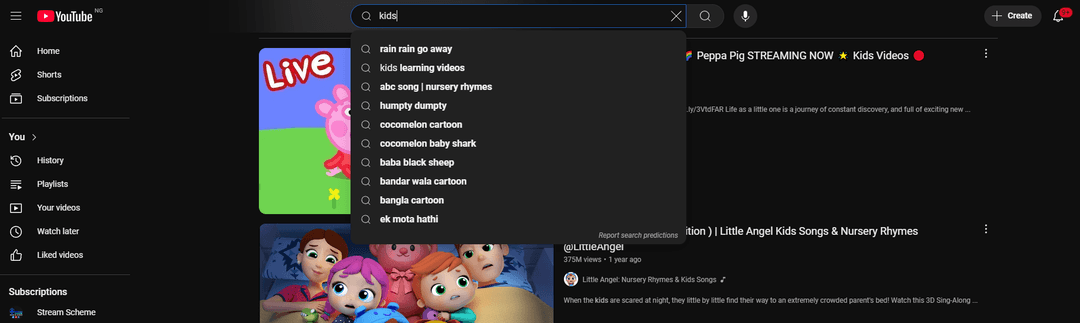
- Title: the topic first, in parents' words. "The Water Cycle for Kids: Evaporation, Condensation and Rain" beats "Science Time". A YouTube title generator gives you variants to compare.
- Description: the first lines say what the child learns and for what age; add a short note for parents.
- Thumbnail: one character, one object, a few big words, the same layout on every video so the channel is recognizable.
| Field | Limit or spec |
|---|---|
| Title | 100 characters |
| Description | 5,000 characters |
| Tags | 500 characters in total |
| Video thumbnail | 3840x2160 recommended, minimum width 640 px, 16:9 |
| Thumbnail file size | 50 MB on desktop, 2 MB on mobile |
| Shorts thumbnail | 9:16 at 2160x3840, uploaded in YouTube Studio on a computer |
Custom thumbnails require a verified account.
Step 10: Review the final cut with a checklist
- Watch it once with the sound off: do the captions and on-screen words still teach the lesson?
- Watch it once on a phone: is every word readable at that size?
- Check that the music never covers the voice.
- Fact-check every claim, label and diagram.
- Check that every pause is long enough to answer in.
- Show it to a child in your target age group, or their parent, and watch where attention drifts.
- After publishing, check audience retention and fix the drop-off point in the next video.
How to make a kids' educational video with Revid
- Open the educational video maker and paste your script or describe the lesson.
- Choose the visual style: stock footage, AI images, AI video or a cartoon look.
- Pick a voice from 1,000+ AI voices and a caption style.
- Fix the rough cut in the timeline editor: swap any scene, change the music, adjust the voice.
- Export in 720p, 1080p or 4K, or publish directly to YouTube, then confirm the made-for-kids setting in YouTube Studio.
Sign-up is free and new accounts get free credits to try video creation, no credit card needed; regular creation then uses the monthly credits of a paid plan, from $39/month. If your lesson starts from a picture book, see how to turn a kids' story into a video.
How to edit fun videos of your kids and pets adventures
Home videos follow a different rule: tell one small story, not a lesson.
- Pick the moment. Choose the clips where something happens: the dog steals the ball, the toddler finally catches it.
- Cut to setup, mishap, payoff. Trim every clip to its action and drop the waiting in between.
- Add music and a few captions. A short caption ("Day one of teaching Max to fetch") gives the clip context.
- Export for where you share it: 9:16 for Shorts, Reels and TikTok, 16:9 for a family YouTube video.
If you would rather not edit by hand, create a video from memories: upload your photos and clips and Revid assembles them into a video automatically. Before posting publicly, leave out school names, uniforms and anything that shows where you live. A video featuring your kids is not automatically made for kids; the setting depends on who the video is for.
FAQ
How long should an educational video for kids be?
As long as one concept needs and no longer. A single fact fits in a Short (up to 3 minutes), while a full lesson can start around 5 to 10 minutes; your audience retention graph shows where to cut.
Can you make money from AI-generated kids' videos on YouTube?
Yes, if the videos show your own creative vision and real teaching value. YouTube does not monetize AI content made from generic templates that looks mass-produced, incoherent AI clip compilations, or narration that only reads text you did not write.
What is the best software to edit kids' YouTube videos?
It depends on your footage. CapCut is a strong free editor for clips you filmed yourself, while Revid generates the video from a script (visuals, voice, captions and music) and lets you edit it on a timeline.
Can I use popular children's songs in my videos?
Only if you have the rights. Nursery rhymes in the public domain are safe to sing yourself, but a specific recording may be protected, and a Short over 1 minute with an active Content ID claim is blocked globally.
Do I need to show my face on a kids' educational channel?
No. Many successful kids' channels are fully animated, and in Revid's TikTok data faceless tutorials outperformed on-camera tutorials among videos with 1,000+ likes.
Sources
- Revid analysis of 176,367 TikToks with 1,000+ likes posted between Oct 1, 2025 and Oct 16, 2026 (61,203 creators)
- Revid TikTok index: 2,377,477 TikToks with AI labels per video, snapshot of Sep 15, 2026. Median views estimated from view buckets.
- Tubular Labs, What the World Watched in 2025: Social Trends That Defined the Year (December 2025)
- YouTube Official Blog, Tall updates coming to Shorts (October 2024)
- YouTube Help, Understand three-minute YouTube Shorts (October 2026)
Charts and figures checked on November 6, 2026.