How to Re-Edit a Video: Project Files, MP4s and Posted Videos
How to re-edit a video in every situation: from the project file, from an exported MP4, after posting, or into short clips, with the export settings and originality rules that decide whether the new version performs.
On this page
To re-edit a video, reopen the original project file and save a copy before changing anything. If you only have the exported MP4, import it into any editor, cut it on the timeline and export again at the same resolution and frame rate. Posted TikToks and Reels can't be swapped: re-edit the file and repost.
The most common mistake is re-editing the wrong file. Every new export of an already compressed MP4 throws away a little more detail, and a copy downloaded from a platform has been recompressed by that platform. The second mistake costs reach: since March 2026, Facebook deprioritizes reposts changed only with borders, captions or speed changes, and TikTok's Creator Rewards Program does not count lightly modified reposts as original.
- Maximum length of a YouTube Short (square or taller aspect ratio)
- 3 min
- YouTube Official Blog, October 2024
- Maximum Instagram Reel length; over 3 minutes isn't shown to non-followers
- 20 min
- Instagram rules cited in the article
- Longest video TikTok accepts as an upload
- 60 min
- TikTok rules cited in the article
- Median TikTok views across length buckets from under 15 seconds to 10 minutes
- 58K-76K
- Revid analysis of 176,367 TikToks
Which re-edit do you need?
The right method depends on two questions: do you still have the editable project, and is the video already published? Use the path below, then jump to the matching section.
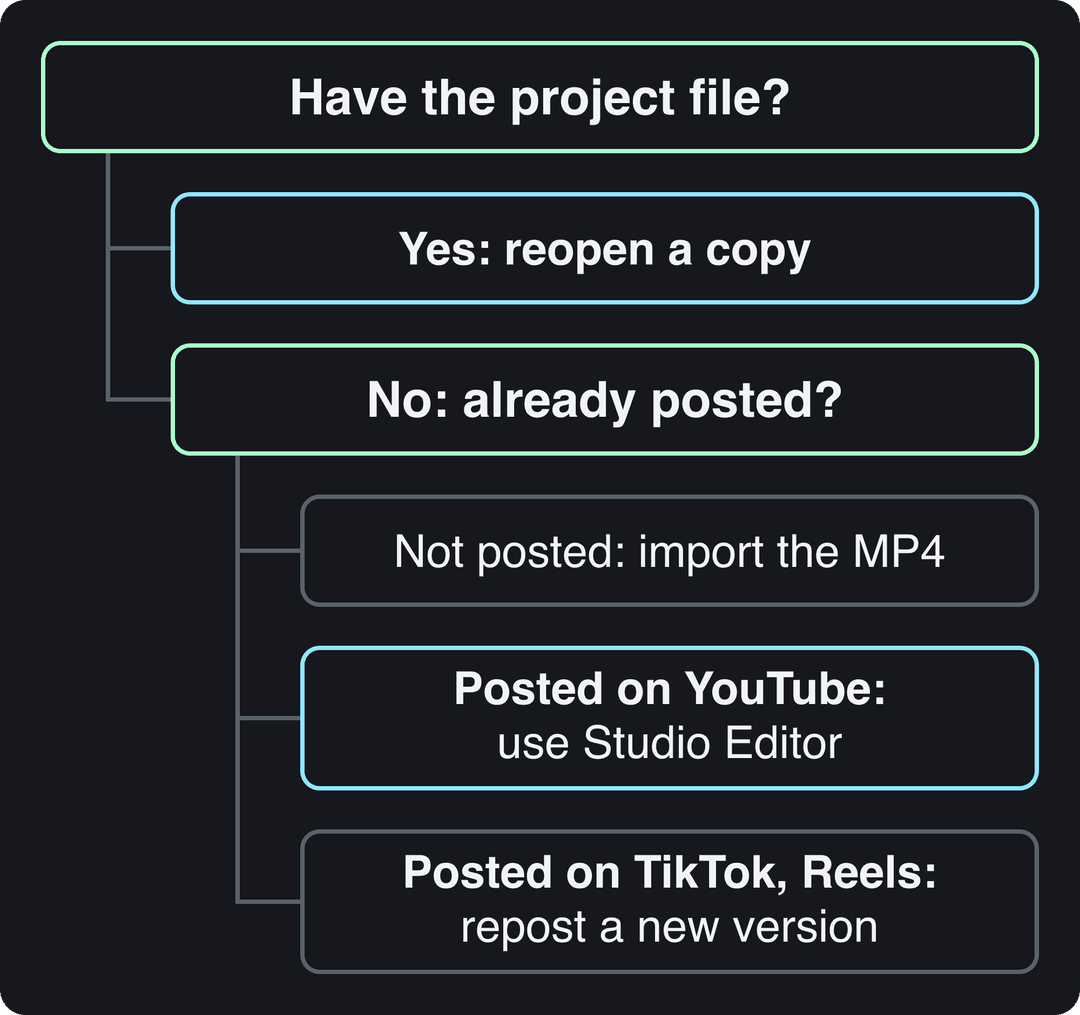
- You have the project file: reopen a copy and change it (next section).
- You only have the final MP4: import it as a single clip and recut it.
- The video is live on a platform: check what that platform lets you change in place.
- You want short clips from a long video: reframe and cut it into vertical pieces.
How to re-edit a video from the project file
This is the clean route, because every clip, title and audio track is still separate.
- Find the project: a .prproj file in Premiere Pro, the library (.fcpbundle) in Final Cut Pro, the project library in DaVinci Resolve, or the drafts list in CapCut.
- Duplicate it before touching anything. Use Save As and add "v2" to the name, so the published version stays recoverable.
- Relink missing media if you moved or renamed files since the first edit. Every major editor has a relink option that points the project back to the source footage.
- Make the change: recut the opening, tighten pauses, swap the music, fix a caption typo or shorten the ending.
- Export with the same settings as the original, unless the target platform has changed (see the export table below).
How to re-edit an exported MP4 without the project
No project file means the video is now a single flattened clip. You can still recut it, but some layers are baked in.
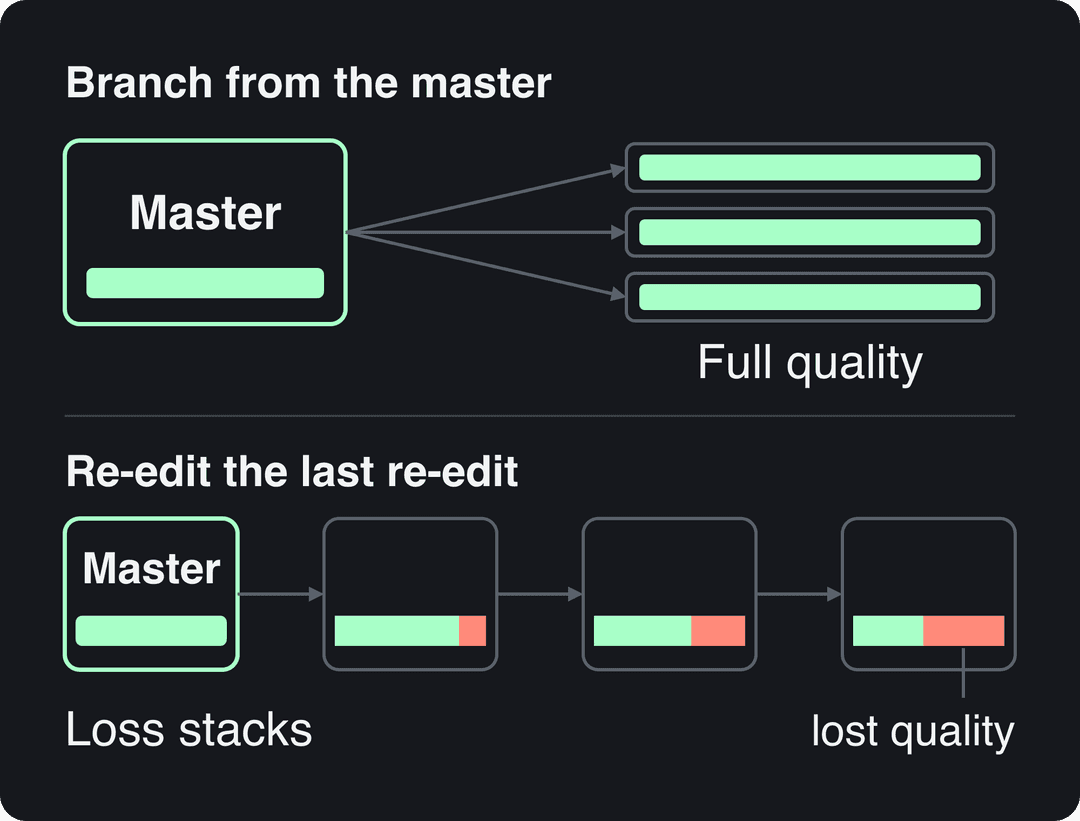
- Use the best copy you have: the file you exported from your editor, not a download from TikTok, Instagram or YouTube.
- Import it and drag it onto an empty timeline. Most editors then set the timeline to the clip's resolution and frame rate (Premiere calls this a new sequence from clip). Keep those settings.
- Split and delete to cut sections, then close the gaps. Rearranging works the same way.
- Deal with burned-in elements. Captions and text are part of the image now: cover them with a shape, crop them out, or leave them. Music mixed under a voice can't be lifted out by trimming; some editors offer AI voice isolation, which helps but is rarely perfect.
- Export once, at the same resolution and frame rate as the source.
Can you re-edit a video after posting it?
Only YouTube lets you change the video itself in place. On TikTok and Instagram you edit the file and post it again.
| Platform | Edit the posted video? | What to do |
|---|---|---|
| YouTube | Partly, in YouTube Studio's Editor (trim, blur, audio) | Edit in place to keep the URL, views and comments; check the Editor tab, since not every change is available on every video |
| TikTok | No, the video file can't be replaced | Re-edit your master file, delete the old post if needed, and repost (the old post's views and comments go with it) |
| Instagram Reels | No, only details like the caption | Re-edit and repost, or test the new cut as a trial reel first |
Trial reels are the low-risk way to test a re-edit on Instagram. They are shown first to non-followers, insights arrive within 24 hours, and they don't affect the ranking of your standard reels. You need a public account with at least 200 followers for a professional account or 1,000 for a personal one. For YouTube-specific cuts, pacing and chapters, see our guide to editing YouTube videos.
How to re-edit a long video into Shorts, Reels and TikToks
Re-editing a horizontal video into vertical clips is the re-edit most creators do every week. The steps:
- Pick moments that make sense without context: one tip, one story, one answer.
- Reframe to 9:16 and keep the speaker or the action centered.
- Start on the strongest line. Cut any warm-up before it.
- Add captions, because many people watch with the sound off.
- Trim to the length the moment needs, within each platform's rules.
Those rules: YouTube Shorts can be up to 3 minutes, but any Short longer than one minute with an active Content ID claim is blocked globally. Instagram Reels can run up to 20 minutes, but reels over 3 minutes are not recommended to non-followers. TikTok accepts uploads up to 60 minutes.
Don't cut a good moment short just to hit a magic number. In Revid's analysis of 176,367 TikToks with 1,000+ likes posted between October 2025 and October 2026, every length bucket from under 15 seconds to 10 minutes had a median between 58K and 76K views; 61 to 90 seconds led slightly at 70K, while clips under 15 seconds had the lowest median (58K) but the most shares per view (1.41 per 100). The sample only includes videos that already passed 1,000 likes, so it shows what successful videos have in common, not what causes success. The full method is in our study of what makes a TikTok go viral.
Length alone barely moves views: every bucket lands between 58K and 76K median views (the 790 videos over 10 minutes are a small, unusual group). Clips under 15 seconds get shared the most per view.
Source: Revid analysis of 176,367 TikToks with 1,000+ likes posted between Oct 1, 2025 and Oct 16, 2026 (61,203 creators)
Show the data
| Median views | Share that passed 1M views | Shares per 100 views | |
|---|---|---|---|
| Under 15 s | 57.6K | 11.6% | 1 |
| 16 to 30 s | 64.9K | 12.3% | 1 |
| 31 to 60 s | 61.8K | 11.8% | 1 |
| 61 to 90 s | 70.5K | 12.2% | 1 |
| 91 s to 3 min | 63.4K | 11.1% | 1 |
| 3 to 10 min | 76.4K | 12.4% | 1 |
| 10 min+ | 129.6K | 13.8% | 0 |
If you'd rather not scrub through an hour of footage by hand, Revid's YouTube clip maker takes a YouTube link and returns short vertical clips you can then refine.
Re-editing someone else's video: what counts as original
Re-editing other people's footage is where most reach and monetization problems start. The current rules:
- Facebook (since March 2026): reaction-only reels, clip compilations, narrating what's on screen, and reposts changed only with borders, captions or speed changes are treated as unoriginal. They are deprioritized, and repeat offenders can be demonetized.
- TikTok Creator Rewards: Duets, Stitches, lightly modified reposts, looping videos and videos with copyrighted music playing over one minute are not considered original, so they don't earn.
- YouTube: content that only reads out material you didn't write, or relies on mostly non-verbal reactions, counts as reused content and can't be monetized, and the policy applies to the whole channel.
The decision rule: if your re-edit doesn't add your own script, commentary or new footage, don't post it as yours. If you like a video's format, borrow the structure, not the clip. Revid's viral video remixing works that way: it keeps a reference's hook style and pacing, then writes a new script and new visuals. You are still responsible for having the rights to anything you reuse.
Which video editing software should you use?
Any of these can re-edit a video. Pick by where you edit and what you edit.
| Tool | Best for | Good to know |
|---|---|---|
| Adobe Premiere Pro | Professional multi-track projects | Industry standard on Windows and Mac |
| Final Cut Pro | Fast editing on Mac and iPad | Apple devices only |
| DaVinci Resolve | Color correction and grading | Capable free version |
| iMovie | Simple edits for beginners | Free on Apple devices |
| Camtasia | Screen recordings and tutorials | Recording and editing in one app |
| Descript | Talking videos and podcasts | You edit the video by editing the transcript |
| CapCut | Quick edits on phone or desktop | Free tier with 1080p export and auto-captions |
| Edits (Instagram) | Reels made on a phone | Free, Android and iPhone, exports without a watermark |
If you are on a computer and want free, start with DaVinci Resolve. If you edit on your phone, use CapCut or Edits. If your videos are mostly you talking, a transcript editor saves the most time; our Revid vs Descript comparison covers when transcript editing beats generating a new video.
The editing basics every re-edit uses
Organize before you cut
Put footage, B-roll, audio and graphics in separate bins (folders), and label your best takes as you review them. On a re-edit, also keep the old version's export nearby so you can compare.
Cut, trim and split
- Trim moves a clip's start or end point; split cuts one clip into two.
- Remove pauses and repeated sentences first: it is the fastest way to make any video feel tighter.
- Learn the J, K and L keys (play backward, pause, play forward), which work in Premiere, Final Cut and Resolve.
Transitions: default to the cut
- Hard cuts keep the pace up and suit almost every short-form video.
- Fades from or to black work at the very start or end.
- A cross dissolve signals time passing. Use it on purpose, not between every clip.
- Wipes and slides look dated; skip them unless the style calls for it.
Color, stabilization and speed
Color correction fixes problems (white balance, exposure) so clips match; color grading sets the mood afterwards. Stabilization calms handheld shots. Slow motion and speed ramps add emphasis, used once or twice per video.
Text and captions
Lower thirds identify people or places without covering the action. On vertical video, keep captions and titles away from the bottom and right edges, where the platform's buttons and descriptions sit.
Export settings that survive the upload
MP4 with H.264 is the safest format everywhere. Match the frame rate of your source footage, and watch the full export once before posting.
| Destination | Shape | Resolution and frame rate | Length |
|---|---|---|---|
| TikTok | 9:16 | 1080x1920 recommended | Uploads up to 60 minutes |
| Instagram Reels | 9:16 recommended (1.91:1 to 9:16 accepted) | At least 720 pixels and 30 FPS | Up to 20 minutes; over 3 minutes isn't shown to non-followers |
| YouTube Shorts | Vertical or square | 1080x1920 works well | Up to 3 minutes |
| Facebook Reels | Any orientation | 1080p, H.264 or H.265, 24 to 60 FPS | No length limit |
| YouTube (long-form) | 16:9 | 1080p or 4K | 15 minutes by default; verified accounts up to 12 hours or 256 GB |
For audio, export AAC stereo at 44.1 or 48 kHz, which Facebook recommends and every other platform accepts.
AI video editing: what to hand off and what to keep
AI is good at the repetitive parts of a re-edit: transcribing and captioning, removing silences and filler words, reframing horizontal footage to vertical, finding highlight moments, and adding motion graphics on key lines. Keep the judgment calls for yourself: which moment opens the video, what to cut, and whether the story still makes sense. For a fuller comparison of hands-off workflows, see our guide to automatic video editing.
If you add realistic AI visuals, label them. TikTok and YouTube both require disclosure of realistic AI-generated content, and both say the label alone does not reduce a video's distribution. AI-written scripts and captions don't need a YouTube disclosure.
Videos include an AI voiceover; clip quotes are AI highlights without one. Clip and motion graphics quotes are minimums: the final charge depends on the source video or the footage generated. AI video clips are on the Pro model; the Base model costs 110 credits for 30 s.
Source: Revid public endpoint POST /api/public/v3/calculate-credits, queried October 29, 2026: workflow video-to-clips with 1 and 3 outputs, and prompt-to-video at 30 and 60 seconds with each media type. Cents = credits x $39 / 2,000, rounded.
Show the data
| Credits | US cents on Growth | |
|---|---|---|
| 1 clip from a YouTube link | 1 | 2 |
| 3 clips from a YouTube link | 3 | 6 |
| 30 s video, stock footage | 11 | 21 |
| 30 s video, animated AI images | 37 | 72 |
| 60 s video, animated AI images | 75 | 146 |
| 30 s video, motion graphics (estimate) | 190 | 371 |
| 30 s video, AI video clips (Pro model) | 341 | 665 |
How to re-edit a video with Revid
- Open Auto Edit Video, then upload a talking video or paste a link. It comes back edited, with your key lines turned into motion graphics.
- Fix anything you don't like in Revid's timeline editor, scene by scene.
- Change the shape with Resize Video: 9:16 for TikTok, Reels and Shorts, 4:5 for the feed, 16:9 or 1:1.
- Export in 720p, 1080p or 4K at 30 or 60 fps, or publish directly to TikTok, Instagram and YouTube from the same queue.
FAQ
What does re-edit a video mean?
Re-editing means editing a video again after a first version exists: recutting it, shortening it, fixing mistakes, or changing its format for another platform. It can start from the original project file or from the exported video.
Does re-editing a video lower its quality?
Only when you re-export an already compressed file, and one extra export at the same resolution is rarely visible. Quality loss adds up over repeated exports, so always start from your master file rather than a previous re-edit or a platform download.
What is the best free app to re-edit a video?
On a computer, DaVinci Resolve has the most complete free version. On a phone, CapCut and Instagram's Edits app are both free and fast for short vertical videos.
Can I remove captions or music from a video I already exported?
Not cleanly. Burned-in captions are part of the image, so you can only cover or crop them, and music mixed under speech can only be reduced with AI voice isolation, not removed by cutting.
Will reposting a re-edited version of my own video hurt my account?
The published originality rules on Facebook, TikTok and YouTube target lightly modified reposts of other people's content, not creators improving their own video. Delete or archive the old post first so viewers don't see two versions.
Sources
- Revid analysis of 176,367 TikToks with 1,000+ likes posted between Oct 1, 2025 and Oct 16, 2026 (61,203 creators)
- Revid public endpoint POST /api/public/v3/calculate-credits, queried October 29, 2026: workflow video-to-clips with 1 and 3 outputs, and prompt-to-video at 30 and 60 seconds with each media type. Cents = credits x $39 / 2,000, rounded.
- YouTube Official Blog, Tall updates coming to Shorts (October 2024)
Charts and figures checked on November 6, 2026.