How to Turn a Game Stream Into Short Videos (3 Steps, 2026)
Paste your stream's YouTube link into Revid's YouTube Long to Shorts tool, pick up to 3 extracts with auto-reframe on, then edit and publish vertical clips to TikTok, Reels and Shorts.
On this page
To turn a game stream into short videos with Revid, click Create in the sidebar, open More tools and pick YouTube Long to Shorts, paste your stream's YouTube link, choose up to 3 extracts with Auto-reframe on, then click Generate video. Edit the clips in the editor and export or publish them to TikTok, Instagram and YouTube.
Gameplay is strong raw material for short-form video. In Revid's analysis of 176,367 TikToks with 1,000+ likes posted between October 2025 and October 2026, screen recordings had a median of 91K views, against 64.4K for the whole sample and 48K for selfie-style videos (full study on what makes a TikTok go viral). Only POV footage did better, at 107K. The sample holds videos that already passed 1,000 likes, so it shows what well-performing videos have in common, not a guarantee.
POV shots and screen recordings earned the most views. Selfie-style videos, the default for many creators, earned the least.
Source: Revid analysis of 176,367 TikToks with 1,000+ likes posted between Oct 1, 2025 and Oct 16, 2026 (61,203 creators)
Show the data
| Median views | Share that passed 1M views | |
|---|---|---|
| POV | 107.3K | 19% |
| Screen recording | 90.7K | 12.7% |
| Handheld | 79.8K | 14.5% |
| Steady cam | 78.2K | 14.9% |
| Drone | 83.4K | 14.9% |
| Tripod | 77.4K | 15.5% |
| Selfie | 48.4K | 9.2% |
- Median views for screen-recording TikToks, vs 64.4K for the whole sample
- 91K
- Revid analysis of 176,367 TikToks
- Maximum clips per generation from one YouTube stream link
- 3
- Revid YouTube Clip Maker
- Maximum length of a square or vertical YouTube Short
- 3 min
- YouTube Official Blog, October 2024
- Starting price per month of a paid Revid plan
- $39
- Revid pricing
Example: a short made from a stream
The short below was made from a Twitch game stream by the creator UnitedG on YouTube, using the same tool the steps below walk through.
What you need before you start
- Your stream as a YouTube link. The YouTube Long to Shorts tool works from a YouTube URL. If your stream lives on Twitch, upload the VOD to YouTube first (the example above was a Twitch stream posted to YouTube), or use an upload-based tool (see the end of this guide).
- A stream with clear moments. A clutch round, a boss fight, a funny fail. Streams with long menus or AFK stretches give the AI less to work with.
- A Revid account. Sign-up is free and new accounts get free credits to try video creation; regular creation uses the credits of a paid plan (see Revid pricing).
Step 1: Open YouTube Long to Shorts and paste your stream
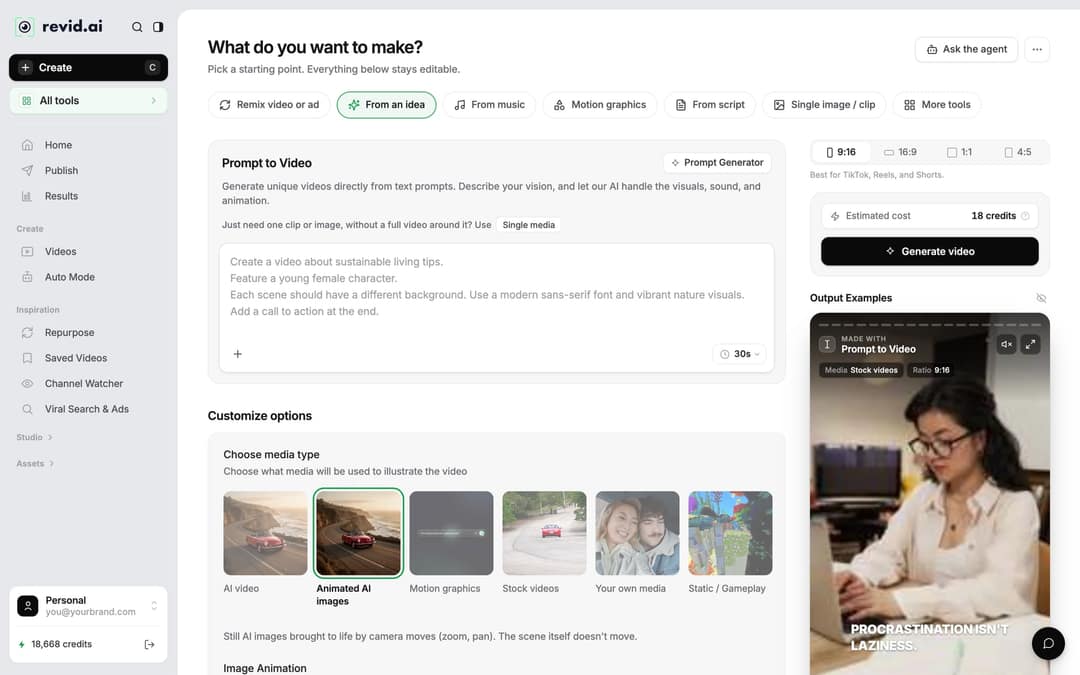
- Click Create at the top of the left sidebar (or press C). The page opens on "What do you want to make?".
- Click More tools (or All tools in the sidebar) and pick YouTube Long to Shorts, also called the YouTube Clip Maker tool.
- Copy the link to your stream on YouTube and paste it into the URL field.
Step 2: Choose how many clips and the framing
Two settings matter most for stream clips:
- How many extracts do you want? Pick 1, 2 or 3. The AI finds the strongest parts of the stream and makes a separate short from each.
- Auto-reframe video. On by default. It turns your landscape 16:9 stream into a vertical 9:16 clip that fills a phone screen on TikTok, Reels and Shorts. It adds 10 credits.
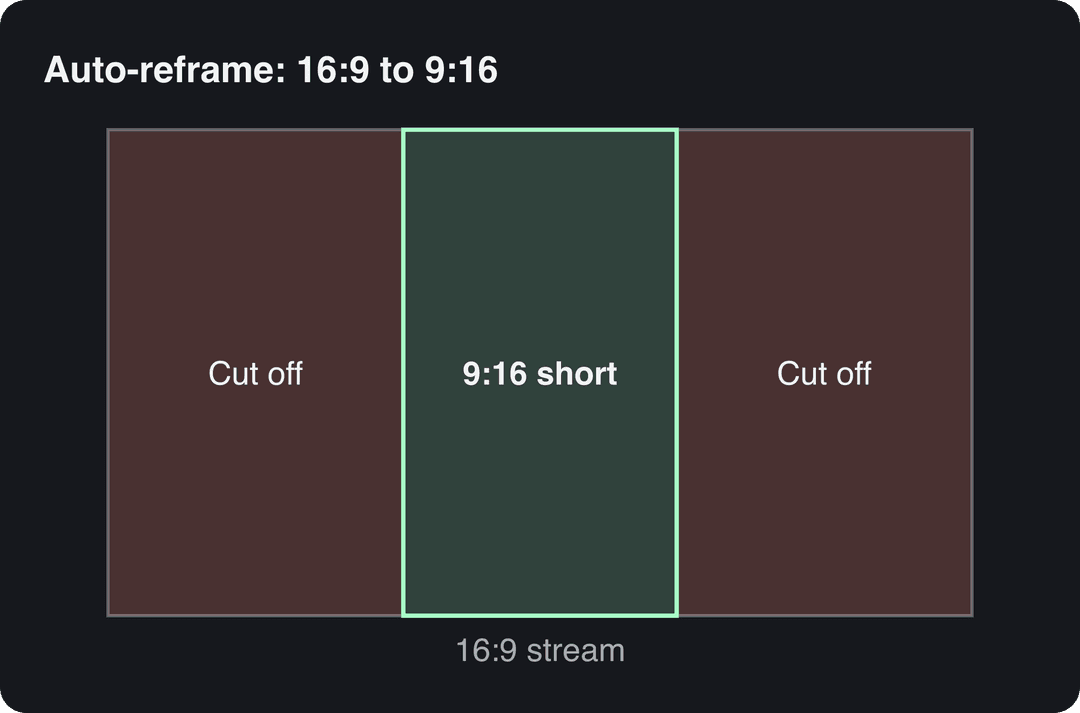
Auto-reframe keeps a full-height vertical window and crops the sides, so corner elements such as a minimap, a kill feed or a facecam overlay can fall outside the frame. If your layout puts key information in the corners, check each clip in the editor before posting.
Before you generate, look at the Estimated cost shown next to the Generate video button: it tells you how many credits the run will use.
| If you want... | Do this |
|---|---|
| Vertical clips for TikTok, Reels and Shorts | Leave Auto-reframe video on |
| Several clips from one stream | Set How many extracts do you want? to 3 |
| To save credits on footage that is already vertical | Turn Auto-reframe video off |
| Clips from a VOD that is not on YouTube | Use the long video to short video converter instead (below) |
Step 3: Generate, edit and publish
Click Generate video. When the build finishes, the clips open in the editor (or click the project card in Videos).
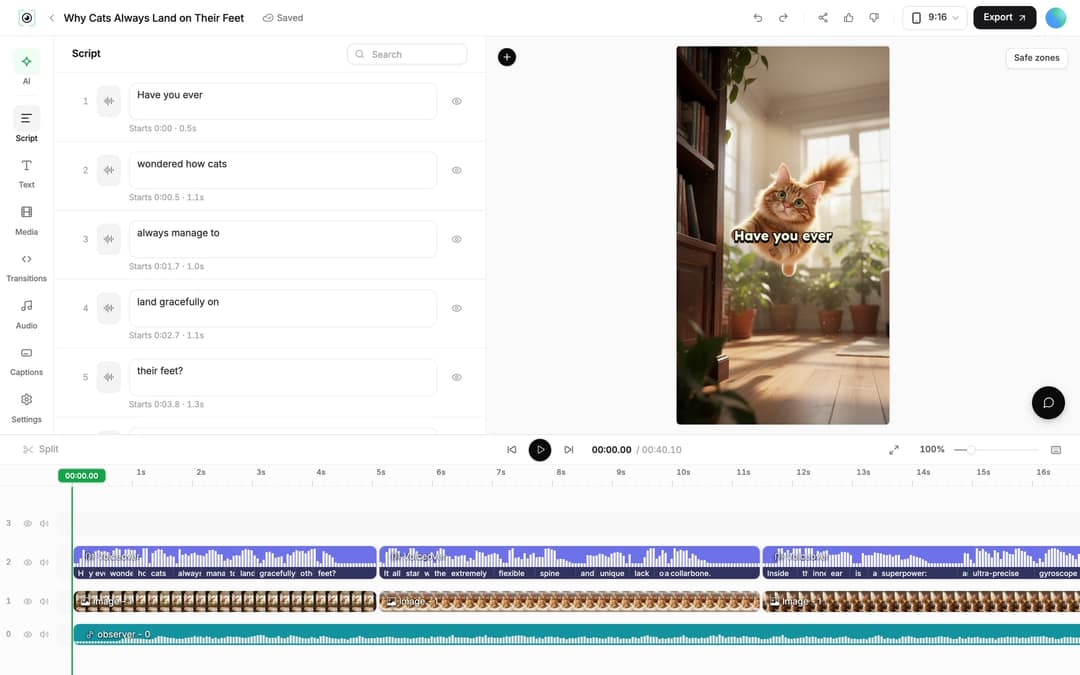
- Fix the captions. Open Script in the left rail and correct any misheard words, game names or player tags. Use the Captions panel to change the caption style.
- Tighten the clip. Drag a clip's start or end edge on the timeline, or place the playhead and press S to split, then delete the dead air. Cut anything before the action starts.
- Export or publish. Click Export at the top right (Export / Publish on free accounts). In the Publish Video dialog, choose your accounts under Publish to, then click Publish to post now or Add to queue to schedule it. You can publish and schedule to TikTok, Instagram and YouTube from one queue.
Connect your accounts first in Settings, Integrations (Add a network): TikTok, YouTube, Instagram (business or creator account), X, or a Webhook for Zapier or Make.
Clip every new stream automatically with Auto Mode
If you stream and upload VODs every week, a worker can pick up each new upload without you opening the tool. Auto Mode needs a paid plan: 3 workers on Growth, 5 on Elite, 10 on Ultra.
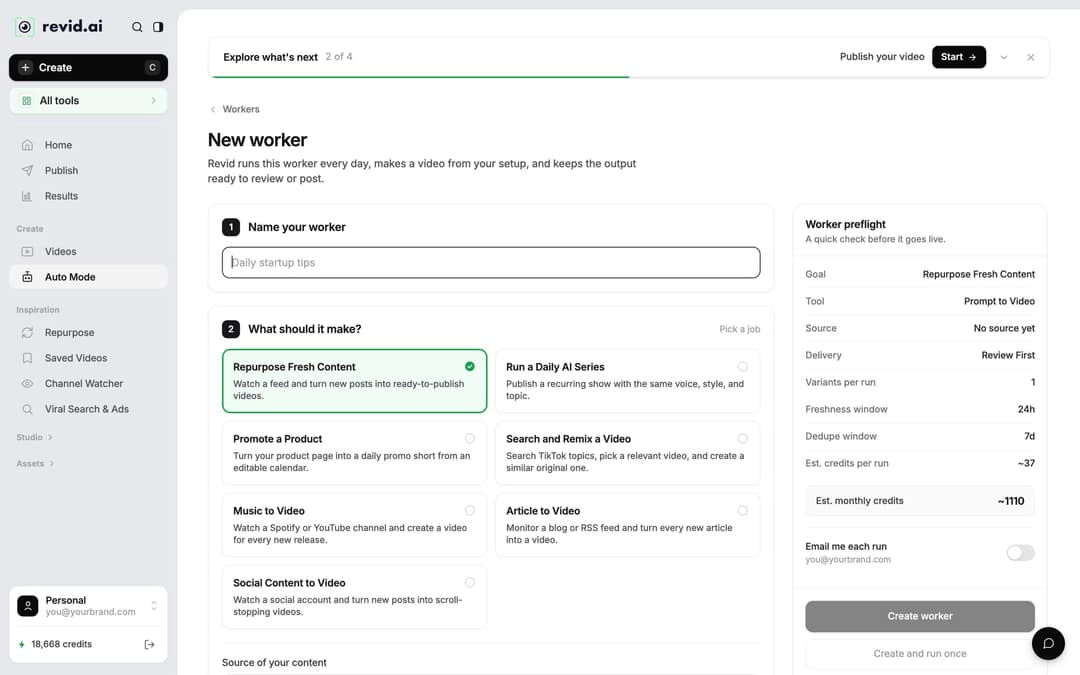
- Click Auto Mode in the sidebar, then New worker.
- Name your worker, then under What should it make? choose Repurpose Fresh Content.
- In Source of your content, paste your YouTube channel URL. Single video links are refused.
- Under Pick the format, choose YouTube Long to Shorts and set the extracts and auto-reframe as in Step 2.
- Pick a delivery: Review First keeps each video in Revid; Auto Queue sends it to your posting queue and needs a connected account. Check Est. credits per run, then click Create worker.
The worker runs once a day between 1 AM and 5 AM, looks at your channel's latest videos, picks one posted in the last 3 days that it has not used recently, and skips the run when nothing is new. Each run costs what the same video costs when made by hand. More on this in automated video creation.
How long should a gameplay short be?
Length matters less than what happens in the clip. In the same Revid study of TikToks posted from October 2025 to October 2026, every length bucket from under 15 seconds to 10 minutes had a median between 58K and 76K views. Clips of 61 to 90 seconds were slightly ahead at 70K, while videos under 15 seconds had the lowest median (58K) but the most shares per view: 1.41 per 100 views. Revid's full index of about 2.39 million TikToks across all posting dates favored 16 to 30 seconds (about 141K median), so the edge of very short videos has faded for recent posts.
Length alone barely moves views: every bucket lands between 58K and 76K median views (the 790 videos over 10 minutes are a small, unusual group). Clips under 15 seconds get shared the most per view.
Source: Revid analysis of 176,367 TikToks with 1,000+ likes posted between Oct 1, 2025 and Oct 16, 2026 (61,203 creators)
Show the data
| Median views | Share that passed 1M views | Shares per 100 views | |
|---|---|---|---|
| Under 15 s | 57.6K | 11.6% | 1 |
| 16 to 30 s | 64.9K | 12.3% | 1 |
| 31 to 60 s | 61.8K | 11.8% | 1 |
| 61 to 90 s | 70.5K | 12.2% | 1 |
| 91 s to 3 min | 63.4K | 11.1% | 1 |
| 3 to 10 min | 76.4K | 12.4% | 1 |
| 10 min+ | 129.6K | 13.8% | 0 |
A practical rule for stream clips:
- One play (a clutch, a fail, a reaction): keep it short so it gets replayed and shared.
- A story (a full round, a comeback from behind): give it 60 to 90 seconds, as long as something happens every few seconds.
Platform limits for vertical clips:
| Platform | Maximum length | What to know |
|---|---|---|
| YouTube Shorts | 3 minutes (square or vertical) | A Short over 1 minute with an active Content ID claim is blocked globally |
| TikTok | 60 minutes for uploads | TikTok recommends 9:16 at 1080x1920 |
| Instagram Reels | 20 minutes | Reels over 3 minutes are not recommended to non-followers |
Tips for gaming shorts people watch to the end
- Start on the action. Open on the kill, the jump scare or the scoreboard, not on loading screens or chat. The first second decides the swipe.
- Keep the HUD and captions clear of the app buttons. Check your framing against the YouTube Shorts safe zone before posting.
- Study what already works in gaming. Browse viral gaming and tech TikToks to see which moments and edits get views in your game.
- Add a Shorts thumbnail. Verified YouTube accounts can upload a custom 9:16 Shorts thumbnail in YouTube Studio on a computer.
- Ask for the follow. End with one line telling viewers to subscribe for more stream highlights.
For cutting and pacing beyond streams, see our guide on how to make a highlights video.
Other ways to clip a stream with Revid
- Gaming AI clip generator: turns a game stream into a short with an automatic voiceover and subtitles, useful when you want commentary added.
- Long video to short video converter: upload your recording directly, which helps when your VOD is not on YouTube.
FAQ
Can I turn a Twitch stream into short videos?
Yes. YouTube Long to Shorts works from a YouTube link, so upload the Twitch VOD to YouTube first, or upload the file to the long video to short video converter instead.
How many clips can I get from one stream?
Up to 3 extracts per generation. For a long stream, trim it into sections and run each one, or set up an Auto Mode worker that clips each new upload.
What aspect ratio should gaming shorts be?
Vertical 9:16; TikTok recommends 1080x1920. Leave Auto-reframe video on and Revid converts the landscape stream to 9:16.
Is Revid free for clipping game streams?
Sign-up is free, with no credit card needed, and new accounts get free credits to try video creation. Regular creation then uses the monthly credits of a paid plan, starting at $39/month, and the Estimated cost appears before you click Generate video.
Sources
- Revid analysis of 176,367 TikToks with 1,000+ likes posted between Oct 1, 2025 and Oct 16, 2026 (61,203 creators)
- YouTube Official Blog, Tall updates coming to Shorts (October 2024)
Charts and figures checked on November 6, 2026.