Split Screen Video Editor: How to Make Side-by-Side Videos (2026)
How to make a split screen video in any editor, which layout works for vertical video, and which free, online and pro split screen editors to use in 2026.
On this page
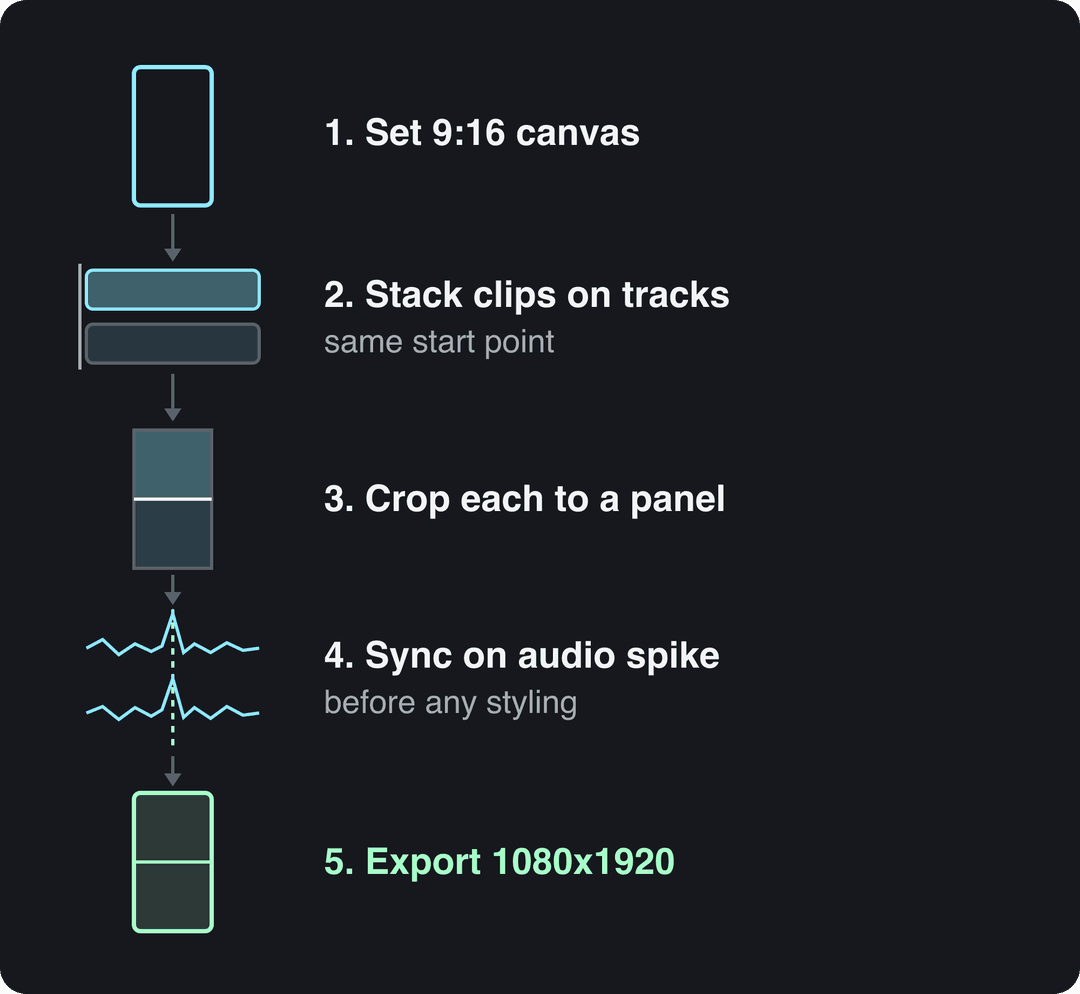
A split screen video editor plays two or more clips in one frame at once. The method is the same in every editor: stack the clips on separate tracks, crop each one into its own panel, sync them on the audio, and export at the platform's size (1080x1920 for TikTok, Reels and Shorts).
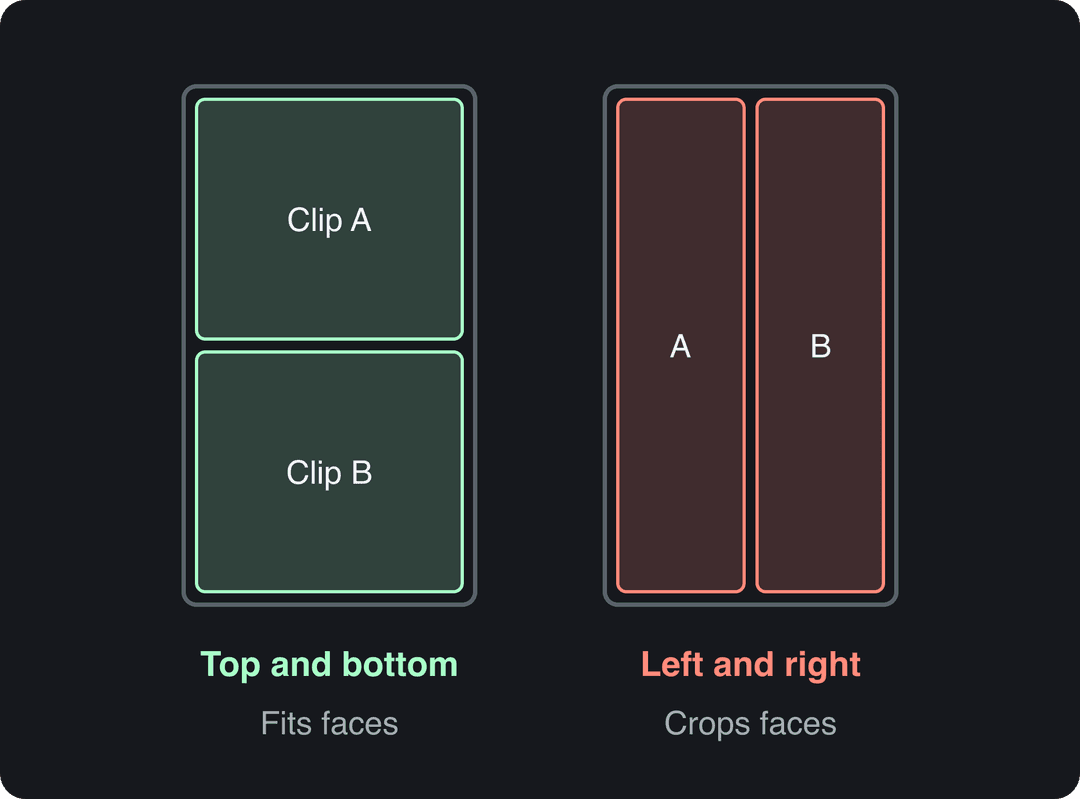
The most common mistake is copying the desktop side-by-side layout into a vertical frame. Split a 9:16 video left and right and each panel becomes a narrow strip that cuts off faces and products. Stack the clips top and bottom instead. Each half is then close to square, which suits most footage.
- Recommended export size for TikTok, Reels and Shorts (9:16)
- 1080x1920
- TikTok Creator Academy
- Export bitrate that keeps the divider sharp after platform compression
- 10-15 Mbps
- Minimum frame rate Instagram accepts for Reels
- 30 FPS
- Maximum length of a YouTube Short in a square or taller ratio
- 3 min
- YouTube Official Blog, October 2024
How to make a split screen video, step by step
These steps work in CapCut, DaVinci Resolve, Premiere Pro, iMovie and most other editors. Only the button names change.
- Set the canvas first. Create the project at 9:16 (1080x1920) for TikTok, Instagram Reels and YouTube Shorts, or 16:9 (1920x1080) for regular YouTube videos. If you change it later, you have to reframe every panel.
- Stack the clips. Put clip A on video track 1 and clip B on the track directly above it, both starting at the same point. Stacking, rather than placing the clips one after another, is what makes them play at the same time. In the CapCut mobile app this is the Overlay button. In DaVinci Resolve and Premiere Pro, drag the second clip onto the track above.
- Crop and position each clip. Use the crop controls (the Crop effect in Premiere Pro, Cropping in the DaVinci Resolve Inspector) to trim each clip to its panel. Then scale and move it so the subject sits in the middle of its half.
- Sync on the audio. Find a sharp spike in both waveforms (a clap, a laugh, a hard consonant) and line them up. Then scrub frame by frame around that point until sound and picture match. In a reaction video, the gasp has to land on the same frame as the moment it reacts to.
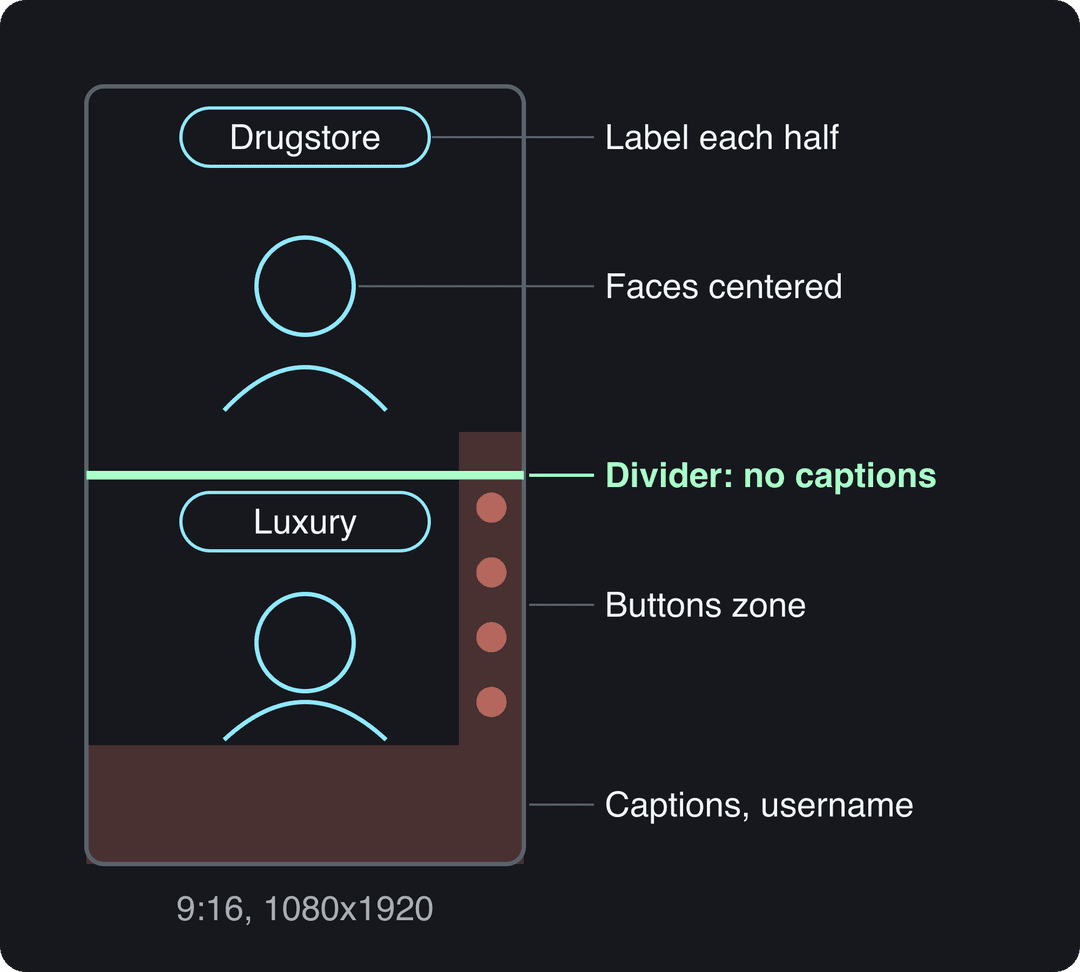
- Add a divider. A thin line or bar between the panels makes the layout look intentional and stops the two backgrounds from blending into each other.
- Mix the audio. Choose one primary track and lower or mute the other. If you add music, turn on audio ducking so the music drops automatically whenever someone speaks.
- Add captions. Most people scroll with the sound off. Keep the captions away from the divider and from the platform's buttons.
- Export. Use an MP4 file with the standard AVC codec at the project resolution (settings table below).
New to timelines and tracks? Start with this video editing tutorial for beginners.
Which split screen layout works for vertical video?
For a split screen vertical video, the stacked layout is the default. The others fit specific jobs.
| Layout | Best for | Watch out for |
|---|---|---|
| Top and bottom (stacked) | Reactions, comparisons, before and after, commentary over gameplay | Captions crossing the middle divider |
| Left and right | 16:9 YouTube videos, desktop interviews | Panels too narrow in a 9:16 frame |
| Picture in picture | Commentary over a main clip, tutorials with a face cam | The inset hidden behind platform buttons |
| Three or four panels | Grids, "which one would you pick" polls, multi-angle shots | Panels too small to read on a phone |
| Horizontal clip inside a vertical frame | 16:9 source footage posted to Shorts or Reels | Empty bars: fill them with a title or a second clip |
The left-right layout is not wrong. It belongs in widescreen video. On a phone, top and bottom keeps both subjects large enough to see.
The bottom and right edges of a vertical video sit under the caption, username and buttons. Keep faces and labels out of that area, and check each panel with the TikTok safe zone checker before you export.
The index leans toward videos that surface in hashtag and keyword searches, so its view counts run high: compare the groups, not the absolute numbers.
Source: Revid TikTok index: 2,377,477 TikToks with AI labels per video, snapshot of Sep 15, 2026. Median views estimated from view buckets.
Show the data
| Median views | Share past 1M views | |
|---|---|---|
| Drone | 173.9K | 27.9% |
| Steady cam | 162.7K | 26.2% |
| Screen recording | 159.9K | 23.8% |
| Handheld | 140.9K | 25.6% |
| POV | 139.9K | 26% |
| Tripod | 117K | 23.6% |
| Selfie | 67K | 16.3% |
Prepare your footage so both halves match
A split screen shows any mismatch between the clips. Fix these before you edit:
- Frame for the panel, not the full screen. For a left-right split, put your subject to one side and leave empty space on the other, so you can crop without cutting into them. For a stacked split, leave headroom and keep the action in the middle of the frame.
- Match light and color. Warm indoor light next to cool daylight looks wrong. If one clip was shot in a flat log profile, grade it to match the other.
- Lock focus and exposure on phones. This stops the brightness from pumping mid-shot, which is obvious when a steady clip sits next to it.
- Match stability. A shaky handheld shot next to a locked-off tripod shot feels unbalanced. Use a tripod for both or handheld for both.
- Convert sizes before you edit. If your clips come in different shapes, convert them to 9:16 or 16:9 with the free video resizer. This guide explains how to change a video's aspect ratio without stretching it.
Best split screen video editors (free, online and pro)
Any editor with more than one video track can make a split screen. These are the practical choices:
| Editor | Cost | Where it runs | How you split | Best for |
|---|---|---|---|---|
| CapCut | Free tier with 1080p export; paid Pro | Phone, desktop, web | Overlay tracks and split screen templates | Fast vertical edits on a phone |
| DaVinci Resolve | Free version; paid Studio | Desktop | Cropping and Transform in the Inspector, unlimited tracks | Color matching across two cameras |
| Adobe Premiere Pro | Paid subscription | Desktop | Crop effect, nested sequences | Professional workflows and teams |
| iMovie | Free | Mac, iPhone, iPad | Split Screen and Picture in Picture overlay options | Quick two-clip edits on Apple devices |
| Veed | Free plan (watermark, 720p) | Browser | Multi-track timeline | A split screen video editor online, nothing to install |
| Canva | Free plan | Browser, app | Grid and layout templates | Design-led comparisons with text |
How to choose:
- You edit on your phone: use CapCut. Split screen templates let you drop clips into preset slots instead of cropping by hand. You can subscribe to CapCut Pro on CapCut's official site, or through third-party resellers such as AccountShare's CapCut Pro listing.
- You need the best free desktop tool: the free version of DaVinci Resolve handles complex grids and has the strongest color tools at no cost.
- You can't install software: use Veed or Canva in the browser, and accept a watermark or lower resolution on the free plans.
For a broader comparison of editors beyond split screens, see our roundup of video editors for social media.
Can AI make split screen videos?
AI now handles the repetitive parts of split screen editing:
- Templates: you drop clips into predefined slots, and the crop and position are done for you.
- Auto-reframe with face tracking: clipping tools such as OpusClip, Klap and Vizard reframe horizontal footage to 9:16 and keep the speaker in frame, so you don't have to set keyframes by hand.
- Generated panels: some tools create one side of the split for you. Revid, for example, can generate an AI avatar that reacts to your clip.
You still have to decide what goes next to what and why the comparison matters. Editing software makers keep adding these automation features: a 2023 market forecast for video editing software projects the category will keep growing through 2033.
https://www.youtube.com/embed/DiqN2rgg9RU
Prompt to try
Make a 30-second vertical comparison video: drugstore vs luxury foundation on the same face, shown top and bottom. Open with the hook "Can you tell which one costs $8?" in large on-screen text, label each half clearly, keep a clean beauty style with bright soft light, and end by asking viewers which one they would buy.
The index leans toward videos that surface in hashtag and keyword searches, so its view counts run high: compare the groups, not the absolute numbers.
Source: Revid TikTok index: 2,377,477 TikToks with AI labels per video, snapshot of Sep 15, 2026. Median views estimated from view buckets.
Show the data
| Median views | Share past 1M views | |
|---|---|---|
| Challenge | 226.9K | 32% |
| Comedy | 194.6K | 29.9% |
| Dance | 121K | 23.4% |
| Reaction | 117.4K | 23.4% |
| Tutorial | 111.5K | 22.2% |
| Storytelling | 107.7K | 21.5% |
| Lip Sync | 90.7K | 21.4% |
How to make a trending split screen comparison video
Comparison splits work because the viewer can judge for themselves without any cuts. Comparisons and tutorials are among the formats in Needle's overview of social media content types. To build one:
- Pick a comparison people argue about: cheap vs expensive, expectation vs reality, before and after, right form vs wrong form, two phones shooting the same scene.
- Shoot both sides the same way: same angle, distance, light and clip length. The only difference on screen should be the thing you are comparing.
- Label each panel with large text at the top of its half ("Drugstore" vs "Luxury", "Wrong" vs "Right").
- Show the difference in the first seconds and put the question on screen as text. Our list of TikTok hooks that stop the scroll gives you lines you can adapt.
- End on a question ("Which one would you buy?") so viewers answer in the comments.
For other edit styles that pair well with splits, see Delivered Social's roundup of 2025 video editing trends.
Split screen interviews and podcasts
If you are looking for a video editing platform with split-screen interview features, the edit starts at the recording. Record each speaker as a separate video file. Remote recording tools such as Riverside and StreamYard offer built-in side-by-side layouts. For in-person interviews, give each person their own camera.
In the edit:
- For Shorts, Reels and TikTok, stack the host on top and the guest below.
- For YouTube, put them side by side at 16:9.
- When one person talks for a long stretch, cut to them full frame, then go back to the split for the back-and-forth.
If the interview already exists as a long YouTube video, a YouTube clip maker turns it into vertical clips you can then lay out.
Export settings for TikTok, Reels and Shorts
| Setting | Value |
|---|---|
| Resolution | 1080x1920 (9:16) for vertical, 1920x1080 (16:9) for regular YouTube |
| Codec and container | AVC (the most widely supported codec), MP4 |
| Frame rate | 30 fps, or match your source |
| Bitrate | 10 to 15 Mbps, variable bitrate |
| Audio | AAC stereo, 44.1 or 48 kHz |
TikTok's Creator Academy recommends 9:16 at 1080x1920. Instagram accepts Reels from 1.91:1 to 9:16 with a minimum of 30 FPS. Don't export at the editor's default bitrate: the platforms compress your file again, and a low-bitrate split screen degrades fastest along the divider and in fine detail.
Make split screen formats with Revid
If you only need to arrange two clips you filmed yourself, a manual editor is the simpler choice (see Revid vs CapCut). Revid helps with the formats split screens are made for:
- Reaction videos without filming yourself: upload your clip to the AI reaction video generator and describe how the avatar should react. Revid analyzes the video and generates a talking avatar reacting to it.
- Captions: the AI caption generator adds synced captions in 100+ languages to any video, including a split screen you exported from another editor.
- Publishing: post the finished video to TikTok, Instagram and YouTube directly, or schedule it, from one queue.
FAQ
What is used to split live feeds?
Live split screens are made with streaming software or a hardware video switcher. Software such as OBS Studio lets you place several camera or screen sources in one scene. Hardware switchers such as Blackmagic ATEM models combine camera feeds with picture-in-picture layouts.
Can I make a split screen directly in TikTok or Instagram?
Yes. TikTok's Duet places your video next to another creator's, and Instagram's Remix offers a side-by-side layout. Duets are not considered original content for TikTok's Creator Rewards Program, so use a separate editor if you want the video to earn.
Is there a video cropper that keeps the presenter centered in every aspect ratio?
Yes, auto-reframe tools do this, but they track faces rather than eye gaze. OpusClip, Klap and Vizard detect the speaker's face and keep it in frame when they convert 16:9 footage to 9:16.
Can I mix horizontal and vertical clips in one split screen?
Yes. Set the project to the platform's ratio (9:16 for TikTok or Reels), place the 16:9 clip as one panel, and scale the vertical clip to fill the other. Crop rather than squash, so nothing looks stretched.
How do I make a split screen video on iPhone for free?
Use CapCut or iMovie. In CapCut, add the second clip with Overlay and resize it. In iMovie, add the second clip above the first and choose Split Screen from the overlay options.
Sources
- Revid TikTok index: 2,377,477 TikToks with AI labels per video, snapshot of Sep 15, 2026. Median views estimated from view buckets.
- YouTube Official Blog, Tall updates coming to Shorts (October 2024)
Charts and figures checked on November 6, 2026.